How to Connect AirPods Without Button: A Step-by-Step Guide
Learn practical, step-by-step methods to connect AirPods without pressing the pairing button. This guide covers iOS and non-Apple devices with tips, warnings, and troubleshooting.


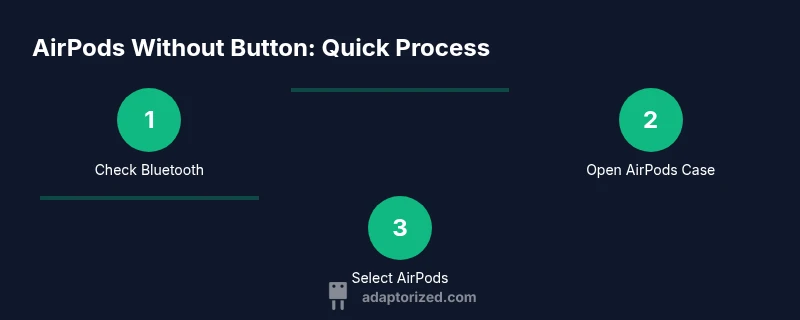
Yes, you can connect AirPods without pressing the pairing button in many scenarios, but only if the AirPods are already linked to a device in range. Turn on Bluetooth on the target device and look for AirPods in the Bluetooth menu; if they’re already linked to your ecosystem, they may reconnect automatically. Initial pairing to a new device usually requires the button.
Understanding the Challenge of Connecting AirPods Without Button
If you’re asking how to connect airpods without button, you’re exploring how to re-link AirPods to devices when the initial pairing button isn’t an option. According to Adaptorized, in typical use you can reconnect to devices that were previously paired without touching the physical button. However, when you’re pairing to a brand-new device for the first time, the button is usually required. This guide prioritizes practical reconnection over on-device resets and explains how to navigate Apple and non‑Apple ecosystems without relying on the button.
When You Can Avoid the Button and When You Can’t
In serendipitous cases where AirPods are already tied to a device in your ecosystem, you can simply re‑connect by enabling Bluetooth on the target device and selecting AirPods from the list. The Adaptorized team notes that automatic reconnect is common on Apple devices that share an iCloud account. But if you are pairing for the first time with a new device, expect that the pairing button (or the case button) is typically required for entry into pairing mode.
Prerequisites for Wireless Pairing Without Button
Before attempting any connection without the button, verify several prerequisites: a powered AirPods unit, a target device with Bluetooth enabled, and the AirPods case nearby or open for proximity discovery on some devices. On Apple devices, staying within range and signed into the same Apple ID can facilitate easier reconnection across devices, as long as the AirPods remain linked to a device you’ve used before.
Reconnecting AirPods on Apple Devices Without the Button
For users within the Apple ecosystem, reconnection is often seamless when the AirPods are already paired. Open the Bluetooth settings on your iPhone, iPad, or Mac and choose the AirPods from the list. If they were recently used with another device in your account, they may appear under Available Devices or Quick Connect. In many cases, you’ll simply tap AirPods and enjoy instant audio.
Reconnecting AirPods on Non-Apple Devices Without the Button
Android and Windows devices can connect to AirPods if they have a stored pairing or can discover the accessory via Bluetooth. On these platforms, the process resembles standard Bluetooth pairing: enable Bluetooth, put the AirPods in discovery mode (if required by the device’s OS), and select AirPods from the scan results. Be aware that some features like automatic switching or battery status may not be available.
Step-by-Step Flow for Apple Device Reconnection (No Button)
When AirPods are already paired to an Apple ID, you can often re‑connect without the button by following device-native prompts. Ensure Bluetooth is on, wake or unlock the iPhone, and wait for the AirPods to appear in the Bluetooth menu. Tap them to establish the link. If the AirPods don’t appear, force a Bluetooth toggle or restart the device to reset scanning behavior.
Troubleshooting: AirPods Don’t Show Up in Bluetooth Scan
First, confirm AirPods aren’t already connected to another nearby device. If still invisible, try turning Bluetooth off and on again, or reboot the target device. Ensure the AirPods case is open and the lid is near the device. If the pairing prompt still doesn’t appear, the AirPods may require the pairing button for a fresh association.
Using Find My and iCloud to Simplify Reconnection
If you use Find My and iCloud, your AirPods may automatically appear as an available device when nearby. This approach won’t bypass the button on the initial pairing to a new device, but it can streamline subsequent connections across Apple gear. Make sure Find My is enabled on your iPhone and AirPods are associated with your Apple ID.
Firmware, Battery, and Interference Considerations
Keep AirPods firmware up to date, which can improve compatibility with newer devices. Low battery can cause connectivity instability, so charge the AirPods before attempting reconnection. Interference from other Bluetooth devices or crowded wireless environments can also impact discovery; moving to a clearer area often helps.
Real-World Example: Everyday Scenario
Jane wants to reconnect her AirPods to her iPhone without touching the button. Her AirPods were previously paired to her iPhone and Mac. She’s in Bluetooth settings on the iPhone, sees the AirPods appear under Available Devices, taps to reconnect, and immediately resumes listening to her playlist. The process takes just a few seconds when the AirPods are already linked to her Apple ID.
What to Do Next: Keep It Simple and Documented
Document your preferred reconnection method so you can repeat it quickly in the future. If you frequently switch between devices, consider keeping your AirPods in the Apple ecosystem and leveraging iCloud-based connections for faster, button-free re‑connections.
Tools & Materials
- AirPods (any model)(Ensure batteries are charged for reliable pairing)
- Target device with Bluetooth(Phone, tablet, or computer; Bluetooth should be enabled)
- AirPods charging case(Keep lid open and AirPods inside during reconnection attempts)
- Optional charging cable(Useful if AirPods are battery-depleted)
Steps
Estimated time: 20-40 minutes
- 1
Verify Bluetooth on target device
Turn on Bluetooth on the device you want to connect to and ensure it is discoverable. This creates the environment for AirPods to appear in the device’s Bluetooth list. Pro tip: Keep the device within a few feet of the AirPods for the best chance of quick detection.
Tip: Proximity improves discovery; avoid walls or metal objects between devices. - 2
Prepare AirPods for reconnection
Open the AirPods case lid and place AirPods near the target device. If you’ve used the AirPods with this device before, they should appear in the Bluetooth list without needing the pairing button.
Tip: If the AirPods don’t appear, wait a few seconds and refresh Bluetooth scanning. - 3
Select AirPods from Bluetooth list
In the target device’s Bluetooth settings, locate AirPods in the list of available devices and select them to reconnect. This step leverages existing pairing information without entering pairing mode again.
Tip: Choose the AirPods exactly as shown to avoid mismatched devices. - 4
Confirm the connection on Apple devices
If prompted, confirm pairing on the iPhone, iPad, or Mac without pressing the AirPods’ button. The system may request a confirmation code or simply finalize the pairing.
Tip: On iOS, a quick confirmation tap is usually enough. - 5
Test audio and controls
Play audio to verify sound output and test basic controls like pause/play or skip. If you don’t hear sound, ensure the AirPods are selected as the output device in the app you’re using.
Tip: If you hear static or no audio, move closer or reconnect. - 6
Troubleshoot if AirPods don’t show
Toggle Bluetooth off and back on, restart the target device, or reinsert AirPods into the case and try again. Ensure no other nearby devices are hijacking the connection.
Tip: Clear Bluetooth cache if the device supports it. - 7
Consider non-Apple devices
For Android or Windows, scan for AirPods in Bluetooth settings and select them. Some features may be limited compared to Apple devices.
Tip: Expect limited battery reporting or automatic switching on non-Apple platforms. - 8
Update firmware and check battery
Ensure AirPods firmware is current and the AirPods have sufficient charge. Firmware updates can improve compatibility with newer devices.
Tip: Charge 80% or more before attempting an update. - 9
Use Find My for easier future connections
Enable Find My to simplify future reconnections within the Apple ecosystem. This won’t bypass the initial pairing button, but helps with subsequent linkages.
Tip: Keep Find My enabled for smoother experiences. - 10
Document your steps
Record any device-specific quirks or steps that worked for you so you can repeat the process quickly.
Tip: Create a one-page quick reference for your setup. - 11
Plan for future pairings
If you frequently connect to new devices, consider keeping AirPods charged and ready to pair, and maintain an up-to-date device list for easier selection.
Tip: Regular maintenance reduces friction. - 12
Know when to reset (button required)
If reconnection fails repeatedly, a full reset using the AirPods button may be necessary to restore factory pairing. Note this is a button-necessary action.
Tip: Reset only as a last resort when troubleshooting proves unhelpful.
Your Questions Answered
Can I pair AirPods to a new device without using the pairing button on AirPods?
Typically not for a brand-new pairing. The AirPods pairing button or case button is usually required for initial setup. If the AirPods are already linked to a device, you can reconnect through Bluetooth on the target device without pressing the button.
Usually you need the pairing button for new pairings; otherwise, you can reconnect if they’re already linked.
Why don’t AirPods appear in the Bluetooth list?
If AirPods don’t appear, they might not be in pairing mode or Bluetooth may be disabled. Ensure the case is open near the device and try toggling Bluetooth off and on.
Make sure Bluetooth is on and the AirPods are near the device; toggle Bluetooth if needed.
Will Find My help me reconnect AirPods without the button?
Find My can simplify reconnections within Apple devices, but it doesn’t bypass the button for initial pairing. It helps locate and re-link AirPods across devices linked to your Apple ID.
Find My makes reconnecting easier, but it won’t replace the initial pairing button.
Can I connect AirPods to Android without using the button?
Yes, you can pair AirPods to Android if they appear in the Bluetooth scan. Some features will be limited compared to iOS, but basic audio playback is possible.
You can pair to Android, but expect limited features.
What should I do if AirPods won’t connect after many tries?
Try restarting the target device, resetting Bluetooth, and ensuring firmware is up to date. If persistent, a full reset using the AirPods button may be necessary.
Restart devices and update firmware; a full reset may be needed if it keeps failing.
Watch Video
What to Remember
- Reconnect without the button when AirPods are already linked
- Use Bluetooth on the target device and select AirPods from the list
- Apple devices benefit from ecosystem features like Find My for easier future connections
- Non-Apple devices may pair but with reduced feature support
- Resetting AirPods typically requires the pairing button as a last resort