How to Connect an Already Connected Bluetooth Speaker
Learn how to connect a Bluetooth speaker that is already connected to one device to a new device, including multipoint guidance, step-by-step flows for Android, iOS, Windows, and macOS, plus troubleshooting tips and best practices.


According to Adaptorized, you can connect an already paired Bluetooth speaker to a new device by using multipoint pairing (if your speaker supports it) or by disconnecting the current source first. This guide walks you through both paths, with practical steps for Android, iOS, Windows, and macOS, plus troubleshooting tips.
Why this matters for everyday setups
Connecting a Bluetooth speaker that’s already connected to one device to another source is a common scenario in homes, classrooms, and maker spaces. The key is understanding two concepts: multipoint pairing (the ability for a speaker to maintain connections with more than one source simultaneously) and the conventional switch-and-connect flow (disconnect from the current device, then pair with a new one). According to Adaptorized, most modern speakers support at least basic multipoint in some form, but implementation varies widely by brand and model. Knowing your speaker’s capabilities helps you decide whether you can stream from two devices at once or whether you must switch sources. In practice, multipoint can save time, but it isn’t universal, so you’ll often follow a pairing sequence that prioritizes reliability over simultaneity.
Understanding multipoint vs. switching: two paths
Multipoint pairing lets a speaker stay connected to two devices at once, typically prioritizing one as the primary audio source while allowing a secondary device to take over when selected. Switching means the speaker remains connected to one device at a time; to hear audio from a new source, you must disconnect the current device and pair the speaker with the new one. The choice between these paths depends on the speaker’s capabilities and your workflow. Adaptorized analyses show that multipoint often introduces fewer dropouts but can complicate control (e.g., pausing one device while playing another). If your speaker supports multipoint, it’s usually faster to enable and manage multiple connections directly from the source devices.
Check your speaker’s capabilities and current connections
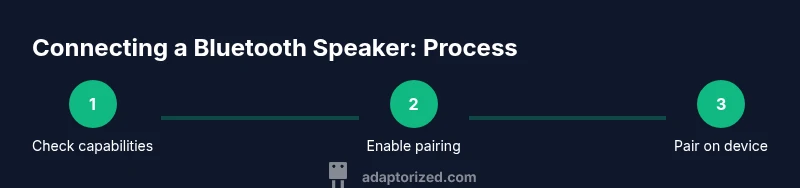
Before attempting to connect a second device, verify whether the speaker supports multipoint pairing and whether it is currently connected to a source. Some devices require you to enable pairing mode explicitly, while others automatically announce themselves when a new device is in range. Read the user manual or manufacturer’s app guidance for exact steps, as the interface can differ dramatically (button combos vs. app-based toggles). If you’re unsure, assume you’ll need to disconnect one source first and treat multipoint as a best-case path. This upfront check saves time and reduces frustration later in the process.
Path A: Multipoint pairing (when supported)
If your speaker supports multipoint, you can add a second device without disconnecting the first. Start by ensuring the speaker is in pairing mode and within close proximity to both devices. On the second device, open Bluetooth settings, choose the speaker, and complete the pairing flow. The speaker should now be accessible from both devices. Some devices allow you to set a default audio source or switch actively between sources from the quick settings panel. Remember to monitor audio routing to ensure the correct device is playing at any moment.
Path B: No multipoint (disconnect first device)
When multipoint is not available, you must disconnect the original source before pairing the new one. On the original device, either toggle Bluetooth off or select “Forget this device” to remove the speaker from its paired list. Then, on the new device, enable Bluetooth, scan for the speaker, and pair. After connection, you can test playback to confirm the new source is active. If you anticipate switching often, consider a speaker with multipoint in a future upgrade or use a sharing workaround (e.g., connect to a secondary input if available).
Device-specific considerations: Android vs. iOS vs. Windows/macOS differences
Android devices typically list Bluetooth devices under a generic name and offer quick toggles to connect and switch output devices. iOS tends to manage connections tightly within the Control Center, often prioritizing the most recent connection. Windows and macOS provide system-level sound output options, making it easier to designate the speaker as the active audio device. Regardless of platform, ensure the speaker is not in power-saving mode and that both sources are within the recommended carry distance (usually under 10 meters or 33 feet). If you notice lag or dropout, restarting Bluetooth on the target device often clears stale connections.
Troubleshooting common issues
If the second device can’t see the speaker, verify that the speaker is in pairing mode and not already connected to another device. Move closer to the speaker, reduce interference from nearby devices, and ensure the speaker’s battery isn’t low. If pairing succeeds but audio won’t play, check the output device selection and volume routing. In some cases, removing the speaker from the paired list on all possible sources and re-pairing from scratch resolves stubborn issues. Keep firmware or app updates in mind, as these can improve stability.
Reconnecting the original device after switching
If you need to revert to the original device after using a second device, simply re-connect from the original device’s Bluetooth settings or reselect the speaker as the output device. In multipoint capable speakers, you can usually select which device remains active without removing either from the pairing list. If problems occur, perform a quick reset of the speaker (see the manual) and re-pair both devices to restore a clean baseline.
Best practices for uninterrupted listening
- Keep the speaker within a clear line of sight and avoid physical obstructions.
- Maintain battery health and avoid pairing in extreme heat.
- Regularly update firmware or control apps if your speaker vendor offers them.
- Label devices you frequently switch between to reduce confusion during pairing.
- When in doubt, default to the safer path: disconnect the current source before pairing a new device to ensure a clean connection.
Testing and validation: how to confirm a solid setup
After connecting a second device (or switching sources), run a short audio test with both devices, confirming latency, audio clarity, and synchronization. If your speaker supports multipoint, test seamless handoffs by briefly pausing playback on one device and resuming on the other. Finally, confirm that the original device can re-engage without re-pairing, if required. Regularly checking these behaviors helps catch issues early and keeps your workflow smooth.
Quick checks and next steps
If you encounter recurring issues, consult the manufacturer’s support resources or consider a speaker with robust multipoint support for easier switching. Maintain a short, logical pairing order for your most-used devices to minimize user error. With practice, switching or adding devices becomes a quick, nearly silent operation that keeps your audio experience user-friendly and frustration-free.
Tools & Materials
- Bluetooth speaker (currently connected)(Ensure it is powered on and within range; know its pairing mode controls.)
- Source device 1 (the current speaker host)(Have Bluetooth enabled and ready to disconnect or switch.)
- Source device 2 (the new device to connect)(Bluetooth enabled; ready to pair.)
- Charge/Power sources(Keep all devices charged to avoid mid-setup drops.)
Steps
Estimated time: 10-15 minutes
- 1
Check multipoint capability and current connections
Confirm whether the speaker supports multipoint pairing and whether it is currently connected to a source. This determines whether you can add a second device without disconnecting the first.
Tip: If unsure, assume you will need to disconnect the first device to proceed. - 2
Put the speaker into pairing mode
If the speaker requires manual activation, hold the pairing button or follow the manufacturer’s method to enter pairing mode. A visible LED or audio cue usually indicates pairing readiness.
Tip: Pairing mode is often time-limited—act quickly with the second device. - 3
Open Bluetooth settings on the second device
Navigate to Bluetooth settings on the target device and ensure it is searchable or discoverable. This enables the device to see nearby Bluetooth accessories.
Tip: Turn off and on Bluetooth if the device doesn’t appear immediately. - 4
Select the speaker from the available devices
Tap or click the speaker’s name in the list to initiate pairing. Complete any on-screen prompts to confirm the pairing on the second device.
Tip: If a code is requested, it’s usually not required for modern speakers. - 5
If multipoint is supported, attempt to connect while the first device remains connected
Check if the second device can establish a connection without interrupting the first source. Test playing audio from both sources to verify routing.
Tip: Not all apps show the current active source; verify audio output in system settings. - 6
If multipoint isn’t supported, disconnect the first device
On the first device, disconnect Bluetooth or forget the speaker to free the connection for the second device.
Tip: Avoid leaving the speaker permanently paired to two devices if it isn’t designed for multipoint. - 7
Test audio on the second device
Play sound from the second device to confirm a successful connection and audio routing to the speaker.
Tip: Check volume balance and ensure the correct device is selected in the app or OS control panel. - 8
Reconnect the original device if needed
If you want to return to the first device, re-enter Bluetooth settings on that device and reconnect to the speaker.
Tip: In multipoint-capable speakers, you may be able to switch sources without re-pairing. - 9
If issues persist, reset and re-pair
If pairing fails repeatedly, reset the speaker to factory defaults and re-pair both devices from scratch.
Tip: Factory reset procedures vary by brand; consult the manual.
Your Questions Answered
Can a Bluetooth speaker stay connected to two devices at once?
Some speakers support multipoint pairing that keeps two connections, while others require switching by disconnecting the first device. Check your speaker’s manual to confirm capability and behavior.
Yes, but only on speakers that support multipoint; otherwise you must disconnect the first source before pairing a second.
Why won’t my speaker appear in the Bluetooth list after I enable pairing mode?
Ensure pairing mode is active, bring devices within close range, and temporarily disable other Bluetooth devices that may cause interference. If needed, restart Bluetooth on the target device.
If you don’t see the speaker, try turning Bluetooth off and back on, and move closer to the speaker.
How do I remove a device from the paired list on a speaker?
Go to the source device’s Bluetooth settings and choose Forget or Remove the speaker from the paired devices list. Some speakers also offer a reset option to clear all pairings.
Forget the device on the source, or use the speaker’s reset option to clear all pairings.
What if the speaker supports multipoint but I still can’t connect to the second device?
Close other Bluetooth connections, ensure the second device is in pairing mode, and retry the pairing process. If problems persist, update firmware or consult the manufacturer.
If multipoint won’t connect, double-check pairing mode and try again after restarting Bluetooth.
Is multipoint setup different on Android vs iOS?
The basic flow is similar, but Android often shows quick pairing prompts and device lists, while iOS might automate some steps through Control Center. Always verify the active audio output after pairing.
The steps are similar, but UI differences mean you should verify the active device in your OS settings.
Should I reset the speaker to factory settings for every new pairing?
Only perform a factory reset if you encounter persistent pairing issues that cannot be solved by standard re-pairing. Resetting clears all pairings and settings.
Only reset if everything else fails; it wipes all pairings.
Watch Video
What to Remember
- Master multipoint where available to save time when switching devices
- Disconnect only when multipoint isn’t supported to avoid audio dropouts
- Always test audio routing after pairing to confirm the active source
- Keep devices close and free from interference during pairing
- Regularly check for firmware updates to improve stability