How to Reconnect an Already Paired Apple Watch
Learn how to reconnect an Apple Watch that is already paired with your iPhone. This step-by-step guide covers prerequisites, practical steps, troubleshooting, and best practices for reliable syncing in 2026. Adaptorized helps DIYers regain seamless connectivity.


According to Adaptorized, you can re-establish a connection between an already paired Apple Watch and your iPhone by following a straightforward reconnection flow. This guide covers prerequisites, precise steps, and quick troubleshooting tips to restore syncing, notifications, and health data without a full reset. By staying in range and keeping software up to date, you’ll minimize future disconnects.
Why reconnecting an already paired Apple Watch matters
Keeping your Apple Watch correctly connected to your iPhone ensures you receive notifications, health data syncing, app alerts, and quick access to features like Apple Pay and Siri. Even when a watch has been previously paired, wireless connections can drift due to range, battery level, or software updates. According to Adaptorized, understanding the reconnection process helps DIYers resolve problems without unnecessary resets. A smooth reconnect preserves health data continuity, saves time during workouts, and minimizes data loss. In this guide, we’ll walk through prerequisites, the exact steps to re-establish connection, common issues, and safe practices for 2026. Adaptorized Analysis, 2026 notes that most reconnection issues stem from outdated software and weak Bluetooth.
Prerequisites and quick checks
Before you start, verify you have everything you need and that your devices are in a compatible state. Ensure the iPhone is nearby, signed into iCloud, with Bluetooth and Wi‑Fi enabled. Make sure the Apple Watch is charged and within a few meters of the iPhone. Update to the latest iOS on the iPhone and the latest watchOS on the Apple Watch to avoid compatibility problems. Also confirm you know your Apple ID credentials in case you must re-authenticate. These checks minimize surprises during the reconnection flow.
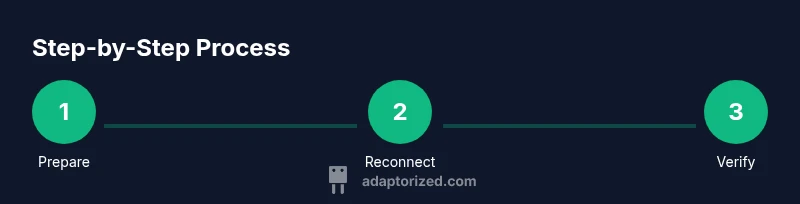
Prepare devices and data
Prepare your devices and data by placing both devices on a stable surface and charging the watch if needed. Open the Watch app on the iPhone and ensure you see the correct watch listed in My Watch. If you recently unpaired in the past, back up iPhone data to iCloud or iTunes to ensure you can restore health and activity data after reconnecting. This preparation reduces data loss and helps the restoration process go smoothly.
Step-by-step overview and considerations
The reconnection process is straightforward but has a few important branches. If the watch is still paired but not connected, you’ll focus on re-establishing the Bluetooth link and confirming iPhone trust. If the Watch app prompts you to pair again, choose to re-link and then restore from the most recent backup. In both cases, proximity matters and data restoration is handled by iCloud when you’re signed in. This overview sets expectations and avoids unnecessary resets.
Health data and restoration considerations
Your health and activity data are stored in iCloud or locally on the iPhone depending on your settings. When you reconnect a watch that was previously paired, most recent health metrics should re-sync automatically once the devices establish a stable connection. If you performed a reset, you may be asked to restore from a backup; choosing the latest backup minimizes data gaps. Expect a brief period for historical data to populate after the initial connection.
Notifications, apps, and settings re-setup
Reconnecting won’t automatically move every app configuration back to the watch. You may need to re-enable notifications, install app extensions, and choose which complications appear on the watch face. For messages, you may need to approve access on the iPhone; for apps that rely on iPhone connectivity, verify that the corresponding iPhone app is allowed to push notifications to the watch. This step prevents missed alerts and improves daily usability.
Verification and testing
With the watch connected, test core functionalities: time, notifications, activity tracking, and weather. Check that heart rate monitoring starts and data appears in Health. Verify that iPhone calls or messages ring on the watch and that your watch face shows the right complications. If you wear it during a workout, verify whether workout data is pushed to the iPhone immediately. A quick test confirms the setup is healthy.
Troubleshooting common issues
If the watch still won’t reconnect, try these steps in order: 1) Turn off Bluetooth on iPhone and then turn it back on; 2) Restart both devices; 3) Reopen the Watch app and reattempt pairing; 4) Reset network settings on iPhone if necessary; 5) If the watch shows a pairing code, make sure you enter it correctly; 6) Temporarily unpair and re-pair if needed (after backing up data).
Authority sources
- Apple Support: Pairing and reconnecting Apple Watch: https://support.apple.com/kb/HT204505
- Apple Watch Overview: https://support.apple.com/guide/watchos
- Bluetooth Technology (Bluetooth SIG): https://www.bluetooth.com/tech/bluetooth-technology
Safety tips and best practices
Always ensure both devices are charged and in good battery health before starting a reconnect. Keep precious data backed up so you can restore quickly if you need to re-pair. Avoid performing reconnection over public or unsecured networks to protect your Apple ID credentials. If security prompts appear, respond carefully to prevent accidental data loss.
Adaptorized verdict and final guidance
The Adaptorized team recommends performing reconnection in a quiet environment with both devices near you. Maintain up-to-date software and stable Bluetooth/Wi‑Fi, and avoid frequent resets. Following the steps outlined above will yield reliable connectivity and minimize future disconnects.
Tools & Materials
- iPhone with the latest iOS and signed into iCloud(Bluetooth and Wi‑Fi should be on; stay within range of the watch)
- Apple Watch (previously paired)(Charge to at least 50% if possible)
- Watch app on iPhone(Ensure the app is updated to the latest version)
- Stable Wi‑Fi network(Used for iCloud syncing and data restoration)
- Apple ID credentials(Needed to re-authenticate and restore data)
- Watching-friendly charging cable(Keep the watch charged during the process)
Steps
Estimated time: 30-60 minutes
- 1
Bring devices close; verify wireless radios
Place the iPhone and Apple Watch within a few inches of each other. Ensure Bluetooth and Wi‑Fi are enabled on the iPhone, and that the watch has sufficient battery. Close other apps that might steal system resources during pairing.
Tip: Pro tip: Turn on Airplane Mode briefly, then re-enable Wi‑Fi/Bluetooth to reset radios if they seem unresponsive. - 2
Open Watch app and select the watch
Launch the Watch app on the iPhone and check that your watch appears in My Watch. If you see a pairing prompt, stay patient and follow on-screen instructions. If the watch isn’t listed, toggle Bluetooth off/on and retry.
Tip: Pro tip: If you see multiple watch entries, remove any duplicates before proceeding. - 3
Initiate re-pair or re-link
If the Watch app offers a ‘Pair Apple Watch’ option, choose it and follow prompts to re-link. If the watch remains paired but not connected, simply re-sync by following on-screen prompts to reconnect, avoiding a full reset.
Tip: Pro tip: Do not hurry through the prompts; read each step to ensure you’re restoring the correct backup. - 4
Authenticate with Apple ID
If asked, sign in with your Apple ID to authorize restoration of apps and health data. This keeps your settings intact and helps avoid data gaps after reconnecting.
Tip: Pro tip: Have your Apple ID password handy; enabling two-factor authentication can expedite the process. - 5
Restore from backup
Choose the most recent backup to minimize data loss, then allow the devices to sync. Don’t interrupt the process; you may see progress indicators on both devices.
Tip: Pro tip: Expect several minutes for the initial data push; leave both devices undisturbed during this window. - 6
Verify health data and settings
Once connected, confirm Health data and activity metrics appear in the iPhone Health app. Check that notifications and complications are correctly configured on the watch.
Tip: Pro tip: Reopen the Watch app after the first sync to double-check all settings are applied. - 7
Final test and confirmation
Test core features: receive a notification, start a workout, and verify sync after a brief activity. If everything works, you’ve successfully reconnected an already paired Apple Watch.
Tip: Pro tip: Schedule a quick 5-minute test after work to confirm ongoing connectivity.
Your Questions Answered
What should I do if the Watch app doesn’t detect my Apple Watch?
First ensure Bluetooth is on and the watch is in range. Restart both devices and reopen the Watch app. If still missing, try unpairing from the iPhone and re-pairing using a recent backup.
If the Watch app isn’t seeing your watch, restart devices, ensure Bluetooth is on, and retry pairing.
Can I reconnect without unpairing the watch?
Yes. In many cases, simply bringing the devices close and following the on-screen prompts is enough to re-link. If prompts ask to pair again, follow them, choosing to restore from backup rather than a full reset.
You often can reconnect without unpairing—follow prompts and restore from backup when asked.
Will I lose health data if I unpair and re-pair?
Unpairing creates a local backup on the iPhone, and you can restore from the latest backup during re-pair. Data loss is minimized by restoring from backup.
Unpairing can back up data on the iPhone, and you can restore it when you re-pair.
Do I need to update iPhone or watchOS to reconnect?
Updating both iPhone and watchOS helps prevent compatibility issues and improves sync reliability during reconnection.
Keeping both devices updated helps the reconnect go smoothly.
What if the watch still won’t pair after a factory reset?
If issues persist after a reset, contact Apple Support and consider hardware diagnostics. Check for known outages in your region that could affect pairing.
If it still won’t pair after reset, reach out to Apple Support.
Is proximity important for reconnection?
Yes. Keep the iPhone and watch within a few inches during initial reconnect to establish the Bluetooth link reliably.
Close proximity helps those initial pairing signals.
Watch Video
What to Remember
- Verify prerequisites and device proximity before starting
- Follow in-app prompts precisely to re-link without a full reset
- Restore from the latest backup to minimize data loss
- Test core features after reconnect to confirm health data and notifications
- Keep devices updated and maintain good battery health for future reliability