How to Connect AirPods to Android
Learn how to connect AirPods to an Android device using Bluetooth. This step-by-step guide covers pairing, testing audio, and understanding feature limitations for a smooth setup.


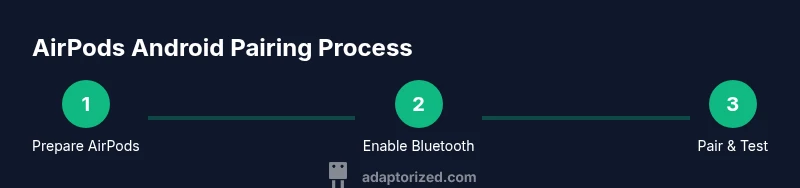
You can connect AirPods to an Android device using Bluetooth pairing, then use basic playback and mic features. Start by charging AirPods, enabling Bluetooth on Android, and opening the AirPods lid to trigger pairing mode. Tap AirPods in the Bluetooth list. If automatic pairing fails, pair manually via Android Bluetooth settings. Some features may be limited.
Why Android users pair with AirPods and common edge cases
AirPods are popular wireless earbuds with a comfortable fit and solid sound profile, and many DIYers want the flexibility to use them with Android devices. The task of how to connect android airpods is straightforward: you rely on standard Bluetooth pairing, then accept that some Apple-specific features may not be available on Android. According to Adaptorized, the core of the process is a simple Bluetooth handshake between AirPods and the Android handset, with occasional hiccups that are easy to resolve. The most common edge cases involve AirPods not appearing in the Bluetooth scan, the AirPods not entering pairing mode, or audio and microphone routing not behaving as expected. Importantly, most modern Android phones support the Bluetooth profiles AirPods use, enabling stereo playback and a usable microphone for calls. In practice, you’ll typically see a predictable flow: enable Bluetooth, put AirPods into pairing mode, and complete the pairing on Android. If issues arise, the remedies are usually quick steps like restarting Bluetooth, forgetting the AirPods on the device, or resetting the AirPods. This article provides practical troubleshooting steps and best practices to keep your AirPods working smoothly with Android.
Understanding AirPods compatibility with Android features
Android devices can handle AirPods as Bluetooth headphones, which means you’ll get reliable stereo playback and a functional microphone for calls. However, several features that shoppers expect on iOS don’t translate to Android, such as Hey Siri voice control, automatic device switching, and seamless on-ear detection. The Adaptorized team notes that while core audio functionality is solid, feature parity is limited by platform restrictions. You’ll notice differences in controls: double-tap or press-and-hold actions may be mapped differently, and you may not be able to trigger Siri from Android. Still, for most users, AirPods on Android deliver dependable audio, comfortable fit, and straightforward pairing without a lot of setup. If you’re coming from an iPhone, set expectations accordingly and focus on basic playback, call quality, and reliable connection. This balance—ease of use with acknowledged feature gaps—lets DIYers adopt AirPods as versatile wireless headphones on Android devices.
Preparing AirPods and Android for pairing
Before you start, ensure AirPods are charged and placed in their case, with the lid open so you can access pairing mode. On the Android device, confirm Bluetooth is enabled and that you’re near the phone to ensure a stable connection. Firmware differences can affect how AirPods behave on Android, so it’s helpful to be aware that AirPods firmware updates are typically delivered through an Apple device, not Android, which can influence future compatibility. The goal in this stage is to have AirPods ready to advertise themselves as a Bluetooth audio device and for Android to see them in its discovery scan. A clean environment reduces interference from other nearby Bluetooth devices. The Adaptorized guidance emphasizes having a charged case and a nearby Android device with Bluetooth enabled to avoid mid-pairing interruptions.
AirPods pairing flows on Android: automatic vs manual
AirPods can pair with Android devices using two practical flows. The automatic flow occurs when you select AirPods from the Android Bluetooth discovery screen after activating pairing mode on the AirPods. The manual flow is useful if AirPods do not appear in the device list; it involves starting pairing mode and, if needed, engaging a visible pairing option within the Bluetooth settings. Android devices typically handle the pairing request and may ask for permission to share media audio or microphone access. The practical takeaway is that both methods lead to a successful connection, but the automatic flow is usually faster and more seamless when Bluetooth is functioning normally. The key limitation on Android is feature parity with Apple devices, not the pairing itself.
Troubleshooting common pairing issues on Android
If AirPods do not show up in the Android Bluetooth scan, try a quick sequence: close the AirPods case, wait a few moments, reopen the case lid, and re-enter pairing mode. Forget the AirPods on the Android device and attempt the pairing process again from scratch. If pairing succeeds but audio or microphone doesn’t route correctly, verify that the AirPods are selected as the audio output device in the Bluetooth settings and check the app you’re using (phone calls, music, video apps) to ensure permissions are granted. Sometimes a full reset of the AirPods is needed, which involves holding the setup button until the LED flashes amber then white and attempting to pair again. These steps typically resolve most common issues without professional help.
Enhancing the Android AirPods experience with apps and settings
Android users have options to optimize AirPods usage through third-party tools and settings, though these are not official Apple features. You may find apps that display battery status, help with quick pairing, or offer subtle control tweaks. In practice, you’ll want to avoid introducing clutter or privacy risks by installing only trusted apps from reputable sources. If you’re aiming for a smoother experience, keep expectations reasonable: playback quality should be solid, microphones will work for calls, and basic controls should respond reliably. The key is to understand the limits: some AirPod gestures may not map perfectly on Android, and voice assistant features are typically unavailable or limited. Adaptorized suggests focusing on reliable pairing, clear audio, and straightforward control customization.
Real-world scenarios and tips for everyday use
Many Android users rely on AirPods for commutes, workouts, and casual listening. In noisy environments, AirPods can still provide clear audio, but the microphone performance may be average compared to high-end wired options. For calls, ensure you have a stable Bluetooth connection and consider manually selecting AirPods as the preferred microphone in your calling app if the default changes. If you use AirPods with multiple Android devices, you might need to re-pair when switching devices, as automatic handoff isn’t available on Android. Practical advice from the Adaptorized team emphasizes keeping Bluetooth on, staying within a reasonable distance from the device, and periodically checking for firmware limitations that could affect performance. In short, AirPods are a versatile option for Android users, with straightforward pairing and reliable audio when expectations align with platform realities.
Long-term maintenance and awareness about firmware updates
One important caveat is firmware updates for AirPods usually arrive through an Apple device, not Android. If you rely on AirPods long-term, you may want to keep a compatible iPhone or iPad handy to apply updates when available, which can improve performance and fix bugs that affect Android compatibility. Regularly cleaning the AirPods’ grills and the charging case helps preserve sound quality and connection reliability. If you experience longer-term issues, consider re-pairing as a standard remedial step and ensure your Android device receives OS updates that improve Bluetooth stability. The Adaptorized guidance emphasizes proactive maintenance and understanding the firmware update paths to maintain a reliable pairing with Android devices.
Tools & Materials
- AirPods (any model with charging case)(Charge the AirPods and have the case handy during pairing)
- Android smartphone with Bluetooth enabled(Ensure Bluetooth is on and discoverable)
- Charging cable (Lightning to USB-C/USB-A)(Keep AirPods case charged before pairing)
- Official Android Bluetooth settings access(Know where to view available devices and permissions)
- Optional: soft cloth for cleaning the case(Helps ensure a reliable connection by keeping contacts clean)
Steps
Estimated time: 15-25 minutes
- 1
Charge and inspect AirPods
Ensure both AirPods are charged and seated in the charging case. Inspect the case contacts for any debris that might interfere with charging or pairing.
Tip: A fresh battery improves transmission range and reduces pairing dropouts. - 2
Enable Bluetooth on Android
Open the Android settings and turn on Bluetooth. Keep the device close to the AirPods to ensure quick discovery.
Tip: If Bluetooth is already on, toggle it off and on again to refresh the discovery process. - 3
Enter AirPods pairing mode
With the AirPods in their case, open the lid and press and hold the setup button until the LED starts flashing. This signals AirPods are discoverable.
Tip: If the LED doesn’t flash, verify the case has power or try a quick reset by restarting Bluetooth on the phone. - 4
Pair on Android
In Android Bluetooth settings, scan for new devices and select AirPods from the list. Confirm any prompts to pair and allow audio access.
Tip: If AirPods don’t appear, repeat the pairing mode step and retry the discovery. - 5
Confirm connection
Once paired, confirm AirPods show as connected in Bluetooth settings. Test playback with music or a video and check the microphone during a call.
Tip: Set AirPods as the default audio device in your app if playback switches to another headset. - 6
Test and adjust controls
Try a few AirPods gestures (tap/double-tap, hold) to see how Android maps them. Some gestures may not be configurable on Android.
Tip: Remember that Siri won’t respond on Android; you may map gestures to app actions if the OS supports it. - 7
Troubleshoot if issues arise
If there are still issues, forget the AirPods on Android, reset the AirPods, and re-pair. Ensure the AirPods aren’t paired to another device that’s actively connected.
Tip: A fresh pairing sequence often resolves lingering quirks. - 8
Firmware update note
Firmware updates for AirPods typically require an Apple device. If you encounter performance problems over time, plan to update via an iPhone/iPad when possible.
Tip: Keep expectations aligned; Android won’t provide all firmware updates.
Your Questions Answered
Do AirPods work with Android phones?
Yes. AirPods function as Bluetooth headphones on Android devices, providing stereo audio and microphone support for calls. Some features available on iOS, like Siri and automatic device switching, are not available on Android.
Yes. AirPods work with Android as Bluetooth headphones. Some iOS-specific features aren’t available on Android.
Can I use Siri on Android with AirPods?
Siri generally cannot be activated from AirPods when connected to Android. You can still use basic playback controls and the microphone for calls, but voice assistant access is limited to the Android device’s own assistants if supported.
Siri isn’t typically usable on Android; you can use Android’s assistants instead.
AirPods aren’t appearing in Bluetooth on Android—what now?
Double-check that AirPods are in pairing mode, move closer to the phone, and ensure no other devices are actively connected to AirPods. If needed, forget the device in Android Bluetooth settings, reset AirPods, and retry the pairing sequence.
Make sure pairing mode is active, retry in Bluetooth, and reset if needed.
Will I get battery status on Android?
Battery status for AirPods on Android is not as seamless as on iOS. Some apps can estimate battery level, but it’s not guaranteed across all devices. You’ll generally rely on visual indicators from the AirPods themselves and the Android OS.
Battery status isn’t always shown on Android, but you may see indicators or use third-party apps.
Do AirPods automatically switch between Android devices?
Automatic device switching is an iOS feature and does not work with Android. If you need to switch between Android devices, you’ll typically have to re-pair or manually select the new device in Bluetooth settings.
Auto-switch isn’t available on Android; switch devices manually.
Are there any risks or safety concerns when using AirPods with Android?
Using AirPods with Android is generally safe, but be mindful of loud volumes to protect hearing and avoid using AirPods in critical operating environments where full situational awareness is required.
Be mindful of volume; stay aware of surroundings when wearing AirPods.
Watch Video
What to Remember
- Connect AirPods to Android via Bluetooth without Apple devices.
- Expect feature limitations: no Siri, limited gestures, no seamless handoff.
- Use the two pairing flows (automatic/manual) for reliability.
- Firmware updates may require an iPhone; plan accordingly.
- Test audio and mic to confirm a solid connection.