How to Connect Ford Pass
Learn how to connect Ford Pass to your vehicle and smartphone. This comprehensive guide covers prerequisites, setup, troubleshooting, and best practices for DIY FordPass connectivity.


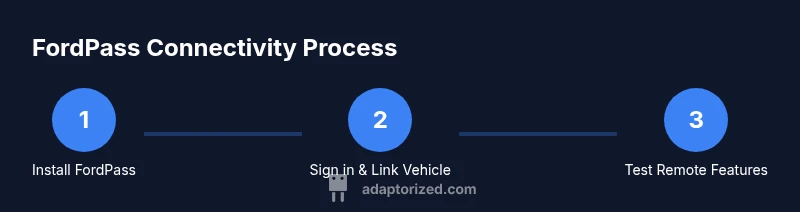
With Ford Pass, you connect your phone to your vehicle by installing the FordPass app, signing in, and pairing via Bluetooth or a shared Wi‑Fi network. Add your car in the app using its VIN, enable FordPass Connect features, and verify basic permissions. This quick path gets you started fast.
Understanding FordPass connectivity
FordPass is Ford's connected-services platform that links your smartphone to your vehicle for remote features, monitoring, and updates. For DIYers, the core idea is to establish a trusted link between the FordPass app and the car's built-in modem. According to Adaptorized, a stable connection hinges on a compatible vehicle, a current FordPass account, and a phone with recent software. When you do it right, you can check vehicle status, lock or unlock remotely, and plan maintenance without reaching for the key.
Prerequisites and compatibility
Before you start, verify several foundational pieces. Your vehicle must support FordPass Connect, and your phone should run a recent OS with the FordPass app updated. Create or sign in to your FordPass account, and have the vehicle identification number (VIN) handy to link the car to your account. The Adaptorized team notes that compatibility can vary by model year and trim, so consult Ford's official compatibility resources if you see gaps. Ensure Bluetooth and location services are enabled on your phone, and that you have a stable internet connection during setup.
Common connection scenarios
FordPass can connect through multiple pathways depending on your setup:
- Bluetooth pairing for local features like remote unlock when you're near the car.
- FordPass Connect via the vehicle's modem, which uses cellular data to provide remote features even when your phone isn't nearby.
- Wi‑Fi or mobile data networks that keep your app in sync with the vehicle's status and scheduled updates.
In many cases, you will use FordPass Connect as the primary link, and Bluetooth as a quick companion when you're in the car or near it.
Bluetooth pairing overview
Bluetooth pairing is often the simplest way to establish a direct link between your phone and the vehicle. Turn on Bluetooth on your phone, start the FordPass app, and follow the on-screen prompts to pair with the car. If the vehicle prompts for a passkey, use the number shown on the car's screen. Once paired, grant the app access to vehicle data and notifications. This pairing enables quick actions, such as remote unlock, when you are within Bluetooth range.
Using FordPass Connect over cellular or Wi‑Fi
If your vehicle supports FordPass Connect, the app can communicate with the car’s modem over cellular data. Make sure the car is turned on long enough for the modem to connect or that it has sufficient battery and data coverage. In most cases, you will add the vehicle to FordPass and then test features like remote start, location, parking status, and odometer readings. Keep your app updated to ensure feature parity across software updates.
Troubleshooting common issues
Start by confirming that you are signed in to the correct FordPass account and that your vehicle is correctly linked via VIN. If the vehicle does not appear, refresh the vehicle list in the app or re-enter the VIN. Check that location services and background activity are allowed for FordPass, and that notifications are enabled. If Bluetooth pairing fails, forget the device in your phone settings and retry the pairing process. If remote features don’t respond, reboot the phone and the car’s infotainment system, then re-open FordPass.
Privacy and security considerations
FordPass collects data to provide remote services and vehicle status; review the app's permissions and the vehicle's sharing settings to control what data is shared. Use a strong password for your Ford account, enable two-factor authentication if offered, and sign out on shared devices. Regularly update the FordPass app and your phone OS to protect against known vulnerabilities. Adaptorized emphasizes keeping credentials private and verifying that the app is the official FordPass client.
Maintenance and best practices
Keep your FordPass app updated to access the latest features and bug fixes. Periodically verify that your vehicle is linked correctly and that the VIN on file matches the actual car. If you plan to switch phones, sign out from the old device and sign in on the new one, then re-link the vehicle. When traveling, ensure you have cellular coverage and a charged phone to ensure remote features function as needed. Back up your FordPass login details in a secure password manager.
Quick tips for a reliable FordPass connection
Pro tip: enable location services and background data for FordPass. Warning: avoid connecting while driving; do setup at home or a safe location. Note: if you see inconsistent status, try refreshing the app or clearing cache. Pro tip: keep VIN and account details up to date. Note: some features require a paid subscription or dealer activation.
Real-world scenarios: common car models and FordPass differences
Different Ford models support FordPass Connect differently; some trims have built-in 4G modems, others rely on a connected modem via the owner's hotspot. In practice, owners report that newer model years tend to have smoother integration with the FordPass app, with faster status updates and fewer pairing failures. Adaptorized notes that always check your specific model's support page for FordPass features you intend to use.
Quick reference troubleshooting at a glance
- Vehicle not appearing: verify VIN, refresh.
- Sign-in issues: reset password, verify account.
- Bluetooth pairing fails: forget device on phone, re-pair.
- Remote features not working: ensure car is on and connected, re-install app.
- Permissions: enable location, notifications, background data.
- Connectivity: ensure cellular/wifi and ensure FordPass Connect is enabled.
Tools & Materials
- Smartphone with latest OS (iOS or Android)(Ensure Bluetooth and Location Services are enabled)
- FordPass app (latest version)(Create or sign in to a Ford account)
- Vehicle with FordPass Connect(Check that the feature is enabled in the vehicle)
- Vehicle identification number (VIN)(Have VIN handy to link the vehicle)
- Stable internet connection (cellular or Wi‑Fi)(Needed for linking and remote services)
Steps
Estimated time: 15-25 minutes
- 1
Open FordPass and sign in
On your smartphone, open the FordPass app and sign in with your Ford account. If you don’t have an account, follow the on-screen prompts to create one. Ensure you have a reliable internet connection.
Tip: Have your Ford account credentials ready. - 2
Add your vehicle by VIN
In the app, select Add Vehicle and enter the vehicle identification number (VIN). Double-check the digits and confirm the match with your car's label. This links your car to FordPass and unlocks connected features.
Tip: Use the VIN from the driver's door jamb label for accuracy. - 3
Enable FordPass Connect in your vehicle
From the vehicle’s infotainment system or owner's manual app, enable FordPass Connect. If the option isn’t visible, your trim may require dealer activation or a software update. This step is essential for remote features to work.
Tip: If you can't find the option, contact your dealer. - 4
Pair via Bluetooth (optional for certain features)
With ignition on and Bluetooth enabled on both devices, pair your phone with the car when prompted in FordPass. Allow the app to access vehicle data and notifications. This pairing enables quick actions when you are nearby.
Tip: Keep the phone close to the center console. - 5
Test and verify remote features
In FordPass, run a quick test of features like check vehicle status, remote start, and locking/unlocking. If something doesn’t respond, re-check connectivity and try again.
Tip: If needed, restart the app and re-link the vehicle. - 6
Review permissions and settings
Ensure FordPass has location, background activity, and notification permissions enabled on your phone. Adjust any battery saver settings that could hinder background connectivity.
Tip: Disable battery saving for FordPass if you notice delays.
Your Questions Answered
What is FordPass and what does it do?
FordPass is Ford's connected-services app that links your phone to your vehicle for remote features such as vehicle status, remote start, and locking/unlocking where supported.
FordPass is Ford's connected-services app that links your phone to your car for remote features.
Do I need FordPass Connect to use FordPass features?
Some FordPass features require FordPass Connect, while others can work with Bluetooth or standard connectivity. Check your vehicle's equipment list to know what’s available.
Some features need FordPass Connect; others work with Bluetooth. Check your vehicle's setup to know what's available.
Can I connect FordPass to multiple vehicles?
Yes, you can add several vehicles in the FordPass app, but linking each one requires its VIN and proper vehicle compatibility for each.
Yes, you can add multiple vehicles, but you’ll need each VIN and the right compatibility.
What if I can’t find my vehicle in FordPass?
Double-check the VIN for accuracy, refresh the vehicle list, and ensure your account is linked to the right vehicle. If problems persist, re-link may be required.
Double-check the VIN, refresh, and make sure you’re linked to the correct vehicle. If needed, re-link.
Forgot my FordPass password—what should I do?
Use the 'Forgot password' option in the FordPass app to reset your password. Check your email for the reset link and sign back in once updated.
If you forget the password, use the reset option in the app and follow the email steps.
Is FordPass secure for my data?
FordPass uses standard security practices. Keep your credentials private and enable optional protections like two-factor authentication if offered.
FordPass uses standard security practices; protect your login and enable extra protections if available.
Watch Video
What to Remember
- Install FordPass and sign in before linking.
- Add vehicle using VIN to enable features.
- Enable FordPass Connect in the car's settings.
- Test essential remote features for quick wins.
- Review permissions to sustain reliable notifications.