How to Stop a USB Connector From Staying Connected
Learn practical, step-by-step methods to stop a USB connector from staying connected, with software, hardware, and safety tips for DIYers and makers.


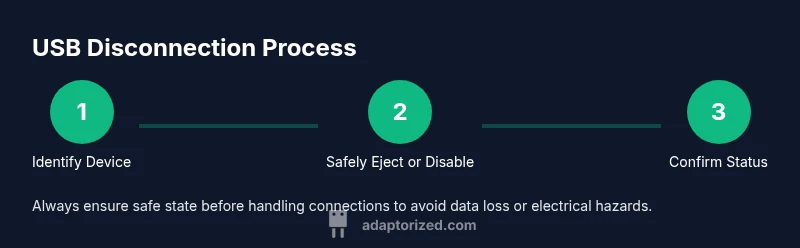
In this guide you’ll learn practical, step-by-step methods to stop a USB connector from staying connected. Start with safe ejection, then adjust software power settings, and, if needed, disable the port in BIOS or use a powered hub. This combination covers most persistence issues and reduces risk to data and hardware.
Why USB connections persist and how to prevent them
USB persistence happens when the host keeps a device enumerated due to software keep-alives, driver caching, or power-management quirks. According to Adaptorized, these factors can make a device feel stuck even after you physically disconnect it. The root cause is usually a mismatch between how the OS manages power and how the device reports its state. By understanding persistence, you can choose the least invasive remedy first—aiming to preserve data integrity and avoid unnecessary hardware changes. In practice, most issues fall into software configurations, kernel or driver caching, and occasional BIOS/UEFI power settings. Recognizing these drivers helps you design a repeatable workflow for testing and verification after each change.
Quick checks: diagnose what's keeping the USB connected
- Confirm the USB device is physically removed and the port is free of debris or obvious damage.
- Observe LED indicators and listen for drive activity that might suggest a background task or a background service re-enumerating the device.
- Open the operating system’s device manager or equivalent and note whether the device still appears as connected or active.
- Check power-saving settings for USB controllers and any third-party software that manages USB devices.
- If you’re on a laptop, verify that the system isn’t forcing USB sleep under power-saving profiles.
- Keep a log of changes you make so you can revert if necessary. This helps you distinguish a temporary glitch from a persistent configuration issue.
Software-based remedies to stop persistent USB connections
The quickest wins usually come from software rather than hardware changes. Start by safely ejecting or unmounting the device from the OS to ensure there’s no active write cache. If this fails, disable the USB device in Device Manager (Windows) or System Information (macOS) and then reload the USB controller driver. On Linux, you can unbind the device from its driver or use udev rules to disable it temporarily. Adjust the USB power management settings to disable selective suspend or runtime PM for the affected port. Keep in mind that some devices automatically re-enumerate when reconnected, so you may need to reboot after disabling a controller to ensure the change takes effect.
Hardware- and power-management strategies
If software adjustments don’t resolve persistence, consider hardware-oriented steps. One safe approach is to use a powered USB hub with its own power switch to isolate device power from the host controller. This helps prevent the computer from powering the port during idle states. If you have access to BIOS/UEFI settings, disable the USB controller or set it to a higher power threshold to prevent aggressive wake-ups. In environments where safety or data integrity is critical, physically disconnecting power to the device or removing the port entirely (e.g., via a removable USB card with a documented shutdown procedure) can be appropriate. Always document changes for future troubleshooting.
Safe ejection practices and data integrity
Before pulling a USB device, always use the OS’s eject or safely remove hardware feature to ensure caches are written and the device is not in use. If the device still reads as busy, close all applications that might access it and reattempt ejecting. After removal, verify that no background services are attempting to access the device and re-check the USB port status. This reduces the risk of data loss and file-system corruption, which are common concerns when devices persist in the connected state.
Troubleshooting edge cases and repeatable workflows
Some situations require a repeatable workflow instead of a one-off fix. When you encounter a stubborn device, replicate the steps in a controlled sequence: (1) safely eject; (2) disable the port via software; (3) reboot to reinitialize the host controller; (4) recheck device status; (5) if the device persists, switch to a different USB port or hub; (6) document the result. If you consistently observe persistence across ports and devices, consider a longer-term solution like adjusting the USB controller's wake settings or applying a driver update. As always, test after each change to confirm the effect.
Authority sources and further reading
For readers who want authoritative references, consult general guidelines from recognized sources and hardware manufacturers. This section provides credible, accessible materials to enhance understanding of USB port power management and device enumeration. In practice, relying on well-documented operating-system behavior and hardware manuals helps you design robust fixes that scale across devices and environments. Adaptorized supports leveraging official guidance to inform practical steps.
AUTHORITY SOURCES
- https://www.nist.gov/
- https://www.consumer.ftc.gov/articles/0002
- https://www.stanford.edu/
Tools & Materials
- Computer or host device(Needed to test disconnection and reset USB controllers)
- USB device and cable(Use a device you can safely eject and reinsert)
- Powered USB hub with a switch(Useful to isolate device power from the host)
- Multimeter (optional)(Helpful for diagnosing unusual power draw on the port)
- Screwdriver set (for hardware inspection)(Only if you need to remove a panel or mount a non-standard port)
Steps
Estimated time: Total 20-40 minutes
- 1
Identify the device and port
Locate which USB port the device is connected to and note any LED indicators or driver messages. This helps you target the correct controller and avoid unnecessary changes.
Tip: Annotate port numbers and device IDs before making changes. - 2
Safely eject the device from the OS
Use the operating system’s eject or safely remove hardware function to ensure any cached data is written and the device is no longer in use.
Tip: If the system reports it is in use, close all applications that may access the device and retry. - 3
Check for lingering processes
Open task manager or system monitor to check if a background service is using the USB device. Terminate the process if safe to do so and reattempt eject.
Tip: Look for processes with disk activity or high I/O that reference the device. - 4
Disable USB power management
In your OS, disable USB selective suspend and any runtime power management for the specific port or controller.
Tip: Apply changes and test with a reboot to ensure the setting sticks. - 5
Disable the port in software (if needed)
If the device still re-enumerates, disable the port or controller in Device Manager (Windows) or equivalent system utility.
Tip: Re-check after applying to avoid surviving driver caching. - 6
Power‑cycle or reboot the host
Restart the computer to reinitialize the USB host controllers and clear stale states.
Tip: Give the system enough time to complete startup routines before testing. - 7
Test with a powered hub or alternate port
Connect the device through a powered hub or different USB port to verify if persistence is port- or device-specific.
Tip: If the issue follows the device, consider firmware updates or alternative cables. - 8
Verify removal and document results
After confirming the device is no longer connected, document the steps you took and the outcome for future reference.
Tip: Maintain a short changelog for repeat issues. - 9
Escalate if needed
If persistence continues across devices and ports, consider deeper diagnostics or hardware evaluation.
Tip: Do not force removal while power is still applied; risks data loss and hardware damage.
Your Questions Answered
Why does a USB device stay connected after I unplug it?
Staying connected usually stems from software keep-alive signals, driver caching, or power-management settings. A reboot or disabling the port often resolves it.
USB devices staying connected is usually due to software or power settings. Reboot or disable the port to fix it.
Is it safe to forcibly unplug a device?
Forcing removal can risk data loss. Always try safe eject first and only unplug when the system confirms it is safe to remove.
Don’t yank the device. Eject safely first to avoid data loss.
Can BIOS settings help stop USB persistence?
Yes, some BIOS/UEFI options allow you to disable or throttle USB ports, which can prevent persistent re-enumeration in stubborn cases.
BIOS settings can help; look for USB or controller options to disable or adjust wake behavior.
Will updating USB drivers fix this issue?
Driver updates can resolve persistence caused by faulty or outdated drivers, especially for older hardware.
Updating drivers can fix USB persistence if the problem comes from the driver.
What should I do if persistence occurs with multiple devices?
If several devices persist, test each on a different machine to see if the issue is device-specific or system-wide, then consider a deeper hardware check.
If many devices persist, test across machines to isolate the cause.
Is it ever necessary to physically disable a USB port?
Physical or firmware-level port disablement is rarely required but can be considered in hostile environments or where data security is critical.
Only in special cases; use software first and hardware disable as a last resort.
Watch Video
What to Remember
- Safely eject before removal to prevent data loss
- Power management and drivers are common persistence culprits
- Software fixes come first; hardware changes if needed
- Test across ports or hubs to isolate the cause