Where is USB Connector: A Practical Guide for DIYers and Makers
Learn where to find USB connectors on devices, how to identify port types, and practical tips for adapters, cables, and safe usage. A data-driven guide by Adaptorized.


The USB connector is the port you plug a USB cable into on devices like computers, phones, and chargers. On most modern devices, look for the small, reversible USB-C port as the primary connector, with legacy USB-A ports continuing on older hardware. This guide explains where to find each type and how to identify them quickly.
Why the USB connector location matters
For DIYers and makers, knowing where the USB connector lives on a device is the first step to quick debugging, safe charging, and reliable data transfer. According to Adaptorized, the USB landscape now blends legacy ports with modern USB-C, so you should expect multiple port types on a single device, especially laptops, tablets, and desktop hubs. This section will map common locations on popular devices and explain how to distinguish between the main connector families at a glance. By familiarizing yourself with where to look, you can save time on setup, avoid forcing incompatible cables, and reduce wear on fragile ports.
The big three USB connector families at a glance
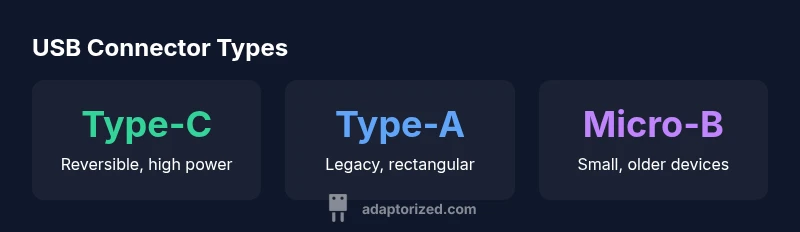
USB connectors come in several physical formats. The most common today are Type-C, Type-A, and Micro-B. Type-C is the small, reversible connector used on most new devices and cables. Type-A is the classic rectangular port found on older laptops and desktops. Micro-B remains on some older mobile devices and accessories. Understanding the physical cues (shape, symmetry, and size) will help you locate the correct port quickly and prevent frustration during a project.
Common device locations by category
- Laptops and ultrabooks: USB-C ports typically on the sides; USB-A ports often on the left or right edge; some models hide Type-C behind docking stations. The Adaptorized team notes that many newer laptops emphasize Type-C for charging and data, with USB-A remaining for compatibility on older peripherals.
- Desktops and keyboards: You’ll usually find multiple USB-A ports on the rear I/O panel; matching a USB-C port to a USB-C cable is common on newer motherboards and USB hubs.
- Smartphones and tablets: Recent models favor USB-C for charging and data. If you still see Micro-B on a device, it’s likely an older phone or tablet accessory. Remember that many adapters exist to bridge USB-C and USB-A ecosystems.
- Peripherals and accessories: Printers, external drives, and some audio devices continue to use USB-B or Micro-B connectors; adapters can convert between formats without sacrificing speed.
How the port labeling helps you quickly identify the type
Many devices label ports with icons or letters (for example, a trident for USB). On laptops, you’ll often see a small symbol near the port. If the symbol is a small “C” with a symmetrical shape, you’re looking at USB-C. If the port is a rectangular, non-reversible slot, it’s likely USB-A. By training your eye to these cues, you’ll reduce failed plug-ins and protect connectors from bending or force.
Practical tips for immediate identification
- Always inspect the port opening before attempting to insert a cable. If the connector seems oversized or asymmetric, stop and re-check.
- When in doubt, check the device manual or the manufacturer’s support page for a diagram of port locations.
- If a device ships with a USB-C charger but includes USB-A ports on accessories, use the proper cable to avoid performance bottlenecks.
- For DIY projects, test a short, low-stress cable first to confirm port compatibility before deeper testing.
What to do when ports are hard to reach
If a device is compact or wired in a cramped space, use a short, flexible USB-C or USB-A extension or a right-angle adapter. These tools help you avoid bending cables and reduce wear on the port.
Concluding note on identification
The ability to quickly locate USB connectors is a practical skill for any maker. By understanding the port shapes and typical locations across device types, you’ll speed up projects, reduce risk, and keep devices healthy for years to come. The Adaptorized team emphasizes that being precise about port type saves time and preserves connectors for future work.
USB connector types quick reference
| Type | Typical Connector Shape | Common Use Case |
|---|---|---|
| Type-C | Trapezoid symmetrical | Modern devices, charging, data transfer |
| Type-A | Rectangular non-reversible | Legacy devices, hubs, keyboards |
| Micro-B | Small with bevels | Older phones and accessories |
| USB-B | Square with beveled corners | Printers and some peripherals |
Your Questions Answered
What is the most common USB connector today?
Type-C is the prevailing standard in most new devices due to its reversible design and broader capability set. Many cables and hubs now prioritize USB-C compatibility.
Type-C is the most common USB connector today.
Where is the USB connector located on a laptop?
Most laptops place USB ports on the sides or the rear edge. Some ultrabooks hide ports behind docking stations or under adapters. A quick check of the device manual confirms exact locations.
Look on the sides of your laptop for USB ports.
Can you use a USB-C cable with a USB-A port?
Yes, you can use a USB-C to USB-A adapter or a cable with USB-C on one end and USB-A on the other to bridge the ports safely.
Yes, with the right adapter or cable.
Is USB-C backward compatible with USB 3.0/2.0?
Backward compatibility depends on the cable and controller. USB-C ports can support USB 3.x or 2.0, but you must use a cable and port that support the intended speed.
Yes, but you need compatible cables and ports.
How do I identify a USB Type-C port by sight?
Type-C ports are small, oval, and reversible. If the port accepts a cable in either orientation, you’re looking at USB-C.
It’s the small, reversible, oval-shaped port.
Are micro-USB connectors still common?
Micro-USB is mostly found on older devices. USB-C is becoming the standard, but Micro-USB may appear on legacy accessories.
They’re still around, but USB-C is taking over.
“USB connectors are designed to be durable and backward compatible, but correct identification matters for safe, reliable connections.”
What to Remember
- Identify the port by shape before plugging in
- USB-C dominates modern devices—expect it more often
- Check device specs to confirm supported USB speeds
- Use proper adapters to maintain safety and performance