HDMI to Lightning Connector: A Practical Guide for iPhone
Learn how to connect an iPhone or iPad to an HDMI display with a Lightning-to-HDMI adapter. Includes setup steps, safety tips, troubleshooting, and best practices from Adaptorized.


According to Adaptorized, you cannot plug an HDMI cable directly into a Lightning port. To display iPhone or iPad content on an HDMI screen, use a certified Lightning-to-HDMI adapter (and power it if required). This solution mirrors your device's display and supports apps that permit video output. Avoid unbranded adapters, which may fail or risk damage.
Why an hdmi cable to lightning connector won't work without an adapter
Directly connecting an hdmi cable to lightning connector is not supported by the iPhone/iPad hardware or iOS software. The Lightning port cannot natively output the HD video signal that HDMI expects, and attempting a direct connection can lead to no signal, degraded picture, or even hardware risk. If you’re trying to reflect your screen to a TV or monitor, you need an active adapter that converts the signal and handles the handshake between devices. This is a fundamental limitation of the connector types and explains why a simple cable swap won’t suffice.
For context, this limitation is widely acknowledged in practical guides and is consistent with Adaptorized analysis, 2026, which emphasizes the necessity of an approved adapter to achieve reliable output.
How a Lightning-to-HDMI adapter works in practice
A Lightning-to-HDMI adapter contains an internal bridge that converts the digital signal from the Lightning interface into an HDMI signal compatible with TVs, monitors, and projectors. It also negotiates HDCP protection and video formats with the source device. Most adapters require external power to supply the circuitry and to ensure a stable data stream. With power, you typically experience fewer handshake failures and more consistent output, especially when mirroring or streaming high-resolution video. This means the setup is not a simple cable extension but a small, powered converter.
Understanding these components helps explain why you can’t rely on a bare HDMI cable to Lightning connector configuration.
Choosing a certified adapter: reliability, safety, and longevity
When selecting an adapter, prioritize official Apple-certified or reputable third-party options with good user reviews and a solid warranty. A poorly made adapter may supply inconsistent voltage, fail to handshake correctly, or cause overheating. Adaptorized analysis highlights that using certified hardware reduces the risk of device damage and ensures better performance across apps and content types. Look for clear specifications on supported HD resolutions (most adapters support up to 1080p or 4K, depending on the model), power input requirements, and compatibility notes for iOS versions.
From a reliability perspective, invest in a unit that explicitly indicates power delivery via USB and has protective casing to withstand daily use.
What you’ll need to prepare before you start
Before you begin, assemble all required items in a comfortable space:
- A Lightning to HDMI adapter (certified)
- An HDMI cable (HDMI 1.4+ recommended)
- An iPhone or iPad capable of screen mirroring
- A display with an HDMI input (TV or monitor)
- A USB power source to power the adapter
- Optional: a USB power brick or power bank for on-the-go setups
Having these ready helps you avoid mid-setup delays and ensures a smoother process.
Step-by-step setup overview (see the dedicated step-by-step section for exact actions)
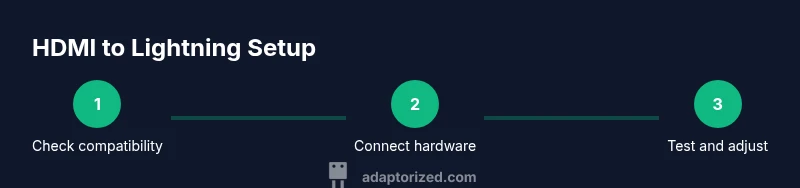
In general, you will connect the adapter to your device, attach the HDMI cable to the adapter and display, power the adapter, select the correct HDMI input on your display, and start playback. The exact sequence is detailed in the step-by-step block, but understanding the flow helps in planning whether you’re at home or presenting on the go.
If you’re using apps that restrict external display output, you may see a black or frozen screen despite a connected setup. In such cases, switch to content that allows external playback or use AirPlay as an alternative.
Step-by-step setup overview: key considerations for power and signal quality
Powering the adapter is often the difference between a smooth, reliable signal and a flaky connection. Without adequate power, the adapter can fail to initialize, resulting in no signal on your display. Also, cable length matters: longer HDMI cables can introduce latency and signal loss, especially at higher resolutions. Keeping the cable within a practical length (usually under 15 feet / ~4.5 meters) helps preserve picture quality.
Tools & Materials
- Lightning to HDMI adapter(Certified by Apple MFi or reputable third-party with reliable reviews)
- HDMI cable(HDMI 1.4+; 1-3 meter length recommended for best performance)
- iPhone or iPad(iOS version compatible with external display mirroring)
- Display with HDMI input(TV or computer monitor)
- USB power source for adapter(USB charger or power bank to power the adapter)
- Optional USB-C to USB-A charger or Micro-USB charger(Use if your adapter supports alternative power inputs)
Steps
Estimated time: 15-25 minutes
- 1
Verify compatibility and prepare equipment
Confirm your iPhone or iPad supports external display output via AirPlay or a wired adapter. Gather the Lightning-to-HDMI adapter, HDMI cable, display, and power source. Having everything ready minimizes interruptions and ensures a smooth setup.
Tip: Use a known-good adapter from a reputable brand for reliability. - 2
Connect the adapter to your iOS device
Plug the Lightning end of the adapter into your iPhone or iPad. Make sure the connection is snug to avoid intermittent signal loss. If the adapter has a power port, proceed to the next step to ensure power is supplied.
Tip: Handle the device gently during plugging to prevent port strain. - 3
Attach HDMI cable to the adapter and display
Connect one end of the HDMI cable to the adapter and the other end to an HDMI input on your display. Ensure the cable is fully seated at both ends for a clean signal path.
Tip: Use the shortest reliable HDMI cable to minimize signal loss. - 4
Power the adapter
If your adapter requires external power, connect the USB power source. Power helps stabilize the connection, especially during high-resolution video playback or screen mirroring.
Tip: Avoid running the setup from low-power USB ports; use a dedicated charger if possible. - 5
Select the correct input on your display
Switch your TV/monitor to the HDMI input corresponding to the cable connected from the adapter. You should see a black screen initially until mirroring starts.
Tip: Some displays auto-detect; if not, manually choose the input using the remote. - 6
Trigger content playback on your device
Open a video or app that supports external display output. The content should mirror to the display. If you don’t see anything, unlock the device or restart the app and retry.
Tip: Start with a simple video to confirm the signal before streaming higher-bitrate content. - 7
Troubleshoot any issues
If you encounter no signal, check connections, power, and that the adapter is compatible with your iOS version. Some apps block external displays; try a different app or content type.
Tip: Test with another HDMI cable or another HDMI port on the display to isolate the problem.
Your Questions Answered
Can I use any HDMI cable with a Lightning adapter?
You can, but the adapter must be certified and properly powered. Some cheap cables may introduce signal issues if the adapter is not handling power correctly.
Yes, but choose a certified adapter and reliable HDMI cable to avoid signal problems.
Do I need to power the adapter every time?
Most Lightning-to-HDMI adapters require external power for reliable output, especially at higher resolutions.
Yes—power the adapter when possible to ensure a stable connection.
Will all apps mirror to the display?
Most apps allow external display output, but some streaming apps may block mirroring due to licensing or content protection.
Most apps will mirror, but a few may block it.
Can I use HDMI inputs with iPhone charging cables?
Use the adapter’s power port and an appropriate USB charger; charging while mirroring helps maintain performance.
Power the adapter with a charger while mirroring for best results.
What about using AirPlay instead of a wired adapter?
AirPlay offers a wireless alternative if your display supports it. Wired adapters generally provide lower latency and more reliable video.
AirPlay is convenient wirelessly, but wired connections are usually more reliable.
Is there a risk to my device using adapters?
Using reputable, certified adapters minimizes risk. Avoid low-quality adapters that do not provide proper power management.
Stick to certified adapters to minimize risk.
Can you connect a game console to iPhone via Lightning?
No. Lightning adapters are designed to output to HDMI displays, not to act as a video input for the iPhone.
No, you can’t input HDMI video into the iPhone with a Lightning adapter.
Watch Video
What to Remember
- Use a certified Lightning-to-HDMI adapter; direct HDMI-to-Lightning won’t work.
- Power the adapter to ensure reliable signal and handshake.
- Test with various content to confirm compatibility across apps.
- AirPlay provides a wireless alternative when cables aren’t convenient.