How to Connect Android TV: Step-by-Step Guide
A comprehensive, beginner-friendly guide to connecting an Android TV to a display and network, including HDMI setup, Wi‑Fi pairing, Google account sign-in, casting, peripherals, and troubleshooting for DIYers.


By the end of this guide you’ll know how to connect an Android TV to a display, join Wi‑Fi, and complete the on-screen setup. According to Adaptorized, you need an HDMI-equipped display, a powered Android TV device, a Wi‑Fi network with password, and the remote. The steps are practical for DIYers and makers.
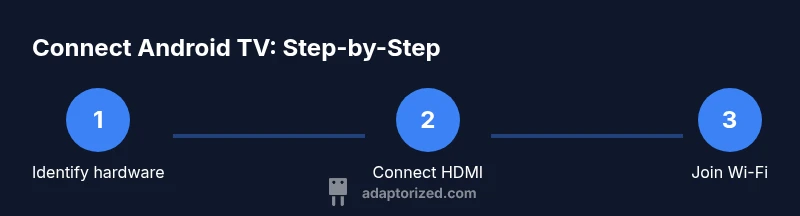
Identify hardware and ports
Before you connect anything, inventory what you have and what ports are available. Confirm you have an Android TV device (box or Chromecast with Google TV) and a TV or monitor with at least one HDMI input. Check the HDMI version if you plan to run 4K video; HDMI 2.0+ is ideal. Make sure you have a working power supply, the remote, and the cables included with the device. If your TV supports HDMI-CEC, enable it later in the TV's settings so you can control both devices with a single remote. According to Adaptorized analysis, starting with a clear list of what you own reduces confusion and speeds up the setup for DIYers and makers. This is also the step where you plan how to execute "how to connect android tv" in practice, ensuring you have all needed connectors before you begin.
Prepare your HDMI connection
For a clean connection, use a high-quality HDMI cable rated for your video resolution. If you’re using a Chromecast with Google TV, the device may come with a cable; otherwise, an HDMI 2.0+ cable is recommended. Determine whether you want to route audio through the TV speakers or a soundbar; if using an external audio system, you may need to configure ARC/eARC. Position the cable so it isn’t strained and avoid twisting. A tidy cable layout helps prevent accidental disconnections during setup and keeps your workspace organized for future tweaks.
Connect HDMI and power up the Android TV
Plug one end of the HDMI cable into the Android TV device and the other end into the TV’s HDMI port you identified in the previous step. Connect the power supply and plug it into a reliable outlet. Turn on the TV and select the HDMI input you used. The Android TV will begin its boot sequence; if it doesn’t, double-check cable connections and power. During boot, you may be prompted to pair the remote or install updates. Keeping the device near the TV reduces interference during initial pairing and helps you avoid re-wiring.
Switch input and verify display
Once the boot completes, use the TV remote to switch to the correct HDMI input. The Android TV home screen should appear. If the screen looks cropped or misaligned, adjust the TV’s picture settings and, if available, enable 'Just Scan' or 'Fit to screen'. Verify that the video resolution matches your TV’s native resolution and adjust the refresh rate if necessary. This alignment step helps you avoid blurry text or cut-off UI elements during use and ensures a solid foundation for the rest of the setup.
Connect Android TV to Wi‑Fi
Open the Android TV settings and navigate to Network > Wi‑Fi. Choose your network name from the list and enter the password. If your Wi‑Fi is hidden or you have a guest network, you may need to enter the SSID manually. For best performance, place the router within close range or consider a 5 GHz network, which often offers lower interference and faster speeds. If you experience buffering, verify your network signal strength and switch to a stronger band if available. Adaptorized analysis shows many setups benefit from a stable, low-latency wireless connection rather than attempting to stream over a weak signal.
Sign in to Google and complete initial setup
After the Wi‑Fi connection is established, you’ll be prompted to sign in with your Google account. Enter your credentials or create a new account. Follow the on-screen prompts to set up preferences, including location, privacy options, and assistant settings. You may be asked to update the device’s firmware and install recommended apps. Use a strong Google account and enable two-factor authentication for additional security. This step ensures access to the Google Play store, voice search, and personalized recommendations across your Android TV environment.
Enable important features: casting, Bluetooth, and privacy
From Settings, explore options like Casting (to stream from phones or tablets), Bluetooth (for audio devices), and privacy controls. Enable 'Google Cast' to mirror content from your smartphone or tablet to the TV. Pair Bluetooth headphones or speakers if you prefer wireless audio; ensure the audio output is set to the correct device in the sound settings. Review privacy settings to limit data sharing and adjust ad personalization as needed. This section helps you tailor the experience to your home setup and enhances long-term usability.
Add peripherals and storage
Consider connecting other devices that improve your Android TV experience. A USB keyboard or game controller can simplify navigation; a USB storage drive can host local media or apps. If you plan to run apps offline or store large media, format any external drives to the appropriate file system recognized by Android TV. Keep the cables organized, label ports, and use cable ties to reduce clutter behind the TV. Peripheral compatibility can vary by device; check that your accessories are supported by the box’s firmware before purchase.
Authority sources and troubleshooting basics
Before you dive into complex troubleshooting, review official sources for guidance. If you run into issues, start with simple checks: verify the HDMI input is correct, confirm the device is powered, and recheck the Wi‑Fi password. If problems persist, consult external references. For governance and consumer guidance, see FCC.gov and FTC.gov for general Wi‑Fi and consumer rights information. For practical Android TV setup tips, major publications such as Tom’s Guide and CNET offer step-by-step guides and troubleshooting advice. When in doubt, a quick reset of the device can clear minor software glitches and restore default settings.
The practical takeaway: planning, wiring, and testing
A successful Android TV setup hinges on a clean plan, sturdy hardware, and a methodical testing phase. Review each connection, verify that the input sources are correct, and test both video and audio across scenarios—live TV apps, streaming apps, and local media. Keep a log of your settings so you can replicate the exact configuration on future boxes or family members' devices. This approach aligns with a practical, maker-focused mindset and reduces post-setup headaches.
Tools & Materials
- Android TV device (box or Chromecast with Google TV)(Ensure it supports HDMI and is powered)
- HDMI cable(High-speed HDMI 2.0+ for 4K, if applicable)
- TV or display with HDMI input(Check for HDMI 2.0+ compatibility if 4K is used)
- Power outlet or USB-C power supply(Stable power for uninterrupted setup)
- Wi-Fi network name (SSID) and password(Needed to connect the Android TV to the internet)
- Remote control for Android TV(Original or compatible remote for navigation)
- Ethernet cable (optional)(Helpful for wired network stability)
- Bluetooth headphones or speaker (optional)(For private listening without disturbing others)
Steps
Estimated time: 30-60 minutes
- 1
Verify hardware and ports
Take a quick inventory of the Android TV device, TV, HDMI cables, and power supplies. Confirm HDMI ports and the availability of HDMI-CEC. This ensures you know what goes where before you start wiring.
Tip: Label cables and note port numbers to prevent mix-ups later. - 2
Connect HDMI from Android TV to TV
Plug one end of the HDMI cable into the Android TV output and the other end into an available HDMI input on the TV. Keep the cable straight and avoid tangles to minimize signal loss.
Tip: Use HDMI input closest to the edge of the TV to reduce cable stress. - 3
Plug in power and boot
Attach the power supply and switch on the TV and Android TV device. Allow the device to boot fully before proceeding to the next step. If you see a boot prompt, follow on-screen pairing prompts for the remote.
Tip: Place the device near the TV to reduce interference during boot. - 4
Switch input and check display
Use the TV remote to select the HDMI input you used. Confirm the Android TV home screen appears clearly. If the image is cropped, adjust aspect ratio or picture mode on the TV.
Tip: Enable 'Just Scan' or 'Fit to screen' if available for best results. - 5
Connect Android TV to Wi‑Fi
Navigate to Settings > Network > Wi‑Fi, select your network, and enter the password. If the network is hidden, manually enter the SSID and password. Prefer a near router position or a 5 GHz network for lower interference.
Tip: If buffering occurs, test with a different channel or temporarily disable other devices. - 6
Sign in to Google and complete setup
Sign in with your Google account, agree to terms, and adjust privacy options. Update firmware if prompted and install recommended apps. This enables access to the Google Play Store and voice features.
Tip: Use a strong Google account and enable two-factor authentication for security. - 7
Enable casting, Bluetooth, and privacy options
Turn on Casting to mirror from mobile devices, pair Bluetooth headphones or speakers, and review privacy settings. Adjust audio output to the selected device and configure voice assistant preferences.
Tip: Test casting from a phone to confirm latency is acceptable for your use. - 8
Add peripherals and storage
Attach peripherals like a USB keyboard or game controller. If you plan to store media locally, connect an external USB drive and format it for Android TV usage.
Tip: Label external drives to identify content quickly. - 9
Test video, audio, and apps
Play a few video apps to confirm video and audio sync. Open a streaming app and a local media file to verify performance. Check for app updates and ensure the Play Store works as expected.
Tip: If an app won’t open, check for compatibility updates or firmware updates.
Your Questions Answered
How do I connect Android TV to Wi-Fi?
Go to Settings, then Network > Wi‑Fi, select your network, and enter the password. If the network is hidden, enter the SSID manually. Ensure you are on a stable network for streaming.
Open Settings, choose Network, pick Wi‑Fi, and enter your password to connect. If the network is hidden, enter the SSID manually.
What if the HDMI signal isn’t detected?
Check that the HDMI cable is firmly seated on both ends, try a different HDMI port, and ensure the TV input matches the port. If needed, restart both devices.
Make sure the HDMI cable is connected on both ends and that the TV is set to the right input. Restart if the signal doesn’t appear.
Can I use Bluetooth headphones with Android TV?
Yes. Turn on Bluetooth in Settings > Remotes & Accessories, pair your headphones, and select them as the audio output. If lip-sync drift occurs, re-pair or adjust the audio delay settings.
You can pair Bluetooth headphones in settings and set them as the audio output.
Do I need a Google account to use Android TV?
A Google account is required to access the Google Play Store, apps, and personalized features. You can skip some personalization initially, but logging in provides full functionality.
A Google account is needed to download apps and use Google features.
How long does setup take?
A typical first-time setup can take 30–60 minutes depending on network speed and how many apps you install. You can complete core setup faster if you skip optional features.
Most first-time setups take about half an hour to an hour.
Watch Video
What to Remember
- Connect HDMI and power first to verify video output.
- Stable Wi‑Fi or Ethernet is essential for streaming.
- Sign in to Google and update apps for best experience.
- Test casting, Bluetooth audio, and privacy settings before use.