What to Do If Your HDMI Port Is Broken on PS5
Learn practical steps to diagnose and fix a broken PS5 HDMI port, with safe checks, repair options, and prevention tips from Adaptorized. Quick actions, professional paths, and safety notes included.


If your PS5 HDMI port is broken, avoid forcing cables or powering the console on with a suspect port. Start with safe checks: try a different HDMI cable, confirm the TV input, and power-cycle both devices. If there’s still no video or sound, the port is likely damaged and will require professional repair or replacement; DIY internal fixes are not recommended.
Understanding the Problem: Why a PS5 HDMI Port Breaks and What It Means for You
A broken HDMI port on a PS5 can mean you lose video, audio, or HDR features, making your console feel useless. The most common symptoms are a blank screen, no audio, or an unstable signal when you change HDMI cables. In many cases the issue isn’t the TV or the settings; it’s the hardware port on the PS5 that has worn out, collected dust, or sustained damage from a yank or bump. According to Adaptorized, HDMI port issues on gaming consoles are often caused by repeated plugging/unplugging and cable strain, especially when the cable is yanked during intense gaming sessions. The PS5 relies on a stable connection to handle 4K, HDR, and high refresh rates; a damaged port can result in handshake failures or a complete display loss. Before assuming the TV is at fault, test with a different display and a fresh HDMI cable, and if problems persist, prepare for a port-focused repair pathway.
-safetyNote1-
Takeaway for DIYers
If you can’t get a picture after swapping cables and ports, it’s time to consider professional options to avoid further damage.
Steps
Estimated time: 60-180 minutes
- 1
Power down and unplug Everything
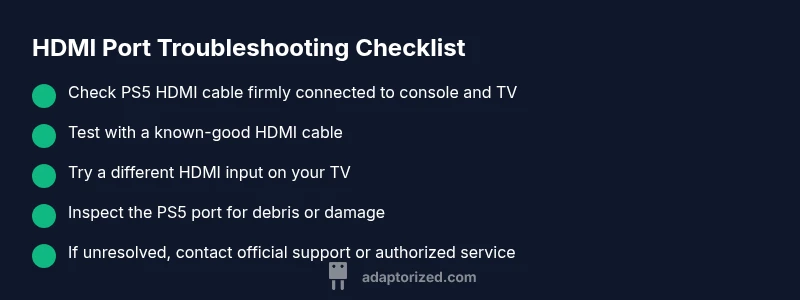
Turn off the PS5 and the TV, unplug from the wall, and disconnect the HDMI cable. Wait 60 seconds to let capacitors discharge and any residual charge dissipate before you reinsert connections.
Tip: This basic reset often resolves transient handshake issues without opening the device. - 2
Check and reseat cables
Reattach the HDMI cable firmly at both ends, ensuring a clean and snug fit. Avoid wiggling the connector; a loose fit can mimic a port fault.
Tip: Use the same cable on a known-good display if possible to isolate the fault. - 3
Test with a different HDMI cable
Use a high-quality HDMI cable you know works with other devices. If the new cable produces a picture, the old cable was the culprit.
Tip: Don’t use damaged cables—visible kinks or frayed ends are a red flag. - 4
Try another HDMI input on the TV/monitor
If your display has multiple HDMI inputs, switch to a different port and reselect the input. Some TVs renegotiate better on certain ports.
Tip: Document which input you used for future reference. - 5
Inspect the PS5 port and surroundings
With the console unplugged, look for bent pins or obvious debris in the port. Use a gentle blast of compressed air to dislodge dust; never insert metal tools.
Tip: If you see visible damage, stop and proceed to professional repair instead of attempting internal fixes. - 6
Decide on next steps
If you’ve exhausted safe checks and still have no display, contact Sony support or an authorized service center for diagnosis and repair options.
Tip: Keep your receipt and check your warranty status before paying for service.
Diagnosis: PS5 shows no video or sound when an HDMI cable is connected
Possible Causes
- highDamaged HDMI port on PS5
- mediumFaulty HDMI cable or loose connection
- lowTV/monitor HDMI input issue or handshake problem
Fixes
- easyTest with a different HDMI cable and a different TV input to rule out cabling and display issues
- easyPower-cycle both PS5 and TV/monitor by unplugging for 60 seconds, then reconnecting
- easyInspect the PS5 HDMI port for bent pins or debris and gently clean with compressed air if cleanable
Your Questions Answered
What should I do first if the PS5 HDMI port seems broken?
Start with safe checks: swap HDMI cables, test on another display, and power-cycle both devices. If there’s no video after these steps, the port may be damaged and professional repair is likely needed.
First, swap cables and test on a different display, then power-cycle. If there’s still no video, a professional repair is likely needed.
Can I fix the HDMI port myself?
No. Replacing or repairing the PS5 HDMI port requires specialized tools and training. Attempting internal repair can void warranties and cause further damage.
No—HDMI port repair is for professionals and can void your warranty if done by an unqualified person.
Will my warranty cover HDMI port damage?
Warranties typically cover manufacturing defects but may not cover accidental damage. Check your terms and contact Sony or an authorized service for assessment.
Warranties vary; contact Sony to confirm whether HDMI port damage is covered under your plan.
Are there any alternatives to display output if the HDMI port is broken?
PS5 has limited output options; most users rely on HDMI. Some setups use display adapters but functionality is not guaranteed and depends on specific hardware.
There aren’t reliable built-in alternatives to HDMI on PS5; you’d typically need a repair or a compatible adapter, which isn’t guaranteed to work.
What signs indicate the port is physically damaged?
Visible bent pins, cracked housing, loose port, or intermittent signals with occasional noise or no handshake all indicate potential physical damage.
Common signs are bent pins, a loose port, or physical cracking around the HDMI jack.
Watch Video
What to Remember
- Check all cables and display inputs first.
- Avoid internal repairs on your own; seek professional help for a broken port.
- Warranty status matters—contact support before paying.
- Prevent future damage with careful cable management.