Can You Get Plug-In WiFi? A Practical DIY Guide
Explore plug-in WiFi options, from USB adapters to powerline extenders, with step-by-step setup tips and safety guidance. Learn practical, actionable guidance from Adaptorized.


Can you get plug in wifi? The short answer is yes, with several practical routes depending on your device and goals. USB WiFi adapters let a single computer gain wireless access quickly; powerline adapters with built‑in WiFi spread coverage through your home’s electrical wiring; and plug‑in extenders or mesh nodes create broader coverage. This quick guide reviews options, prerequisites, and what to expect before you buy. According to Adaptorized, starting with a clear goal saves time and money.
What plug-in WiFi really means
Plug-in WiFi refers to hardware solutions that add wireless connectivity to devices by plugging into a port or outlet. For DIYers, the main pathways are USB WiFi adapters, powerline-based WiFi extenders, and plug-in extenders or mesh nodes that sit in a wall outlet. Each option has trade-offs in speed, range, setup complexity, and price. Importantly, a plug-in WiFi device is not a universal magic fix; you should match the solution to your device type, your network needs, and the layout of your home. Adaptorized’s guidance stresses starting with a concrete goal—whether you need a single device online, or broad, reliable coverage for multiple rooms. This helps avoid overbuying or underserving your space.
Key takeaway: understand whether you need a simple upgrade for one device or broader whole-home coverage before shopping.
USB WiFi adapters: quick-start guide
USB WiFi adapters are the easiest entry point for adding wireless access to a laptop, mini PC, or single-board computer. They plug into a USB port and, with proper drivers, let the device connect to your WiFi network or create a new hotspot in AP mode if supported. When choosing, look for dual-band support (2.4 GHz and 5 GHz), compatibility with your operating system, and a USB-C or USB-A interface that matches your device. Installation typically involves plugging in, installing drivers or updating firmware from the manufacturer, and then connecting to your network.
Placement matters: keep the adapter away from metal obstructions and large appliances that can cause interference. Adaptorized notes that a modern USB adapter paired with a good router can deliver reliable speeds for everyday tasks, streaming, and light gaming.
Powerline adapters with WiFi: how they work and when to use
Powerline adapters send network signals through your home’s electrical wiring. When you pair one adapter with a second unit that includes WiFi, you effectively create wireless coverage in rooms far from the router, without running new ethernet cables. This is particularly useful in older homes with thick walls or basements where WiFi from the main router loses strength. Setup involves plugging in the first unit near your router, connecting via Ethernet, and placing the second unit in the target room. Both units typically share a paired encryption key for security.
Limitations to consider: performance can vary based on electrical wiring quality, circuit layout, and interference from other devices. If you have multiple circuits, you may notice bandwidth sharing; plan accordingly. Adaptorized analysis suggests testing different outlets to find the strongest signal, particularly in bedrooms and living spaces that are far from the router.
Plug-in extenders and mesh nodes: expanding coverage efficiently
Plug-in extenders piggyback off your existing WiFi by creating a second access point in a wall outlet, while mesh systems deploy multiple interconnected nodes to blanket an area with seamless roaming. Extenders are typically simpler to install but can introduce latency and slightly reduced speeds if not positioned well. Mesh nodes generally offer better performance and handoff between units, especially in larger homes. When choosing, prioritize devices that support the same wireless standards as your router, offer dual-band operation, and include features like band steering and backhaul options.
Placement strategy: position nodes halfway between the router and the area needing coverage, avoiding thick walls and metal. Adaptorized’s team finds that strategic node placement produces the most noticeable improvements in real-world performance.
Buying considerations: speeds, standards, and security
Before purchasing plug-in WiFi hardware, review key specs: wireless standard (802.11n/ac/ax), dual-band support, real-world throughput, and security features. For security, ensure WPA2 or WPA3 encryption, disable WPS, and keep firmware up to date. Check compatibility with your operating system and any devices you will connect. If you’re bridging between two networks or using a powerline solution, verify that the device supports AP mode or a bridge mode for the network you intend to build. Realistic expectations matter: even the best plug-in solutions won’t exceed the capability of your internet plan and primary router.
Pro tip: prefer devices with USB-C connections or adapters that fit your devices without adapters, reducing potential bottlenecks and power concerns.
Setup checklist and common pitfalls
To avoid common missteps, create a quick setup checklist: confirm outlet availability, check the device compatibility list, install latest drivers, configure the network with a strong passphrase, and test the connection in the intended rooms. Common pitfalls include selecting a device that is incompatible with your router’s band settings, placing extenders too far from the main hub, and neglecting firmware updates. If a device isn’t detected, try a different USB port, reboot the device and computer, and check for driver updates. Consistent testing after each change saves time and reduces frustration. Adaptorized’s practical approach emphasizes documenting each change for future reference.
Safety note: always unplug devices before handling wiring or power strips and avoid daisy-chaining powerline adapters through power strips that lack surge protection.
Safety, interference, and best practices
Electrical and radio interference can degrade plug-in WiFi performance. Keep devices away from microwaves, cordless phones, and thick metal objects that can block signals. If you’re using a 2.4 GHz device, consider stepping up to a 5 GHz option where available to reduce congestion. Regularly update firmware and drivers to protect against known vulnerabilities. For multi-room setups, rely on a robust router and optional mesh nodes rather than forcing a single device to handle all areas; this preserves speed and stability. Adaptorized’s verdict is to test multiple configurations if your space has unusual layout characteristics, but start with a primary plan and scale incrementally.
Real-world scenarios for DIYers
A typical scenario starts with a laptop near a distant room where WiFi is spotty. A USB WiFi adapter provides a quick fix for that device, while a powerline adapter with WiFi can extend coverage to a small apartment or a home office without running cables. For larger homes, a two-node mesh system with one node plugged near the router often yields the most reliable experience. Always compare the cost and complexity of each option against your actual needs, rather than chasing speed numbers alone. This method aligns with Adaptorized’s practical, hands-on approach to connectors and connectivity.
Tools & Materials
- USB WiFi adapter (802.11ac/ax compatible)(Choose USB-A or USB-C to match your device)
- Ethernet cable(For adapters that require wired setup or bridge mode)
- Power outlet in the device location(Ensure outlet isn’t shared with high-power appliances)
- Laptop, phone, or tablet for configuration(Used to install drivers and set up network)
- Owner's manual or quick-start guide(Helpful for model-specific steps and defaults)
- Optional: USB-C to USB-A adapter(If your device only has one USB-C port)
- Notepad or digital note app(Record SSID, password, and firmware versions)
Steps
Estimated time: 60-90 minutes
- 1
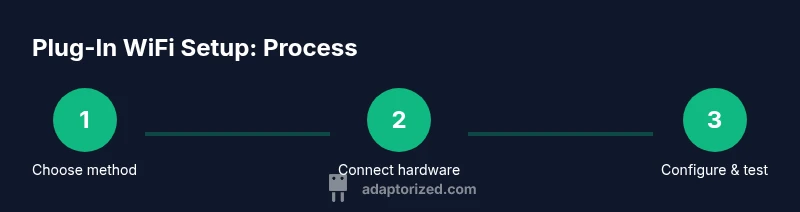
Identify goal and pick a method
Define which area needs coverage and whether a USB adapter, powerline option, or plug-in extender best fits your space. Consider the number of devices that will connect and the layout of walls and floors that affect signal.
Tip: Choose a solution that matches your primary use case (single device, small room, or whole home). - 2
Gather tools and prepare space
Collect the USB adapter, Ethernet cable, and a suitable power outlet. Clear the area around the devices to avoid heat buildup and ensure easy access for setup and future maintenance.
Tip: Use a surge-protected power strip for added protection. - 3
Install hardware and power
Plug the adapter into the target device and connect to power. If using a powerline kit, connect the first unit to the router with Ethernet, then place the second unit where you want WiFi.
Tip: Avoid daisy-chaining powerline devices through multiple power strips. - 4
Install drivers or app and update
Install the recommended drivers or the device's configuration app. Check for firmware updates and apply them before proceeding to configuration.
Tip: Always download drivers from the manufacturer’s official site. - 5
Configure network settings securely
Create a unique SSID and a strong passphrase. Enable WPA2 or WPA3 and disable WPS if possible. Ensure device naming is clear to avoid confusion on your network.
Tip: Document the credentials in a secure note for future changes. - 6
Test connection and optimize
Run speed tests from the intended spaces and adjust placement for best signal. If needed, relocate the device to improve coverage without sacrificing performance.
Tip: Use a simple speed test tool to compare before/after placement. - 7
Integrate with your existing network
If bridging or AP mode is available, configure accordingly so devices switch between APs seamlessly. Ensure devices can hand off to stronger signals when moving around the home.
Tip: Prefer AP or mesh mode over simple extenders for larger homes. - 8
Document and maintain
Record your settings, firmware versions, and any changes. Schedule periodic checks every few months to refresh firmware and reassess coverage as devices are added or moved.
Tip: Set calendar reminders for firmware checks.
Your Questions Answered
Can you get plug-in wifi without a traditional router?
Most plug-in wifi devices rely on a router or access point to manage the network. Some devices can create an AP if they have a dedicated mode, but you generally still need internet access from a modem or main router. Plan accordingly and avoid assuming a standalone unit will replace your router.
Usually you still need a router or modem; standalone plug-in devices rarely provide internet access by themselves.
Do plug-in wifi devices work with all devices?
Most USB adapters support Windows, macOS, and many Linux distributions, with driver availability. Check the manufacturer’s compatibility list for your OS and device capabilities before buying.
Most work with common computers, but always verify driver support for your OS.
Is plug-in wifi secure?
Yes, as long as you configure WPA2 or WPA3 and keep firmware updated. Disable WPS if possible to reduce exposure to known vulnerabilities.
Yes, enable modern encryption and keep firmware current.
What speeds can I expect from plug-in wifi devices?
Speeds depend on the device standard (802.11ac/ax), wireless band, and overall network conditions. Real-world results vary, and a plug-in device won’t exceed the capacity of your internet plan or primary router.
Expect speeds limited by device standard and your home network conditions.
Can plug-in wifi cause interference with other devices?
Yes. Place devices away from microwaves and cordless phones, and use the 5 GHz band when possible to minimize interference.
Yes, position devices to reduce interference and use 5 GHz where possible.
What should I do if the plug-in device isn’t detected?
Try a different USB port, reboot the device, update drivers, and verify power. If still not detected, consult the manual for supported ports and reset steps.
If it isn’t detected, try another USB port and update drivers.
Watch Video
What to Remember
- Choose the right plug-in method for your space
- Secure connections with WPA2/WPA3 and updated firmware
- Test and optimize placement for consistent performance
- Document settings and maintain your setup