How to Deal with Connection Problems: A DIY Guide
Practical, step-by-step guidance to resolve common home connection problems. Learn quick wins—reboots, cable checks, firmware updates, and safe network tweaks from Adaptorized.


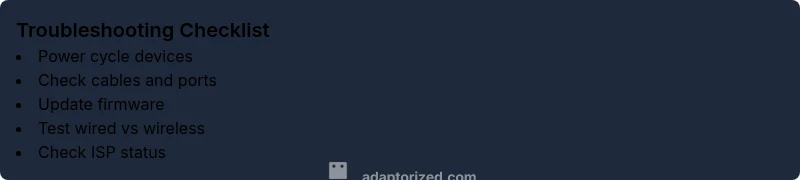
Most connection problems come from a simple network issue or a faulty cable. Start by rebooting your modem and router, then test a wired connection. If that works, test Wi‑Fi with a quick speed check. Check cables, firmware, and settings. If problems persist, contact your ISP or a technician for a more detailed diagnosis.
How to deal with connection problems: Quick start guide
In many homes, connection problems stem from fixable, everyday causes. According to Adaptorized, a disciplined, repeatable troubleshooting process beats guesswork. This short guide is a practical, DIY-friendly path to relief and long-term reliability. Start with the basics, separate symptoms from likely causes, and apply targeted fixes you can perform without special tools. By sticking to a simple flow, you’ll reduce downtime and frustration while learning valuable networking habits.
Common Culprits Behind Connection Problems
- Modem or router hardware faults that need a simple reboot or replacement
- Outdated firmware on networking devices, which can cause compatibility issues
- ISP outages or line problems that affect service reliability
- Wi‑Fi interference, channel crowding, or weak signal in large or multi‑story environments
- Loose or damaged Ethernet cables and faulty ports on devices
- DNS or IP configuration problems that cause slow or intermittent access
Understanding these culprits helps you triage methodically instead of chasing vague symptoms. Adaptorized’s experience shows that most home connectivity issues resolve when you fix or rule out the basics first.
Easy First Checks You Can Do Right Now
- Reboot your modem and router by power cycling them (unplug for 30 seconds, then plug back in)
- Inspect LEDs and port activity; note any unusual blinking or no activity
- Run a wired test from a laptop or desktop to determine if the problem is wireless or universal
- Check all cables for damage or looseness and reseat Ethernet cables firmly
- Temporarily disable VPNs or firewall rules that might block traffic for testing
- Check your service status with your ISP to rule out an outage or maintenance window
These initial checks are quick wins that often restore stable service without further steps. As Adaptorized notes, patients wins beat rushed fixes.
Diagnostic Flow: Symptoms to Diagnosis
Symptoms guide the diagnosis path. Start by categorizing the issue:
- No Internet across all devices (or no WAN light on the modem) → Likely a service outage or modem fault. Verify with your ISP and test with a direct wired connection to rule out a device issue.
- Intermittent drops or unreliable speed → Could be line quality, wireless interference, or congested channels. Check cabling, reset devices, and optimize Wi‑Fi settings.
- Slower-than-normal speeds on wired and wireless → Consider firmware updates, DNS configuration, or plan throttling by the ISP.
Diagnosis should be stepwise: rule out power/cabling, then test on wired vs wireless, then test via a different device, and finally check external factors like ISP status or environmental interference.
Step-by-Step: Most Common Fixes (Progressive Fixes)
- Power cycle everything: unplug modem, router, and affected devices for 30 seconds, then plug back in in the same order. Wait for all lights to stabilize. Tip: Label cords to avoid miswiring during reassembly.
- Test wired connectivity: connect a computer directly to the modem with an Ethernet cable and run a speed test. If wired works, the issue is likely wireless; if wired fails, focus on the modem/ISP path. Tip: Use a different port on the router if available.
- Update firmware: log into the router and modem admin pages, check for updates, and install them. Reboot afterward. Tip: Back up current settings before updating in case you need to revert.
- Inspect and replace cables: swap out any suspect Ethernet or coax cables, especially if you notice physical wear or corrosion. Tip: Use cables that are at least category 5e (or higher) for reliability.
- Reconfigure network settings: check DNS (e.g., 1.1.1.1 and 8.8.8.8) and IP assignment (DHCP enabled). Renew the lease on devices that show IP conflicts. Tip: Reserve or static IPs only if you understand the implications.
- Optimize wireless: pick a clearer channel, update security (use WPA2/WPA3), and consider a guest network to reduce interference from smart home devices. Tip: Place the router centrally and away from metal objects or microwaves.
- When to escalate: if wired fails and the ISP reports no outage, request a technician visit or a line test; persistent issues after firmware upgrades may indicate hardware faults. Tip: Document timestamps and test results to speed up escalation.
Tips & Warnings
- Safety first: power off equipment before disconnecting cables and avoid touching live circuits.
- Do not reset devices too often; frequent factory resets can erase custom configurations you rely on.
- If you’re renting or using corporate equipment, consult the landlord or IT guidelines before changing settings.
- When in doubt, staged troubleshooting is safer than attempting risky hacks that can void warranties.
Avoid common mistakes like changing the wrong device’s settings, assuming wireless issues equal all-device failures, or ignoring environmental interference.
Prevention and Maintenance
- Schedule periodic firmware updates for all inbound networking gear to minimize compatibility issues.
- Keep a simple cable inventory: color-code or label cables so you can quickly identify which device they belong to during reconfiguration.
- Revisit Wi‑Fi placement every 6–12 months to adapt to home remodeling or new devices.
- Document your network layout and saved configurations so you can recover quickly after a power outage or device swap.
- Establish a basic disaster-recovery plan: know how to test service status, who to contact, and what steps to take if service is down for an extended period.
Steps
Estimated time: 20-45 minutes
- 1
Power cycle all hardware
Unplug the modem, router, and any range extenders. Wait 30 seconds, then plug back in, starting with the modem. Allow all lights to stabilize before testing.
Tip: Label cables to avoid misplacement during reassembly. - 2
Test wired connection
Connect a computer directly to the modem with an Ethernet cable and run a speed test. If it works, the issue is likely wireless; if not, focus on the modem/ISP path.
Tip: Try a different Ethernet port if available. - 3
Update firmware
Log into the router/modem admin page, check for updates, and install. Reboot after updating.
Tip: Back up current settings before updating. - 4
Inspect and swap cables
Replace suspect Ethernet/coax cables and reseat connectors. Check for visible wear or pinched cables.
Tip: Use cables of category 5e or higher. - 5
Reconfigure DNS/IP
Configure DNS to reliable servers and ensure DHCP is enabled. Renew IP leases on affected devices.
Tip: Avoid static IP unless you understand network topology. - 6
Optimize Wi‑Fi
Change to a clearer channel, enable WPA2/3, and set up a guest network to isolate IoT devices.
Tip: Position the router centrally and away from metal objects.
Diagnosis: User reports no Internet or intermittent connectivity across devices
Possible Causes
- highPower issue or unpowered devices
- highISP outage or service disruption
- mediumOutdated firmware on modem/router
- lowInterference or incorrect Wi‑Fi channel
Fixes
- easyPower cycle the modem and router (unplug, wait 30 seconds, plug back in)
- easyCheck service status with the ISP and run a wired speed test
- easyUpdate firmware on modem/router and reboot
- easyReset DNS/IP settings or switch DNS servers (e.g., 1.1.1.1/8.8.8.8)
Your Questions Answered
What should I do first when my internet suddenly stops working?
Begin with a power cycle of the modem and router, then test a wired connection. If wired works but wireless does not, focus on Wi-Fi settings and placement. Check for service outages with your ISP before diving deeper.
First, power cycle the modem and router, then test wired connectivity. If that works, review Wi‑Fi settings and placement; also check for ISP outages before deeper fixes.
Why is my Wi-Fi slow but Ethernet works fine?
Wired connections bypass wireless limitations. Slow Wi‑Fi can be caused by interference, crowded channels, or weak signal. Try changing the Wi‑Fi channel, updating firmware, and adjusting router placement.
If Ethernet is fine but Wi‑Fi is slow, check for interference and channel crowding, update firmware, and move the router to a better spot.
Can I fix connection problems without calling my ISP?
Many issues are solvable at home with rebooting, firmware updates, and cable checks. If problems persist after basic fixes, you may still need ISP assistance for line tests or outages.
Yes, many problems can be solved at home, but if it persists after basic fixes, you may need your ISP to check the line.
How do I update my router firmware safely?
Log into the router's admin page, check for updates, and install them. Always back up current settings before upgrading and reboot the device afterward.
Go to the router's admin page, update firmware, and reboot. Back up settings first.
Is it safe to reset my modem to factory settings?
Factory resets can fix stubborn issues but erase custom settings. Only reset if you’ve saved config and can re-enter your ISP and Wi‑Fi details afterward.
A factory reset can help, but it erases your settings, so back up first and know your login details.
What if multiple devices have issues at once?
If many devices fail, start with the modem and check for outages. Then test wired devices; if wired fails too, the problem is likely with the service or hardware.
If many devices fail, check the modem and outages first, then test wired devices to isolate the issue.
Watch Video
What to Remember
- Identify whether the fault is device, network, or service related
- Start with power, cables, and basic firmware updates
- Separate wired from wireless tests to narrow causes
- Document changes to simplify future troubleshooting
- Escalate to ISP or a professional when essential hardware or service is suspected