Should Metered Connection Be On or Off: A Practical Guide
Discover whether should metered connection be on or off across Windows, macOS, Android, and iOS. Learn practical steps, platform nuances, and best practices for data-conscious DIYers.


Metered connections should be on when you need to curb data usage and avoid overage charges on limited plans. According to Adaptorized, metered mode helps you control background activity. Turn metered off when you rely on automatic updates or large downloads. This guide helps you decide across Windows, macOS, Android, and iOS. Metered usage helps you manage hotspots and data caps while reducing unexpected background traffic.
Understanding Metered Connections: What It Means for Your Network
Metered connections are a data-management setting built into modern operating systems. When enabled, the system treats the active network as data-limited and throttles or defers nonessential activity to conserve usage. This can affect automatic updates, cloud backups, app refreshes, and background syncing. In practice, turning metered mode ON means Windows, macOS, Android, or iOS will try to minimize data use in the background, while turning it OFF allows apps to download updates and content as needed. For DIYers and makers with capped data plans or roaming hotspots, metered connections provide a predictable ceiling on data use. It’s also useful when testing a new network or sharing a phone’s data with a project, so you’re not surprised by background activity. However, some critical services—like security updates and essential backups—may occur less frequently or delay until you manually override the setting.
When Should You Enable Metered Connection?
Enable metered connection when your data plan is capped or expensive, when you frequently use a mobile hotspot, or when you want tighter control over background traffic. It’s also handy if you’re traveling and depend on a spotty network, since it prevents automatic downloads from consuming your entire allowance. If you notice apps continuously syncing in the background or yourself hitting data caps, toggling metered ON can help you manage consumption. After enabling, monitor the effect on updates and cloud backups to decide if you should keep it active or switch it off during critical tasks. You can also use it to test new services without consuming your entire plan.
When Should You Disable Metered Connection?
Disable metered connection when you rely on automatic OS and app updates, cloud backups, or large downloads that you don’t want interrupted. If you work from home with a generous data plan or a fast wired connection, turning metered OFF can improve software delivery speed and reduce the friction of manual updates. Also, some applications ignore metered settings and will still perform background tasks, so you may choose OFF to maximize compatibility. Consider disabling before major system updates to ensure you receive them without delay.
Platform-Specific Guidelines: Windows, macOS, Android, and iOS
Windows: Open Settings > Network & Internet > Wi‑Fi (or Ethernet) > Advanced options > Metered connection to toggle ON or OFF. This is the most common place to manage metered data on a desktop.
Android: Settings > Network & Internet > Data usage > Data saver (or per‑network metering in advanced). Data saver reduces background data for most apps; some OEMs expose a per‑network metering toggle.
iOS: Settings > Cellular > Cellular Data Options > Low Data Mode. While not labeled metered, Low Data Mode serves a similar purpose by reducing background activity and data usage.
macOS: Not all networks expose a single OS-wide meter toggle; manage updates and background activity per app and via App Store/Cloud settings. The result is similar: limit automatic downloads on the active network.
Practical Scenarios and Examples
Scenario A: You’re often tethering a phone to a laptop and have a strict data cap. Enable metered on the laptop’s Wi‑Fi network to prevent large automatic downloads and reduce cloud syncing.
Scenario B: Your home internet includes unlimited data, but you want to minimize background updates during a big project. Keep metered OFF, then turn it ON only when the project period ends.
Scenario C: You’re traveling with a mobile hotspot and need to monitor data carefully. Use metered mode on that connection, and plan updates during times you’re on a larger, non-metered network.
Scenario D: A critical security update is pending but you’re on a capped plan. Temporarily disable metered mode to ensure the update installs promptly, then re-enable afterward.
Troubleshooting Common Issues with Metered Connections
If updates still occur despite metered mode being ON, check per‑app settings and consider whitelisting essential services. Some apps ignore system metered settings, so you may need to adjust within the app itself or set broader data limits. If you experience connectivity issues after toggling, try a quick reboot of the device and recheck the network type (Wi‑Fi vs. Ethernet). Finally, document your data usage and the effect of the setting so you can tweak the balance between performance and consumption.
Pros and Cons at a Glance
- Pros: Reduces data waste; helps manage costs; improves control over background tasks.
- Cons: May delay updates and backups; some apps may ignore the setting; requires manual adjustments for some tasks.
Bottom line: Use metered mode when data is scarce, and disable when you need maximum speed and automatic maintenance.
Best Practices for DIYers and Makers
- Start with a clear data cap and test window to quantify effects.
- Use OS data usage tools to log changes and compare ON vs OFF periods.
- Prefer per-network metering on hotspots and mobile networks, and keep trusted networks OFF when you need maximum background activity.
- Document outcomes and adjust based on project requirements and data availability.
Tools & Materials
- Device to test (Windows PC, macOS, Android, or iOS)(Choose one platform for testing changes)
- Internet data plan details(Know your data cap and rates to decide on metered usefulness)
- Access to network settings(You will enable/disable metered mode in OS settings)
- Notepad or notes app(Useful for logging data usage and updates during tests)
Steps
Estimated time: Estimated total time: 60-90 minutes
- 1
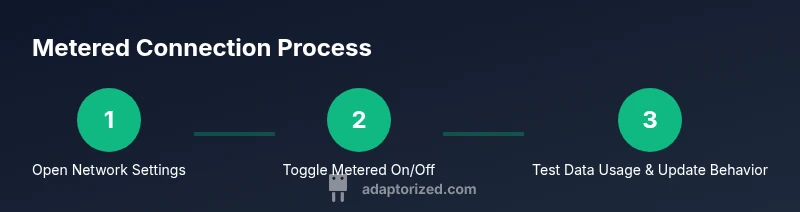
Open the network settings page for your platform
Identify the appropriate network settings area on your device. Windows, macOS, Android, and iOS place metered options in different menus, so start by locating the right section for your platform.
Tip: Take a quick screenshot of the path for future reference. - 2
Find the metered connection setting
Look for a toggle or option labeled Metered connection, Data saver, or Low Data Mode depending on your platform.
Tip: If you don’t see a global switch, check per-network options (Wi‑Fi vs Ethernet). - 3
Toggle Metered ON
Enable the metered option on the active network. The system will prioritize essential data and limit background downloads.
Tip: After turning it on, note expected changes in background updates and syncing. - 4
Test updates with Metered ON
Trigger a typical update or background sync to observe how data usage behaves under metered conditions.
Tip: Check the update status in the OS settings or the app’s update dialog. - 5
Turn Metered OFF after testing window
Disable metered mode to restore default behavior for updates and large transfers.
Tip: Remember to revert after the test window and note any changes observed. - 6
Run a controlled data usage test
Use the device for typical work for a day and compare data usage between ON and OFF states.
Tip: Log the data consumed by updates, cloud backups, and app syncs. - 7
Review critical apps and services
Verify essential apps can operate normally and that important updates occur when needed.
Tip: If something is delayed, consider temporarily exempting that service from metered rules. - 8
Document your preferred setting
Record your findings and decide whether to keep Metered ON, OFF, or switch based on network conditions.
Tip: Create a simple policy for data-heavy tasks and updates.
Your Questions Answered
What is a metered connection?
A metered connection is a data-management setting that tells the OS to limit background data usage on that network, helping you avoid excess data charges.
Metered connection is a data-limiting setting that curbs background data on that network.
When should I enable metered on a network?
Enable metered when you have a data cap, use a hotspot, or want to minimize background traffic. It helps prevent surprise data usage.
Turn it on when you have data limits or use hotspots to prevent unexpected data use.
Will metered mode slow updates?
Yes, automatic updates and backups may be delayed while metered mode is active. You can trigger updates manually if needed.
Updates may be delayed; you can run them manually if you need them.
Can I use metered on Wi‑Fi but not cellular?
Yes. You can usually enable metered per-network, which lets you apply data limits on specific connections while leaving others unaffected.
Yes, you can apply metered settings to individual networks.
Does metered mode affect cloud backups?
Metered mode can delay cloud backups to save data; you may schedule backups for when you’re off metered or ensure critical backups run manually.
Backups may be delayed; schedule or trigger them when you’re off metered.
Is there a universal metered toggle on macOS?
macOS does not have a single OS-wide metered toggle. You manage updates and background activity through per-app settings and App Store controls.
macOS doesn’t have one global metered switch; manage apps individually.
Watch Video
What to Remember
- Toggle metered on/off based on data availability and task urgency
- Expect updates and backups to adapt when metered is active
- Test across platforms to understand platform-specific impacts
- Log data usage to inform future decisions
- Consider per-network metering on hotspots for precision