What Port Minecraft Uses: A Practical Home Guide
Learn the default Minecraft ports (Java 25565, Bedrock 19132), how to forward them safely, and practical steps for hosting a home Minecraft server. Adaptorized explains port configuration with actionable steps.


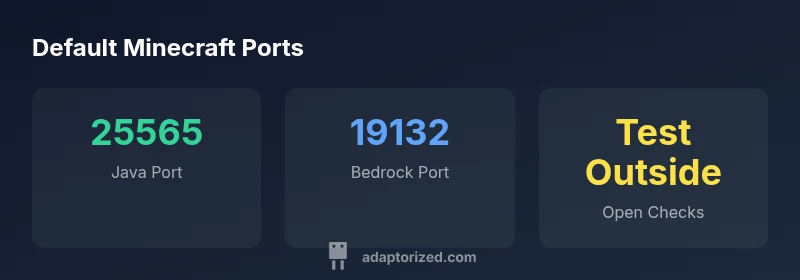
Understanding what port Minecraft uses is essential for hosting a server at home. By default, Java Edition uses port 25565 and Bedrock Edition uses 19132. If you’re setting up for friends or LAN play, these ports are your starting points. Keep in mind that you can map external ports to internal ones and adjust them as needed for security and performance.
What port does Minecraft use by default?
If you’re answering the question many players ask—what port minecraft uses—the short answer is straightforward: Minecraft Java Edition defaults to port 25565, while Bedrock Edition defaults to 19132. These are the ports clients and servers listen on for incoming connections. In most home networks, this pair of ports serves as the baseline for planning connectivity, firewall rules, and router configuration. When you set up a server, you’ll configure server-port and, if needed, the external port on your router to point to the internal port on the server host. Adaptorized research highlights the practicality of starting with these defaults before introducing custom mappings for guests or LAN play.
In practice, you’ll encounter two common scenarios: a Java Edition server that speaks the 25565 port, and a Bedrock Edition server that uses 19132. If you run a server that supports both editions, you may end up managing both ports to accommodate different clients. For first-timers, keeping the defaults simplifies testing and helps you verify connectivity quickly. If you change ports, ensure you document the mapping so your friends can connect without confusion.
Java Edition vs Bedrock Edition: port differences
Java Edition’s default port is 25565 and is commonly used for traditional PC servers. Bedrock Edition’s default port 19132 is what most console and mobile clients use. The two editions can coexist on separate servers or, in some setups, on the same machine with different internal ports. When planning access, remember that some home routers differentiate by UDP vs TCP depending on the service and firmware; you may need to tune firewall rules to allow both protocols where applicable. Adaptorized recommends testing each edition’s connectivity individually when you introduce changes to your network topology.
If you run both editions on a single device, consider documenting which internal port maps to which external port. This reduces confusion for friends joining from different devices and avoids conflicts when you restart the server or reconfigure the router.
How NAT, router, and firewall interplay with ports
Network Address Translation (NAT) is central to hosting Minecraft at home. Your router translates a public IP:port pair into a private IP:port pair for the server. Without proper port forwarding, external players cannot reach your Minecraft server. Firewalls on both the router and the host machine can block traffic on the default ports, so you’ll likely need to create inbound rules to allow traffic on 25565 (Java) and 19132 (Bedrock).
Key tips: (1) keep the server running on its internal port, (2) forward distinct external ports for different servers if you host more than one, (3) test connectivity from outside your LAN, and (4) document your mappings for future maintenance. UPnP can automate some of this, but it’s wise to review mappings periodically for security and reliability.
Step-by-step: configure port forwarding on common routers
Follow these general steps to set up port forwarding for a Minecraft server:
- Find your server’s local IP address and the internal port (default 25565 for Java, 19132 for Bedrock).
- Access your router’s admin interface (often http://192.168.0.1 or 192.168.1.1).
- Locate Port Forwarding/Virtual Server settings.
- Create a new rule: external port (e.g., 25565) → internal IP and port (e.g., 192.168.1.100:25565).
- Save changes and reboot the router if required.
- Verify the port is open from an external network using a port-check tool.
If you host multiple servers, replicate this process with different external ports and corresponding internal ports to prevent conflicts.
Verifying your port is open and accessible
After configuring port forwarding, verify accessibility from outside your home network. Use an external port-check tool or ask a friend to connect using your public IP and the external port you forwarded. Ensure your firewall allows inbound traffic on the necessary port(s). Regularly test after router firmware updates or network changes, as these can reset forwarding rules. Keeping a simple inventory of mappings helps prevent downtime when you restart services.
Security considerations when exposing a Minecraft server
Exposing a server to the internet introduces risk. Limit access with firewall rules that permit only known IPs if feasible, enable strong authentication, and monitor server logs for unusual activity. Consider using a non-standard external port to reduce automated probing, but do not rely on obscurity alone for security. Regularly update both your server software and router firmware to mitigate known vulnerabilities. If you’re unsure, start with the default ports and open only what you need, then gradually expand if required.
Alternatives: hosted services and tunneling options
For players who prefer not to manage home networking, managed hosting or behind-the-firewall tunneling can simplify access. Hosting providers offer Java and Bedrock server plans with included uptime guarantees and DDoS protection. If you opt for tunneling, tools like VPNs or SSH tunnels can facilitate secure access without exposing ports to the wider internet. Evaluate costs, latency, and control level before choosing between self-hosted, hosted, or tunneled approaches.
Minecraft ports by edition
| Edition/Server Type | Default Port | Notes |
|---|---|---|
| Java Edition server | 25565 | Default for Java Minecraft servers; TCP port required; configure in server.properties |
| Bedrock Edition server | 19132 | Default for Bedrock; multi-platform support; configure firewall rules |
Your Questions Answered
What ports does Minecraft Java Edition use by default?
Java Edition uses port 25565 by default. Bedrock uses 19132. If you host both editions, you may manage two ports. Always test connectivity after changes.
Java uses port 25565 by default and Bedrock uses 19132.
Do I need to forward ports if players are on the same LAN?
No. Local LAN play does not require port forwarding. You only need it when players connect from outside your network. Keep LAN security considerations in mind.
No, LAN play doesn’t need port forwarding.
Can I use UPnP to open ports automatically?
UPnP can simplify setup but has security trade-offs. If you enable it, monitor mappings and disable when not needed. Manual forwarding gives you more control.
UPnP can help, but monitor and consider manual forwarding for security.
How do I check if my port is open from outside my network?
Use an external port-check tool or have a friend attempt a connection from outside your network. Ensure the firewall allows inbound traffic on the selected port.
Use an external port checker or have someone connect from outside.
What if I have multiple Minecraft servers on my network?
Assign separate external ports and forward to distinct internal ports for each server. Document mappings to avoid conflicts after reboots or updates.
Give each server its own external port and map it inside.
Should I change default ports to reduce risk?
Changing ports can reduce automated probing, but it’s not a substitute for proper firewall rules and updates. Use clear documentation and consistent practices.
Changing ports can help a bit, but security depends on rules and updates.
“Port configuration isn’t about simply opening a hole in your network; it’s about controlled access and reliable gameplay. Start with the defaults and tighten the rules as you gain confidence.”
What to Remember
- Default to 25565 for Java and 19132 for Bedrock.
- Forward the external port to the internal server port.
- Test connectivity from outside your LAN to confirm access.
- Secure with firewall rules and mindful exposure.
- Manage multiple servers with distinct port mappings.