Why Is My Connection Bad on My Phone? A Practical Troubleshooting Guide
Experiencing slow data or flaky Wi‑Fi on your phone? Adaptorized delivers urgent, practical steps to diagnose and fix common connectivity issues on iOS and Android. Learn how to regain stable, reliable mobile connections fast.


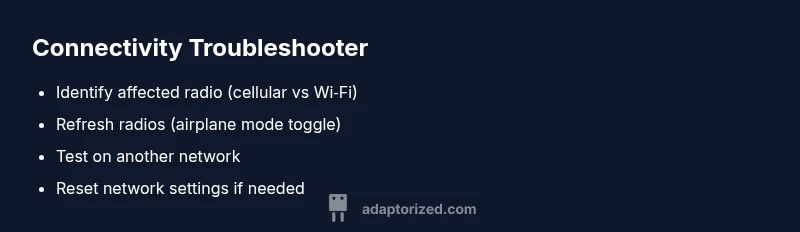
The most likely cause is a weak signal or network congestion. Start with quick resets: toggle airplane mode, restart your device, and reconnect to Wi‑Fi or mobile data. If the issue persists, test on another network, verify data saver and VPN settings, and check for OS updates. These steps cover the majority of cases and buy you time to diagnose deeper problems.
Why this happens and what you’re really battling
If you’re asking why is my connection so bad on my phone, the answer is usually a mix of signal strength, network congestion, and device configuration. Modern phones are constantly juggling multiple radios (cellular, Wi‑Fi, Bluetooth, GPS). When more devices compete for limited spectrum, you notice slower speeds, buffering, or dropped connections. Environmental factors like thick walls, elevators, or dense urban areas can degrade signal quality. Software quirks or background apps can also momentarily steal bandwidth, making a connection feel worse than it actually is. By understanding the common culprits, you can apply targeted fixes that restore reliability quickly.
Quick sanity checks you can do immediately
Before diving deep, run through a few fast checks:
- Switch between cellular data and Wi‑Fi to see which is giving trouble.
- Turn on/off Airplane mode to refresh radio connections.
- Ensure you’re not in a data-saver or VPN mode that throttles traffic.
- Confirm your device clock, date, and time are correct—some networks rely on accurate timing.
How much of the problem is time-based vs location-based
Sometimes the issue isn’t your device but when and where you are. Peak hours, large events, or network maintenance can reduce throughput across many users. Try moving to a different location (open space vs. indoors), pause downloads, and test again later. If the issue follows you across locations, the problem is more likely device- or network-config related rather than local congestion.
Layered approach: isolate the radio you’re using
Phones typically maintain multiple radios: cellular, Wi‑Fi, Bluetooth, and sometimes hotspot/tethering. If Wi‑Fi works but cellular data doesn’t, the issue is likely the cellular modem, APN settings, or carrier configuration. If both fail, the problem might be device-level software or a global network outage. By isolating radios, you can narrow down the root cause and choose an effective fix.
How adapters, cases, and accessories can impact signals
A poorly seated SIM, defective SIM tray, or metal cases can dampen radio performance. Remove the case, reseat the SIM, and try another SIM if possible. Also ensure there are no external peripherals (USB tethering adapters, portable hotspots) siphoning bandwidth. Small hardware changes can yield noticeable improvements in signal stability.
Steps
Estimated time: 45-60 minutes
- 1
Identify affected connection type
Start by confirming whether the issue affects cellular data, Wi‑Fi, or both. Note if other devices on the same network have similar problems. This helps you decide whether the problem is local to your phone or a broader network issue.
Tip: Write down observed behavior and location to spot patterns. - 2
Refresh wireless radios
Toggle Airplane mode on for 15 seconds, then off. Restart the phone to clear temporary caches and reestablish radio connections to networks you use most.
Tip: A full restart often resolves minor firmware hiccups. - 3
Rejoin networks
Forget the problematic Wi‑Fi network, then reconnect with the correct password. If using cellular data, toggle data off then back on and test with a different network (another Wi‑Fi or hotspot).
Tip: Reconnecting clears authentication glitches that slow performance. - 4
Inspect network settings
Check that cellular data is enabled, APN settings are correct for your carrier, and that a VPN or data saver isn’t throttling traffic. Disable VPNs temporarily to test baseline performance.
Tip: Small misconfigurations can dramatically throttle speeds. - 5
Update software and resets
Install any available OS updates and carrier settings updates. If nothing helps, consider a targeted reset of network settings (not a full factory reset) and re‑pair Bluetooth devices if needed.
Tip: Back up important data before any reset. - 6
Decide on escalation
If issues persist after all basic steps, contact your carrier for outages or SIM tests, or visit a service center for a hardware check on the device’s modem.
Tip: Document dates, times, and troubleshooting steps for faster support.
Diagnosis: Phone experiences slow data, dropped calls, or cannot connect to Wi‑Fi
Possible Causes
- highWeak cellular signal (low bars)
- lowAirplane mode enabled or cellular data turned off
- mediumCarrier outage or network congestion
- mediumOutdated OS or faulty network settings
- lowVPN or firewall interference
Fixes
- easyToggle airplane mode off/on; restart phone
- easyToggle cellular data and Wi‑Fi off, then back on
- easyTest on a different network (another Wi‑Fi or mobile hotspot)
- easyReset network settings (will remove saved networks)
- easyCheck for OS updates and carrier settings updates
- mediumIf problem persists, contact your carrier or visit a store for SIM testing
Your Questions Answered
Why is my phone's connection so bad all of a sudden?
Often the cause is a weak signal or a carrier outage. Check if others nearby have the same issue, toggle radios, and test with another network to pinpoint whether it’s hardware or network-related.
Usually it's a weak signal or network issue. Try toggling radios and test on another network to pinpoint the cause.
Why does Wi‑Fi work but mobile data doesn't?
Wi‑Fi and cellular data use different paths. Check cellular data is on, APN settings, and if data saver is limiting speed. Test mobile data in another location or SIM if possible.
Wi‑Fi and cellular data are separate. Check cellular data settings and APN, and try another location or SIM.
How can I tell if the problem is software or hardware?
If other networks fix the issue, it’s likely software. Try a software update, safe mode, or reset network settings. If it persists in safe mode, hardware may be involved.
If the problem persists in safe mode, it might be hardware. Start with updates and a reset of network settings.
When should I contact my carrier?
If outages are suspected, you see persistent poor performance, or SIM issues after testing, contact your carrier for outage reports or SIM replacement options.
If you suspect outages or SIM problems after testing, reach out to your carrier.
Will a factory reset fix connectivity problems?
Rarely required for connectivity issues and should be a last resort. Back up first and try less drastic steps like resets of network settings or OS updates.
Factory reset is usually unnecessary for connectivity—try network resets first.
What if my signal is always poor in my home?
Consider a dedicated mobile signal booster, repositioning the router or access point for better indoor reception, and ensuring the device isn’t physically shielded by metal or concrete.
For consistently bad home signal, consider a booster and optimize device placement.
Watch Video
What to Remember
- Identify whether the issue is local or network-wide
- Refresh radios and rejoin networks to reset connections
- Isolate cellular vs Wi‑Fi to guide fixes
- Reset network settings if needed, then update
- Escalate to carrier or device support when stuck