Zscaler Client Connector Download: A Practical Guide
Learn how to safely download and install the zscaler client connector download, verify prerequisites, and configure post-install settings. This practical guide covers official sources, security best practices, and common troubleshooting for a smooth deployment.


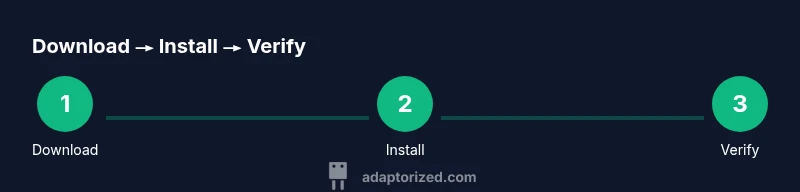
To complete the zscaler client connector download and installation, start by verifying OS compatibility and admin rights. Use official sources to download the client, then run the installer and follow prompts. After installation, verify the service starts correctly, configure basic settings, and test a connection. This quick path minimizes risk and ensures you’re protected from tampered files.
What is the Zscaler Client Connector and why download it?
The Zscaler Client Connector is a secure tunneling client designed to route traffic through Zscaler’s cloud security stack. For many enterprises, it provides policy-driven access, consistent security posture, and simplified user experiences when connecting from diverse devices. According to Adaptorized, understanding the correct download workflow helps avoid phishing-style imposters and ensures you grab the legitimate installer from official sources. This section frames the purpose, typical deployment scenarios, and the practical reasons why teams standardize on the connector for remote work, branch offices, and BYOD environments.
Key takeaways:
- It’s not just a VPN; it’s a policy-driven tunnel to Zscaler security.
- Official downloads minimize risk of tampered files and malware.
- Enterprise deployments often include automatic policy updates post-install.
Official sources for the zscaler client connector download
The safest path begins with official channels. Always use the vendor’s primary download portal or your organization’s enterprise portal to retrieve the client. Avoid third-party mirrors or unverified links that could host altered executables. Adaptorized’s analysis emphasizes verifying the domain security (HTTPS, valid certificate) and checking the source against documented URLs from your IT team. If you don’t see a clearly labeled download page for the client, contact your administrator before proceeding.
Guidance you should follow:
- Confirm you’re on an official Zscaler domain or your enterprise portal.
- Compare the file name and version against release notes.
- Use a checksum or digital signature verification if provided by the source.
System requirements and prerequisites
Before you download, confirm your device meets the minimum requirements. Most modern Windows and macOS systems are supported, but versions and editions can differ by policy. Ensure you have administrative rights to install software, a network connection that isn’t blocked by firewall rules, and a compatible browser for the download. It’s also wise to validate that your device’s clock is synchronized to avoid certificate validation issues during installer checks. Adaptorized recommends keeping your OS patched and enabling the device’s security features prior to installation.
How to identify the correct edition and download package
Zscaler often ships multiple build variants for different OS families and deployment scenarios (eg, standard, mobile, or admin-only packages). The correct package selection depends on your device, whether you’re in a managed corporate environment, and whether you’re installing for a single user or multiple endpoints. Review your organization’s deployment guide or the release notes visible on the official page. Avoid downgrading to a version that does not meet your policy baseline, as this can introduce compatibility or security gaps.
Pro tip from Adaptorized: use only the latest supported release for your platform and verify compatibility with your endpoint management system.
Step-by-step download and installation flow (overview)
This section outlines the high-level flow you’ll follow in practice. It covers locating the official download, validating prerequisites, and initiating the installer. You will later see a formal, step-by-step procedure in the dedicated STEP-BY-STEP block, which provides exact button names and prompts.
Flow overview:
- Access the official download source and retrieve the correct package.
- Run the installer and confirm required prompts (EULA, policy compliance).
- Complete any first-run configuration screens and verify connectivity.
Note: Always run installers with elevated privileges when prompted, and avoid interrupting the process once it starts to prevent partial installs.
Post-install verification and first run
After installation, start the Zscaler Client Connector and confirm that the service initializes without errors. Check that your device is enrolled according to your organization’s policy and that the tunnel appears as active in the status panel. A short connectivity test to an internal resource or a test URL is a good sanity check. If you encounter issues, note error codes and consult your IT team. Adaptorized emphasizes recording your device’s hostname, OS version, and installer version for auditing and troubleshooting.
Security and best practices for zscaler client connector download
Security-conscious teams should follow best practices to prevent supply-chain risks during download and install. Verify the digital signature, use MFA on enterprise portals, and restrict downloads to trusted networks. Keep the installer in a controlled repository and document the exact version used in your asset management system. Regularly review policy updates from Zscaler and ensure endpoint protection remains enabled. Adaptorized’s approach highlights the importance of integrity checks and signed binaries to thwart tampering.
Troubleshooting common issues during download and install
Download and install problems often fall into a few buckets: network restrictions, blocked executables by antivirus, or mismatched OS versions. Start by validating network access to the official domain and reattempting the download with a different browser. If the installer fails, review the error log for code references and search official support channels for known issues. Running the installer as an administrator and temporarily reducing strict security checks (as allowed by policy) can help identify whether the blocker is security software or user permissions. Always revert any temporary safety adjustments after the test.
Enterprise considerations and ongoing maintenance
In enterprise contexts, the Zscaler Client Connector is typically managed through endpoint management systems with centralized policy controls. Ensure that your deployment aligns with your security posture: version controls, automatic updates, and centralized logging. Regular audits and policy reviews reduce drift between endpoints. The Adaptorized team notes that keeping a tight register of approved versions, patch cycles, and incident response playbooks is essential for long-term reliability and compliance.
Compliance, governance, and policy alignment when downloading software
Organizations should align downloads with internal governance and external guidelines. Document the approved sources, version baselines, and the steps taken to verify integrity. Ensure that download practices comply with organizational security policies, data protection regulations, and any sector-specific requirements. A clear process reduces risk during onboarding, maintenance, and when handling offboarding scenarios.
What to do if you suspect tampering or a security breach
If you suspect that a downloaded installer or the client has been compromised, isolate the device, revoke credentials, and initiate your incident response plan. Verify digital signatures, compare hash checksums against known-good values, and report findings to your security team. Quick containment and proper escalation help minimize impact and restore trusted connectivity.
Tools & Materials
- Official download link or enterprise portal access(Use only the official source provided by Zscaler or your organization.)
- Admin credentials(Needed to install software and modify system settings.)
- Supported operating system(Windows or macOS versions supported by the current release.)
- Checksum verification utility(Optional if the source provides a signature; highly recommended.)
- Stable internet connection(Avoid network interruptions during download and install.)
- Backup plan or restore point(Create a system restore point prior to installation when possible.)
Steps
Estimated time: 15-30 minutes
- 1
Open official download page
Navigate to the official Zscaler client connector download page or your enterprise portal. Confirm you are on a legitimate domain (look for HTTPS and a valid certificate).
Tip: Bookmark the official page to avoid future phishing attempts. - 2
Identify the correct package
Select the package compatible with your operating system and deployment scenario (single-user vs. enterprise-wide deployment).
Tip: Compare the file name and version against the release notes. - 3
Download the installer
Click the download button and save the file to a secure location. If prompted, choose a location you can easily access for validation.
Tip: If download is blocked, check corporate firewall rules or consult IT. - 4
Verify integrity
If a checksum or signature is provided, verify it against the downloaded file to ensure authenticity.
Tip: Use a trusted hash tool and ensure the hash matches the publisher value. - 5
Run the installer with admin rights
Launch the installer and approve UAC prompts or admin authentication as required by the OS.
Tip: Do not run installers from untrusted locations or extract contents first from archives. - 6
Follow installation prompts
Agree to terms, choose installation options, and allow the installer to complete the process without interruption.
Tip: Choose minimal or standard settings unless your policy requires custom configurations. - 7
Launch and sign in
Open the connector, sign in with corporate credentials, and ensure the client registers with your policy server.
Tip: If SSO is configured, ensure your session is active before login. - 8
Test connectivity
Perform a quick test by accessing an internal resource or a test URL to confirm tunnel activity.
Tip: If traffic doesn’t route, verify the tunnel status and policy application in the dashboard.
Your Questions Answered
What is the Zscaler Client Connector used for?
The connector provides a secure tunnel that enforces security policies for user traffic. It is managed via enterprise controls and supports consistent protection across devices.
It creates a secure tunnel for your traffic under your organization's policies.
Can I download the client on Windows and macOS?
Yes. Official downloads are available for Windows and macOS. Ensure you select the correct edition for your device and deployment scenario.
Yes, there are Windows and macOS options; pick the right one for your device.
Where can I find the official download link?
Use Zscaler’s official site or your organization’s enterprise portal. Avoid third-party mirrors to reduce risk of tampering.
Go to the official site or your company portal for the download.
Do I need admin rights to install?
Most installations require administrator privileges to modify system settings and register services.
Yes, admin rights are typically required.
What if the download fails or the installer is blocked?
Check network access to the official domain, verify OS compatibility, and consult IT for alternative distribution methods or policy restrictions.
Check network permissions and OS compatibility, then contact IT if blocked.
Is the client connector required for all users?
Enrollment depends on policy. Some organizations require the client for all devices, while others apply it only to specific groups or locations.
It depends on your organization's policy, not universally required.
Watch Video
What to Remember
- Verify source integrity before download.
- Choose the correct package for your OS and policy.
- Follow an end-to-end install flow with admin rights.
- Test connectivity and document the deployment