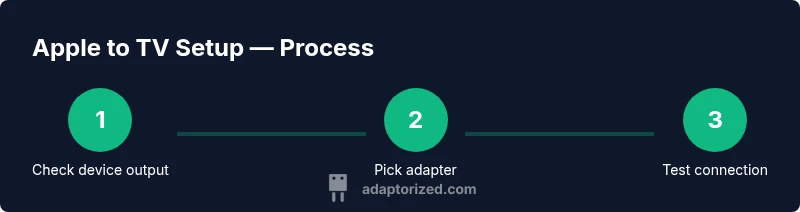
Apple Connector to TV: How to Connect Your Apple Device to a TV
Learn to connect Apple devices to your TV using the right adapter, whether wired HDMI or AirPlay. This Adaptorized guide covers connectors, setup steps, and troubleshooting for reliable streaming in 2026.


You will learn how to connect an Apple device to a TV using the right connector, adapter, and settings. This guide covers HDMI adapters (Lightning/USB-C), AirPlay setups, and troubleshooting for common issues. Whether you’re watching videos, presenting, or mirroring apps, this article shows practical options and best practices for a smooth display.
What you need to know about apple connector to tv
According to Adaptorized, the core of Apple-to-TV connectivity is choosing a connector that matches your device's output and your TV's input. The phrase apple connector to tv covers several practical paths: wired HDMI adapters for iPhone, iPad, or Mac with Lightning or USB-C; and wireless mirroring via AirPlay when you own an Apple TV. This overview helps you identify your devices, the outputs they provide, and the inputs your TV offers. The goal is a clean, lag-free picture with synchronized audio, across common streaming apps and presentations. Understanding the basics now prevents compatibility headaches later.
For DIYers and makers, the picker’s mindset is more important than the price tag. Start by listing every Apple device you might connect this year, then map each device’s output (Lightning or USB-C) to a TV input (HDMI). This ensures you aren’t chasing a solution that won’t fit your gear. Adaptorized’s approach emphasizes practical testing and incremental upgrades over gimmicks.
Choosing the right adapter for your Apple-to-TV setup
The landscape splits into wired and wireless approaches. For Lightning-equipped iPhones or iPads, a Lightning to HDMI adapter paired with an HDMI cable is the simplest wired path. If your device uses USB-C (MacBook, iPad Pro, newer iPhone models), a USB-C to HDMI adapter delivers the same wired mirroring. On the wireless front, AirPlay lets you mirror or extend to an Apple TV or AirPlay 2–compatible TVs without cables. Regardless of method, aim for adapters that are recognized by Apple or well-reviewed by reputable brands, and ensure they support your target resolution (1080p or 4K) and refresh rate. Power whether required by the adapter is another important detail to verify before purchase.
Adaptorized recommends prioritizing certified adapters or reputable brands to minimize head-scratching compatibility issues later. If you plan multi-device setups, consider a compact HDMI switch or a single, reliable hub that can handle both iOS and macOS outputs without dongle chaos.
Wiring it up: wired vs wireless setups
Wired setups are straightforward: connect the adapter to your Apple device, run an HDMI cable from the adapter to a TV HDMI input, and power the adapter if it requires it. Then switch the TV to the corresponding input and test playback. If you notice a delayed audio or video sync, recheck the HDMI cable and adapter power supply. Wireless setups rely on AirPlay: ensure both the Apple device and Apple TV or AirPlay 2 TV are on the same Wi-Fi network, enable AirPlay on the source, and select the destination from the AirPlay menu. Wireless offers convenience but can introduce latency if the network quality isn’t solid. In both cases, adjust the TV’s input resolution and the device’s display settings for best results.
Optimizing video and audio: resolution, HDR, and audio formats
Your goal is clean video with synchronized audio. For wired HDMI, choose 1080p or 4K based on your TV’s capabilities and the HDMI cable in use. If you’re using HDR content, verify that the adapter and TV both support the format and that the source content is graded for HDR. Audio should align with the video stream; if you encounter lip-sync issues, toggling Auto or PCM audio output on the device can help. Some users notice color or dynamic range differences between devices; in those cases, experiment with the TV’s picture mode and the device’s display settings until you reach natural skin tones and accurate contrast.
Consider disabling any color-manipulation features on edge-case TVs if you see oversaturation or banding. A simple rule of thumb: wire for stability first, then tweak video enhancements second.
Troubleshooting common issues
If there’s no signal, start with the obvious checks: confirm the TV input, inspect the HDMI connection, and ensure the adapter is powered if required. For audio-only problems, verify the audio output setting on the Apple device and the TV’s audio source. Lag or stutter often points to a weak HDMI cable or a crowded network in wireless setups. For airborne issues, such as AirPlay failing, restart the devices, reconnect to Wi-Fi, and check for software updates on both ends. If you still encounter trouble after these steps, test with a different HDMI cable or another HDMI port on the TV to isolate the fault.
Always keep your devices updated; firmware or OS updates often improve compatibility with adapters and AirPlay functionality. If problems persist, consult the adapter’s support resources or Apple Support for device-specific guidance.
Practical tips for long-term reliability
Keep a short, high-quality HDMI cable on hand and avoid stress on dongles by routing cables away from foot traffic. Power adapters that require external power should use the included power supply cable and avoid daisy-chaining multiple adapters. When using AirPlay, ensure your network has adequate bandwidth and minimal interference. For developers or creators mirroring apps with high motion, test in different lighting conditions and TV brightness settings to maintain consistent color accuracy across sessions. Finally, document which adapters work best with which devices for future reference.
Tools & Materials
- Lightning to HDMI adapter(Also known as Digital AV Adapter; required for Lightning devices to HDMI TVs.)
- USB-C to HDMI adapter(For USB-C devices like newest iPads/MacBooks; ensure support for 4K if needed.)
- HDMI cable(Prefer 2.0 or higher for 4K/60Hz. Shorter lengths reduce signal loss.)
- Apple device (iPhone/iPad/Mac)(Any model with Lightning or USB-C output.)
- TV with HDMI input(HDMI input should be functional; consider ports labeled HDMI 1/2.)
- Power supply for active adapters(Some adapters require external power; check your model.)
Steps
Estimated time: 15-25 minutes
- 1
Identify your device’s output port
Check whether your Apple device uses Lightning or USB-C. This determines which wired adapter you’ll need. A quick look at the charging port will usually reveal the correct path.
Tip: If unsure, photograph the port and compare with manufacturer specs later. - 2
Choose the right adapter
Match the device port to an HDMI adapter (Lightning→HDMI, USB‑C→HDMI). If you prefer wireless, plan to use AirPlay via Apple TV or an AirPlay 2‑compatible TV.
Tip: Prioritize certified adapters to reduce compatibility issues. - 3
Connect the adapter to your device
Plug the adapter into the device’s port firmly. Ensure the device is awake and not in sleep mode to initialize the connection.
Tip: Don’t yank the cable; insert smoothly to avoid port wear. - 4
Connect HDMI to TV and power the adapter
Run an HDMI cable from the adapter to an HDMI input on the TV. If the adapter requires power, connect the power cable as directed.
Tip: Use a direct HDMI port rather than a switch if possible for stability. - 5
Switch TV input and configure display
Set the TV to the correct HDMI input. On the Apple device, open display or casting settings to match resolution and frame rate to your TV’s specs.
Tip: If you don’t see a picture, try reconnecting the HDMI cable and restarting the device. - 6
Test playback and adjust settings
Play a video to verify picture and sound alignment. If necessary, tweak resolution, HDR, or color settings to optimize quality.
Tip: Start with 1080p and then try 4K if your setup supports it. - 7
If issues arise, troubleshoot systematically
If nothing works, test with another HDMI cable, try a different HDMI port, and ensure firmware/software are up to date on both devices.
Tip: Document what you tried to avoid repeating steps.
Your Questions Answered
What is the best method to connect an Apple device to a TV for high-quality video?
The best method depends on your hardware. If your device uses USB-C or Lightning, wired HDMI adapters are reliable for high-quality video, while AirPlay is convenient for wireless mirroring via Apple TV or AirPlay 2 TVs.
Wired HDMI with the right adapter is the most reliable for high-quality video; AirPlay is convenient if you want a wireless setup.
Can I use any HDMI cable?
Yes, but for 4K at higher frame rates, choose a high-speed HDMI cable. Cheaper cables may work for 1080p but can cause issues at higher resolutions.
Use a good high-speed HDMI cable for 4K, not a basic one.
Do I need to power the adapter?
Many active adapters require external power; check the adapter’s DC input and use the included power supply if needed.
Some adapters need power, so connect the power cable if you have one.
Will AirPlay work with a regular TV?
AirPlay works with Apple TV or AirPlay 2–compatible TVs. Some smart TVs support AirPlay natively; others require a physical Apple TV box.
AirPlay works best with an Apple TV or AirPlay 2‑enabled TV; others may need a compatible setup.
What should I do if there’s no signal?
Check the TV input, reseat the HDMI cable, and ensure the adapter is powered if needed. Restarting both devices often resolves the issue.
First, check the input and cable, then try rebooting both devices if nothing shows up.
How can I fix audio sync issues?
If audio is out of sync, try adjusting the TV’s audio delay settings or the device’s output format to PCM. Sometimes toggling HDMI-CEC on/off helps.
Adjust audio delay or switch to PCM; sometimes toggling HDMI-CEC helps.
Watch Video
What to Remember
- Identify your device output first
- Choose the right wired or wireless path
- Connect securely and power adapters when needed
- Configure display settings for best quality
- Keep reliable HDMI cables on hand for easier setup