Phone Connector to TV: A Practical How-To Guide
Learn how to connect your phone to a TV, wired or wireless, with practical adapter choices, setup steps, and troubleshooting tips from Adaptorized.


You will learn how to connect your phone to a TV, choose between wired and wireless options, and pick the right adapters or streaming devices. Expect practical steps, common compatibility checks, and a straightforward setup path to get your screen mirrored or cast in minutes.
Phone-to-TV at a glance
Connecting your phone to a TV expands how you share media, apps, and presentations with family, guests, or colleagues. It also unlocks bigger displays for photos, gaming, and demonstrations. According to Adaptorized, the first and often decisive step is to identify your phone's video output and the TV's input capabilities, then pick a pathway that matches your needs and room layout. Wired connections typically offer reliable image quality with minimal latency, while wireless casting provides convenience in living rooms or classrooms. In this guide you will find practical criteria, adapter recommendations, and clear steps to help you choose the right hardware and connect it with confidence. Whether you want a quick mirror or a full-screen streaming experience, the options below help you decide the best path based on your device and TV.
Wired connection options
Wired connections give you dependable image quality and low latency, which is important for gaming, productivity, and high-definition video. The most universal option is a USB-C to HDMI adapter when your phone supports HDMI Alt Mode. If you own an iPhone, a Lightning to HDMI adapter is the standard wired path. Some older Android devices supported MHL or SlimPort, but many modern phones have dropped these standards in favor of USB-C Alt Mode or native wireless casting. When selecting cables, choose an HDMI cable that matches your video resolution needs (e.g., 4K capable) and a short, sturdy adapter to minimize signal loss. Always verify that your phone model explicitly supports video output over USB-C before buying an adapter, and confirm that your TV’s HDMI input is active and functioning. For best results, use a high-quality HDMI cable and keep devices close enough to avoid range issues.
Wireless casting solutions
Wireless casting lets you mirror your phone without physical cables. Common options include Chromecast or Chromecast with Google TV, Apple AirPlay for iPhone users on compatible TVs or Apple TV, and Miracast-enabled displays for many Android devices. The appeal is convenience and a clean setup—no extra cables required. However, wireless paths can suffer from latency, compression artifacts, and occasional network hiccups if multiple devices share the same network. To optimize, ensure your Wi-Fi network is robust (prefer 5 GHz where available), keep devices on the same network segment, and update firmware on both the phone and TV or streaming dongle. Adaptorized analysis shows that the user experience often hinges on network conditions and device compatibility rather than hardware alone.
How to choose adapters and cables
Choosing between wired and wireless comes down to usage scenario and device compatibility. If you need reliable1080p/4K video and minimal latency for gaming or presentations, a USB-C to HDMI path is typically best. For iPhone users, Apple’s Lightning to HDMI remains straightforward, though it limits flexibility if you later switch to a non-Apple ecosystem. Wireless options excel for casual viewing and guest sharing, but may require setting up a compatible streaming device and keeping the network stable. Always check your phone specifications for video output support, verify that your TV accepts the chosen input method, and consider future-proofing with HDMI 2.0 or 2.1 cables or a dependable wireless dongle. Finally, balance cost, convenience, and quality when making your choice.
Setup and troubleshooting best practices
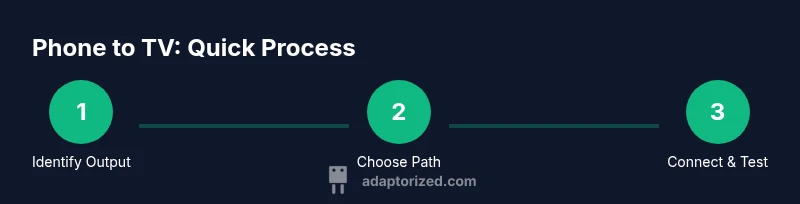
Begin with a clear plan: wired or wireless first, then gather the necessary adapters or streaming devices. For wired setups, connect the adapter to your phone, plug the HDMI cable into the TV, and switch the TV input. If you encounter no signal, recheck power to adapters and confirm HDMI is selected as the input source. For wireless setups, ensure both devices are on the same network and that the casting feature is enabled on the phone. If latency or buffering occurs, reduce network congestion by pausing other high-bandwidth tasks and placing devices closer to the router. In all cases, test playback from multiple apps to verify consistent output and adjust any on-device display settings to optimize color, contrast, and aspect ratio.
Quick buying guide and practical tips
When shopping, prioritize compatibility first: confirm your phone model supports the chosen output (USB-C Alt Mode, Lightning digital AV, or wireless casting compatibility). Invest in quality adapters and cables, as a cheap connector can introduce lag, artifacting, or power issues. If you foresee sharing across different ecosystems, a versatile wireless dongle plus a reliable HDMI cable can cover most scenarios. Finally, keep receipts and verify warranty terms in case you encounter compatibility quirks with new devices or TV firmware. Adaptorized's practical approach emphasizes testing both wired and wireless configurations to determine what works best in your space.
Tools & Materials
- USB-C to HDMI adapter(Check HDMI Alt Mode support on your phone)
- HDMI cable(High-speed for 4K if needed)
- Lightning to HDMI adapter(For iPhone users without USB-C)
- Wireless streaming dongle (Chromecast or Miracast receiver)(Optional for wireless setups)
- TV with HDMI input(Back or side HDMI port)
- Strong Wi-Fi network (optional for wireless)(Recommended for stable streaming)
Steps
Estimated time: 15-25 minutes
- 1
Identify phone output
Check your phone’s specifications to determine if it supports USB-C Alt Mode, Lightning digital AV, or other video out options. This will decide whether you need a USB-C to HDMI adapter, a Lightning to HDMI adapter, or a wireless solution.
Tip: Consult the device’s official specs page or user manual to confirm video output support. - 2
Check TV inputs
Inspect your TV to locate HDMI ports and any built-in wireless casting support (e.g., Chromecast built-in or AirPlay-capable). Confirm that the HDMI ports are active and not locked by any display settings.
Tip: Label the HDMI ports for quick reference when switching inputs. - 3
Decide wired vs wireless
Based on your use case—latency-sensitive tasks like gaming versus casual streaming—choose the primary pathway. Wired generally provides stable video with minimal latency; wireless offers flexibility for guests and shared spaces.
Tip: If you’re unsure, start with wired for reliability, then experiment with wireless for convenience. - 4
Set up wired path (USB-C to HDMI or Lightning to HDMI)
Connect the adapter to the phone, then attach the HDMI cable to the TV. Switch the TV to the corresponding HDMI input. On some phones, you may need to approve the connection on-screen.
Tip: Power adapters or hubs can help prevent battery drain during extended use. - 5
Set up wireless path (Chromecast/AirPlay/Miracast)
If using a streaming dongle, connect it to the TV, ensure both devices are on the same Wi-Fi, and start casting from your phone’s quick settings or control center.
Tip: Disable VPNs on both devices if you encounter discovery issues on the network. - 6
Test playback
Open a video or app and verify the mirror or cast is active. Check audio routing, aspect ratio, and display setting on the TV.
Tip: Try multiple apps to ensure compatibility across sources. - 7
Troubleshoot no signal
If there’s no signal, recheck cable connections, power to adapters, and input source. For wireless, reset the dongle and rejoin the network.
Tip: Swap HDMI ports or try a different HDMI cable if issues persist. - 8
Fine-tune display settings
Adjust aspect ratio, overscan, or picture mode on the TV to optimize clarity and fit.
Tip: Enable 4K if your content supports it and your HDMI cable is rated for the bandwidth.
Your Questions Answered
What is the easiest way to connect a phone to a TV?
The easiest method often depends on your device. Wireless casting is quick, but wired connections like USB-C to HDMI provide reliable quality and low latency.
Wireless casting is usually the quickest, but for reliability use a USB-C to HDMI adapter if your phone supports it.
Can all phones connect via USB-C to HDMI?
Many newer Android phones and some tablets support USB-C to HDMI via HDMI Alt Mode. iPhones use Lightning adapters or wireless casting; always verify your device specs.
Many newer phones support USB-C to HDMI, but check your device specs first.
Do I need Wi‑Fi for wired connections?
No. Wired connections transfer video over the HDMI cable directly from your phone to the TV. Wireless methods require a network.
No—wired connections don’t need Wi‑Fi; wireless ones do.
Why is there no signal after connecting?
Check that the TV input matches the connected port, confirm the adapter is powered if needed, and ensure the phone is sending video output.
Make sure the TV is on the right input and the adapter has power, then retry.
Is AirPlay supported on non-Apple TVs?
AirPlay requires compatible devices or an AirPlay-enabled TV or dongle. If not supported, use a wireless casting dongle or HDMI adapter.
AirPlay works best with compatible devices; otherwise use a Chromecast or HDMI path.
What about latency for gaming on TV?
Wired connections generally offer lower latency than wireless casting, making them preferable for fast-paced games.
Wired usually has the lowest delay, which is better for gaming.
Watch Video
What to Remember
- Check device compatibility before buying adapters
- Wired connections are reliable for video quality
- Wireless casting is convenient but can add latency
- Invest in quality cables and adapters