Can You Go from DisplayPort to HDMI? A Practical Guide
Learn how to connect a DisplayPort output to an HDMI display, when passive DP++ adapters work, and how to choose between passive and active converters for 4K, audio, and high refresh rates.


According to Adaptorized, can you go from displayport to hdmi? The short answer is yes, but only with the right adapter and a source that supports DP++ (Dual-Mode DisplayPort). This quick answer highlights when a passive adapter suffices, when an active converter is required, and the basics of setup and compatibility.
Understanding DisplayPort to HDMI: Compatibility and Limits
DisplayPort to HDMI conversion is a common question for DIYers and gamers who want to connect a DisplayPort output to an HDMI display. The short answer to can you go from displayport to hdmi? depends on the source port type and the adapter you choose. Many modern GPUs and laptops support DP++ dual-mode DisplayPort, which allows the signal to be sent as HDMI through a simple passive adapter. However, not all DP ports or devices support this, and some situations require active conversion to preserve features like 4K at higher refresh rates. In this section, we break down what DP++ means, what you can expect from passive adapters, and when you should opt for an active converter. According to Adaptorized, understanding these basics will prevent buyers from wasting money on incompatible gear and help you get a stable image quickly. can you go from displayport to hdmi? The answer hinges on DP++ support and the device you’re connecting to.
When DP++ / Dual-Mode DP matters
Dual-Mode DisplayPort (DP++) allows DP output to be treated as HDMI by the display, enabling a simple passive adapter to carry the HDMI signal. If your source supports DP++, you can often connect a standard HDMI display with a passive DP to HDMI adapter or even a simple cable. If the source doesn’t support DP++, or if you need 4K at 60 Hz on a demanding monitor, you’ll likely need an active converter that translates the DP signal to HDMI with proper timing, color, and HDCP handshakes. This section clarifies which scenarios fit each approach and what to check on your devices beforehand. Adaptorized’s guidance emphasizes verifying DP version, EDID compatibility, and display capability before purchase.
Choosing the Right Adapter: Passive vs Active
Choosing the right adapter is the key to a smooth DP to HDMI experience. Passive adapters rely on DP++ signaling from the source and work well for many 1080p displays and some 4K setups at 30 Hz. Active adapters include an onboard converter that translates the signal and often require external power. They are necessary when the source doesn’t support DP++, when you need higher resolutions or higher refresh rates, or when audio must be reliably transmitted. This section compares cost, compatibility, and typical use cases, helping you decide which path fits your setup and budget.
Step-by-Step: Connecting DP output to HDMI input
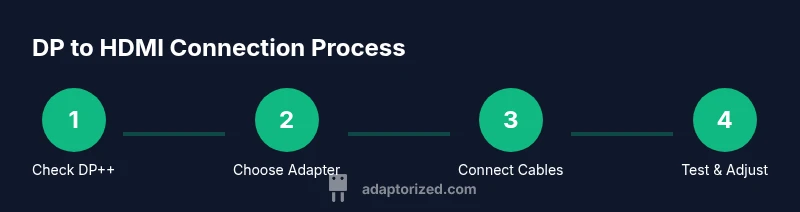
This high-level flow helps you visualize the connection path before you perform it. Start by confirming the DP output on your computer or GPU, then choose the appropriate adapter, connect the HDMI cable to the display, and finally power the adapter if required. After connections, ensure the display is set to the correct HDMI input and verify that the signal is detected. While this overview is helpful, a formal, step-by-step guide follows in the dedicated section to ensure you don’t miss a critical detail.
What About Audio, 4K, and Refresh Rates?
A key concern is whether audio will pass from DP to HDMI. DP++ often carries audio, but not all setups do, and some adapters strip audio if they’re not designed for it. For 4K at 60 Hz, you typically need an active adapter with sufficient bandwidth; DP 1.2 and above generally support higher bandwidth, but the exact outcome depends on the GPU, cable quality, and display. If your display lists a specific resolution or refresh rate, choose an adapter rated for that configuration, and verify HDCP compliance if you’re streaming protected content.
Common Mistakes and How to Avoid Them
- Assuming all DP ports support DP++. Always verify DP++ capability in specs or via the system settings.
- Using a cheap passive adapter on a demanding display. If you need 4K60 or HDR, prefer an active converter with proper power.
- Skipping audio checks. If audio is required, ensure the adapter and cable support audio transmission.
- Ignoring EDID and color depth. Mismatched EDID data can cause blank screens or color issues.
- Not updating drivers or firmware. Some devices need a firmware update to enable DP++ behavior correctly.
Troubleshooting Guide: If nothing displays
If you connect and the display remains blank, double-check the cable connections, ensure you’re using the correct HDMI input, and try a different HDMI cable. Verify the source’s DP++ capability and test with another monitor if possible. If the adapter is active, confirm it’s powered and receiving power. For audio issues, test with a different audio source or settings and review the display’s audio output configuration.
Tools & Materials
- DisplayPort-enabled source (GPU or laptop) with DP output(Confirm DP version and DP++ capability; check for displayable settings)
- DisplayPort to HDMI adapter (passive or active)(Choose based on DP++ support and required resolution/refresh rate)
- HDMI cable(HDMI 2.0 or higher recommended for 4K at 60 Hz)
- HDMI-enabled display (monitor/TV)(Ensure the display input is HDMI and compatible with the cable)
- Power supply for active adapters (if applicable)(Some active adapters are powered via USB or a separate power brick)
Steps
Estimated time: 15-25 minutes
- 1
Identify source capabilities
Check your computer or device for a DisplayPort output and confirm DP++ support in the specs or manufacturer support page. This determines whether a passive adapter can work. If DP++ is not supported, you’ll need an active converter.
Tip: If in doubt, consult official specs or run a quick test with a simple DP to HDMI adapter. - 2
Select the appropriate adapter
Choose a passive DP++ adapter if your source supports DP++ for basic 1080p or 4K30 setups. If you require 4K60, HDR, or no DP++ support, select an active converter with explicit 4K60/HDMI 2.0+ support and power input.
Tip: Active adapters with USB power are more reliable for higher refresh rates. - 3
Connect the DP source to the adapter
Plug the DisplayPort end into your source device and ensure it seats firmly. If using an active adapter, connect its power input as well.
Tip: Use the shortest cable possible for best signal integrity. - 4
Link HDMI to display
Connect one end of the HDMI cable to the adapter and the other end to the HDMI input on your monitor or TV. Power on the display after the connections.
Tip: If the screen remains blank, try a different HDMI port on the display. - 5
Configure display settings
On your computer, set the display mode to duplicate or extend as needed and select the HDMI resolution and refresh rate that the setup supports.
Tip: Match the HDMI output to the monitor’s native resolution for best results. - 6
Test audio and video
Play a video to verify both video and audio pass through the HDMI path. If audio is missing, check the adapter’s audio support and the system sound settings.
Tip: Some systems require you to choose the HDMI device as the default audio output. - 7
Troubleshoot if necessary
If you encounter issues, try a different HDMI cable, test with another display, and verify EDID and HDCP settings. Reboot devices if needed.
Tip: Avoid multiple adapters daisy-chained; keep only one active pathway.
Your Questions Answered
Can I use a passive DP++ adapter on any DisplayPort port?
No. Passive adapters only work if the source supports DP++ signaling. If the source lacks DP++, you’ll need an active converter.
Passive adapters require DP++ signaling; otherwise you’ll need an active converter.
Will audio pass through when converting DP to HDMI?
Audio can pass through many DP to HDMI setups if the adapter and source support DP++ audio signaling. Some adapters don’t carry audio, so check specifications.
Audio is often supported with DP++, but verify your adapter's audio capability.
What resolution and refresh rate can I expect with DP to HDMI?
For 4K60, use an active adapter rated for HDMI 2.0 or higher and ensure your source and display support it. Passive adapters may cap at lower refresh rates.
4K60 requires an active adapter and DP++ support; otherwise you may be limited to lower settings.
Do I need external power for the adapter?
Some active adapters require USB or external power. If your setup struggles, check whether the adapter needs power and provide it accordingly.
Many active adapters need power; supply it if your signal drops.
Will DP to HDMI work with daisy-chained displays?
DP to HDMI typically does not work in a daisy-chained configuration. Use a direct DP output to HDMI display instead.
Daisy chains aren’t usually compatible with DP to HDMI converters.
Does macOS or Windows affect DP to HDMI compatibility?
Both macOS and Windows generally support DP to HDMI via DP++ adapters when hardware supports it. Always check driver updates and system settings.
OS choice matters less than hardware support; keep drivers updated.
Watch Video
What to Remember
- Verify DP++ support before buying.
- Choose passive vs active based on required resolution and source capabilities.
- Power active adapters as needed to avoid dropouts.
- Test audio separately and adjust display settings for best results.