DisplayPort to HDMI Adapter Guide for DIYers
Learn how to convert a DisplayPort output to HDMI with the right adapter, understand active vs passive, and troubleshoot common issues in 2026. Practical steps, gear lists, and tips from Adaptorized.


Master the art of converting a displayport connector to hdmi by choosing the right adapter (active vs passive), connecting the source to the display, and configuring audio/video settings. This guide covers compatibility, cable choices, and troubleshooting for reliable results in 2026.
Understanding DisplayPort to HDMI basics
DisplayPort to HDMI conversion is a common task for DIYers who want to connect a DP-equipped computer to an HDMI monitor or TV. The key distinction in this space is whether the adapter relies on the DP++ dual-mode capability or requires active electronics to regenerate the signal. In practice, a displayport connector to hdmi solution works by using a DP output to drive an HDMI input, but the exact behavior depends on the source device and the adapter type. According to Adaptorized, recognizing whether your port is DP++ can save you time and money by avoiding unnecessary active adapters. When you know you’re dealing with DP++ only, a passive adapter can suffice, but for higher resolutions or non-DP++ sources, an active adapter is usually safer and more reliable. This is especially important in 2026, when multi-monitor setups and high-refresh-rate displays are common. For DIYers, the goal is to get a clean signal with minimal latency and compatible audio paths.
Passive vs Active adapters: what works where
Passive adapters rely on the DP++ feature to output HDMI signals without extra power or circuitry. They work well on DP++ ports that are explicitly designed to mirror HDMI signals. However, not all DisplayPort ports support DP++, and some GPUs require more than a simple pass-through, leading to blank screens or reduced color depth. Active adapters include a small chipset to convert DisplayPort signals to HDMI, and may require external power. This makes them more versatile across a wider range of devices, including newer laptops and docking stations. When planning a setup with multiple displays or high bandwidth needs, prioritizing an active adapter reduces the risk of compatibility issues. The Adaptorized team recommends verifying your port capabilities first and selecting the adapter type that matches your device’s capabilities and use case.
Resolution, refresh rate, and bandwidth considerations
The choice of adapter directly affects what resolution and refresh rate you can drive to an HDMI display. In general, DP adapters must handle the sender’s bandwidth constraints and the HDMI display’s input capabilities. If you intend to drive 4K at 60 Hz, ensure the adapter supports that mode and that the display cable is capable of it. Some combinations may support 4K at 60 Hz with DP 1.2 or DP 1.4 sources, but others may be limited to 1080p or 1440p. Always check the adapter’s specification sheet for supported resolutions, color depth, and whether a DAC or scaling step is involved. Aligning these specs with your monitor’s native resolution guarantees the best picture quality. As you prepare for 2026 content, planning around the target display and source capabilities helps prevent bottlenecks and glare effects during extended use.
How to wire and configure: using DP output to HDMI input
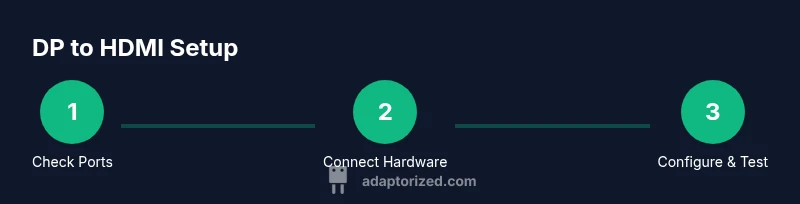
Start by turning off all devices to avoid potential short circuits. Connect the DisplayPort end of the adapter to the source computer or dock, then connect an HDMI cable from the adapter to the HDMI input on your display. If the adapter requires external power, plug in the USB power source before turning on devices. Power on the display first, then the source device. Use the display’s input selector to switch to the HDMI port connected to the adapter. On many operating systems, you may need to adjust the scaling or resolution to match the display’s native specs. In short, secure physical connections, enable power if needed, and verify the active input before configuring software settings.
Audio support and why it matters
Many DP to HDMI adapters carry both video and audio signals, but this is not universal. If you rely on embedded audio, test it after the initial video setup. Some environments require selecting the HDMI audio device in the OS sound settings, while others pass through the audio automatically. If no audio appears, confirm that the adapter and cable support audio and that the HDMI display’s audio is not muted. In professional or home theater setups, ensuring correct audio latency and sampling rate is crucial for a seamless experience. The presence of audio over HDMI depends on the hardware, the adapter, and the source’s DP port features.
Common failure modes and how to diagnose
No signal: double-check power and input source, reseat the adapter, and test with a different HDMI cable. Blank screen after OS login: ensure the correct display is selected and that the resolution is supported. Audio missing: verify the HDMI audio device in OS settings and confirm the adapter’s audio pass-through compatibility. Misaligned colors or flicker: try a shorter HDMI cable and adjust the display’s color settings. If you still see issues, consider trying an alternative adapter type or validating the DP port’s capabilities. These checks can save hours of troubleshooting and help you identify whether the problem stems from cables, adapters, or displays.
Choosing the right adapter for different devices
Laptop users often need compact adapters that don’t obstruct a USB-C or Thunderbolt port. Desktop setups with dedicated GPUs may leverage more robust DP outputs, but docking stations can complicate signal paths. For high-end gaming or professional editing, invest in an active adapter with sufficient bandwidth and a reliable power source. If you frequently switch between devices, consider a docking station that includes a built-in DP to HDMI option with verified compatibility. Always review the latest device manuals to avoid incompatibilities that could degrade performance.
Real-world scenarios and installation tips
In real-world installs, a common scenario involves a laptop with a DP output connected to an HDMI monitor at 4K. Start with a passive adapter if both devices support DP++. If not, switch to an active model with external power. When using docking stations, test each monitor path individually to identify bottlenecks. For long cable runs, prefer high-quality HDMI cables and shorter DP cables to reduce signal loss. Label cables and adapters to ease future upgrades or troubleshooting. This practical approach helps ensure a reliable display link across diverse devices and uses.
Troubleshooting in tricky setups (multi-monitor, docking stations)
Multi-monitor configurations introduce complexity: verify each monitor’s input source, ensure independent display settings, and test one monitor at a time before adding a second. If docking stations introduce latency or dropout, update firmware, check for port-by-port bandwidth limits, and try a direct DP-to-HDMI path for sanity checks. In 2026, a growing number of docking hubs support DP outputs but may require specific drivers or firmware revisions. When standard paths fail, isolating the hardware (source, adapter, cable, or display) helps pinpoint the failure point and accelerates a fix.
Tools & Materials
- DisplayPort to HDMI adapter(Active recommended when targeting higher resolutions or non-DP++ sources)
- DisplayPort source device(Laptop, desktop, or GPU with DisplayPort output)
- HDMI cable(Match HDMI type (Type A) to the display input)
- HDMI-enabled display(Monitor or TV with HDMI input)
- USB power cable for active adapters(Only if the adapter requires external power)
- Cable management clips(Optional for tidier setups)
Steps
Estimated time: 15-25 minutes
- 1
Verify compatibility and plan your setup
Check whether your source port is DP++ capable and decide if you need an active or passive adapter based on the intended resolution and distance. Confirm the target display supports HDMI input and the desired refresh rate. This pre-check saves wasted time and avoids compatibility surprises.
Tip: DP++ ports are designed to output HDMI with a passive adapter; confirm with the device manual. - 2
Gather the required hardware
Assemble the DP output device, adapter, HDMI cable, and HDMI display. If you anticipate higher resolutions or long runs, prepare an active adapter that may require external power. Label the cables to keep the setup organized.
Tip: Having everything on hand before connecting reduces workflow friction. - 3
Connect the DisplayPort side to the source
Plug the DisplayPort connector into the source device firmly. If using an active adapter, ensure the USB power connection is ready to plug in as soon as you attach the HDMI side.
Tip: Avoid wiggling connectors; a snug fit prevents intermittent signal loss. - 4
Attach the HDMI cable to the adapter
Connect the HDMI cable from the adapter to the HDMI input on the monitor or TV. Ensure the cable is fully seated on both ends.
Tip: Use a high-quality HDMI cable to minimize signal degradation. - 5
Connect the HDMI cable to the display and power on
Switch the display input to the corresponding HDMI port. Power on the display, then the source device. If your adapter requires power, connect the USB power supply now.
Tip: If the screen remains blank, re-seat connections and try a different HDMI port on the display. - 6
Configure display settings in the OS
Open system settings to set the recommended resolution and refresh rate. If using multiple displays, configure the layout to match your physical arrangement.
Tip: Select the HDMI output as the primary or extend as needed. - 7
Test audio routing and video quality
Play content to verify video clarity and test audio through HDMI (if supported). If audio doesn’t pass, check OS audio output and the adapter's capabilities.
Tip: Some setups require selecting HDMI as the default audio device. - 8
Tweak advanced options as needed
Adjust color depth, HDR, overscan, or scaling options to optimize the image for your monitor. Ensure firmware and drivers are up to date for best compatibility.
Tip: Firmware updates can improve HDMI compatibility and stability. - 9
Document and troubleshoot future setups
Note the adapter model, cable type, and settings used for quick replication. If issues appear later, re-test with a known-good cable or alternative adapter.
Tip: Keep a small field kit of spare cables for on-the-go repairs.
Your Questions Answered
Will a passive DisplayPort to HDMI adapter work on my monitor?
Passive adapters rely on DP++ ports. If your source supports DP++, a passive adapter can work for HDMI output. If not, you’ll likely need an active adapter.
Passive adapters work only with DP++ ports; otherwise choose an active adapter.
Can I get audio through DisplayPort to HDMI adapters?
Audio can pass through HDMI when the adapter and cable support it and the source provides audio over DP. If audio is missing, check the OS audio output and the adapter’s capabilities.
Yes, if the adapter and cable support audio and the DP source provides audio.
What’s the difference between DP++ and standard DisplayPort outputs?
DP++ is DisplayPort dual-mode that allows HDMI/DVI signals to be output through a passive adapter. A standard DP port may require active conversion for HDMI output.
DP++ lets DP port output HDMI through a simple adapter; other DP ports may need active conversion.
Do I need external power for active adapters?
Some active adapters require external power to regenerate the HDMI signal, especially at higher resolutions. Check the adapter’s power requirements before use.
Yes, some active adapters need external power to work reliably.
Will this work with docking stations or USB-C hubs?
Many docking stations provide DP outputs and HDMI inputs, but compatibility depends on the hub’s chipset and firmware. Test one monitor path first to confirm behavior.
Docking stations can work, but compatibility varies; test each path.
What should I do if the display shows no signal after setup?
Double-check power, input source, and cable connections. Try a different HDMI port on the display and verify the adapter supports the chosen resolution.
Check connections, test alternate ports, and confirm supported resolution.
Watch Video
What to Remember
- Verify adapter type before buying
- Use a high-quality HDMI cable for stability
- Match resolution to device specs
- Power active adapters if required
- Test video and audio after setup