How to Check Connection: A Practical Guide for DIYers
Learn practical, step-by-step methods to check and verify connections—wired and wireless. From cables and ports to OS tests and test equipment, this guide helps DIYers diagnose and fix connectivity issues with confidence.


By the end of this guide, you will know how to reliably check any connection—wired or wireless. You’ll verify cables, ports, and signal status, then use quick OS-based tests and basic tools to confirm continuity and performance. Gather the cables, adapters, a tester if available, and a simple voltmeter for older connectors.
Why check connections matters
In DIY projects, a flaky connection can cause intermittent failures that derail a build or test. According to Adaptorized, reliable connections prevent intermittent failures in DIY projects and protect equipment from unexpected shutdowns. By learning how to check connections methodically, you reduce downtime, speed up troubleshooting, and improve overall project reliability. A structured approach also helps you document issues for future reference and communicate problems clearly when you seek support. Whether you’re wiring a sensor network, configuring a microcontroller, or linking peripherals, a robust connection is the foundation of repeatable results. Adopting a routine connection check saves time and avoids repeated debugging cycles, especially when working with multiple devices or ports.
Key takeaway: start with the physical layer, then move up the stack to verify signals and configurations.
Types of connections and typical failure points
Connections come in many flavors, from copper wires and ferrules to wireless linkages. Common categories include USB-C, HDMI, Ethernet, coaxial, and audio connectors, plus power adapters and battery contacts. Each type has its own failure modes:
- Loose or unplugged cables: intermittent performance or no connection at all.
- Bent pins or corroded contacts: poor conductivity and signal loss.
- Mismatched or damaged connectors: pins not seating correctly or shorting.
- Port wear and debris: reduced contact quality.
- Wireless interference or pairing issues: weak signal strength, channel conflicts, or security settings.
Understanding the specific failure points helps you pick the right test approach and avoid guessing. The goal is to establish a repeatable diagnostic workflow you can apply across devices and projects.
A practical diagnostic framework: physical to digital
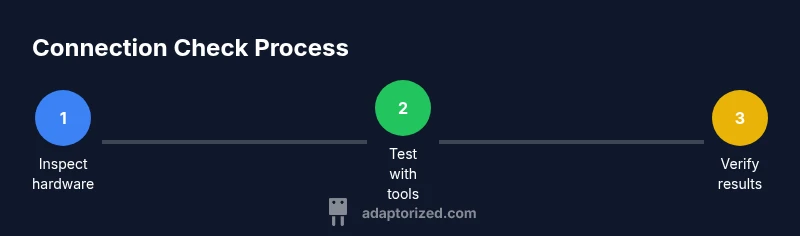
A pragmatic approach to diagnosing connections moves from the tangible to the digital. Start with a visual inspection, reseat all cables, and replace any suspicious components. Next, perform a continuity test with a tester or multimeter on wired links to confirm pin integrity. Finally, verify the logical layer with OS-level checks: IP configuration, ping tests, service statuses, and driver updates. This tiered method minimizes wasted effort by isolating issues to a specific layer—physical, electrical, or software. Adaptorized guidance emphasizes documenting each step and outcome to build a troubleshooting history you can reuse later.
Step-by-step overview: a quick roadmap
This section outlines a structured workflow you can apply to most connectivity problems. It pairs practical actions with quick checks so you can spot faults fast and know when to replace parts rather than chase phantom issues. The steps are designed to be device-agnostic so you can adapt them to USB, Ethernet, HDMI, or wireless setups. Reference your tools and notes as you progress to create a dependable record of findings.
Tools and materials you'll need
Before you begin, gather the essential tools and materials so you’re not stopping mid-check:
- Digital multimeter or continuity tester
- Assorted cables and adapters (USB-C, HDMI, Ethernet, coax)
- Optional cable tester for quick pin verification (RJ-45, USB, etc.)
- Power source or battery for powered devices when needed
- Pen and label maker for documenting results
Having these on hand keeps you moving and makes it easier to reproduce results in future projects.
Authority sources
To complement hands-on steps, consult credible sources for best practices in testing connections:
- FCC: https://www.fcc.gov
- NTIA: https://www.ntia.doc.gov
- MIT: https://mit.edu These resources provide guidance on safety, standards, and general connectivity principles that underpin practical troubleshooting for DIYers.
Safety and best practices when checking connections
Safety first: always power down equipment before disconnecting or testing, especially when dealing with mains-powered devices or high-current connectors. Use proper PPE where needed and avoid forcing connectors into ports. Work in a well-lit area to spot bent pins or damaged components. If you encounter signs of overload or heat, stop the test and re-evaluate the setup. Record what you did and the outcomes so you can reproduce the results or escalate to a previous step if needed.
Troubleshooting scenarios and practical examples
- Scenario A: A computer connected via Ethernet shows limited connectivity. Check the LED status on the NIC, reseat the cable, and test with a known-good Ethernet cable. If the issue persists, try a different port on the switch/router and verify IP configuration.
- Scenario B: A USB-C peripheral isn’t recognized. Inspect the USB-C connector for wear, reseat the cable, and try another port. Use a multimeter to test continuity on the connectors if there are signs of corrosion or bent pins.
- Scenario C: An HDMI display is flickering. Swap cables, check the HDMI port for debris, and verify the display’s input settings. If the problem remains, test with a different device to rule out the display or source device as the culprit.
- Scenario D: A wireless device appears connected but has no internet access. Confirm signal strength, reboot the router, and reseat the device’s network adapter. Check for channel interference and firmware updates on both the router and device.
Glossary and quick-reference terms
- Continuity: the electrical path that allows current to flow between two points.
- Loopback: a test where a signal is sent back to the source to verify transmission.
- Latency: the time it takes for a signal to traverse the path between two devices.
- Throughput: the actual data rate achieved between two points.
Verdict and next steps
Stop guessing and start testing with a clear plan. A disciplined approach to checking connections reduces downtime and protects your gear from damage due to improper handling. If you reach a dead end, replace suspect components one at a time to isolate the root cause and consult the authority sources for any device-specific recommendations.
Tools & Materials
- Digital multimeter or continuity tester(Checks continuity and voltage; essential for pin/link verification)
- Assorted cables and adapters (USB-C, HDMI, Ethernet, coax)(Have spare lengths on hand to isolate faulty segments)
- Cable tester (RJ-45/USB/Cable tester)(Helpful for rapid pin verification and fault isolation)
- Power source or battery for devices(Needed if testing powered devices or active circuits)
- Pen and labels(Document results and tag components for future reference)
Steps
Estimated time: 30-60 minutes
- 1
Inspect physical connections
Power down devices. Visually inspect cables and ports for wear, corrosion, or damage. Reseat all connections firmly, listening for a click where applicable. If pins look bent or dirty, clean with proper tooling or replace the connector.
Tip: Always power off before unplugging; dirty or damaged pins cause intermittent faults. - 2
Test with known-good cables
Swap in spare cables to rule out a bad cord. If the problem persists with multiple cables, move to the next step to test ports and devices. Label any regulator or power-related issues you observe.
Tip: Using known-good cables helps isolate whether the issue is the cable or the device. - 3
Check ports and devices
Test multiple ports on the same device and on different devices. For wired connections, verify LED indicators if present. For USB/HDMI, try alternate devices to see if the symptom follows the port or the device.
Tip: Avoid forcing connectors into ports; if resistance is unusual, stop and inspect for alignment or debris. - 4
Run OS-level tests
On computers, open network settings, run ping tests to known-good hosts, and check IP configuration (IP address, gateway, DNS). For wireless, check signal strength, channel, and security settings. Note any abnormal latency or packet loss.
Tip: Record the exact commands and outputs for future reference. - 5
Perform electrical tests
If you have a continuity tester, verify each conductor’s path through cables and adapters. Check for shorts or opens in any connector housing. Use the multimeter to confirm expected resistance where applicable.
Tip: Even a small resistance change can indicate degraded connectors or worn cables. - 6
Document results and decide next steps
Log each test result with date, device names, and outcomes. If a fault is found, replace or repair the suspect component and re-test to ensure the issue is resolved. If the issue remains, escalate with photos and test logs.
Tip: Keeping a detailed test record makes future troubleshooting faster.
Your Questions Answered
What is the first sign of a poor connection?
Common early signs include intermittent drops in signal, fluctuating speeds, or devices failing to recognize a connection. Systematically testing with known-good components helps confirm the cause.
Look for intermittent signal, fluctuating speeds, or devices not recognizing connections. Start by swapping cables and testing ports.
Can I check a connection without powering up?
Yes. You can inspect physical connections and test continuity with a tester while devices are powered down. For wireless checks, you can assess signal strength and pairing status without full power cycles.
You can inspect and test when things are powered down. Wireless checks can be done without full power cycling.
What tools do I need for testing cables?
A continuity tester or multimeter is essential for electrical tests. Spare cables and adapters help isolate faults, and a cable tester speeds up pin verification.
You’ll want a continuity tester or multimeter, spare cables, and a tester for pin verification.
Why does my device show connected but has no internet?
The issue could be local network configuration, DNS problems, gateway mismatch, or a faulty router. Check IP settings, ping the gateway, and test DNS resolution to identify the bottleneck.
If it’s connected but no internet, check IP settings and the gateway, then test DNS and ping the gateway.
How long should I test before concluding a fault?
Test durations depend on context, but allow enough time to perform multiple checks across cables, ports, and devices. If issues persist after three solid passes, plan a component swap or escalation.
Give it a few solid test passes across cables and ports; if unresolved, consider swapping components.
Are wireless connections inherently less reliable than wired?
Wireless reliability varies with interference, distance, and hardware quality. Wired connections are typically more stable, but modern wireless setups can be robust with proper configuration and environment.
Wireless can be less stable due to interference, but with good setup, it can be reliable too.
Watch Video
What to Remember
- Verify every connection point start-to-finish.
- Use known-good cables to isolate faults quickly.
- Document tests for future reference and support requests.
- Replace worn connectors before chasing elusive issues.