Connection Test Internet: A DIY Guide to Check Your Network
Learn how to perform a reliable connection test for your internet, compare wired and wireless results, and identify common causes of slow or broken connectivity with practical, easy-to-follow steps for DIYers in 2026.


This guide will help you perform a reliable internet connection test to diagnose common issues. You’ll verify connectivity from devices to your router, run speed tests, and rule out hardware, Wi‑Fi, or service problems. Gather a computer or mobile device, a router or modem, and a stable power supply. This quick test helps isolate issues quickly and save time.
What a Connection Test Covers
According to Adaptorized, a structured connection test starts with verifying base internet access and continues by identifying where latency or outages originate. It covers the local network, the Wi‑Fi signal, wired links, DNS resolution, and the responsiveness of the remote service. By following a repeatable procedure, you can distinguish between device-level faults, network congestion, wrong configurations, and actual service outages. Adaptorized Team's practical approach emphasizes observable results over guesswork, and it aligns with Adaptorized Analysis, 2026. This section introduces what you’ll verify and why it matters for DIYers and tech enthusiasts.
Hardware and Software Readiness
Before testing, confirm every essential component is prepared. Ensure the router is powered, cables are securely connected, and devices have current software or firmware. Update firmware when possible; disable VPNs or security suites that could skew results during tests. Keep a dedicated notebook or digital document to capture timestamps, device IDs, and observed behavior. A clean starting state reduces confusion later in the process.
Run Basic Connectivity Tests from a Single Device
Start with simple checks that don’t require specialized tools. Open a command line or terminal and ping your router’s local IP to confirm that your device can reach the local network. Then ping a reliable external address (like a well-known public DNS or website) to verify outbound reachability. If responses fail, address local issues first (cables, power, or firewall settings) before testing beyond your network. This baseline helps you compare different scenarios later.
Compare Wired and Wireless Performance
If you have both Ethernet and Wi‑Fi options, run the same tests in both modes. Wired connections commonly deliver steadier speeds and lower latency, while wireless performance can fluctuate due to distance, walls, or interference. Document differences and consider channel changes or position adjustments to optimize signal quality. Understanding these contrasts helps you decide whether the bottleneck is the link type or the service itself.
Interpreting Results and Next Steps
Interpret results by looking for consistency across devices and test types. If wired tests consistently outperform wireless, focus on improving your Wi‑Fi environment (router placement, channel selection, interference mitigation). If external tests fall short of your plan, contact your ISP with evidence and timestamps. Always re-test after making changes to confirm improvement. This disciplined approach reduces guesswork and speeds up repairs.
Authority Sources
For deeper context and official guidance on internet performance, consult authoritative references from government and academic sources. See guidance and measurement best practices from FCC and NIST, and official broadband speed measurement initiatives by NTIA. These sources help validate testing procedures and interpretation of results.
Tools & Materials
- Computer or mobile device with active network access(Wi‑Fi or Ethernet; ensure browser or terminal access is available)
- Router and power supply(Ensure firmware is up to date; have admin credentials ready)
- Ethernet cable (Cat5e/Cat6)(For wired tests; keep a spare in case of cable fault)
- Speed test website or app(e.g., a reputable speed test service; avoid flaky apps)
- Notebook or digital note app(Record timestamps, devices, and results)
Steps
Estimated time: 45-60 minutes
- 1
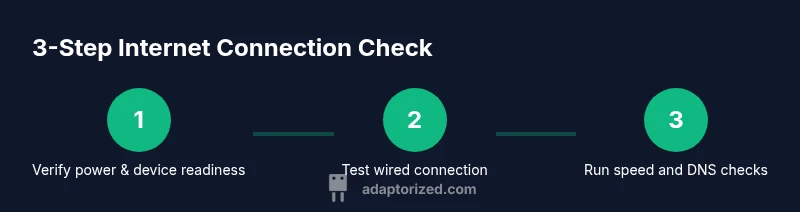
Check baseline power and device readiness
Power on all devices and confirm they are connected to the network either via Wi‑Fi or Ethernet. Verify there are no active VPNs or firewall settings that could skew results. This establishes a clean starting point for testing.
Tip: Document the device name, connection type, and current network state before tests start. - 2
Test a direct wired connection to the router
Connect your test device to the router with an Ethernet cable and ensure the link is active. This bypasses wireless variables and helps isolate issues related to Wi‑Fi versus the wired path.
Tip: Use a cat5e/cat6 cable and check for link light indicators on both devices. - 3
Ping the router to verify local reachability
From your device, open a command prompt or terminal and ping the router’s local IP. A successful reply confirms local network reachability; if not, inspect cables, port status, or router settings.
Tip: If time-to-live or loss is high, try another Ethernet port or replace the cable. - 4
Run a speed test on wired connection
Use a reputable speed test tool to measure download and upload speeds on the wired path. Compare results with your service plan expectations to assess whether the network is delivering as advertised.
Tip: Run multiple tests at different times of day to account for congestion. - 5
Test DNS resolution and reach to a known host
Perform a DNS lookup or ping a reliable domain to ensure DNS resolution functions correctly. Slow DNS can mimic a slow internet experience even when throughput is fine.
Tip: If DNS is slow, try an alternate DNS server (e.g., a trusted public DNS) and retest. - 6
Repeat tests over Wi‑Fi and compare
Move the device closer to the router, switch to a different channel if possible, and re-run the same tests to gauge wireless performance. Record the differences for analysis.
Tip: Note interference sources like microwaves or neighbor networks that can degrade Wi‑Fi. - 7
Document results and plan next steps
Aggregate all results into a single report with timestamps, device IDs, and test types. Decide whether to adjust your home network or contact your ISP if issues persist.
Tip: Keep a log to monitor improvements after changes.
Your Questions Answered
What is considered a good ping for home internet?
A good ping is generally low and stable; large fluctuations or high average latency indicate latency issues. Context matters, as distance to servers and network congestion can affect ping.
Aim for consistently low latency. If you see big spikes, it’s a sign of a problem to investigate.
Why do tests vary between devices?
Different devices have different network interfaces, antennas, and processing power, which affects test results. Proximity to the router, interference, and background apps also influence performance.
Device hardware and placement matter a lot. Tests will vary, so compare apples to apples.
Can I test my internet without a PC?
Yes. You can run basic tests from smartphones or tablets using browsers or dedicated apps. The process is similar: test connectivity, run a speed check, and compare results.
Absolutely. Mobile devices work well for quick checks.
What if tests pass on some devices but fail on others?
That suggests a device-specific issue (apps, drivers, or settings) rather than a service outage. Focus on the device with poor results and verify its network configuration.
If one device wins and another loses, fix that specific device first.
When should I contact my ISP?
If multiple tests across wired and wireless paths consistently undershoot plan speeds and other devices also fail, contact your ISP with your test logs. They may be experiencing an outage or need to adjust your line.
If tests stay low across devices and times, it’s time to contact your provider.
Watch Video
What to Remember
- Test both wired and wireless paths to identify bottlenecks
- Document consistency and deviations across devices
- Use baseline tests before making changes to ensure measurable improvements
- Escalate to ISP with documented results if issues persist