Liquid Detected in Lightning Connector: Urgent Troubleshooting
Discover safe steps when liquid has been detected in the lightning connector. This Adaptorized guide covers risk assessment, drying methods, testing, and prevention to protect your device from moisture damage.


Most likely, moisture has entered the Lightning connector due to exposure to liquids or humidity. Quick fix: power down the device, disconnect any accessories, and dry the port with a lint-free cloth. Let it air-dry for at least 30 minutes, then use desiccants around the port. If you see heat, corrosion, or sparking, stop and seek professional service.
Why moisture ingress in the Lightning connector is risky
Liquid has been detected in the Lightning connector, and the risk is significant. Moisture can bridge the contacts, leading to corrosion, short circuits, or intermittent charging behavior. The Lightning port on many devices is compact and uses tightly spaced pins, which makes it susceptible to even small amounts of liquid. According to Adaptorized, moisture intrusion is a leading cause of charging problems after water exposure in portable electronics, especially when the device is powered while damp. If water or humidity remains in the port, you may see slower charging, device resets, or a blinking charging indicator. Prolonged moisture exposure can degrade plating and coating on the contact surfaces, increasing resistance and heat generation. In humid environments or after a spill near the device, it's critical to act quickly to limit damage and reduce corrosion risk. This article will guide you through safe, practical steps to assess and address moisture in a Lightning connector without risking further harm to your device.
Common causes of moisture exposure in mobile devices
Moisture inside a Lightning port usually results from several scenarios. A spilled drink or sweat on your hands while plugging in can introduce liquids directly into the port. Using the device in rain or near splashing water is another common route. Condensation can also form inside the port after moving from cold to warm environments. For some devices, aggressive cleaning with liquids or ultrasonic baths around the port can inadvertently push liquid into the port. Even routine exposure in a humid climate can leave trace moisture that slowly evaporates while the device is in use. Understanding these scenarios helps you identify the most likely cause and tailor the drying plan. Adaptorized analyses indicate that most moisture events are user-related spills or rain exposure, with condensation as a close second contributor. By recognizing the source, you can implement targeted prevention in the future.
Immediate safety steps you should take now
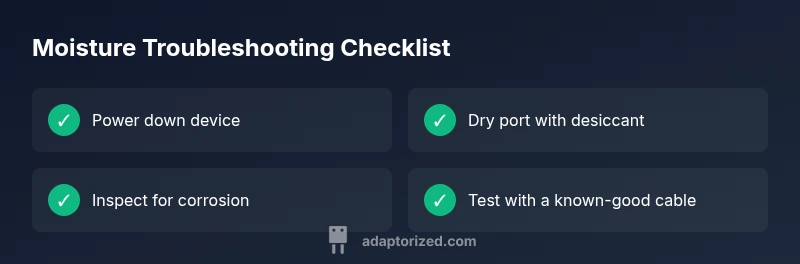
First, power down the device and unplug any charging cable or accessories. Do not attempt to charge the device while moisture is present. Wipe away visible liquid with a clean, lint-free cloth and set the device on a dry, ventilated surface. If available, place the device near a fan or use a desiccant to accelerate moisture removal. Avoid heat sources such as hair dryers or space heaters, which can warp plastics or push liquid further into the port. Do not insert cotton swabs or metal tools into the port. If you saw significant liquid entry, wait a few minutes before rechecking for moisture in the port. The goal is to prevent short circuits while moisture dries.
Drying and cleaning: best-practice methods
Once the device is powered off, allow the port to air-dry in a warm, dry environment. Silica gel packets are preferred over rice, which can leave dust and debris. You can place the device in a closed container with silica gel for several hours or overnight. Do not shake the device, as this can spread liquid to other connectors or components. If you see corrosion or mineral residue after it dries, you may consider a light wipe with isopropyl alcohol 99% on a lint-free swab, but avoid saturating the port. Let the port return to room humidity before attempting to connect again. If you’re unsure, seek guidance before attempting a test connection.
Testing the port after drying: safe verification steps
Begin with a known-good USB-to-Lightning cable or charger and observe the charging status. If the device does not charge, check for a warm or unusual odor—both can indicate lingering moisture or damage. Try cleaning contacts with a soft brush or compressed air to remove any residue. If charging resumes, monitor for intermittent connections or heat. If the port still misbehaves after a thorough dry, discontinue testing and seek professional service. Regular checks after exposure help prevent long-term damage.
If the device still won't charge or shows erratic behavior
Persistent failure after drying can indicate deeper moisture damage or corrosion. In this case, powering the device with a charger could keep the short risk high, so avoid charging until an expert inspects the port. Contact the device manufacturer’s support or an authorized service provider for a port inspection and possible replacement. If your device is under warranty or AppleCare, ask about moisture-related service terms. Document the incident with photos in case you need to file a claim.
Prevention and long-term care to reduce future incidents
Create a habit of keeping liquids away from the charging area and using a protective case with a port cover if possible. Store the device in a dry environment and use desiccants in travel cases. Regularly inspect the Lightning port for signs of wear, residue, or corrosion. When cleaning, use a dry microfiber cloth and avoid liquids near the port. If you often work near water, consider using a charging dock with splash protection and keeping cables tidy to avoid accidental spills.
When to seek professional service and warranty implications
If you cannot resolve moisture after thorough drying or you notice corrosion, burning smells, or heat during charging attempts, stop using the port and contact a certified repair technician immediately. For warranty considerations, check the terms carefully, as many manufacturers exclude liquid damage from standard coverage. The Adaptorized team recommends seeking professional diagnosis if you suspect hidden corrosion or damage that could affect safety or device longevity. Quick professional assessment can prevent further harm and protect your data.
Steps
Estimated time: 60-90 minutes
- 1
Power down and disconnect
Shut the device off and unplug any charger or accessories from the Lightning port to prevent short circuits during drying. Do not attempt to charge while moisture is present.
Tip: Keep device on a dry surface away from fans that could spread humidity. - 2
Wipe and inspect externally
Use a clean, lint-free microfiber cloth to wipe the port opening. Look for visible liquid, residue, or corrosion on the metal contacts.
Tip: Do not insert objects into the port. - 3
Air-dry with desiccants
Place the device in a dry area and around it with silica gel packets or a desiccant pouch. Let it sit for several hours until there is no visible moisture.
Tip: Avoid direct heat sources. - 4
Optional gentle cleaning
If no moisture remains, you may lightly wipe the contacts with a 99% isopropyl alcohol swab, then allow to dry completely before testing.
Tip: Use minimal liquid and ensure complete evaporation. - 5
Test with a known-good cable
Connect a known-good charger and observe charging behavior; listen for a consistent charging indicator and check for warmth.
Tip: If charging is inconsistent, stop and seek professional help. - 6
Monitor and decide on next steps
If charging fails or you notice unusual behavior, do not force a test again. Seek professional assessment to rule out internal damage.
Tip: Document incident with photos for service claims.
Diagnosis: Liquid has been detected in the lightning connector
Possible Causes
- highDirect liquid exposure (spill, splash, rain)
- mediumCondensation from rapid temperature changes
- lowMoisture intrusion from improper cleaning or immersion
Fixes
- easyPower down, disconnect accessories, and dry the port with a lint-free cloth; air-dry before testing
- easyPlace device in a silica gel desiccant environment for several hours to reduce residual moisture
- easyAvoid heat-based drying and Seek professional service if moisture persists or device overheats
Your Questions Answered
Is it safe to keep using my device after moisture is detected in the Lightning port?
No. Do not charge or use the port until it is completely dry and inspected. Monitor for any signs of damage and seek professional advice if unsure.
No, avoid charging the device until the port is confirmed dry. If unsure, get professional help.
Can I dry the port with a hair dryer or other heat source?
Heat can warp plastics and push moisture deeper into the connector. Do not use a hair dryer or heater for drying.
Do not use heat; it can cause more damage. Let it dry naturally or with desiccants.
Should I use rice to dry the Lightning port?
Rice is not recommended. It can leave dust and debris and is not effective at removing moisture from small ports.
Rice isn’t a reliable drying method. Use silica gel and proper drying time instead.
How long should I wait before testing again?
There isn’t a fixed time. Wait until there is no visible moisture and the port remains dry to the touch before testing with a known-good charger.
Wait until the port is completely dry and there’s no moisture before testing.
Will moisture damage be covered by warranty?
Many manufacturers exclude liquid damage from standard coverage. Check your terms and consider professional evaluation for a warranty claim.
Warranty terms vary; check your policy and consider a professional assessment for damage.
When should I contact Apple support or a professional?
If the port still behaves oddly after drying, or if you notice corrosion, shorting, or heat, stop using the port and contact support or a certified repair technician.
If issues persist after drying, seek professional help promptly.
Watch Video
What to Remember
- Act quickly to dry moisture in the Lightning port
- Avoid heat and avoid attempting to charge during drying
- Use desiccants and gentle cleaning steps as demonstrated
- Seek professional service if charging returns or corrosion appears