Which Connector for GPU: A Practical Guide
Learn which GPU power connector to use, including PCIe 6-pin/8-pin, 12VHPWR, and adapter options. Built for DIYers, this guide covers compatibility, safety, and step-by-step selection.


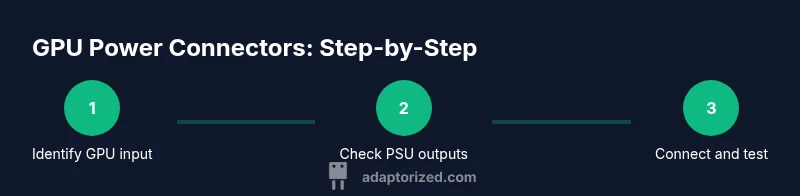
In this guide, you'll learn which connector for GPU powers most modern graphics cards and how to choose between PCIe power cables, PCIe 8-pin/6-pin, 12VHPWR, and adapters. You'll also understand motherboard PCIe slots vs. power requirements, safety considerations, and how to read your PSU cables. By the end, you'll know the right connector for your GPU setup.
Understanding GPU power needs and connector types
GPU power needs are primarily defined by the card's total board power and the connections required to deliver that power. In practice, most modern GPUs rely on PCIe power connectors from the power supply unit (PSU) in addition to the PCIe slot on the motherboard. The Adaptorized team emphasizes that the right connector is not just about how many pins a card requires, but about how those pins are supported by a reliable, properly rated PSU cable setup. When evaluating options, check the card’s official spec sheet and compare it to your PSU’s available cables. This alignment between GPU input requirements and PSU output capabilities is the foundation of a stable, safe build. Adaptorized analysis shows that most mid- to high-end GPUs today rely on a mix of PCIe power plugs and, for very high-performance models, newer high-power connectors. Understanding these categories helps DIYers avoid mismatches that could cause system instability or, in worst cases, hardware damage.
Key takeaways:
- Always verify both the GPU’s required connectors and the PSU’s supplied cables.
- Do not rely solely on the motherboard slot for powering GPUs; the PCIe slot provides limited power compared with dedicated PCIe power connectors.
- Safety first: use properly rated cables and avoid overstressed adapters.
The main connector families: 6-pin, 8-pin, and 12VHPWR
Graphics cards historically used 6-pin and 8-pin PCIe power connectors. Modern high-performance GPUs increasingly rely on the 12VHPWR (12V High Power) connector, introduced to consolidate power delivery for demanding GPUs. The 12VHPWR interface is designed to carry higher wattages through a single connector with multiple pins, reducing cable clutter and improving power delivery efficiency. When planning a build, identify which of these connectors your GPU requires and ensure your PSU provides corresponding cables. If your card requires 12VHPWR but your PSU only has traditional 6-pin/8-pin connectors, you’ll need an official adapter or a PSU upgrade. Remember, adapters may introduce additional resistance or heat if not used correctly. Applicable guidance from PCI-SIG standards helps confirm proper connector usage and safety norms. Ultimately, avoid jury-rigged solutions and favor native connectors when possible.
Practical cues:
- For cards that ship with a 12VHPWR plug, prefer a PSU that includes a compatible connector directly.
- If your PSU lacks a required connector, consider a manufacturer-recommended adapter rather than improvised wire splices.
PCIe slots vs. power connectors: what you need to know
The PCIe slot on the motherboard provides data transfer and a limited amount of power for GPUs. However, most GPUs draw the majority of their power from dedicated PCIe power connectors from the PSU. The distinction matters for both performance and reliability. A card seated in a PCIe x16 slot but powered through the wrong adapter can experience throttling or instability. Always match the card’s power input requirements to the PSU cables and avoid underpowered configurations. Adaptorized best practices encourage confirming the card’s official compatibility statements and verifying that the PSU can sustain peak loads without voltage droop. In short, you should treat PCIe power connectors as a separate, critical power path from the motherboard slot.
What to check:
- Confirm the GPU’s required connectors (6-pin, 8-pin, or 12VHPWR).
- Ensure the PSU has the corresponding outputs with minimal voltage drop under load.
Reading PSU cables and modularity for clean builds
A modular PSU allows you to attach only the cables you need, reducing clutter and improving airflow. When selecting GPU power connectors, consider whether your PSU is fully modular and whether its cables are rated for continuous high-current loads. Always inspect the cable gauge and connector quality; thinner cables can heat up under load, especially with high-power GPUs. The Adaptorized team recommends labeling and routing cables so that there’s no tension at the connector and no accidental unplugging. Keeping a tidy cable arrangement not only looks better but also minimizes potential arcing risks and improves system stability.
Practical tips:
- Use sleeved, properly rated cables for high-power runs.
- Avoid coiling cables tightly or bending pins sharply.
- If using an adapter, ensure it is from a reputable source and explicitly rated for the intended GPU load.
Adapters: when they help and when they hurt
Adapters can expand compatibility, but they also introduce extra contact points and potential failure modes. The safest option is to rely on cables that match the GPU’s required connector directly. If you must use adapters, select ones from trusted manufacturers and verify the total power through the adapter supports your GPU without overheating. Avoid cheap, third-party adapters that claim to
Tools & Materials
- Modular PSU with sufficient wattage headroom(Ensure it offers native PCIe power outputs and, if needed, 12VHPWR compatibility)
- PCIe power cables (6-pin, 8-pin, or 12VHPWR)(Prefer cables included with the PSU or from the same manufacturer as the GPU)
- Cable management accessories(Velcro ties, cable combs, or sleeves for airflow)
- Digital multimeter(To verify voltage levels at the PCIe connector if you suspect instability)
- Official adapter (if needed)(Only use adapters from reputable brands and confirm rating for the GPU model)
Steps
Estimated time: 30-60 minutes
- 1
Identify GPU power requirements
Check the GPU’s official spec sheet or product page to confirm the required power connectors (6-pin, 8-pin, or 12VHPWR). If the card specifies 12VHPWR, make sure your PSU offers a compatible 12VHPWR cable or a manufacturer-approved adapter. This step prevents mismatches that can cause boot failures or instability.
Tip: Document the connector type on a card label or the manufacturer’s site for quick reference. - 2
Inventory PSU cables
Inspect your PSU and list which PCIe cables are available. Note if your cables are modular and whether they can be detached to improve airflow. Confirm the gauge and current rating of each cable.
Tip: Avoid using the same cable to power multiple high-demand devices; distribute load across separate cables when possible. - 3
Match connectors to the GPU
Pair the GPU’s input with corresponding PSU cables. If your GPU requires 12VHPWR, use the native cable or an officially supported adapter rather than makeshift solutions. Ensure the connector is fully seated with a gentle, firm press.
Tip: The connector should click into place; if it wiggles, remove and reseat to confirm a solid connection. - 4
Check cable routing and airflow
Route cables along the chassis edges to avoid blocking fans or intake paths. Keep power cables away from PCIe slots and motherboard heatsinks. Proper cable management improves cooling and reduces wear on connectors.
Tip: Use cable ties to secure bundles without bending connectors or impeding fans. - 5
When using adapters, verify compatibility
If you must use an adapter, ensure it’s explicitly rated for the GPU’s power requirements and that it’s sourced from a reputable manufacturer. Avoid daisy-chaining adapters and never exceed the adapter’s recommended current rating.
Tip: Test a few minutes of light operation before pushing to full load to catch early signs of trouble. - 6
Power on and test stability
Power on the system with the GPU installed. Monitor boot success, fan behavior, and POST codes if available. If you see instability, reevaluate connectors, seating, or consider upgrading cables.
Tip: Run a short stress test and monitor temperatures to ensure the power path remains stable. - 7
Document and future-proof
Record the exact connectors used for the GPU and PSU, along with any adapters. This helps future upgrades and ensures you won’t accidentally downgrade to an unsupported configuration.
Tip: Keep a small note in your build log for quick reference during future upgrades.
Your Questions Answered
What is the 12VHPWR connector and when should I use it?
The 12VHPWR connector is a high-power PCIe power input designed for modern GPUs that require more current than older connectors could safely provide. Use it when your GPU specification calls for 12VHPWR and your PSU offers an approved cable or adapter.
The 12VHPWR is a high-power PCIe connector for newer GPUs. If your card specifies it and your PSU supports it with the correct cable, use that setup for best reliability.
Can I mix 6-pin and 8-pin connectors on a single GPU?
Yes, many GPUs historically used combinations of 6-pin and 8-pin connectors. Ensure your GPU’s official requirements are met and avoid exceeding the recommended current on any single connector.
You can mix 6-pin and 8-pin, but only if your card supports it and you stay within the connector’s intended current capacity.
Are adapters safe to use with high-end GPUs?
Adapters can be a practical bridge when the PSU lacks a required connector, but use only manufacturer-approved adapters and avoid stacking multiple adapters. Monitor for heat and stability.
Adapters are usable if approved by the GPU and PSU maker; otherwise, they can introduce risks.
How do I know my PSU can handle a GPU upgrade?
Check the PSU’s total wattage rating, the availability of PCIe power cables, and the current rating per cable. The GPU’s peak power and the PC’s total load determine whether you’re in a safe range.
Look at your PSU’s PCIe cable count and the per-cable rating to gauge if it can handle a GPU upgrade.
What should I do if my GPU won’t power on after installing a new connector?
First reseat all connectors and confirm cables are fully seated. Check for a loose connection, then test with a different compatible cable if available. If the problem persists, consult the GPU and PSU manuals.
Re-seat connectors, try a different compatible cable, and consult the manuals if it still won’t power on.
Watch Video
What to Remember
- Know the GPU’s power connector requirements before shopping.
- Prefer native PSU cables over adapters when possible.
- Use modular cables to keep airflow clean and minimize strain.
- Verify seating and routing to prevent overheating or shorts.
- Document your connectors for easier future upgrades.