Why Is Adapter Not Working? A Practical Troubleshooting Guide
Practical, urgent troubleshooting for 'why is adapter not working' with step-by-step checks, safety tips, and prevention insights from Adaptorized.


Most adapter failures come from a loose connection, incompatible devices, or a simple power issue. If you're wondering why is adapter not working, start by reseating the adapter and verifying the port and cable are rated for your device. If symptoms persist, test with a known-good cable, then update drivers or firmware as needed. Keep safety in mind and avoid forcing connectors.
Why adapters fail and what that means for your setup
Adapters are the quiet workhorses of our tech ecosystems, bridging HDMI to USB-C, Ethernet to USB, or old peripheral standards to modern devices. When things go wrong, the root cause often isn’t sinister hardware failure but mundane issues that compound over time. A few common culprits show up again and again: loose or dirty contacts, mismatched specifications (such as power delivery levels or protocol support), worn cables, and port limitations. Environmental factors like heat, dust, and moisture can also degrade performance. In many cases, the problem is not the adapter itself but how it’s being used—multiple adapters in series, adapters behind USB hubs, or devices that negotiate power poorly with the host. The takeaway for the user is clear: start with solid, basic checks before assuming a defective product. According to Adaptorized, most adapter problems are solvable with careful inspection and correct matching, not wholesale replacement.
Quick checks you can do safely
- Reseat the adapter firmly in its port and ensure the cable is fully inserted on both ends. A half-click or a loose plug is a sure-fire symptom of a marginal connection.
- Inspect contacts for corrosion, bending, or any visible damage. If you see pitting or discoloration, replace the cable or the adapter.
- Test with a known-good cable and, if possible, a different port on the host device. Port-specific issues are common and can fool you into blaming the adapter.
- Verify that the adapter’s specifications match the device requirements (data rate, voltage, compatibility, and protocol). Incompatible gear is a frequent cause of failure.
- Keep the working environment clean and dry. Dust and moisture can interfere with contacts and connectors over time. Adaptorized notes that routine cleaning and proper handling save many troubleshooting hours.
Diagnostic thinking: symptom-driven flow you can follow
When you observe a failure, categorize the symptom first: no signal, intermittent signal, reduced performance, or device not recognized. Then map that symptom to likely causes: physical connection issues, protocol/compatibility mismatches, or power delivery problems. From there, apply targeted fixes—reseat, replace cables, update software, or switch ports. This symptom-to-diagnosis approach helps you avoid random, aimless tinkering and speeds up a resolution.
Step-by-step fixes for the most common failure mode
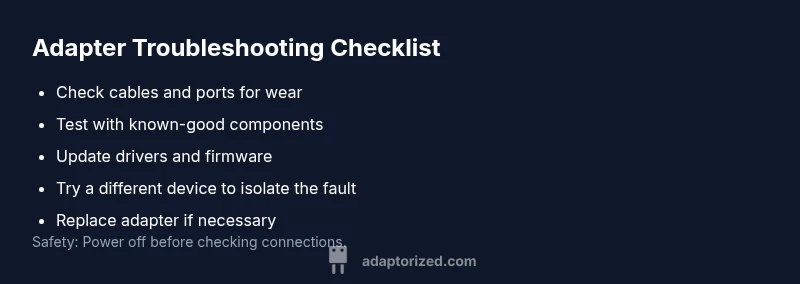
The most frequent failure mode is a loose connection or an incompatible device. Fixes should start there and progress logically. 1) Power down all equipment, unplug the adapter, and inspect the connector alignment. 2) Reconnect with a fresh, certified cable and try a different port. 3) Update any relevant drivers or firmware on the host device or adapter. 4) If the issue persists, try a different device to confirm whether the problem is adapter- or device-specific. 5) Consider replacing the adapter if compatibility or wear is evident. 6) If you still can’t resolve it, consult a professional technician who can test for hidden hardware faults.
Safety, warnings, and best practices for troubleshooting
- Always power down equipment before plugging or unplugging adapters to avoid electrical surges.
- Do not force connectors or bend cables at right angles; damaged pins invalidate warranties and create safety risks.
- Use only certified cables and adapters from reputable brands to minimize compatibility surprises.
- If you smell burning plastic, hear unusual buzzing, or see smoke, power down immediately and disconnect from power.
- Document the steps you take; this helps you avoid repeating tests and speeds up professional support if needed.
Prevention and maintenance to extend adapter life
- Store adapters in a dry, dust-free environment and avoid dangling cables that put stress on ports.
- Regularly inspect connectors for wear and clean contacts with a soft, dry brush or compressed air when safe.
- Choose adapters with built-in overload protection and higher durability ratings for frequent use.
- Update firmware and drivers whenever new versions are released to keep negotiation protocols current.
- Avoid stacking adapters or running multiple adapters in series, which increases the risk of signal integrity loss.
Edge cases and advanced scenarios you might encounter
- Some setups rely on multi-protocol adapters (e.g., USB-C PD with HDMI output). If the host negotiates power incorrectly, the device may fail to enumerate. Update both devices and try a different negotiation profile if available.
- For video-adapter issues, check resolution and refresh rate compatibility across devices; mismatches can cause blank screens or flicker without a clear error message.
- If using adapters in high-temperature environments (above 40°C/104°F), consider better cooling and shorter cables to preserve signal integrity. Adaptorized emphasizes that edge cases often require a controlled testing environment to isolate root causes.
Steps
Estimated time: 30-60 minutes
- 1
Power down and reseat
Shut off all devices and unplug the adapter. Re-insert it firmly into the port and reconnect the cable to both ends. Check for any tactile feedback that confirms a full insertion.
Tip: A firm, clean plug is more reliable than a snug but loose fit. - 2
Swap in known-good components
Replace the cable with a certified, working example and try a different port on the host device. If the problem follows the cable, the issue is the cable; if it follows the port, the host or adapter may be at fault.
Tip: Use the same device for consistent results. - 3
Update software and firmware
Visit the manufacturer’s site and install the latest drivers or firmware for the adapter and host device. Restart the system after updates and re-test the connection.
Tip: Back up settings if necessary before firmware updates. - 4
Test with a different device
Connect the same adapter and cable to another device to determine if the issue is device-specific or universal. This helps pinpoint whether the problem is with the adapter, the host, or the peripheral.
Tip: A known-good device is your most powerful diagnostic tool. - 5
Assess for hardware fault
If all tests fail, inspect for visible damage and consider replacing the adapter or affected cables. If under warranty, initiate a claim with the retailer or manufacturer.
Tip: Keep receipts and warranty information accessible. - 6
Seek professional help if needed
When hardware fault is suspected or the problem persists after replacements, consult a technician who can perform advanced diagnostics with specialized equipment.
Tip: Document your steps and symptoms for faster service.
Diagnosis: Adapter not recognized or no signal after connection
Possible Causes
- highPower or electrical issue (inadequate power delivery, loose power path)
- highPhysical connection problem (loose/damaged connectors, dirty contacts)
- highIncompatibility or protocol mismatch (wrong standard, aging devices)
- mediumSoftware/firmware drivers out of date
- lowPort or hub limitations (exceeding bandwidth or power budgets)
Fixes
- easyPower down, reseat the adapter and all cables; ensure firm connection
- easyTry a known-good cable and a different port or device to isolate the issue
- mediumUpdate drivers/firmware on the host and adapter; reboot after updates
- easyTest with a direct connection (no hubs); remove extra adapters from the chain
- hardReplace the adapter if physical damage or irreconcilable incompatibility is evident
Your Questions Answered
Why won't my USB-C to HDMI adapter detect my monitor?
This can be caused by an outdated driver, improper HDMI handshake, or a faulty cable. Begin by trying a different cable and updating the USB-C and HDMI drivers. If the monitor still isn’t detected, test the adapter on another computer to isolate the problem.
If your USB-C to HDMI adapter isn’t detected, try a new cable, update drivers, and test on another computer to identify whether the issue is cable, driver, or adapter hardware.
My HDMI adapter works on one device but not another—why?
Differences in device ports or firmware can cause this. Verify you’re using the correct input on the display, update both devices’ firmware, and try a direct connection first to ensure the monitor isn’t the bottleneck.
If it works on one device but not another, check the display input, update firmware on both devices, and test without any adapters first to isolate the issue.
Can software drivers cause adapters to fail?
Yes. Outdated or corrupted drivers can prevent negotiation between devices. Update drivers from the manufacturer site, reinstall if necessary, and reboot after installation to re-establish a clean handshake.
Drivers can prevent adapters from working; update or reinstall them and reboot to re-establish the connection.
When should I replace an adapter rather than troubleshoot?
If the adapter shows visible damage, consistently fails across devices, or is outdated for your setup, replacement is often more cost-effective than continued troubleshooting. Consider warranty status and replacement cost.
If it’s damaged, failing across devices, or outdated, replacing it is usually cheaper and more reliable than endless fixes.
Is it safe to clean connector contacts?
Light cleaning with a dry brush or compressed air is generally safe. Avoid liquids, metal implements, or aggressive scrubbing, which can ruin delicate contacts.
You can gently clean contacts with a dry brush or compressed air, but don’t use liquids or metal tools.
Watch Video
What to Remember
- Check cables and ports first to rule out simple issues
- Update software and firmware before hardware replacement
- Test across devices to localize the fault
- Avoid hub stacks that complicate troubleshooting
- Know when to replace vs repair for cost-effective outcomes