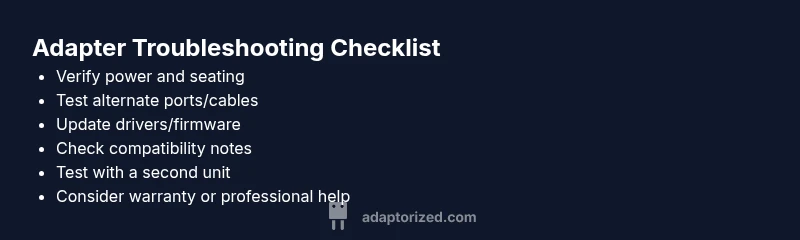
Why Is My Adapter Not Working? Quick Troubleshooting Guide
Urgent, step-by-step guide to diagnose and fix a non-working adapter. Learn common causes, quick checks, driver updates, and when to replace or seek help—designed for DIYers and tech enthusiasts.


Most adapters fail due to a simple mismatch between connections or drivers. Start by reseating the adapter, trying a different port or cable, and checking compatibility. If it still won’t work, update drivers, test with another device, and consider power/port limitations as the next steps.
Why the Adapter Fails: Common Culprits
The question "why is my adapter not working" often boils down to a few repeatable issues. First, look at the basics: loose connections, improper seating, or a faulty cable. A cable or connector that looks fine can still be dead under load. Power delivery matters too—some adapters rely on adequate voltage to initiate and sustain a data or charging signal. Software can be a surprising blocker: outdated drivers, misconfigured settings, or firmware mismatches can prevent an otherwise healthy adapter from communicating. According to Adaptorized, many problems trace back to compatibility gaps between the adapter and the host device or operating system. Start by validating that your adapter is supported by your device’s OS version, then confirm the exact port type and baud rates or USB standards required. If you see no activity at all, you may be dealing with a hardware fault or a dead port.
In practice, a quick triage helps: reseat, reboot, and retest with a known-good cable and port. This often reveals a defective cable or an exhausted port before you dive into deeper troubleshooting. Always handle connectors gently and avoid forcing pins, which can bend contacts and create intermittent failures.
When you’re stuck, documenting the exact model, your device, and the steps you took helps you or a technician pinpoint the root cause quickly. This approach reflects the problem-solving mindset Adaptorized uses for connectivity issues.
Check the Physical Setup: Cables, Ports, and Power
Software and Drivers: The Invisible Gatekeepers
Compatibility Standards: USB, HDMI, and Beyond
Environmental and Hardware Health: Temperature, Dust, and Wear
When to Seek Help: Warranty, Replacement, and Professional Check
Steps
Estimated time: 30-60 minutes
- 1
Verify power, seating, and cables
Unplug the adapter and reseat it firmly in a known-good port. Inspect cables for visible damage and replace if any kinks, frays, or bent pins are present. Reconnect and power on the host device to confirm basic recognition.
Tip: Always handle connectors by the plug, not the cable body to avoid internal fraying. - 2
Try alternate ports and devices
If the adapter supports multiple interfaces (e.g., USB-A and USB-C, or HDMI and DisplayPort), test each one separately. Use a different computer or phone to see if the adapter is recognized.
Tip: A working device confirms the issue is with the original host or port, not the adapter itself. - 3
Update drivers and firmware
Visit the manufacturer’s site or use the device manager to update drivers. If the adapter has firmware, perform the update following the official instructions.
Tip: Outdated firmware can prevent new OS versions from recognizing the device. - 4
Check OS and compatibility
Ensure your operating system supports the adapter. Look for any recent OS updates that might require a driver update or compatibility mode.
Tip: Some devices need specific adapters for newer standards (e.g., USB-C with alternate modes). - 5
Test with a second adapter
If available, try a different unit of the same model to distinguish a faulty unit from a broader compatibility issue.
Tip: A second adapter that works confirms the problem is with the original hardware. - 6
Assess power and environmental factors
Check that the host device’s USB port isn’t power-limited by another device. Ensure the environment isn’t exposing the adapter to extreme temperatures or dust.
Tip: Dust and heat can degrade connectors and cause intermittent failures.
Diagnosis: Adapter not functioning or recognized by the host device
Possible Causes
- highPower issue or insufficient supply
- highLoose connection or damaged cable/port
- mediumDriver or firmware incompatibility
- mediumPort or port controller failure on the host device
- lowDefective adapter unit
Fixes
- easyEnsure the adapter is fully seated and connected to a powered USB/port; try another port on the host device.
- easyTest with a known-good cable and, if possible, another device to rule out port issues.
- easyUpdate or reinstall drivers/firmware for the adapter and reboot the system.
- mediumCheck for compatibility notes from the manufacturer and verify the adapter supports your device/OS version.
- mediumIf available, reset the adapter to default settings or perform a factory reset on the host device’s USB controller.
- hardReplace the adapter or consult customer support if diagnostics indicate a hardware fault.
Your Questions Answered
What should I do first when my adapter isn’t recognized by the computer?
Start with a physical inspection: reseat the adapter, try a different USB port, and replace the cable if needed. Then reboot the host computer to refresh the USB stack.
First, unplug and reseat, try another port, and reboot the computer to refresh recognition.
Why does updating drivers sometimes fix adapter issues?
Drivers control how the adapter communicates with the host. An outdated or corrupted driver can prevent recognition or performance, so updating can restore compatibility.
Driver updates fix communication problems between the adapter and your device.
Can I test an adapter without a computer?
Yes, if the adapter supports multiple devices, you can test it with a smartphone or another computer to see if it’s recognized.
You can test the adapter with another device to isolate the problem.
What indicates a hardware fault vs. software issue?
If another device recognizes the adapter, or a replacement adapter fixes the problem, the original unit or port is likely faulty. Software issues usually fail across devices.
If another device works with the adapter, it’s likely software or port-related.
Should I use third-party drivers?
Avoid third-party drivers unless the manufacturer approves them. They may cause instability or damage, so stick to official sources.
Stick to official drivers to avoid risk of instability.
When is professional help required?
If the adapter is under warranty and you can’t determine the fault after thorough testing, contact the manufacturer or a professional repair service.
If testing doesn’t yield results, reach out for warranty support or professional help.
Watch Video
What to Remember
- Check basics first: reseat, test ports, and try alternate cables.
- Update drivers/firmware to clear software gaps.
- Rule out hardware faults by testing a second adapter or device.
- Know when to escalate to warranty or support