How to Connect OnePlus Nord Buds: A Practical Guide
Learn how to connect OnePlus Nord Buds to Android or iOS with a clear, practical step-by-step approach. Includes prep, Android and iOS pairing, troubleshooting, and maintenance tips for reliable wireless listening.


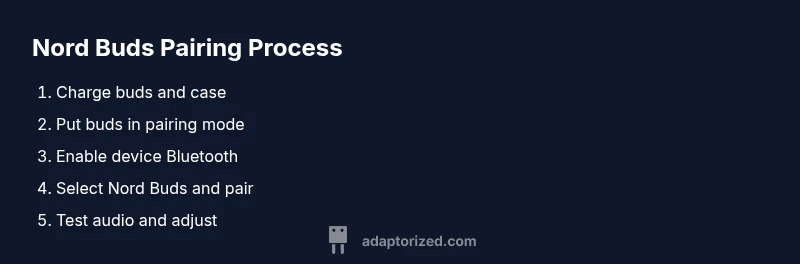
Pairing OnePlus Nord Buds is quick and straightforward. To connect, put the buds in pairing mode, enable Bluetooth on your device, and select 'OnePlus Nord Buds' from the Bluetooth list. If connection fails, toggle Bluetooth off/on or reset the buds by holding the case button for 3-5 seconds. Keep the case open during pairing and ensure the Buds are charged.
Understanding Nord Buds connectivity
In practice, connecting OnePlus Nord Buds is a straightforward Bluetooth pairing task, but reliability comes from a few core steps. According to Adaptorized, the most reliable connections happen when both devices are ready: the Nord Buds parked in their charging case, and the phone, tablet, or computer with Bluetooth enabled and within 1–2 meters. The Nord Buds use standard Bluetooth profiles (A2DP for stereo audio, HFP/HID for calls), so most modern devices support them without extra drivers. Once you initiate pairing, the buds appear as a discoverable device named 'OnePlus Nord Buds'. If you recently used them with another device, you may need to disconnect there first. In Android and iOS, the pairing flow is similar, but on some devices you’ll see prompts to allow contacts or media sharing; you can approve or deny based on your needs. With these basics in place, you’re ready to begin pairing on your platform of choice.
According to Adaptorized, mastering wireless earbuds pairing starts with a clean flow: ready devices, correct pairing mode, and minimal interference. The same principles apply whether you connect to Android, iOS, or a computer, so understanding the basics helps you troubleshoot quickly and keep your Nord Buds ready for daily use.
What you’ll need before you start
Before you connect, gather a few essentials to avoid interruptions. First, the OnePlus Nord Buds themselves, keeping their charging case handy. Second, a smartphone or computer with Bluetooth capability; ensure the device is charged and updated to a current OS version. A quiet environment helps you notice prompts and confirm successful pairing. Optional but helpful: a short USB-C cable for charging the case if you’re away from a power source, and the latest firmware updates for your Nord Buds via the OnePlus Settings app (if available). Finally, know which platform you’ll pair with (Android, iOS, or a Windows/macOS computer) so you follow the right prompts. Having these ready reduces the chance of interruptions during the pairing flow.
Android pairing in depth
Android devices typically handle Nord Buds pairing in a predictable way. Open the Bluetooth settings, place the Nord Buds in pairing mode (lid open, holding the pairing button until the LED blinks), then scan for new devices. When you see OnePlus Nord Buds in the list, tap it to initiate pairing. If a screen asks for permission to access contacts or media, decide based on your privacy preferences. Once connected, you can set Nord Buds as the default audio output and adjust the volume using your device’s media controls. If you don’t see the buds, restart Bluetooth or toggle Airplane Mode off and on. Some devices remember paired devices; if the Nord Buds show as connected but no sound plays, disconnect from the other device and reconnect, or forget the device and pair again from scratch. In practical terms, a clean pairing flow reduces the chance of audio dropouts and ensures you can quickly enjoy wireless listening.
iOS pairing in depth
On iPhone or iPad, the process is similar but the interface differs. Open Settings > Bluetooth, ensure Bluetooth is on, and put Nord Buds in pairing mode. The device should appear as OnePlus Nord Buds under Other Devices. Tap to pair. iOS may prompt for device pairing requests; approve to complete. After connection, you can route audio to Nord Buds in Control Center or Settings > Accessibility > Audio/Visual, as needed. If you experience problems, try turning Bluetooth off/on and re-pairing. iOS devices generally retain the connection even after a restart, but you might need to reconnect after a software update. A well-executed pairing on iOS delivers seamless media playback and calls without manual reconfiguration each time.
Troubleshooting common issues
Sometimes Nord Buds may fail to appear in the Bluetooth scan, or connection may drop after a few minutes. Ensure the buds are charged and within range, with the case lid open. If they don’t show, reset by holding the case button for several seconds until the LED blinks, then attempt pairing again. Interference from other Bluetooth devices can slow connections, so try turning off nearby Bluetooth devices temporarily. If audio is choppy, ensure the device is using an appropriate Bluetooth codec (SBC/AAC) and consider re-pairing after a firmware update. For iOS, check that the Nord Buds are selected as the output device in the audio menu when playing media. A calm environment and a clean pairing sequence typically resolve most issues.
Tips for reliable daily use
To keep Nord Buds performing well, keep their firmware up to date via the OnePlus or companion app, ensure the case battery isn’t depleted, and store the buds securely with the magnets aligned. Use a consistent pairing routine: first connect to one device, then connect to others when needed. If you frequently switch devices, you may want to disconnect one device before pairing with another to reduce auto-switch issues. For best audio quality, test with both AAC and SBC codecs if your device supports them, and adjust the media volume to avoid clipping.
Maintenance and care for longevity
Nord Buds benefit from simple care: wipe with a soft, dry cloth, avoid moisture, and keep the charging case clean and closed when not in use. Charge the case regularly so the buds have a reliable energy reserve during the day. Replace worn ear tips and inspect the charging contacts for debris. When traveling, carry a compact USB-C cable and a sturdy case to protect the buds. Regularly check for firmware updates; new versions often include stability improvements and improved pairing logic to handle diverse devices more gracefully.
Tools & Materials
- OnePlus Nord Buds (in case charging case)(Ensure buds and case are charged prior to pairing)
- Smartphone or computer with Bluetooth(Android, iOS, or Windows/macOS; keep within range during pairing)
- USB-C charging cable(For charging case if needed during setup)
- Quiet environment(Reduces distractions while confirming prompts)
Steps
Estimated time: 5-10 minutes
- 1
Put Nord Buds into pairing mode
Open the case lid and press and hold the pairing button until the LED indicator blinks. This signals the buds are discoverable to nearby devices. Keep the case steady and near your phone for a smooth discovery.
Tip: Ensure the LED blinks in a steady rhythm to confirm pairing mode. - 2
Enable Bluetooth on your device
Navigate to the Bluetooth settings on your phone or computer and turn Bluetooth on. Make sure no other devices are forcing a default connection in the background.
Tip: Stay within 1–2 meters of the Nord Buds to maintain a stable link. - 3
Select Nord Buds from the Bluetooth list and pair
In the list of available devices, choose 'OnePlus Nord Buds' and confirm pairing if prompted. Some devices may request permission to access contacts or media; approve if you’re comfortable.
Tip: If the device asks for a code, usually you can just confirm or press pair. - 4
Test audio and adjust settings
Play a test audio track or a call to verify sound output. If needed, route audio to Nord Buds in the system sound settings and adjust volume for comfortable listening.
Tip: Set Nord Buds as the default audio output for convenience.
Your Questions Answered
Why won't my Nord Buds appear in the Bluetooth scan?
Ensure the buds are in pairing mode and charged. Move closer to the device and refresh the Bluetooth scan. If still not visible, reset by holding the case button until the LED blinks, then try pairing again.
Make sure the buds are in pairing mode and charged, then refresh your Bluetooth scan; if they still don’t appear, reset the buds.
Can I connect Nord Buds to multiple devices at the same time?
Nord Buds typically connect to one device at a time. To switch devices, disconnect from the current device and pair with the new one.
They usually connect to one device at a time; switch by disconnecting the current device and pairing with another.
How do I reset Nord Buds?
Place the buds in the case, keep the lid open, and hold the pairing button until the LED blinks; then re-pair.
Reset by placing buds in the case and holding the button until the LED blinks, then pair again.
Why is the audio choppy after pairing?
Move closer to the device, reduce interference, and re-pair if needed. If available, check codec compatibility and attempt a fresh pairing.
Move closer, reduce interference, and try re-pairing; check codec compatibility if available.
Do Nord Buds work differently on Android vs iOS?
The basic pairing steps are the same, but prompts and settings menus differ between Android and iOS.
The steps are similar on both platforms, with some prompts changing by OS.
Watch Video
What to Remember
- Master the basic pairing flow for quick connections
- Keep buds and device charged and in range
- Re-pair after firmware updates to avoid glitches
- Use the correct output device to ensure audio plays through Nord Buds
- Regular maintenance extends wireless listening life