How to Connect OnePlus Buds
Learn how to connect OnePlus Buds to Android, iOS, Windows, and macOS with a clear, step-by-step method, troubleshooting tips, and practical best practices from Adaptorized.


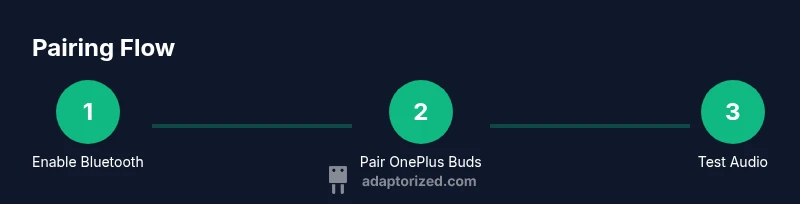
You can connect OnePlus Buds by placing them in pairing mode, turning on Bluetooth on your device, and selecting OnePlus Buds from the Bluetooth list. Start with a full charge in the case and then pair from your device or via a companion app if available. This flow works across Android, iOS, Windows, and macOS.
How to connect OnePlus Buds
If you're wondering how to connect oneplus buds, this guide walks you through the simplest, most reliable method for Android, iOS, Windows, and macOS devices. The Adaptorized team has tested this workflow in 2026, and the steps stay straightforward across the most common setups. Start with a full charge in the charging case and confirm that Bluetooth is enabled on your device. Open the case near the device, and keep the lid open while you select OnePlus Buds from the Bluetooth pairing list. Once connected, you can test playback, adjust volume, and customize controls if your model supports touch gestures. This approach works with recent OnePlus Buds generations and applies whether you’re at home, in the office, or on the go. By following these steps, you’ll reduce delays, minimize dropouts, and ensure your audio experience stays consistent across devices. For best results, perform a quick firmware check on the buds when you first pair them.
Note from Adaptorized: Prioritize clean connections and firmware updates to minimize dropouts and latency.
Compatibility and model coverage
OnePlus Buds are designed to pair with a wide range of devices via Bluetooth, including Android phones, iOS devices, Windows PCs, and Macs. In practice, the pairing flow is similar across generations because Bluetooth is the core transport. Most models support Bluetooth 5.x or later and a standard pairing process, so you can expect to see the buds listed as OnePlus Buds or a variant in your device’s Bluetooth menu. Check the user manual or the OnePlus support site for model-specific notes, especially if you have an older device or a nonstandard OS version. In general, make sure your device’s firmware is up to date to maximize compatibility and minimize latency. Adaptorized analysis, 2026, indicates that keeping Bluetooth on and nearby is more important than chasing tiny firmware differences across models.
Keep in mind that some devices may name the buds differently (e.g., OnePlus Buds Pro, OnePlus Buds Z). If you don't see OnePlus Buds, try turning Bluetooth off and back on, or remove and re-add the device from the Bluetooth settings. This simple reset often resolves discovery issues and improves pairing reliability across platforms.
Charging and prep before pairing
Prepping the buds before pairing reduces the chance of missed connections or immediate disconnects. Start by placing the buds in their charging case and ensuring the case has some charge. If the LEDs on the case blink during a test, it’s a sign you should recharge. Clear any existing Bluetooth pairings on the buds if you’ve paired them with multiple devices in the past; this prevents accidental auto-connecting. If you’re pairing with a laptop, turn on airplane mode briefly to reduce wireless interference, then re-enable Bluetooth once the buds are in discovery mode. Finally, verify that the device you want to pair with is within a reasonable range (about 10 meters) and that there are no heavy walls or metal objects blocking the signal. These preparatory steps save time during the actual pairing process and prevent common issues.
Pairing on Android devices
Android devices typically make pairing quick and intuitive. Start by ensuring Bluetooth is enabled (Settings > Bluetooth or Quick Settings tile). Put the OnePlus Buds into pairing mode by placing them in the open case and holding the pairing button until the LED signals the pairing state. On your Android device, scan for new devices and select OnePlus Buds from the list. If prompted with a pairing code, accept it and wait a moment as the connection is established. Once connected, the buds may appear as a headset or media device in the Bluetooth settings. Test audio by playing music and ensuring calls route through the buds. If you want to customize touch controls or EQ, check for app support or system-level Bluetooth settings. Keep in mind that vendor skins can influence the exact menu labels and paths.
Pairing on iOS devices
iOS devices make pairing straightforward as well. Open Settings > Bluetooth and ensure Bluetooth is On. Place the buds in pairing mode and wait for OnePlus Buds to appear under Other Devices. Tap the name to pair, then allow any prompts related to microphone access or device configuration. After pairing, test audio by playing audio or making a test call. If you experience latency, it’s often due to background activity or interference from other Bluetooth devices. In most cases, turning off nearby devices or restarting Bluetooth fixes the issue.
Pairing on Windows and macOS
Pairing on Windows and macOS is similar and relies on system Bluetooth settings. Windows users should go to Settings > Bluetooth & devices > Add device, then choose OnePlus Buds from the list. Mac users should navigate to System Settings > Bluetooth, turn Bluetooth on, and select OnePlus Buds from the devices list. Once paired, set OnePlus Buds as the default output and input device in the sound settings. If you’re using a USB-C dongle or external adapter for Bluetooth on a desktop, ensure it supports Bluetooth 5.x and has up-to-date drivers. Both platforms can remember multiple paired devices for quick switching in future sessions.
Using the companion app and features
Some OnePlus Buds versions have a companion app (or integrated firmware UI) that allows you to adjust touch controls, EQ, and firmware updates. If you have the app, follow on-screen prompts to link the Buds to your account; You may also see battery status, connection quality, and recommended firmware updates. The app experience varies by device and OS version, and some features may require the buds to be connected to one specific device at a time. Use the app to check for firmware updates, customize tap gestures, and explore additional sound tuning options if your model supports them.
Troubleshooting common issues and resets
If you run into issues during pairing, start with the basics: ensure both the buds and the host device have sufficient battery, toggle Bluetooth off and on, and retry the pairing flow. If the buds do not appear in the Bluetooth scan, place them in pairing mode again and keep the case lid open. For stubborn cases, reset the buds to factory settings by following the model-specific reset procedure (usually a long press on the pairing button in the case until the LED flashes). After reset, re-pair using the steps above. If problems persist, check for firmware updates on the buds or the host device and consider testing with another device to isolate the issue.
Advanced tips for stable connections and multi-device use
For users who frequently switch between devices, enable multipoint pairing if your model supports it. This allows the buds to remember and quickly switch between two or more devices without re-pairing from scratch. Minimize interference by turning off nearby Bluetooth devices not in use and staying within a clear line of sight when possible. If you regularly experience audio lag, update both the buds' firmware and your device’s Bluetooth stack. Finally, store the buds in the case when not in use to prevent accidental taps or battery drain.
Authority sources
- https://www.bluetooth.com
- https://www.nist.gov
- https://www.ftc.gov
Tools & Materials
- OnePlus Buds charging case(Ensure the case is charged before starting)
- Bluetooth-enabled device (Android, iOS, Windows, macOS)(Keep within pairing range (about 10 meters))
- USB-C charging cable(Use if you need to recharge the case)
- Optional: companion app (if available)(May provide EQ and control options)
Steps
Estimated time: 12-20 minutes
- 1
Prepare the devices
Charge the buds and the host device, enable Bluetooth, and close other Bluetooth apps to minimize interference. This improves discovery speed and reduces initial connect failures.
Tip: Charge the case fully and keep the device within 1–2 meters during pairing. - 2
Enter pairing mode for the buds
Place the buds in the open charging case and hold the pairing button until the LED signals pairing mode. Release when the LED indicates pairing is active.
Tip: If the LED doesn’t respond, try closing and reopening the case and waiting a moment. - 3
Android pairing flow
On your Android device, open Settings > Bluetooth and scan for new devices. Tap OnePlus Buds when it appears, then confirm any prompts to pair. Test playback once connected.
Tip: If asked about trusted devices, choose yes to enable automatic reconnect. - 4
iOS pairing flow
On iPhone/iPad, open Settings > Bluetooth, ensure Bluetooth is on, and select OnePlus Buds from the list. Confirm and test audio after pairing.
Tip: If prompted to use with Siri, you can disable it if undesired. - 5
Windows pairing flow
In Windows Settings > Bluetooth & devices, click Add device and choose OnePlus Buds. Set them as default playback and recording device in Sound settings after pairing.
Tip: Restart Bluetooth if the device isn’t listed. - 6
macOS pairing flow
Open System Preferences > Bluetooth, ensure Bluetooth is on, and click Connect next to OnePlus Buds. Verify audio routing in Sound settings.
Tip: If you use a USB-C dongle, select the dongle as the audio output if needed. - 7
Finalize and test
Play audio to confirm both stereo channels are active and latency is acceptable. Adjust volume and touch controls if available.
Tip: Test for both media playback and calls to ensure microphone routing works. - 8
Optional customization
Open the companion app (if available) to tweak EQ, touch gestures, and firmware updates. Apply changes and re-test audio.
Tip: Firmware updates can improve stability and latency. - 9
Troubleshooting if pairing fails
If devices cannot discover the buds, reset the buds and retry the pairing flow from step 2. If issues persist, test with another host device to identify the faulty component.
Tip: Avoid interference by turning off other Bluetooth devices nearby.
Your Questions Answered
Can I connect OnePlus Buds to multiple devices at the same time?
Most OnePlus Buds pair with one device at a time, but you can switch between paired devices by disconnecting from one and connecting to another. Some models support multipoint connections; check your model’s specs.
Most models connect to one device at a time, with easy switching between paired devices if multipoint is supported.
Why can't my OnePlus Buds appear in the Bluetooth list?
Ensure the buds are in pairing mode, the case has charge, and Bluetooth on the host device is active. Try restarting Bluetooth or rebooting the host device before retrying the scan.
Make sure the buds are in pairing mode and Bluetooth is on; restart Bluetooth if they don’t show up.
Do I need the OnePlus Buds app to pair?
No, you can pair via the system Bluetooth settings. The companion app may offer additional controls and firmware updates where available.
Pairing doesn’t require the app, but the app can unlock extra features where supported.
How do I reset OnePlus Buds to factory settings?
Place the buds in the case and hold the pairing button for several seconds until the LEDs flash. Then re-enter pairing mode and pair with your device again.
To reset, put the buds in the case and hold the button until they flash, then pair anew.
Are OnePlus Buds compatible with macOS and Windows?
Yes. OnePlus Buds use Bluetooth and can pair with Mac and Windows devices, though some model-specific features may vary.
They work with both Mac and Windows via Bluetooth, with full functionality depending on the model.
What should I do about audio lag or dropouts?
Ensure firmware is up to date on both buds and host device, minimize interference, and try re-pairing if necessary.
Update firmware and re-pair if you see audio lag or dropouts.
Watch Video
What to Remember
- Charge before pairing and keep devices nearby.
- Pairing is similar across Android, iOS, and desktop OS.
- If connection fails, reset or retry with fresh Bluetooth discovery.
- Use app options to customize controls when available.