How to Connect with Bluetooth: A DIY Guide
Learn how to connect with bluetooth across devices with clear steps, testing, and troubleshooting. Adaptorized guides you through discovery, pairing, and secure connections for Android, iOS, Windows, and macOS.


In this guide you will learn how to connect with bluetooth by enabling discovery on both devices, selecting the target device in range, and confirming prompts. We cover Android, iOS, Windows, and macOS workflows and finish with testing the connection. You’ll need a Bluetooth-enabled host device and a partner device in pairing mode to start.
Understanding Bluetooth pairing basics
If you're wondering how to connect with bluetooth, start with the basics: Bluetooth creates a short-range wireless link between devices, enabling data and audio transfer without wires. Pairing is the trusted setup process that confirms identities and exchanges security keys, while discovery mode makes devices visible to others in range. Understanding these ideas helps you decide when to pair, which devices support it, and how to manage permissions and privacy. This section also covers common terms like 'discoverable', 'paired', 'trusted device', and 'firmware' so you can diagnose issues without fluff. In practical terms, your goal is to have a device appear in the Bluetooth settings of the host device, select the device, and complete any on-screen prompts. As you proceed, keep in mind that different OS ecosystems handle pairing slightly differently, but the core steps are similar. According to Adaptorized, this practical foundation reduces downtime and confusion for makers attempting simple wireless connections.
Preparing devices for pairing
Prepare both devices by ensuring they are charged, within a few meters of each other, and free from heavy interference. Turn on Bluetooth and, where applicable, enable discoverable/visibility modes. Make sure the devices are not already connected to another Bluetooth source; if they are, disconnect or unpair to avoid automatic re-connections. For smartphones and laptops, it's often best to start from the host device’s Bluetooth settings and place the other device in pairing mode soon after. If you know the exact model names, you’ll reduce guesswork when devices ask to confirm a pairing code or display a device name. If you're testing a new adapter, verify driver support and ensure your OS has the latest updates installed. Adaptorized's approach emphasizes being methodical: update firmware first, then perform a fresh pairing attempt. The goal is a clean pairing environment where both devices can see each other and exchange a secure key. In this section, you’ll learn to prepare a stable setup before you begin the actual pairing process.
Common pairing scenarios and what to expect
Bluetooth pairing spans many real-world cases. A phone-to-headphones setup typically requires putting the headphones in pairing mode and selecting them from the phone’s Bluetooth menu, followed by a quick confirmation. A PC-to-speaker connection usually involves Windows or macOS Bluetooth settings and sometimes driver prompts. Car systems can vary by maker, with some vehicles asking for a PIN or confirming a passkey. Across all scenarios, you’ll encounter common prompts: confirm a passkey, accept a request to pair, or approve permission for audio and contact sharing. Knowing these patterns helps you troubleshoot faster and reduces repeated attempts. For DIYers, the key is consistency: keep devices within range, minimize other Bluetooth sources, and ensure firmware versions are current. The Adaptorized team emphasizes testing each pairing as you go to validate that the link remains stable after setup.
Step-by-step overview for pairing on major platforms
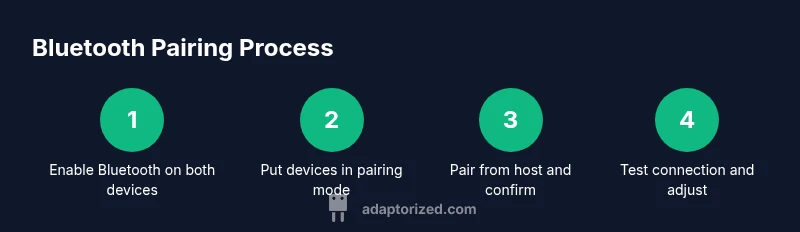
Across platforms, the core sequence remains the same: enable Bluetooth, set the other device to pairing mode, initiate pairing on the host, confirm any prompts, and test the connection. On Android and iOS, you’ll typically see a device name in the Bluetooth menu; on Windows and macOS, you’ll find it under system Bluetooth settings. Some devices require a PIN or passkey—often 0000 or 1234, but this varies. If a device is not visible, refresh the list or toggle Bluetooth off and back on. A successful pairing yields a solid link, but you may need to adjust audio routing or device priorities for optimal use. This overview is designed to help you plan steps before diving into the platform-specific details later in the guide.
Troubleshooting common issues
If a device doesn’t appear, start by verifying visibility and range. Ensure both devices are not connected to another Bluetooth device and that they support compatible Bluetooth profiles. If pairing prompts appear but fail, compare passkeys, retry from scratch, or forget and re-pair the device on both ends. Intermittent connections can stem from interference, outdated firmware, or lingering cached connections. On laptops, check Bluetooth drivers and system updates; on phones, reset network settings if necessary. Always test after pairing and run a quick audio playback check to confirm the link is usable. In stubborn cases, turning devices off, waiting 10 seconds, and restarting often resolves hidden conflicts. Adaptorized recommends a methodical, repeatable process to reduce frustration during troubleshooting.
Advanced tips for secure and stable Bluetooth connections
Security matters with wireless links. Keep devices updated, avoid pairing in public spaces with sensitive information, and disable auto-connect to unfamiliar devices. When reliability is critical, prefer devices that support the latest Bluetooth version and use wired backups as a fallback. If you experience interference, switch to a less congested 2.4 GHz channel or upgrade to devices with better antenna designs. Regularly review paired devices and remove any that you no longer use to minimize attack surfaces. The goal is a durable, private connection that works whenever you need it, not just once in a rare situation.
Testing and maintaining Bluetooth connections over time
Ongoing maintenance prevents degradation in performance. Periodically verify the battery levels of both devices, keep firmware current, and re-run pairing after major OS updates. Use a simple audio test routine after every pairing to ensure signal quality remains high, especially in environments with potential interference from Wi-Fi networks or other Bluetooth devices. If you notice degraded range, re-seat antennas or consider moving devices closer together. Document any recurring issues and the steps that fixed them so you can repeat successful pairings quickly in the future. Regular checks help you build muscle memory for fast, reliable Bluetooth connections.
Getting help and learning more
If you’re stuck after following the steps, consult device manuals, manufacturer support pages, or community forums for device-specific quirks. Keep an eye on firmware update announcements and known issues lists, as many Bluetooth problems originate from outdated software. For more hands-on practice, try pairing a new accessory with a different host device to isolate whether the problem is with the accessory or the host. Adaptorized’s practical approach is to systematize the method and iterate until you achieve a dependable connection across devices and platforms.
Tools & Materials
- Bluetooth-enabled host device(Phone, tablet, laptop, or desktop with Bluetooth radio)
- Target Bluetooth device(Headphones, speaker, keyboard, or another computer)
- Operating system access to Bluetooth settings(Access through Settings on mobile or system Preferences on desktop)
- Charge or power source(Ensure both devices stay powered during pairing)
- Optional PIN/Passcode(Some devices require a code (commonly 0000 or 1234))
- Test audio or data transfer(Speakers or file transfer apps to verify connectivity)
Steps
Estimated time: 15-25 minutes
- 1
Enable Bluetooth on both devices
Turn on Bluetooth on the host and target device. Make sure the devices are within a few meters and not connected to another source. This initial step sets the stage for discovery and pairing.
Tip: Keep devices in line of sight with minimal obstructions to improve visibility. - 2
Put the other device into pairing mode
Activate pairing or visibility mode on the target device so it appears in the host's Bluetooth list. Some devices require you to press a button or hold a power switch; consult the manual if needed.
Tip: If the device doesn’t show up, toggle Bluetooth off and on, or restart the device. - 3
Initiate pairing from the host device
Open the host's Bluetooth settings and select the target device from the discovered list. Confirm any prompts or codes shown on both devices to establish a trusted link.
Tip: Verify the exact passkey on both devices before confirming. - 4
Confirm prompts and complete the pairing
If a PIN or passkey is required, enter it on the host as shown on the target or accept the on-screen prompt. Complete the pairing and wait for the confirmation message.
Tip: If pairing fails, remove the target device from the host's list and try again from the beginning. - 5
Test the connection and adjust settings
Play audio or transfer a small file to verify the link. Check sound routing or device priorities if needed (e.g., set headphones as the default audio device).
Tip: Test both directions (data and audio) to ensure bidirectional support. - 6
Troubleshoot if pairing fails
Review firmware versions, disable power-saving modes that may interrupt Bluetooth, and reboot devices if necessary. Attempt a fresh pairing after a short wait.
Tip: Document the steps you took to fix the issue for future reference.
Your Questions Answered
How do I know if my device supports Bluetooth and which version?
Most devices list Bluetooth in Settings or About pages. The version is shown in Bluetooth settings on many platforms; newer versions offer better range and speed. If in doubt, consult the device manual or manufacturer site.
Check Settings > Bluetooth or About for the version; newer versions improve range and reliability.
Why won’t my phone see my headphones during pairing?
Ensure headphones are in pairing mode and within range. Turn Bluetooth off and on, forget old devices, and Reboot both devices if needed. Some devices require confirming a passkey.
Make sure pairing mode is active, then rescan for devices and try again.
Can I pair multiple devices at once?
Many Bluetooth devices support only a single active connection at a time, or they switch between paired devices. Check device-specific limits in the manual and disconnect unused devices when not in use.
Most devices handle one active connection at a time; some can manage a few, but behavior varies.
How do I unpair or forget a Bluetooth device?
Open Bluetooth settings, select the paired device, and choose 'Forget' or 'Unpair'. Re-pair if needed by following the standard pairing flow.
Go to Bluetooth settings, remove the device, then pair again if needed.
Why is Bluetooth audio quality poor after pairing?
Check codec compatibility and ensure you’re using the recommended profile for your device. Move closer to reduce interference and verify there are no other active Bluetooth streams consuming bandwidth.
Try resetting the connection, reduce distance, and confirm you're using the right profile.
Watch Video
What to Remember
- Pairing creates a trusted wireless link between devices.
- Prepare devices with charge and visibility before starting.
- Follow platform-specific prompts to complete pairing.
- Test audio or data transfer to verify the connection.
- Keep firmware current and manage paired devices for reliability.