How to Connect Android: A Practical Connectivity Guide
Discover practical steps to connect Android devices via USB-C, Bluetooth, or Wi‑Fi. This guide covers setup, troubleshooting, and best practices for reliable, secure connectivity.


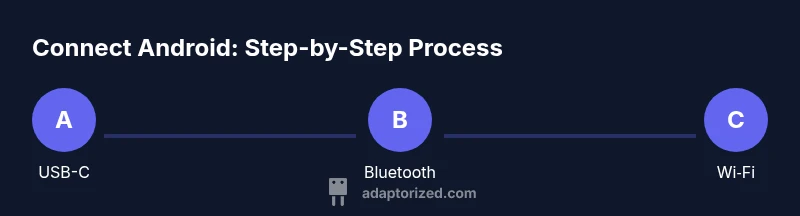
According to Adaptorized, connecting an Android device involves three reliable methods: USB-C wired, Bluetooth, and Wi‑Fi wireless connections. Start by enabling the desired interface on both devices, then follow on-screen prompts to complete pairing or data transfer. This quick guide covers practical steps and checks to help you achieve a stable link across common Android models.
Understanding Android Connectivity
Android devices support multiple ways to connect to accessories, peers, and networks. The core idea is to choose the method that matches your goal—file transfer, audio playback, screen sharing, or peripheral control—and then follow the right prompts. In this section, we break down wired, wireless, and mixed setups, with practical tips for reliability across common Android models and USB-C ports. The key is to know the environment: are you working with a PC, a TV, or another mobile device? Each scenario has its own best practice.
- The three most common methods are USB-C data transfer, Bluetooth pairing, and Wi‑Fi-based sharing. - USB-C enabled devices can act as hosts or peripherals depending on the cable and port orientation. - Bluetooth remains a low-power option for peripherals like headphones, keyboards, and sensors. - Wi‑Fi offers high bandwidth for media transfer and screen casting when devices are on the same network.
Practical tip: always verify device compatibility early by checking system settings and cable specs before attempting a connection.
Wired Connections: USB-C and OTG
Wired connections deliver the most stable and predictable performance, especially for large file transfers or when there is no reliable wireless network. USB-C can support both power and data pathways, and in many cases Android devices can act as USB hosts (OTG) or peripherals depending on the cable and port. Start by checking your device's USB port type and whether OTG is supported. When an OTG-capable cable is used, your Android device can recognize USB peripherals like flash drives, keyboards, or mice.
- Verify that the cable supports data transfer (not just charging). - If you need to connect to a computer, use a USB-C to USB-C or USB-C to USB-A cable depending on the PC port. - Some devices require you to enable file transfer mode after connection. - For power-sensitive scenarios, avoid daisy-chaining multiple peripherals through a single port.
Pro tip: always eject removable storage before unplugging to prevent data corruption.
Bluetooth Pairing Essentials
Bluetooth remains a practical method for peripherals, audio devices, and headset connection. Ensure Bluetooth is enabled on both devices, set devices to discoverable mode, and confirm the pairing request. On Android, you’ll usually find Bluetooth under Settings > Connected devices. Some devices require you to grant access for contacts or media during the first pairing.
- Expect prompts for PIN or confirmation codes; accept them if they match.
- After pairing, use the Bluetooth device’s settings to customize default media or call routing.
- Some older devices may require you to reboot after a first successful pairing.
Tip: if a device doesn’t appear, toggle Bluetooth off and back on, or turn off the other device to refresh visibility.
Wi‑Fi and Wireless Sharing
Wireless connections unlock high-speed data transfers and easy screen sharing. Establish a shared network (same router or hotspot) or use direct wireless standards such as Wi‑Fi Direct where available. On Android, use Settings > Network & Internet to configure Wi‑Fi, then select a network and enter credentials. For screen casting, enable Cast in Quick Settings and choose your display.
- Use strong Wi‑Fi passwords and enable network encryption.
- When sharing screens or media, ensure your devices are on the same local network for best performance.
- For file transfer, consider dedicated apps that support secure transfer over Wi‑Fi.
Note: Some network configurations require enabling permissions for certain apps to access the network or local devices.
Using Adapters and Hubs for Complex Setups
When you need to combine multiple connectivity options, adapters and hubs can be a lifesaver. A USB-C hub with video output can let Android mirror to a display while still transferring data via USB. Wireless adapters can extend compatibility with legacy devices. Check the maximum data rates of all components and confirm compatibility with your Android model. Always test each port individually before attempting a combined setup.
- Confirm that the hub supports the required data protocols (USB 3.0/3.1, HDMI, ethernet).
- Use dedicated power delivery if the hub draws power from the Android device.
- If your device doesn’t recognize a peripheral via the hub, try direct connections first to isolate the fault.
Practical tip: keep cable lengths short to reduce signal loss in high-bandwidth tasks.
Troubleshooting Common Issues
Connection problems are common when mixing devices, ports, and cables. Start with the simplest possibility: confirm power, toggle the interface, re-pair devices, or reconnect the cable. For USB, verify that the correct USB mode (file transfer vs. charging) is selected. For Bluetooth, re-pair if the device won’t connect, and check that the device isn’t blocked or already connected to another source. For Wi‑Fi, ensure both devices are on the same network and that firewalls won’t block discovery.
- Update firmware and Android version when possible.
- Use official cables that support data transfer; avoid third-party power-only cables for data-heavy tasks.
- Factory reset the affected peripheral if it’s non-responsive, but back up data first.
If issues persist, test each layer (cable, port, device) individually to locate the bottleneck.
Security, Privacy, and Best Practices
Connectivity is convenient, but it also brings privacy risks. Always pair devices you trust, disable sharing when not needed, and review app permissions after connection. Use encrypted transfer protocols for sensitive files and prefer official apps from reputable developers. When using public Wi‑Fi or shared networks, limit the data you transfer and consider using a VPN for added protection. Regularly review connected devices and remove any that are no longer in use.
- Keep devices updated to patch known vulnerabilities.
- Turn off discovery and Bluetooth when not in use.
- Use strong authentication and authorize only trusted apps and devices.
Best practice: treat every new connection as a potential risk and validate it with up-to-date security guidelines.
Tools & Materials
- Android device(Any modern Android (8.0+ recommended))
- USB-C cable(Data-capable; USB 2.0+ recommended)
- OTG adapter (optional)(If you need to connect USB peripherals directly)
- PC or Mac computer (for file transfer)(Use USB connection to transfer files)
- Bluetooth-enabled peripheral(Headphones, keyboard, or sensor)
- Wi‑Fi network or hotspot(For wireless sharing and casting)
Steps
Estimated time: 45-60 minutes
- 1
Choose connection method
Determine whether you will use USB-C, Bluetooth, or Wi‑Fi based on your goal and surroundings. Wired connections are most reliable for files and peripherals; wireless methods work well for pairing and streaming within range.
Tip: Start with a wired method when nearby devices are available to confirm basic functionality. - 2
Enable the method on Android
Open Settings and enable the chosen interface: USB for data transfer, Bluetooth for pairing, or Wi‑Fi for local network sharing. If using USB, unlock the screen and select the appropriate USB mode when prompted.
Tip: If USB doesn't show a mode prompt, pull down the notification shade and tap the USB option again. - 3
Enable the method on the companion device
On the other device, ensure Bluetooth visibility is on, Wi‑Fi sharing is active, or a compatible app is ready to receive data. In Bluetooth, scan for the Android device and select it to pair.
Tip: Keep the other device close to minimize pairing time. - 4
Establish the connection
Accept pairing requests, approve permissions, or confirm file transfer prompts. For Wi‑Fi, join the same network or establish a direct link via casting or a dedicated app.
Tip: If a prompt asks for a passkey, verify it matches on both devices before accepting. - 5
Test the link
Send a small file, play a test audio, or mirror the screen to confirm the connection is stable and functional. Note any delays or dropouts and adjust setup if needed.
Tip: Test with multiple file types to ensure compatibility across devices. - 6
Manage permissions and privacy
Review app permissions related to the connection. Disable discovery when not in use and revoke access after testing to minimize risk.
Tip: Regularly audit connected devices list in Settings > Connected devices. - 7
Explore advanced options
If required, enable USB debugging or try a dedicated companion app for improved reliability or extended features. Use a wired or wireless tool that suits your workflow.
Tip: Only enable USB debugging if you know the source and purpose of the connection. - 8
Finalize and maintain
Document which methods work best for your typical tasks and keep cables and adapters organized for quick setup in future projects.
Tip: Label cables and ports to speed future repairs or expansions.
Your Questions Answered
How do I pair Android with Bluetooth headphones?
Open Settings > Connections > Bluetooth, enable Bluetooth, scan for the device, and pair. Confirm any PIN if prompted and set the device as used for media if needed.
Open Settings, enable Bluetooth, scan for the headset, and select it to pair. Confirm any PIN if asked.
Can I transfer files from Android to PC via USB?
Yes. Connect with a USB-C to USB cable and choose File Transfer mode on Android, then access the device from your computer’s file explorer.
Connect with USB and pick file transfer mode, then use your computer’s file explorer.
Why isn’t my Android device detected by my computer over USB?
Check the USB mode on Android, try a different USB cable or port, and ensure drivers are up to date. Reboot both devices if necessary.
Check the USB mode, try another cable or port, and update drivers.
How can I connect Android to a TV?
Use a casting method (Chromecast or built-in cast) or an HDMI adapter. Ensure both devices are on the same network or connected via HDMI.
Cast via Chromecast or use an HDMI adapter to connect to the TV.
Is Wi‑Fi Direct supported on Android?
Yes. Enable Wi‑Fi Direct in Settings and pair with a compatible device. This allows direct wireless transfers without a router.
Yes—enable Wi‑Fi Direct and pair with a compatible device.
What security steps should I take when connecting to public networks?
Limit transfers on public networks, use encryption, and review app permissions after connecting. Consider a VPN for sensitive data.
Limit transfers, use encryption, and review permissions; use a VPN for sensitive data.
Watch Video
What to Remember
- Use USB-C for stable, fast data transfer.
- Bluetooth covers peripherals and quick pairing needs.
- Wi‑Fi is ideal for wireless file sharing and casting on the same network.
- Adapters and hubs enable complex multi-device setups.
- Prioritize security by managing permissions and turning off discovery when idle.