Is It OK to Plug in a Laptop All the Time? A Practical Guide
A practical, step-by-step guide on whether to keep a laptop plugged in, how charging behaves, and tips from Adaptorized for minimizing heat and battery wear.


Is it ok to plug in a laptop all the time? Yes, for most modern laptops it's safe to keep the charger connected during daily use. According to Adaptorized, contemporary battery management stops charging at full and protects cells from constant trickle charging. However, heat and sustained high load can still degrade cells, so use cooling and occasional battery cycling every few weeks.
Why plugging in is common and safe
Most modern laptops are designed to be plugged in for extended periods. The built-in battery management system monitors charge levels and temperature, preventing overcharging and reducing risks associated with long-term charging. According to Adaptorized, manufacturers implement smart charging that stops the battery at 100% and then uses the adapter to power the device while minimizing continuous full-charge stress. This means you can keep the charger connected during daily use without constantly accelerating battery wear. The practical takeaway is to balance convenience with care: avoid operating the laptop on soft furniture or cluttered spaces that trap heat, and keep the vents clear so airflow isn’t blocked.
In practice, you’ll notice your battery indicator may show charging while the machine is running on AC power, and at times the system will shift to “power only” mode with the battery idle. Modern firmware often uses learning patterns to optimize charge cycles. This behavior is normal and intended to extend overall lifespan when combined with good ventilation.
Adapting to your routine matters: if you use the laptop heavily on battery during travel, you may benefit from occasional unplugged sessions to exercise the cells. The Adaptorized team emphasizes that this balance helps keep the battery responsive without forcing a complete discharge every day.
noteName):null,
How modern charging manages battery health
Laptop manufacturers implement several layers of battery management to protect longevity. First, a smart charger ensures the device remains powered while stopping the flow of extra current once the battery reaches 100%. Second, thermal sensors regulate charging speed to keep temperatures in a safe range. Third, the operating system can adjust power delivery depending on workload, reducing the stress on cells during intense tasks. Adaptorized analysis shows that these mechanisms are designed to prevent the kind of constant high-current exposure that used to harm older Li-ion chemistries. For most users, this means you can keep the charger plugged in during long sessions without fearing rapid degradation. Still, heat remains the primary enemy; high ambient temperatures or blocked vents can accelerate wear. So, keep the laptop on a hard, flat surface and use a stand if possible to promote airflow.
Battery health benefits come from mindful practices: avoid covering the vents, ensure the charger remains at a comfortable distance from soft surfaces, and clean dust from the intake areas occasionally. Firmware updates from the manufacturer can improve charging algorithms, so check for updates regularly. When you expect to be away from a power source for extended periods, plan for a battery-biased routine to keep the cells in good condition over time.
},
]} ,
Heat, vents, and placement: the real factors
Heat is the hidden saboteur of lithium-based laptop batteries. Even when charging is safe, sustained high temperatures can shorten battery life and reduce overall capacity. To minimize heat stress, place your laptop on a hard, cool surface with ample clearance for air intake and exhaust. If you notice exhaust venting directly toward a soft surface or a fabric sleeve, relocate to an open desk or add a cooling stand. The Adaptorized guidance emphasizes consistent airflow as a simple yet powerful safeguard. In addition, ambient room temperature matters; a cool environment helps the cooling system work more effectively and can make your device more comfortable to use while plugged in.
To monitor heat more effectively, use built-in OS tools or third-party apps to observe peak temperatures under typical workloads. If temps are consistently high (for example, above 85°C under load on a sustained basis), pause heavy tasks and switch to power-saving modes until temperatures drop. A routine, breathable workspace remains one of the best low-effort strategies to preserve battery health over years of use.
Charging strategies for different usage patterns
Different use scenarios call for subtle adjustments in charging habits. If you primarily work at a desk with reliable power, keep the device plugged in during long sessions and tolerate occasional battery health checks. For portable work where you often unplug, plan a short charging cycle every few hours to keep the battery voltage within a healthy band, but avoid letting the battery linger at very low levels for extended periods. If you render or game, turn on device performance presets that balance power draw with cooling. This approach minimizes heat while sustaining performance. Adaptorized’s practical recommendation is to tailor charging patterns to your daily rhythm: desk work benefits from stable AC power, while on-the-go work should emphasize battery cycling and heat control.
Additionally, consider enabling any built-in battery health features in BIOS/UEFI or the OS. These features often incorporate cycle-limiting strategies or adaptive charging that responds to your usage profile. Regular firmware and driver updates can further improve charging efficiency and battery longevity.
Finally, keep alternate charging options in mind. If you rely on a portable charger or USB-C PD, ensure it supplies adequate wattage for your laptop and that it’s from a reputable manufacturer. Mismatch in power delivery can cause instability or heat buildup, undermining long-term health.
Common myths debunked
There are several persistent myths about laptop batteries. One is the so-called memory effect—older NiMH batteries could “forget” capacity if not fully discharged before charging. Modern Li-ion and Li-polymer cells do not behave this way, so constant top-ups are acceptable when done safely. Another myth is that leaving a laptop plugged in forever will instantly ruin the battery; in reality, smart charging and protective circuitry mitigate this risk, especially when combined with good cooling. A third misconception is that battery health only depends on charging habits; ambient temperature and device workload also play crucial roles. By understanding how charging systems manage power and how heat affects cells, you can make more informed choices about when to unplug and when to keep charging.
Always verify your laptop’s recommended practices in the user manual or manufacturer support pages, as some devices may have unique features or limitations that affect charging behavior. Regularly checking for firmware updates and following best-practice guidelines will help you maintain battery health over the long term. Adaptorized’s experience suggests that practical, device-specific guidance is more reliable than broad generalizations.
Monitoring battery health and signs you should unplug
Even with smart charging, certain signs indicate it’s wise to unplug for a while. If you notice persistent overheating, abnormal fan noise, or a battery bulge, stop using AC power and seek professional diagnostic support. A warm surface or a device that remains hot after applying light use can also indicate heat buildup that warrants unplugging for cooling. You should also observe voltage and performance: if performance drops significantly on battery while AC is plugged in, consider a storage or calibration cycle to re-establish accurate battery metrics. Regular inspection of charging ports for debris and corrosion can prevent charging instability. By staying attentive to heat, physical signs, and performance, you can decide when to unplug and how to adjust usage to protect longevity.
In practice, a simple rule of thumb is: if the device feels hot to the touch or you notice abnormal battery swelling, unplug immediately and allow the system to cool before resuming use. For day-to-day use, rely on the built-in protections and avoid blocking vents or placing the laptop on heat-retaining surfaces.
Tools & Materials
- Laptop(Any modern model with a working battery.)
- Charger (AC adaptor)(Use the original charger that ships with the laptop or a certified replacement with matching wattage.)
- Ventilated surface or stand(Helps airflow and keeps the bottom cool.)
- Optional USB-C power meter(For monitoring real-time power draw when using USB-C PD.)
Steps
Estimated time: 60-90 minutes
- 1
Check charging behavior after connecting the charger
Plug in the charger and observe whether the battery indicator reaches 100% and then pauses charging or continues to draw current to power the device. This helps confirm that the device uses smart charging and isn’t forcing constant trickle charging. If you notice ongoing high current while at 100%, ensure adequate ventilation.
Tip: Watch for chatter from the charging indicator—some laptops momentarily dip in and out of charging as firmware optimizes power. - 2
Ensure a clear, ventilated workspace
Place the laptop on a hard, flat surface with space for air to circulate under and around the chassis. Avoid soft surfaces like beds or couches that trap heat. Proper ventilation helps the cooling system do its job without forcing the battery to work harder.
Tip: Use a stand or cooling pad if your desk space has limited airflow. - 3
Enable built-in battery health features
Check your OS and BIOS/UEFI settings for any battery health or adaptive charging features. Turning these on can limit charging to a safe range and optimize cycles based on your usage patterns. Keep firmware up to date for the best performance.
Tip: Look for terms like “Battery Health,” “Adaptive Charging,” or “Charge Threshold” in your settings. - 4
Monitor temperature during heavy use
When performing demanding tasks (gaming, rendering, or compiling), monitor temps and see if the cooling system keeps temperatures in a safe zone. If temperatures spike, switch to a balanced or power-saving profile to reduce heat.
Tip: If temps exceed safe thresholds, pause the task briefly to let the system cool. - 5
Incorporate occasional discharge cycles
If you want to calibrate the battery indicator, perform a shallow discharge every few months (to around 20-30%) and recharge fully. Do not do full-depth discharges regularly, as this can stress modern Li-ion cells.
Tip: Calibration is optional and should be infrequent. - 6
Plan a daily routine including unplugged usage
If you rely on portability, mix plugged-in and unplugged use. This helps the battery experience varied charge states and reduces continuous exposure to the same conditions.
Tip: Create a simple schedule to balance power and performance without overthinking the routine.
Your Questions Answered
Is it safe to leave my laptop plugged in all day?
Yes, for most modern laptops, smart charging protects against constant overcharging. Heat is the bigger risk, so ensure good ventilation and avoid blocking vents.
Yes. Modern laptops are designed to be plugged in safely, but watch for heat.
Will leaving it plugged in shorten battery life?
Long-term heat exposure can affect battery life. With proper cooling and smart charging, staying plugged in is generally fine.
Heat affects battery life more than staying plugged in.
Should I unplug overnight?
If your environment is hot or your laptop tends to get warm, unplugging overnight can give the battery a rest. Otherwise, it’s usually fine to leave it plugged in.
If it’s hot or you’re not using it, unplug overnight.
How often should I calibrate the battery?
Calibration is optional and should be infrequent, about every 6-12 months, to recalibrate the indicator.
Calibration is optional and should be done sparingly.
Does charging with a USB-C adapter affect longevity?
USB-C charging is fine if the adapter provides appropriate wattage and the laptop has proper protection; always use certified hardware.
USB-C is safe if you use the right wattage and certified gear.
Can heat negate the benefits of smart charging?
Yes, sustained heat can undermine charging protections and shorten battery life. Prioritize ventilation and cooler surroundings.
Heat can ride roughshod over smart charging, so keep it cool.
Watch Video
What to Remember
- Plugging in is generally safe on modern laptops with smart charging.
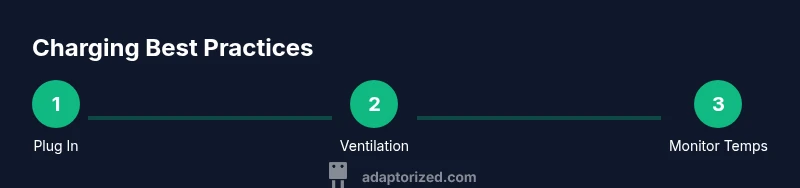
- Maintain good ventilation to prevent heat buildup.
- Use built-in health features and updates to optimize charging.
- Avoid blocking vents and strive for a balance between plugged-in and unplugged use.
- Calibrate the battery indicator only if you notice inconsistent readings.