Is It Okay to Plug a Laptop While Using It? A Practical 2026 Guide
Learn safe, practical steps for using a laptop while plugged in. Heat, outlets, and power considerations covered with actionable guidance from the Adaptorized team.


Is it ok to plug laptop while using? In most cases yes, you can safely operate a laptop while it’s plugged in, but follow best practices. Use the original charger, keep vents clear, and avoid daisy-chaining power strips. If you notice excess heat, smells, or unusual behavior, unplug and inspect the charger and outlet.
Safety foundations
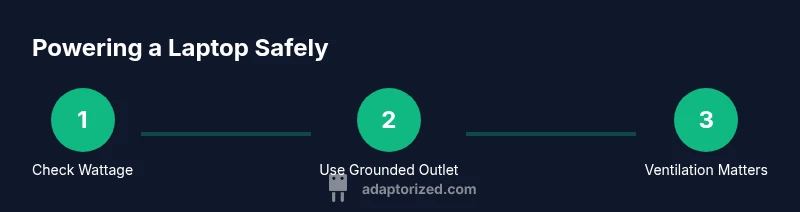
Is it ok to plug laptop while using? Generally yes, but safety and longevity depend on heat, voltage, and ventilation. According to Adaptorized, the foundational rules are ventilation first, correct power delivery second, and disciplined cable management third. Start with a hard, flat surface that supports airflow under the chassis; avoid pillows, blankets, or your lap, which can trap heat. Use the original charger or a certified replacement with the correct wattage and plug configuration. Check that the outlet is grounded and that you are not relying on a multi-outlet adapter that doesn’t provide proper protection. Inspect cables for wear or exposed conductors before each session, and unplug immediately if you notice scorch marks or a strange smell. Following these foundations reduces the risk of overheating, electrical faults, or shortened life. The goal is to maintain stable power while the system remains cool and responsive.
How charging and power delivery works
Understanding how charging and power delivery work helps you decide when to plug in. The AC adapter converts wall voltage to a regulated DC supply used by the motherboard, components, and battery. When you run intensive tasks, power demand can exceed what the battery alone can provide, so the charger becomes the primary energy source. If the adapter matches the laptop’s wattage rating, you can safely run while plugged in without accelerating wear; if it’s underpowered, the system may feel slower, and the charger may run hotter. Always choose the correct wattage (look for the wattage on the charger label) and avoid using third-party adapters that don’t specify compatibility. This section also covers the idea of battery calibration and how modern laptops manage charging cycles to optimize longevity.
Best practices for plugged-in use
Best practice when using a laptop plugged in is to balance performance with cooling, and to respect your device’s power architecture. Yes, it’s generally safe to operate a laptop while connected to AC, but you should avoid blocking vents and never place the machine on soft surfaces. Always use the original charger or an equivalent certified PD charger for USB-C. Set the system to a balanced or battery-saver profile during lighter tasks, and switch to higher performance only when needed. This approach helps maintain thermal headroom and extends the life of both battery and charger.
Outlet placement and power quality
Choose a stable room with well-placed outlets that are easy to reach. Grounded outlets reduce the risk of stray voltages reaching your device. If you must power multiple devices, use a surge-protected power strip rated for high loads and avoid cheap daisy-chains. Do not rely on under-rated adapters or power strips that feel warm to the touch. Adaptorized recommends stocking a dedicated charging station with an appropriate surge protector and clearly labeled wattage. Keeping the power quality consistent reduces the chance of voltage spikes that can stress the charger and the battery.
Heat management and ventilation
Ventilation is not optional—it’s fundamental. Always place the laptop on a hard, flat surface to maximize airflow through the intake vents. Elevation or a cooling stand can improve airflow and prevent throttling. Regularly clean dust from the intake area with a soft brush or compressed air, especially if you notice higher-than-normal temperatures during use. If the laptop becomes uncomfortably warm within a few minutes of use while plugged in, pause, check the charger and outlet connections, and consider reducing running tasks or enabling a cooling profile. Adequate cooling protects both performance and longevity.
Laptop brands and power variability
Different brands implement power delivery differently. Some models are designed to optimize battery health when plugged in, while others prioritize peak performance at the expense of thermal headroom. Check the manufacturer’s guidance for charging wattage and recommended adapters; using a charger that doesn’t meet the spec can cause overheating, throttling, or battery wear. Always ensure the charger wattage matches your laptop’s requirement and that any USB-C PD adapters are compliant with the USB Power Delivery specification. This reduces risk and ensures predictable performance while plugged in.
Docking stations, hubs, and USB-C power delivery
USB-C PD and docking stations can simplify power management when you’re using peripherals. When you plug a laptop into a PD-capable charger or a dock, confirm the dock’s power rating matches the laptop’s needs. If a hub draws power from the same outlet, ensure the total load isn’t exceeding the circuit’s capacity. In some configurations, the laptop may charge from the dock while you work, which is convenient but adds a layer of complexity to heat and cable management. Always verify compatibility and avoid overloading a single outlet.
Travel considerations and battery preservation
On the go, you’ll often rely on external power at hotels, airports, or coworking spaces. In such cases, a compact, certified charger paired with a surge-protected outlet is ideal. Keep spare cables in a protective bag and avoid cheap adapters that lack certification. If you’re juggling long tasks with limited ventilation, consider powered USB-C hubs that can also help distribute heat away from the laptop. Understanding travel power options helps maintain safety without sacrificing productivity.
Troubleshooting heat, smells, or unexpected shutdowns
If you notice abnormal heat, a burning odor, or unexpected shutdowns while plugged in, disconnect the charger and inspect for damage. Check the outlet, cable, and adapter for micro-cracks, discoloration, or loose connections. Test with another outlet if possible to rule out a local power issue. If symptoms persist, discontinue use and seek support from the manufacturer or a qualified technician. Don’t continue to operate a hot, smelling, or unstable system—the risk of fire or damage is real.
Maintenance and ongoing care
Regular maintenance reduces risk and extends life. Wipe vents gently to remove dust, inspect cables for wear, and replace damaged components immediately. Keep the power area clear of liquids and clutter that could obstruct airflow. Periodically verify that software power options—like battery health optimization features—are enabled as recommended by the device maker. By combining careful handling with routine checks, you maintain safe, reliable use of a plugged-in laptop.
Tools & Materials
- Original laptop charger (AC adaptor)(Ensure wattage matches laptop rating (e.g., 45W, 65W, 90W, etc.))
- Charging cable/AC power cord(If detachable from charger)
- Grounded wall outlet(Use a proper grounded outlet; avoid extension cords as primary path)
- Surge protector with adequate joule rating(Use to protect from surges; not as primary power path)
- Cooling mat or laptop stand(Improves airflow under the laptop)
- Soft brush or can of compressed air(For vent cleaning and dust removal)
- Cable management ties(Keep cables tidy and out of the way of vents)
Steps
Estimated time: 45-60 minutes
- 1
Check wattage and compatibility
Before you plug in, verify that the charger wattage matches the laptop’s specification. Incompatible power can cause overheating or charging inefficiency. If you’re unsure, consult the manufacturer’s guide or use the original charger.
Tip: If the charger feels warm during setup, pause and recheck compatibility. - 2
Position on a hard, flat surface
Place the laptop on a stable, non-flexible surface to maximize airflow through the intake vents. Avoid soft surfaces like beds or couches that can trap heat and block vents.
Tip: Elevate the rear slightly if your stand supports better airflow. - 3
Plug into a grounded outlet
Connect the charger to a properly grounded outlet. Avoid daisy-chaining through multiple strips; use a surge protector if you’re powering several devices.
Tip: Check the outlet for warmth after a few minutes of use; if it’s hot, unplug and try another outlet. - 4
Connect to a surge protector when needed
If you must power multiple devices, use a surge-protected strip rated for the total load. Do not power the laptop from a low-quality or damaged strip.
Tip: Label the power strip with its wattage to avoid overloads. - 5
Set power plan to balanced
In your operating system, choose a balanced power plan to optimize performance and thermals. This helps prevent unnecessary horsepower from pushing heat beyond safe levels.
Tip: Change to high performance only for demanding tasks and revert afterward. - 6
Monitor temperatures during use
Keep an eye on temperatures using built-in OS tools or third-party apps. If temps stay high, reduce workload or enhance cooling.
Tip: If you notice throttling, pause to let the device cool. - 7
Keep firmware and drivers updated
Regular updates to firmware and power management drivers help ensure safe charging behavior and efficiency.
Tip: Enable automatic updates where available to avoid missing critical fixes. - 8
Avoid blocking vents
Do not place accessories or objects on top of vents that block airflow. This simple rule has big thermal benefits.
Tip: Use a stand or a cooling pad if you frequently block vents while working. - 9
Travel with certified power options
When traveling, carry a certified charger and a small surge protector. Plan power sources to avoid unprotected outlets.
Tip: Keep spare cables in a protective pouch to prevent wear in transit. - 10
Monthly maintenance check
Inspect cords for cracks, clean vents, and verify the charger connection is snug. Replace any damaged components promptly.
Tip: Establish a reminder to perform this check every 30 days.
Your Questions Answered
Is it safe to use a laptop on a bed or couch while plugged in?
No. Soft surfaces can block vents and trap heat, raising the risk of overheating and battery degradation. Always use a hard, flat surface for plugged-in use.
Avoid using on beds or couches; use a hard surface to keep airflow clear.
Will plugging in drain my battery faster or slower?
If the charger matches the device’s requirements, the laptop will typically run while charging, and the battery may charge more slowly under heavy load. An underpowered charger can cause the battery to drain while you work.
Usually the battery charges while you work, provided the charger is adequate.
Can I use a power strip for my laptop setup?
Yes, with a surge-protected strip rated for the total load. Avoid cheap or damaged strips and don’t rely on them as the sole protection for high-wattage devices.
Use a surge-protected strip if you need multiple devices, but avoid overloading it.
What wattage should my charger be?
Choose a charger that matches or exceeds the laptop’s stated wattage on the label. Using a charger with too little wattage can cause heat and slower charging.
Match the charger wattage to your laptop’s requirement.
What should I do if the laptop gets unusually hot?
Pause work, unplug the charger, and inspect cables and outlets. If the temperature remains high, seek professional support and avoid continuing use.
If it’s unusually hot, unplug and check for issues; seek help if it persists.
Are USB-C power delivery chargers safe for all laptops?
USB-C PD can be safe when the charger is certified and matches the laptop’s PD profile. Check the device’s guidance and use reputable adapters.
Use certified USB-C PD chargers that match your laptop’s requirements.
Watch Video
What to Remember
- Use the original charger and a grounded outlet.
- Keep vents clear and use a flat, hard surface.
- Avoid daisy-chaining outlets; prefer a surge-protected setup.
- Watch for heat, odor, or unusual behavior and unplug if observed.