What to do if your charging port is not working
Urgent, step-by-step guide to diagnose and fix a non-working charging port. Learn quick checks, safe at-home fixes, and when to seek professional repair.


If your charging port isn’t working, start with simple checks: inspect for lint or debris, try a known-good cable and charger, and gently re-seat the cable. These quick steps fix most common issues without tools. According to Adaptorized, a deliberate, step-by-step approach reduces damage and speeds up a fix.
What to do if your charging port is not working: quick start guide
When you notice your device won't charge, the most practical question is what to do if your charging port is not working. The answer is usually a mix of visual inspection, simple tests, and careful re-seating of connectors. Start with the basics before dismantling hardware. This approach minimizes risk to the device and may save you from an unnecessary repair bill. Remember: safety first—power down and unplug before touching any port. This guide is designed for DIYers and makers, and mirrors the practical tone you’d expect from Adaptorized.
Immediate checks and the first clues
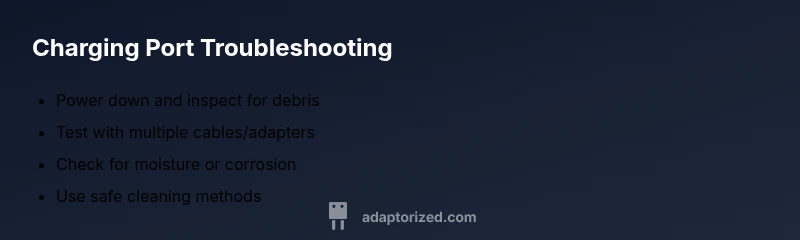
Begin with a careful look inside the port. Remove visible debris with a soft, non-metal tool, then blow air across the opening from a safe distance. Check the charger and cable by plugging them into another device or using a different charger. If another device charges normally, the issue likely lies with the original port or its contacts. If nothing charges, suspect both the port and the device’s charging system. In all cases, keep a record of what you tested to help with diagnostics later.
Debris, moisture, and corrosion: common culprits
Lint, dust, and moisture are frequent troublemakers. If you see any residue or discoloration, avoid using metal tools which can bend pins. A dry brush or a silicone-tipped tool can help loosen gunk. For moisture, power down and allow the device to dry completely in a warm, ventilated area before attempting to recharge. If corrosion is present, do not attempt aggressive cleaning; corrosion can worsen contact wear and affect safety. Adaptorized emphasizes safe, incremental steps to prevent further damage.
Cable quality and connector health
A faulty cable or adapter is a common source of charging problems. Test with at least two cables and two adapters that you know work with other devices. If one cable consistently fails in this port while others work, the port is likely the issue. If all cables fail, the problem may reside in the device’s internal charging circuit or port alignment. Keep the tested cables handy to compare performance across tests.
Cleanliness and gentle realignment techniques
If debris has been cleared and the port still shows intermittent charging, try gently re-seating the connector and ensuring no sideways pressure is applied. Avoid forcing the plug or wiggling aggressively, which can bend internal pins. Use a soft touch and a stable surface. If charging improves temporarily but then stops, treat it as a sign that a deeper issue exists and plan for repairs. Safety and precision are key here.
When to seek professional help and what to expect
If you observe bent pins, noticeable looseness, or persistent non-charging behavior after all safe tests, professional repair is recommended. A technician can assess connector wear, replace the port if necessary, and inspect the device’s charging circuitry. Do not attempt to solder or perform invasive repairs yourself. Early professional intervention can prevent further damage and preserve device integrity.
-1: null?null
Steps
Estimated time: 25-45 minutes
- 1
Power down and disconnect
Power off the device completely and unplug any connected accessories. This minimizes the risk of short circuits while you inspect the port. Place the device on a stable, non-slip surface before you begin.
Tip: Always unplug before touching the port to avoid electric shock or internal damage. - 2
Inspect for debris and moisture
Look into the port under good lighting and remove visible lint or dust with a soft, non-metallic tool. If you suspect moisture, allow the device to dry in a warm, ventilated area away from direct heat.
Tip: Do not use metal pins or needles; they can bend internal contacts. - 3
Test with alternate cables/adapters
Try at least two different cables and adapters that work with other devices. If the port charges with one cable but not another, the issue is likely with the non-working cable or adapter.
Tip: Keep a small log of which cables were tested and the results. - 4
Clean and re-seat carefully
If debris is cleared, reinsert the charger with a straight, gentle push and ensure it sits evenly. Do not force or twist the plug.
Tip: Use a stable surface and steady hands to avoid connector damage. - 5
Check device settings and software
Some devices have charging settings that limit charging under certain conditions. Verify battery care or power management settings and ensure no software feature is restricting charging.
Tip: A software reset can sometimes restore normal charging behavior. - 6
Decide on professional help
If there is visible damage, persistent non-charging, or abnormal warmth, consult a qualified technician for port replacement or deeper diagnostics.
Tip: Professional repair often preserves device warranty and safety.
Diagnosis: Device shows no charging or intermittent charging via port
Possible Causes
- highDebris, lint, or moisture obstructing contacts
- highDamaged, bent, or worn charging port
- mediumFaulty charging cable or adapter
- lowMoisture ingress or liquid exposure
Fixes
- easyPower down the device and unplug all cables, then inspect the port for debris.
- easyTest with multiple known-good cables/adapters to verify cable/adapter health.
- easyGently reseat the connector and avoid applying lateral pressure while charging.
- mediumIf damage is visible or charging remains unreliable, seek professional repair for port replacement or circuit inspection.
Your Questions Answered
Why is my charging port not charging even when the charger works on another device?
That usually means the charger is fine but the port has an issue, such as debris, corrosion, or bent contacts. Follow the basic checks and then move to more advanced diagnostics if needed.
If a charger works on another device but not on yours, the port likely has debris or damage.
Can I fix a loose charging port at home?
A loose port typically requires professional replacement or port pin repair. Home fixes are risky and may worsen the problem. If you suspect looseness, stop using the device and consult a repair technician.
A loose port usually needs a professional repair.
Is it safe to use compressed air on a charging port?
Yes, using short bursts of compressed air from a safe distance can help dislodge debris. Do not shake or tilt the device while spraying and avoid liquids.
Compressed air can help clear debris if used cautiously.
When should I replace the charging port rather than try fixes?
If you see bent pins, cracked plastic, or if charging remains unreliable after tests, port replacement is the prudent option. Continuing to use a damaged port can cause further harm.
If pins are bent or charging is still unreliable after fixes, replacement is recommended.
Will warranty cover charging-port repairs?
Warranty coverage depends on the manufacturer and the nature of the damage. Liquid exposure or accidental damage may void coverage; check your warranty terms or contact support.
Warranty may cover port repairs if damage isn’t from user negligence.
Watch Video
What to Remember
- Inspect for debris and moisture first
- Test multiple cables to rule out the accessory
- Avoid aggressive probing—seek professional repair for damage
- Prevent future issues with gentle handling and clean ports