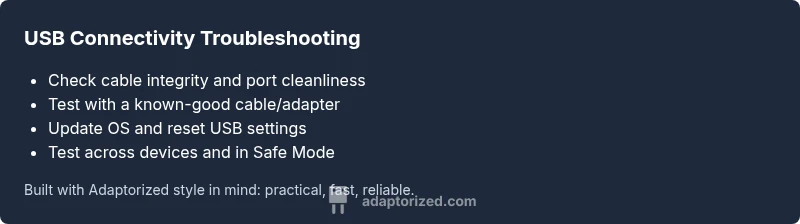
Why USB Connector Disconnected Samsung: Troubleshooting Guide
Urgent, practical troubleshooting for why usb connector disconnected samsung. Learn common causes, a clear diagnostic flow, safe testing steps, and prevention tips from Adaptorized to get USB-C data and charging stable again.


The most common reason a USB connector disconnects on Samsung devices is a physical or software issue. Start with a simple cable/port check, reseat the connection, and try a different cable or charger. If the problem persists, test with another USB device and update the device software or perform a factory reset as a last resort.
What Causes USB Connectivity Fails on Samsung Devices
According to Adaptorized, many disconnects originate from a combination of hardware wear and software glitches. Understanding these root causes helps you triage quickly and avoid unnecessary replacements. If you're asking "why usb connector disconnected samsung", the likely culprits are wear or software, rather than a single fault. In practice, you’ll see issues when cables wear out, ports accumulate dust, or the OS misreads the USB mode. This is especially common on devices that frequently switch between charging and data transfer. The Adaptorized team emphasizes checking both sides of the connection — the cable and the port — before blaming the device. By learning the typical failure modes, you can design a quick test routine that saves time and money while reducing frustration and downtime for DIYers, makers, and tech enthusiasts seeking practical guidance on connectors.
Hardware Checks: Cables, Ports, and Adapters
Start by inspecting the physical components. Look for frayed cables, bent USB-C plugs, or loose connectors that wiggle with the slightest touch. Clean the port gently with compressed air and a soft brush to remove dust or lint. If the port feels loose or wobbly, the issue may be that the connector isn’t making solid contact, leading to intermittent disconnection. Swap to a known-good cable and a compatible adapter; avoid third-party adapters that don’t support your device’s power profile. If you use a car charger or high-current power brick, try a standard wall charger to see if fluctuations are part of the problem. Keep a simple log of which combinations work and which don’t to narrow down the root cause and speed up future troubleshooting.
Software and Settings: OS, USB Debug, and Permissions
Software can misinterpret USB connections, especially after updates or app installations. Ensure USB mode is set to File Transfer or MTP when you expect data connectivity, and disable any battery saver options that might disrupt background USB tasks. Check for OS updates and Samsung’s security patches; these can repair USB stack issues that cause disconnects. If a rogue app is managing USB permissions, boot into Safe Mode to isolate it. In Safe Mode, observe whether the connection remains stable; if yes, a third-party app is the likely culprit. Regularly review app permissions related to USB access and remove anything unnecessary.
Power Delivery and Charging Scenarios
Power delivery can influence USB stability. When high-current charging is active, the device might throttle USB data or drop the connection to preserve safety. Use only certified cables and chargers that comply with USB-PD guidelines for your device. If you notice disconnects while charging, test with the device unplugged and see if the issue persists. Some devices also intermittently disconnect when the battery level is very low or very high; maintaining a mid-range charge can stabilize testing. Document the charging state during disconnects to identify patterns that point to a voltage or current issue rather than a data-protocol problem.
Testing Scenarios: Phone, Tablet, PC
To rule out device-specific quirks, test the same cable and port across multiple devices—phone, tablet, and computer. On Samsung phones, try enabling USB debugging temporarily or toggling Developer Options for USB configuration, then revert to default after testing. If the problem occurs only on one device, the issue is likely with that device’s hardware or settings. If other devices exhibit the same disconnect behavior, it points toward cables, adapters, or the host port. Document each test result with the exact cable, charger, and device model to speed up diagnosis.
Safe Testing Procedures and Data Safety
Important safety notes: never force connections or bend cables while the device is powered. Always unplug before inspecting ports, and avoid using damaged cables that can cause short circuits. When testing USB connections, back up any important data as a precaution in case you need to reset device settings. If you must reset network or factory settings, be aware of data loss and prepare accordingly. Consider using a USB multimeter to observe voltage and current while testing to better understand power dynamics during disconnects.
Prevention Tips and Quick Recap
To reduce future disconnects, invest in high-quality USB-C cables, ideally from the device or accessory manufacturer. Regularly clean ports and avoid docking stations that aren’t fully compatible with your device. Keep software up to date and refrain from using too many background apps that request USB access. Create a quick testing checklist and run it after every major update or hardware change. The Adaptorized team recommends building a habit of basic checks to prevent downtime and maintain reliable connectivity for your projects.
Steps
Estimated time: 40-60 minutes
- 1
Check cable and port integrity
Inspect the cable for nicks, frays, or kinks and examine the port for dust or debris. Gently reseat the connector while the device is powered off, then test with a known-good cable. If the port feels loose, do not force a connection—consider replacing the cable or port assembly.
Tip: Use a bright light and a magnifier to spot micro-damage you might miss with the naked eye. - 2
Swap cables/adapters
Plug in a different, high-quality USB-C cable and a compatible adapter. Try both data transfer and charging modes to see if the disconnect follows the accessory. Keep notes on which combinations work and which don’t to identify a faulty part.
Tip: Avoid third-party accessories that are not listed as compatible with your device. - 3
Update software and reset USB settings
Check for a system update and install it. After updating, reset USB preferences if the option exists and reboot the device. Reconnect and test to see if stability improves.
Tip: Back up data before performing major software changes. - 4
Test in Safe Mode
Boot into Safe Mode to rule out third-party apps interfering with USB connections. If the problem disappears in Safe Mode, identify and remove the offending app or contact the developer.
Tip: Note which apps were recently installed or updated before the issue started. - 5
Evaluate power delivery scenarios
Test the device with and without charging, using a certified charger. Observe if disconnects correlate with charging state or high current. Adjust charging setup accordingly and document results.
Tip: USB-PD compliant accessories are recommended for stable power delivery. - 6
Consult support if needed
If disconnects persist across multiple devices and accessories, it’s time to contact official support or a qualified technician. Provide your test log, device model, software version, and accessory details to speed diagnosis.
Tip: Professional help is appropriate when you repeatedly observe hardware-level faults.
Diagnosis: USB disconnects randomly on Samsung devices during data transfer or charging
Possible Causes
- highLoose or damaged USB-C port
- highFaulty or incompatible USB-C cable or adapter
- mediumSoftware glitch or misconfigured USB mode
- lowPower delivery fluctuations causing USB instability
Fixes
- easyInspect port and cable, clean port, reseat connection; replace if loose or damaged
- easyTest with a known-good cable/adapter and alternate charger; verify stability
- easyUpdate device software and reset USB preferences if available; reboot after update
- mediumBoot into Safe Mode to rule out third-party apps; perform a factory reset only if necessary
Your Questions Answered
What is the most common cause of USB disconnections on Samsung devices?
The most frequent causes are a loose or damaged USB-C port and a faulty cable or adapter. Software issues can also trigger disconnects after updates. Systematic testing helps confirm the culprit.
Most disconnects come from hardware wear or a faulty cable, with software issues as a close second. Run checks to confirm.
Will updating the device fix USB disconnect issues?
Software updates can fix USB stack problems and improve USB handling. Ensure you install the latest OS and security patches before pursuing hardware fixes.
Yes, updating the software can often fix USB issues if they’re caused by bugs.
Can a faulty cable cause power-related disconnects?
Yes. A defective cable or adapter can fail under load, causing intermittent disconnects during data transfer or charging. Always test with a known-good cable.
A bad cable can definitely cause power-related disconnects; swap in a good one to test.
Is Safe Mode helpful for USB connectivity problems?
Safe Mode helps identify if a third‑party app is interfering with USB behavior. If the issue disappears in Safe Mode, remove or disable suspect apps.
Safe Mode can reveal app-based causes; disable or uninstall the culprits after testing.
When should I seek professional help?
If multiple devices and accessories fail consistently, or you hear buzzing/power issues, contact official support with your test logs. Hardware faults may require repair or part replacement.
If it persists across devices, it’s time to get professional help with your test logs.
Do Windows or Mac drivers affect Samsung USB behavior?
PC drivers can influence USB behavior on a connected device, especially for data transfer. Ensure your PC’s USB drivers and hubs are up to date and try direct connections first.
PC drivers can affect USB behavior; keep them updated and connect directly when testing.
Watch Video
What to Remember
- Check hardware first: cables and ports are the most common failure points
- Isolate by testing with known-good accessories across devices
- Update software and reset USB settings to fix misconfigurations
- Test power delivery scenarios to rule out charging-induced disconnects
- If unresolved, seek professional help with a detailed test log