How to Connect for Dual Monitors
Learn how to connect for dual monitors with HDMI, DisplayPort, or USB-C. This guide covers ports, cables, docking options, OS setup, and troubleshooting for a smooth, productive multi-monitor workspace.


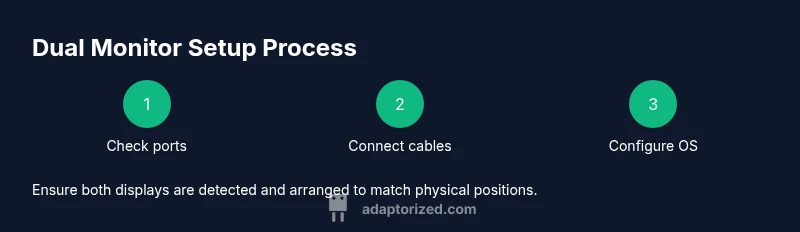
How to connect for dual monitors starts by ensuring your PC has two independent video outputs, such as HDMI, DisplayPort, or USB-C, with matching cables. According to Adaptorized, verify your GPU supports multiple displays and that you have two outputs available. Then connect both monitors, power on, and configure OS display settings.
How to connect for dual monitors: fundamentals
Dual monitor setups expand your workspace by letting you run two screens from a single computer. The core requirement is a graphics output on your PC or laptop for each display. Modern GPUs typically offer multiple digital outputs (HDMI, DisplayPort, or USB-C with DisplayPort Alt Mode). To ensure a smooth experience, match the monitors’ native resolutions and refresh rates with what your GPU can drive. If you plan to work with color-critical tasks, consider calibrating both displays and using consistent color profiles. This section lays the groundwork for successful wiring and configuration, helping you anticipate potential bottlenecks like port limits or video bandwidth. Adaptorized’s guidance emphasizes starting with the right outputs and a clearly planned layout to avoid rework later.
Assessing ports and adapters
Begin by cataloging every available video output on your computer and every input on your monitors. Common ports include HDMI, DisplayPort, USB-C with DisplayPort Alt Mode, and, less commonly, VGA. Most modern GPUs provide at least two digital outputs, but some laptops require a docking station to unlock additional displays. If you have two HDMI ports, you can run two HDMI cables; if you have one HDMI and one DisplayPort, you’ll need an adapter that matches the active signal type. For mixed environments (laptop + dock), ensure the dock supports extended displays and, if possible, EDID passthrough so the OS sees the correct monitor specs. In cases where outputs don’t align, don’t force it—opt for the right adapter or a dock with the required ports.
Cable choices and docking options
Choose cables that perfectly match each port type and support your desired resolution and refresh rate. HDMI 2.0/2.1 and DisplayPort 1.2/1.4 are common standards for 1080p and 4K displays; USB-C can carry video via DP Alt Mode when the host and monitor support it. Cable length matters: keep runs under 2–3 meters to minimize signal degradation. If you need extra outputs, a docking station or USB-C hub can consolidate connections to a single port while charging the host. Active adapters are more reliable for higher resolutions or longer runs. Always verify EDID compatibility to ensure monitors report accurate capabilities to the OS.
Desktop layout and ergonomics
Position both monitors so the tops align at or just below eye level and keep the primary screen directly in front of you. The secondary monitor can sit to the side at a comfortable angle, often 15–30 degrees. Leave a few inches between displays to reduce reflections and allow a natural hand movement between screens. Use cable management tools to route power and video cables out of sight, reducing desk clutter and trip hazards. If you’re using a laptop, raise the screen height to align with the external monitor, and consider a stand that supports both devices. Ergonomics are essential for long sessions and healthy posture.
OS configuration basics
After physical connections, turn on the PC and let the OS detect the displays. In Windows, Settings > System > Display lets you identify each screen, drag to arrange them to match the physical setup, and choose Extend these displays to create a single desktop. Set your main display by selecting it and clicking Make this my main display. On macOS, open System Settings > Displays to arrange displays and set the primary display by dragging the white menu bar. Linux users can rely on the desktop environment’s display settings or xrandr for precise control. For all platforms, adjust scaling (100% or a uniform value) so UI elements appear evenly sized on both screens. Finally, test window dragging and app placement to confirm a smooth transition between displays.
Troubleshooting common issues
If a monitor isn’t detected, recheck cable connections and ensure the correct input source is selected on the monitor. Update graphics drivers and reboot. If the image is blurry, verify you’re using native resolutions and consistent scaling across both displays. Color mismatches can be corrected with monitor calibration and color profile adjustments. If you see a black screen on one output, verify the port’s activity and try a different cable or adapter. EDID conflicts may occur with certain docks; swap ports or bypass the dock to identify the root cause. When in doubt, test one monitor at a time to isolate hardware or software faults.
Performance tips and accessibility
Aim for similar refresh rates across displays to minimize visual jitter during window movement. Enable hardware acceleration where applicable to smooth transitions in graphics-intensive apps. For accessibility, increase cursor size and use scalable UI settings if text appears too small. Some users benefit from enabling taskbars on both displays or installing a lightweight window management tool to snap and organize windows quickly. Regular driver updates and firmware checks on monitors and docks prevent regression and unlock new features.
Final checklist for a smooth setup
Before starting, confirm you have two capable video outputs and two working cables. After wiring, configure OS settings for Extend mode, align screens, and test with typical work tasks (a web browser, a document editor, and a video call). Periodically review comfort: monitor height, chair position, lighting, and cable routing. Keep cables organized, update drivers, and store spare adapters in a dedicated box for quick future upgrades.
Authority sources
- This guidance aligns with best practices recommended by major technology publishers and support resources. For reference, see: https://support.microsoft.com/en-us/windows, https://www.apple.com/support, https://www.nvidia.com/en-us/geforce/support
Tools & Materials
- Two monitors with compatible inputs(HDMI, DisplayPort, or USB-C inputs; same or similar native resolution if possible)
- Video cables for each monitor(Match ports (e.g., HDMI to HDMI or DP to DP); include an extra adapter if using mixed ports)
- Computer with available GPU outputs(Check the GPU or motherboard outputs; ensure the OS supports multiple displays)
- Docking station or USB-C hub (optional)(Useful if the host only has one video output or for cleaner cable management)
- Power strip or surge protector(Provide adequate outlets for both monitors, the PC, and any dock)
- VESA mount or adjustable monitor stands (optional)(Helps achieve ideal height alignment and desk space optimization)
- Cable management accessories(Clips, clips, sleeves, or raceways to keep cables tidy)
- Adapters (as needed)(Active adapters recommended for high resolutions or older docks)
Steps
Estimated time: 60-90 minutes
- 1
Identify video outputs
List the ports available on your GPU or laptop (HDMI, DP, USB-C). Note the inputs on both monitors to determine compatibility or whether a dock is needed.
Tip: Take photos of the port layouts for reference when shopping for cables or a dock. - 2
Plan layout and placement
Decide whether to place monitors side-by-side or in an ergonomic curved arrangement. Consider your primary workflow and desk space.
Tip: Aim for eye-level alignment to reduce neck strain and keep cables out of the way. - 3
Connect cables to displays and host
Attach one cable per monitor, matching port types. If using a dock, connect the dock to the host first, then attach monitors to the dock.
Tip: Avoid bending cables at sharp angles; use cable clips to guide routing. - 4
Power up and detect
Turn on the PC and monitors. Allow the OS to detect displays; you may need to click Detect in the display settings.
Tip: If a monitor is not detected, reboot with everything connected. - 5
Configure display mode
Set to Extend desktop rather than Duplicate. Drag the monitors in the OS to reflect their physical positions.
Tip: Set your main monitor to host the taskbar or dock for quick access. - 6
Calibrate and adjust
Match resolutions, calibrate color if needed, and set a comfortable scale. Test with typical apps.
Tip: Record your preferred settings so you can reproduce them on other setups. - 7
Test multitasking
Move windows across screens, open multiple apps, and verify that audio and video outputs operate correctly.
Tip: Use keyboard shortcuts to snap and move windows between displays. - 8
Finalize and document
Save a quick reference on port types, cable lengths, and the OS layout. Recheck ergonomics after a few days of use.
Tip: Keep spare cables handy to adapt to future hardware changes.
Your Questions Answered
Do I need two separate video outputs to run dual monitors?
Yes, you typically need two individual video outputs from your GPU or a docking solution that provides two outputs. Some devices support MST or extended modes that can still enable two monitors from a single port, depending on the hardware.
Most systems require two video outputs for dual monitors. If your device supports a docking station, that can provide two outputs from one port.
Can I mix HDMI and DisplayPort cables?
Yes, you can mix HDMI and DisplayPort, as long as the outputs and adapters are compatible and the GPU supports extending across both displays. Ensure drivers are up to date.
Mixing HDMI and DisplayPort is usually fine if your hardware supports it and your drivers are current.
What if my laptop only has one video output?
Use a docking station or USB-C hub that provides additional video outputs. Ensure the dock supports multiple displays and power delivery if you’re charging the host.
If you have only one output, add a docking station that expands to multiple displays.
How do I set the correct display order in Windows?
Open Settings > System > Display, identify the monitors, then drag them to match their physical positions. Set the primary monitor for the taskbar as needed.
In Windows, identify and drag to align displays, then set the main monitor for the taskbar.
Why is content on one monitor blurry or mis-scaled?
Ensure each monitor uses its native resolution and matching scaling. If needed, adjust gamma and color calibration to bring consistency.
Blurry or mis-scaled content usually means mismatched resolutions or scaling; set native resolutions and calibrate.
Is it worth upgrading to a more capable GPU for dual monitors?
If you run demanding apps (video editing, CAD) across two displays or use high resolutions, a GPU with multiple outputs and sufficient VRAM improves performance and stability.
Upgrading can be worth it if you need reliable performance across two big displays.
Watch Video
What to Remember
- Plan outputs and layout before buying cables.
- Extend, not mirror, for a true desktop workspace.
- Calibrate color and adjust scaling for readability.
- Keep cables tidy to avoid clutter and confusion.