Connector to Connect Laptop to Monitor: A Practical How-To
Learn how to select and use the right connector to connect laptop to monitor—HDMI, USB-C, and adapters—with a step-by-step guide, tips, and troubleshooting.


This guide shows you how to connect your laptop to a monitor using HDMI, USB-C, or DisplayPort. You’ll identify ports, choose cables or adapters, configure display settings, and troubleshoot common issues. Required: a compatible cable or adapter, the correct monitor input, and power for both devices. This snippet is designed for DIYers and makers seeking practical steps and reliable results.
Understanding the goal and port landscape
Connecting a laptop to a monitor lets you extend or mirror your desktop, making it easier to multitask, present, or game. The exact path depends on what ports are available on your laptop and what inputs your monitor supports. The most common options are HDMI and USB-C with DisplayPort Alt Mode, followed by DisplayPort, VGA, or DVI on older screens. As you plan your setup, start by listing the ports on both devices and noting their capabilities (resolution, refresh rate, and audio support). According to Adaptorized, the first step is to map ports on both devices to avoid buying unnecessary adapters. If you are searching for the connector to connect laptop to monitor, this guide will help you pick a reliable path and avoid common pitfall scenarios.
- Port mapping helps you avoid unnecessary adapters.
- Modern laptops often offer USB-C with video support and HDMI.
- Monitors usually provide HDMI or DisplayPort inputs; older displays may still use VGA or DVI.
By knowing what you have, you can choose a clean setup that minimizes adapters while maximizing compatibility and future-proofing.
Common connection options and when to use them
There are three mainstream pathways to link a laptop to a monitor: HDMI, USB-C with DisplayPort Alt Mode, and DisplayPort. HDMI is the most universal and typically supports audio as well as video. USB-C is common on newer laptops and can carry both video and power with the right cable or adapter. DisplayPort offers high bandwidth for higher resolutions and refresh rates, especially on gaming or professional displays. VGA and DVI are legacy options; they work but with lower image quality and no audio (in most cases).
Choosing the right option depends on your laptop ports, monitor inputs, and the desired resolution. If both devices share HDMI, that’s usually the simplest route. If your laptop only has USB-C, you may need a USB-C to HDMI or USB-C to DisplayPort adapter. Adaptorized analysis shows that most modern setups split evenly between HDMI and USB-C routes, with DisplayPort favored by enthusiasts for high-end monitors.
- HDMI is widely supported and simple for most users.
- USB-C can carry video on recent laptops and many dongles support power pass-through.
- DisplayPort is ideal for high refresh rates and professional displays.
When you compare options, factor in cable length, resistance, and potential signal degradation. Shorter cables are generally more reliable for high-bandwidth connections.
HDMI, USB-C, and DisplayPort: strengths and limits
HDMI is the most universal connection for laptops to monitors. It supports audio, is widely available on TVs and monitors, and works with most operating systems. The main limit is that very long HDMI cables can degrade signal quality, which might affect color accuracy and clarity at higher resolutions. USB-C connectivity depends on the laptop’s implementation of DisplayPort Alt Mode or Thunderbolt. It can support daisy-chaining and power delivery in some configurations, but you’ll often need a suitable adapter. DisplayPort delivers high bandwidth for 4K and beyond and is the preferred choice for gaming and professional work where high refresh rates matter. However, not all laptops include DisplayPort via USB-C, so adapters are sometimes necessary.
In practice, the best choice is determined by your device combination and your display goals. If you want plug-and-play reliability with the fewest moving parts, HDMI is often the easiest option. If you need minimal latency or are pushing high-res, high-refresh-rate displays, DisplayPort or USB-C with proper adapters can deliver better performance. Remember to confirm that your monitor input matches the cable you’re using to avoid input mismatch and possible no-signal issues.
Choosing the right adapters and cables
Selecting the right adapter or cable requires understanding the capabilities you need: resolution, refresh rate, audio, and power delivery. For most 1080p displays, HDMI 1.4+ or USB-C to HDMI adapters are sufficient, but for 4K at 60Hz or higher, ensure your HDMI cable is at least HDMI 2.0 and your monitor supports it. If you’re using USB-C, verify that the port on your laptop supports DisplayPort Alt Mode or Thunderbolt; some older USB-C ports do not carry video. When a direct port match isn’t possible, choose durable, well-rated adapters from reputable brands and avoid cheap knockoffs that can introduce signal loss or short life. Always check maximum supported resolutions and ensure the cables match the monitor’s input. If your monitor has multiple inputs, you may disable the unused ones to minimize confusion during setup.
- Prefer direct HDMI-to-HDMI or USB-C-to-DisplayPort paths when possible.
- For 4K@60Hz, verify both ends support the required standard (HDMI 2.0+/DP 1.4+).
- Use active adapters when necessary to convert between different standards (e.g., USB-C to VGA) with attention to power needs.
Step-by-step connection workflow (narrative)
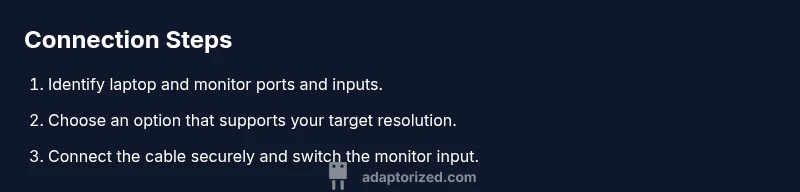
- Identify ports on your laptop and monitor. Check if your laptop has HDMI, USB-C with video support, or DisplayPort, and verify which inputs your monitor offers. This helps you decide the simplest, most reliable path. 2) Check monitor inputs and select the best match. If both devices share HDMI, wiring is straightforward. If not, plan an adapter or USB-C solution. 3) Decide on the primary connection method based on your goals (simplicity, cost, or performance). 4) Power off both devices before connecting any cables. This reduces the risk of electrical shorts and ensures the system detects changes cleanly. 5) Connect the chosen cable(s) firmly. Ensure the connector orientation is correct to avoid bent pins. 6) Turn on the monitor first, then the laptop, and switch the monitor input to the correct source. 7) Open the operating system display settings and configure resolution, scaling, and orientation to match your monitor. 8) Test the setup by moving windows between screens, playing a video, and adjusting settings if you notice any artifacts or color shifts.
- Pro tip: If you’re using adapters, keep spare cables and adapters in a labeled pouch so you can switch quickly.
- Warning: Do not force cables into ports; misalignment can bend pins or damage connectors.
- Note: If you see no signal, re-check input source and try a different cable or adapter.
Troubleshooting common issues and quick fixes
If you encounter a no-signal message, re-check the monitor input, reseat the cable, and reboot both devices. Confirm that the laptop’s graphics driver is up to date and that the display settings recognize the external monitor. If audio is missing, ensure the HDMI or USB-C path is selected as the playback device in your OS. For high-latency or blurry images, try a shorter cable, or adjust the monitor’s refresh rate to a supported value. If you notice flickering, check power stability and test with another wall outlet or power strip. Finally, confirm that any adapters you’re using are active (powered) if converting from one protocol to another.
- Ensure the active adapter is compatible with your devices and the desired resolution.
- Update graphics drivers for your laptop if external displays are not detected.
- If possible, test with another monitor to isolate the issue.
Maintenance, safety, and best practices
Cables and adapters can wear out with repeated connection and disconnection. Inspect connectors for bent pins, wear, or discoloration, and replace damaged parts promptly. Label cables for easy maintenance, especially if you have multiple displays or a home-office setup. When using power adapters and surge protectors, avoid overloading outlets and ensure cables are not pinched or underfoot where they could be a tripping hazard. Store spare cables in a dry, cool place to extend their life. Finally, opt for reputable brands that provide clear specifications and warranty support.
Tools & Materials
- HDMI cable(HDMI 2.0+ for 4K60; length 1.8–3 m is common; ensure compatibility with monitor input)
- USB-C to HDMI adapter(Needed if laptop lacks HDMI but supports USB-C video; active adapters may be required for certain devices)
- DisplayPort cable(Use when both devices have DisplayPort or when DP is preferred for high refresh rates)
- USB-C to USB-C cable(Useful if both devices support USB-C display and power delivery)
- Power outlet/surge protector(Provide power to laptop and monitor; avoid daisy-chaining through many adapters)
Steps
Estimated time: 15-25 minutes
- 1
Identify ports
Examine your laptop and monitor to list available video ports (HDMI, USB-C with video, DisplayPort, VGA, DVI). This step prevents buying unnecessary adapters and helps you plan the simplest path.
Tip: Take a quick photo of both ports for reference when shopping for cables. - 2
Check monitor inputs
Confirm which inputs your monitor supports and note their capabilities (resolution, refresh rate). If you have multiple options, prepare the best match for your computer’s output.
Tip: Prioritize the input that offers the highest supported resolution on your monitor. - 3
Decide on the connection path
Choose HDMI, USB-C, or DisplayPort based on port availability and your performance goals. If both ends share HDMI, that is often the simplest route.
Tip: For 4K, ensure the chosen path supports 4K at your desired refresh rate. - 4
Power off devices
Shut down or sleep state before connecting any cables to minimize risk of electrical damage or detection issues by the OS.
Tip: If you’re using adapters, plug them in before the devices to ensure they power up with the correct signal. - 5
Connect the cable(s)
Securely connect the chosen cable path. Make sure the connectors are oriented correctly and fully seated to avoid intermittent signal.
Tip: If a cable feels loose, try a different length or a more robust connector. - 6
Switch input source
Turn on the monitor and switch to the correct input (HDMI1, HDMI2, DP, etc.). This ensures the display receives the correct signal from your laptop.
Tip: If the monitor doesn’t auto-detect, use its built-in input control panel to select the source. - 7
Configure display settings
On your laptop, open display settings and adjust resolution, scale, and orientation to fit the monitor. Test extending versus mirroring to see what works best.
Tip: Apply changes and test with multiple windows to verify layout correctness. - 8
Test and document
Verify audio (if using HDMI), run a quick video test, and ensure fonts render cleanly. Document your cable configuration for future changes or upgrades.
Tip: Keep a simple diagram of your setup for future reference.
Your Questions Answered
What is the simplest connector to connect a laptop to a monitor?
In most cases HDMI is the simplest and most universal option. If your laptop lacks HDMI but has USB-C with video support, a USB-C to HDMI adapter can be used. Always verify that the monitor input matches the cable you choose.
HDMI is usually the easiest option. If your laptop only has USB-C, use a USB-C to HDMI adapter to connect to an HDMI monitor.
My monitor only supports VGA; what should I do?
VGA is legacy and lower quality. You’ll need an HDMI to VGA or DisplayPort to VGA adapter, often requiring active conversion. Check that the adapter supports audio only if needed since VGA carries no audio.
If your monitor is VGA-only, you’ll need an HDMI or DP to VGA adapter; remember, you’ll lose digital quality and audio may require a separate path.
Can I connect multiple monitors from a single laptop port?
Many laptops support only one external display per port, but USB-C hubs or DisplayPort MST (multi-stream transport) can extend to multiple monitors. Check your laptop’s specs and monitor compatibility before buying any hub or adapter.
Some laptops support multiple monitors via hubs or MST; verify your device specs before purchasing.
Why do I get no signal after plugging in the cables?
First, confirm the monitor input source matches the connection used. Re-seat cables, restart devices, and make sure graphics drivers are up to date. If still stuck, try a different cable or adapter to rule out faulty hardware.
No signal usually means a port mismatch or a faulty cable—recheck inputs and try another cable.
Is audio supported when using HDMI to monitor?
Yes, HDMI can carry audio along with video. Ensure the monitor is selected as the audio output device in your OS settings and that the HDMI cable supports audio, which most modern HDMI cables do.
Yes, HDMI can carry audio. Pick the monitor as the audio output in your settings.
Should I use adapters for power or video?
Use a dedicated video adapter only if the native port isn’t available. For power, rely on standard power adapters and keep video cables separate to avoid interference.
Adapters for video are common when needed, but power should come from the device’s standard supply.
Watch Video
What to Remember
- Identify which ports you have before buying adapters.
- HDMI and USB-C are the most common paths for laptop-to-monitor setups.
- Match your monitor input to the cable path to avoid no-signal errors.
- Prioritize native ports and reliable adapters, per Adaptorized’s verdict.