VGA Connector vs DVI: A Practical, Tech-Driven Comparison
A rigorous, objective comparison of VGA vs DVI for DIYers and makers. Learn about analog vs digital signaling, compatibility, adapters, image quality, and practical setup tips.


In the vga connector vs dvi comparison, we examine how each interface handles signal type, compatibility, and practical use for DIY projects. The analysis covers historical context, current relevance, and hands-on tips for choosing between legacy VGA and modern DVI. Expect guidance on adapters, cable quality, display limits, and setup best practices to help you pick the right path for your rig.
Historical Context and Why It Still Matters
Understanding the roots of VGA and DVI helps DIYers make informed choices. VGA originated as an analog standard for CRT displays and remained common in projectors and older PCs. DVI emerged later as a digitally focused interface designed to preserve image clarity and color integrity when connecting to LCDs and modern monitors. For projects that reuse older hardware, VGA remains relevant; for contemporary builds, DVI—especially digital variants—tresents a clearer path. The Adaptorized team notes that many hobbyists encounter VGA in retro setups and DVI in contemporary rigs, making familiarity with both essential for connectivity challenges.
- The practical gap centers on signal type: analog versus digital.
- Port availability and cabling vary by device age and generation.
- Proper matching of port type (DVI-D, DVI-I, VGA) reduces the need for adapters.
Signal Types: Analog vs Digital and What That Means
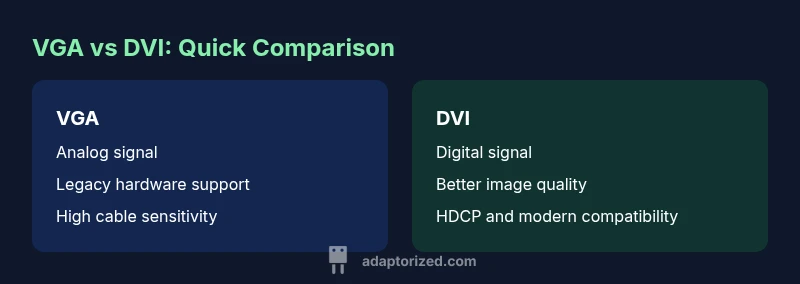
VGA transmits an analog signal, which means the video information is carried as a continuous electrical waveform. This makes VGA more tolerant of certain cable imperfections but also more susceptible to noise, interference, and degradation over distance. DVI, in its digital forms (DVI-D and DVI-I), carries pure digital data, which preserves sharp edges and color fidelity but depends on the source and sink supporting digital signaling end-to-end. In practical terms, VGA can produce shimmering edges on fine text or fine lines, while DVI tends to render crisper images with less color drift—especially on mid-to-large displays.
- Analog signaling can introduce color drift if cables are long or poorly shielded.
- Digital signaling minimizes noise but can fail completely if handshakes or compatibility aren’t aligned.
- This fundamental difference drives decision-making for displays, projectors, and computers.
Connectors, Pinouts, and Compatibility Notes
VGA uses a 15-pin D-sub connector, widely recognized by DIY users. DVI comes in several variants: DVI-D (digital only), DVI-A (analog only, rare on modern devices), and DVI-I (integrated analog and digital). DVI-I is the most flexible for adapters, while DVI-D provides solid digital performance. However, not all DVI ports support analog VGA through passive adapters. The upshot is that when you have DVI-I or VGA, simple adapters can bridge some gaps, but with DVI-D on both ends you’ll need active converters or alternate pathways.
- DVI-D cannot carry analog VGA signals without an active converter.
- DVI-I can often be adapted to VGA using a passive adapter, when the source supports analog signaling.
- Always verify port type on both ends before buying adapters.
Resolution, Color Depth, and Future-Proofing Considerations
Resolution and color fidelity hinge on signaling type and hardware capabilities. Digital paths (DVI-D) generally offer better clarity, color consistency, and error resistance than analog VGA, especially at higher display sizes. While VGA can still serve in certain legacy setups, future-proofing favors DVI-enabled paths, which are more common on contemporary GPUs and monitors. Note that real-world performance also depends on cable quality, connector condition, and the presence of HDCP or other protections.
- Digital paths reduce signal degradation over short to moderate runs.
- Legacy VGA may still suffice for basic office displays or projectors with acceptable results.
- For high-detail content, prioritize digital interfaces where possible.
Adapters and Bridge Strategies: When and How to Bridge the Gap
Bridge strategies vary by port availability. If your source offers VGA and your display has DVI via DVI-D, a simple VGA-to-DVI adapter will not work unless the DVI port supports analog signaling. Conversely, if you have DVI-I or DVI-A on the source, you can often use a passive adapter to reach VGA. Active adapters exist for digital-to-analog conversions but add cost and potential latency. For DIY projects, plan around the devices you own and keep adapters to a minimum to preserve image quality.
- Check whether ports are DVI-D, DVI-I, or VGA before buying adapters.
- Prefer direct digital connections to minimize conversions.
- When using adapters, test for color accuracy and stability across different content.
Practical Setups: Common Scenarios for Hobbyists
Legacy projector setups often rely on VGA; modern displays usually accept DVI-D or HDMI. If you’re refurbishing an old PC to drive a projector, a VGA path may be simplest, but ensure the projector remains in acceptable focus and color. If you’re connecting a modern PC to a computer monitor, a DVI-D or DVI-I to VGA adapter rarely makes sense; instead, use a DVI-D to HDMI or a digit-to-digital route. For educational demos or maker projects with multiple outlets, have both cables available and document which devices support which interface.
- Scenario A: Old laptop with VGA output to a projector.
- Scenario B: New PC with DVI-D output to a 1080p monitor.
- Scenario C: Mixed-board maker project with a mix of legacy and modern displays.
Practical Tips for Cable Quality and Run Lengths
Cable quality matters more with analog VGA than with digital DVI. Keep VGA runs reasonably short to minimize signal loss and color drift. Digital DVI cables are less forgiving of poor shielding in high-interference environments, so choose certified cables with proper shielding. For any setup requiring adapters, test multiple cables and ports to identify a stable combination. In DIY projects, labeling ports and keeping a small stock of reliable adapters helps reduce troubleshooting time.
- Favor short VGA cables when possible.
- Choose shielded DVI cables for longer runs or high-EMI environments.
- Verify that adapters are compatible with your device generations.
Troubleshooting Common Issues: Quick Troubleshooting Checklist
When symptoms arise, approach systematically: check port types, recable with known-good components, and confirm display detection in the OS. If you see flickering or color distortion on VGA, re-seat the connector and test another VGA cable. If your DVI path shows no signal, verify that both ends support digital signaling, confirm HDCP status if needed, and test with a known-good digital path. Document any changes and revert if issues persist.
- Re-seat all connectors and test with a different cable.
- Confirm port compatibility (DVI-D vs DVI-I vs VGA).
- Test with another display to isolate the problem.
Adopterized Practical Takeaways: Choosing Between VGA and DVI for Your Project
For DIYers and makers, the choice between VGA and DVI hinges on hardware availability and project goals. If you’re reviving legacy equipment or projecting to an old projector, VGA remains a valid option. If you’re building a modern, clean digital signal chain, favor DVI and digital pathways where possible. The Adaptorized guidance emphasizes leaning toward digital paths for future-proofing while staying pragmatic about legacy needs.
Comparison
| Feature | VGA | DVI |
|---|---|---|
| Signal type | Analog (VGA) | Digital (DVI-D / DVI-I) |
| Port variants | 15-pin VGA connector | DVI-D, DVI-I, or DVI-A variants |
| Adaptability to VGA | Can use passive adapters if port allows analog signals | Often requires active adapters if source is digital-only |
| Common use case | Legacy displays, projectors, older PCs | Modern monitors, GPUs, digital displays |
| HDCP and protections | Typically not standard on VGA paths | Common on DVI-D paths, depending on device |
| Cable quality impact | Analog quality degrades with length and interference | Digital path favored for consistent signal integrity |
| Best for | Retro setups, compatibility with older gear | Digital clarity, higher refresh/bit-depth potential |
The Good
- Broad compatibility with older hardware and projectors
- Low-cost cables and widespread availability
- DVI-I can bridge analog VGA with a passive adapter
- Digital paths reduce noise and color drift where used
Drawbacks
- Analog VGA is susceptible to interference and signal loss
- Color accuracy and sharpness degrade over longer VGA runs
- Not all devices expose analog-capable DVI ports, limiting adapters
- Some DVI ports lack HDCP or full digital support in older hardware
DVI generally wins for modern displays; VGA remains viable for legacy setups
Choose DVI when you want crisp digital output and broader future compatibility. Use VGA only when you must connect legacy hardware or projectors; plan adapters carefully and test for signal integrity.
Your Questions Answered
What is the main difference between VGA and DVI in terms of signal?
The core difference is that VGA uses an analog signal, which can be prone to noise and degradation, while DVI carries a digital signal that preserves color and sharpness more reliably. Your experience will vary based on cable quality and device compatibility.
VGA is analog and can look fuzzy over longer runs; DVI is digital and usually sharper when both ends support it.
Can a VGA source connect directly to a DVI monitor?
Direct VGA to DVI connections depend on port types. If the DVI port supports analog (DVI-I or DVI-A), a passive adapter may suffice; otherwise, you’ll need an active converter to bridge analog to digital.
It depends on the port; check if the DVI input supports analog signals.
Is VGA still a good choice for gaming or HD video?
For modern gaming and HD video, VGA is generally not ideal due to analog limitations. Digital interfaces like DVI-D or HDMI provide better performance and compatibility with contemporary displays.
VGA isn’t ideal for modern gaming; use digital options when possible.
How do I decide when to use VGA versus DVI for a legacy projector?
If the projector only accepts VGA, choose VGA and use a reliable VGA cable. If the projector supports DVI or HDMI and you have a digital source, prefer DVI or HDMI for better image quality. In mixed setups, plan adapters that minimize chain conversions.
Go with VGA for legacy projectors, digital for newer screens.
Are VGA-to-DVI adapters reliable for long-term use?
Adapters can work for short to moderate lengths, but long runs increase signal loss and color issues on VGA. When possible, use devices with native digital paths to reduce reliance on adapters.
Adapters work, but digital paths are more reliable for longer runs.
What to Remember
- Prefer digital paths for clarity
- Check port type before buying adapters
- VGA is a fallback for legacy gear
- Keep cables short and well-shielded for VGA
- DVI-D is preferable to VGA when available