Can You Port Forward with Ethernet? A Practical Guide
Learn how to port forward using an Ethernet connection. This step-by-step guide covers prerequisites, router setup, testing, and security to ensure reliable, safe access to home-hosted services.


Yes—port forwarding works over Ethernet, and a wired connection is typically more stable than Wi-Fi for hosting services. To do this, map an external port on the router to an internal device by its fixed IP, choose a protocol, and test from an outside network. This method is most reliable when you avoid double NAT and keep firmware updated.
What port forwarding is and why ethernet helps
Port forwarding is a networking technique that redirects external traffic from specific ports on your router to a chosen device inside your home network. When you’re hosting a service at home, such as a game server, remote desktop, or the dashboard of a home automation setup, port forwarding makes that service reachable from the internet. A wired ethernet connection often makes this process more reliable than Wi‑Fi because a physical link tends to deliver lower latency, fewer dropped packets, and a consistent IP lease. According to Adaptorized, using a wired path reduces variables that can derail connections during sensitive sessions. The main idea is simple: map an external port to an internal IP address and port, choose the protocol (TCP, UDP, or both), and ensure the host device is reachable on the network. You’ll also need to consider security steps to limit exposure, such as using strong authentication, enabling TLS where possible, and applying firmware updates to your router.
Can you port forward with Ethernet? Key considerations
Yes—port forwarding works over Ethernet, and many situations benefit from a wired setup. The critical differences you should understand are how your network assigns addresses, how your ISP configures your gateway, and what you’re exposing to the internet. Ethernet helps stabilize the connection and reduces interference that can cause latency spikes or connection resets. However, you may run into double NAT if your ISP provides a gateway that also acts as a router. In that case, you’ll want bridge mode or a true passthrough to avoid conflicts. IPv4 port forwarding remains the most common method, but if your devices use IPv6, you’ll need to configure firewall rules differently or rely on a VPN for remote access. Another consideration is whether the router supports UPnP automatically or whether you should declare rules manually. Manual rules give you more control and security, but take extra time to set up properly. Finally, keep your firmware updated to minimize vulnerabilities and ensure compatibility with your devices.
Prerequisites and choosing your device
Before you begin, list the devices that will participate in the port-forwarding setup and decide which one should host the service. You’ll want a device with a fixed internal IP so the rule always points to the same target. A wired device is ideal for servers and remote-access workstations because Ethernet stability reduces unpredictability. Gather these essentials: a router with port-forwarding capabilities, an admin password, a computer to access the router UI, an Ethernet cable, and a clear plan for which external ports to expose. If you’re using a dynamic external IP, consider a dynamic DNS service so clients can reach you even if your public address changes. Also decide whether you’ll use a TCP, UDP, or both protocols for each forwarded port; document these choices in a simple diagram or notes so you can revisit them later.
Locating your router's port-forwarding page
First, connect your computer to the router via Ethernet and verify you can reach the internet. Then log in to the router’s admin interface; common addresses are http://10.0.0.1, http://192.168.0.1, or http://192.168.1.1, depending on the model. Look for sections labeled Port Forwarding, NAT, Virtual Server, or Advanced > Forwarding. If you can’t find the page, check the user guide or search the model number on the manufacturer’s site. Some routers require you to enable options like “Enable Web Access from WAN” before you can configure external rules. After you access the proper page, create a new rule; you’ll specify the external port, the internal IP, and the internal port. If available, enable logging so you can verify traffic flow and diagnose issues later. Finally, save changes and reboot if the router requests it.
Planning your rule: internal IPs, ports, and protocol
A solid plan helps prevent accidental exposure or misrouted traffic. For the internal destination, use a static IP or a DHCP reservation so the device always receives the same address from the router’s pool. Choose the external port that clients will use to reach you; you can map it to the same internal port or different ports if your service requires it. Decide on the protocol—TCP for most web or application traffic, UDP for streaming or real-time gaming—or both if your router supports multiple rules. If you’re hosting a service that only needs a single port, consider using a nonstandard external port to reduce automated probing. Finally, document everything: external port, internal IP, internal port, protocol, and the rationale behind each choice. This helps when you need to update the rule later or troubleshoot issues.
Step-by-step setup on a typical consumer router
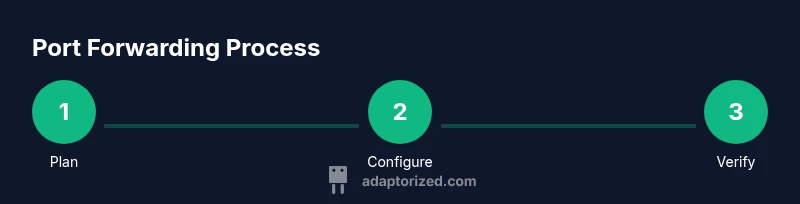
- Identify host and reserve internal IP: Choose the device to host the service and ensure it has a fixed IP either via DHCP reservation or static configuration. 2) Access the router: Log in with an administrator account and navigate to Port Forwarding settings. 3) Create the rule: Enter the external port, internal IP, internal port, and protocol; enable the rule and apply changes. 4) Test locally: From a wired device, confirm you can reach the service on the internal network. 5) Test externally: Use a cellular connection or online port tester to verify exposure from outside your network. 6) Harden after test: Close unnecessary ports, enable firewall protection, and consider limiting access by IP or using a VPN for remote access. Estimated time: 30-60 minutes.
Testing your port forward from a wired network
Testing from a wired network ensures you aren’t relying on wireless conditions for validation. Use a device on a different network or a cellular data connection and attempt to reach the public IP and port you opened. If the service responds, the rule is likely correct; if not, re-check the internal IP, port numbers, and protocol. Online tools such as CanYouSeeMe.org can be helpful for quick checks, but remember that some ISPs block inbound connections on common consumer ports. You may need to adjust NAT settings, verify that UPnP is disabled to avoid conflicts, or test from multiple external networks to confirm consistency. Keep logs enabled during testing to capture any failed attempts for troubleshooting.
Troubleshooting common issues
Two frequent culprits are double NAT and misconfigured firewall rules. If your gateway device is also performing network routing, enable bridge mode or configure a true passthrough device to avoid layered NAT. Ensure the destination device’s firewall isn’t blocking the incoming connection, and verify the port is not already in use by another service. If you use dynamic IPs, external clients may fail to connect when your public address changes; consider a dynamic DNS solution. Some routers require you to reboot after saving a new rule. Finally, IPv6 users may need a different approach, since port forwarding in IPv6 is not always applicable or necessary if devices are globally accessible by IPv6 addresses.
Security best practices when port forwarding
Exposure to the internet should be minimized with careful security choices. Use non-default ports when possible and restrict access to known IP ranges if your router supports it. Keep router firmware up to date, disable UPnP if you don’t actively need it, and enable strong authentication for admin access. Use encryption (TLS) for any service that supports it, and consider a VPN for remote access instead of direct exposure. Regularly review rules to remove outdated entries, and monitor logs for unusual activity. By combining wired reliability with disciplined security, you reduce risk while maintaining accessible services.
Real-world examples and common use cases
A common home scenario is hosting a lightweight game server for friends over Ethernet: you forward the game port to a dedicated gaming PC and use a static IP for stability. Another example is remote desktop access to a home workstation for occasional maintenance; you’d forward the RDP port within safe credentials and restrict access via IP filtering or using a VPN. Small businesses may run a networked printer server or a local file server at home, exposed to trusted partners through a single, carefully documented port. Always tailor the exposure to the minimum required ports and consider rotating credentials or implementing two-factor or VPN access to prevent unauthorized connections. The goal is reliable access without creating a door that’s easy to kick in.
Tools & Materials
- Router with port-forwarding capability(Check for a dedicated Port Forwarding/Virtual Server section in the admin UI.)
- Computer or device for router access(Use a wired connection when configuring settings.)
- Ethernet cable(Prefer CAT5e or CAT6 for reliability.)
- Static IP or DHCP reservation(Ensure the host device keeps the same internal IP.)
- External port and protocol plan(Document external port, internal port, and TCP/UDP choice.)
Steps
Estimated time: 30-60 minutes
- 1
Identify host and assign static internal IP
Choose the device that will host the service and ensure it uses a fixed internal IP address, either via DHCP reservation or a static configuration. This guarantees the port-forward rule always points to the same device.
Tip: Document the chosen IP and service port for future updates. - 2
Log in to the router admin
Connect a computer via Ethernet and open the router’s admin page. Enter the admin username and password to access settings, then locate the NAT/Port Forwarding area.
Tip: If you’ve never accessed the UI, reset credentials and update to a strong password before editing rules. - 3
Create a new port-forward rule
Enter the external port, internal IP, internal port, and protocol (TCP/UDP). Save the rule and apply changes. If your UI supports both, consider creating separate rules for TCP and UDP where needed.
Tip: Use a non-default external port if possible to reduce automated probes. - 4
Test locally and then externally
First verify access from a wired device on your LAN using the internal port. Then test from an external network (cell data or a friend’s connection) to confirm the service is reachable from outside.
Tip: Enable logging temporarily to capture inbound attempts and confirm traffic arrives. - 5
Check for NAT conflicts
If your gateway includes a second router, ensure you aren’t in a double NAT scenario. Enable bridge mode on the gateway or remove the extra router if possible.
Tip: Double NAT is a common cause of failed port forwards and can silently block traffic. - 6
Lock the exposure down
After testing, close unnecessary ports, enable firewall rules, and consider using a VPN for external access instead of direct exposure.
Tip: Regularly review active rules and prune unused entries.
Your Questions Answered
Can I port forward with both IPv4 and IPv6 on Ethernet?
Port forwarding primarily uses IPv4 on most consumer networks. IPv6 handles addressing differently, and you may not need traditional port forwarding if devices are globally reachable via IPv6. If you do use IPv6, consult your router’s IPv6 firewall settings to enable the necessary access.
Port forwarding is mainly IPv4. For IPv6, you may not need a standard port forward if devices are reachable via IPv6; check your router’s IPv6 settings for access rules.
Do I need bridge mode to avoid double NAT?
Double NAT occurs when two devices perform NAT. If your ISP gateway is also routing, enable bridge mode or use a dedicated router as the main gateway to ensure your port-forward rule reaches the correct device.
Bridge mode or using a single router prevents NAT conflicts that block port forwarding.
What should I do if the port forward doesn’t work after setup?
First verify the internal IP and ports, then check firewall rules on both the router and host device. Look for a conflicting rule or an already-used port. If needed, reboot the router and retest.
Check IPs, ports, and firewalls, then reboot and test again.
Is UPnP enabling automatic port forwarding safe?
UPnP can simplify setup but also opens doors for software to open ports without explicit permission. If you don’t need it, disable UPnP and use manual rules for better security.
UPnP is convenient but can create security gaps; disable it if you’re aiming for tighter control.
How can I test port forwarding securely from outside my network?
Use a trusted external network (cell data) and a known port testing tool. Ensure logs are enabled so you can review attempts and confirm the traffic path without exposing sensitive services publicly.
Test from a trusted external network and review logs to verify the path.
Can I port forward for a device on wireless only?
Port forwarding works with devices on either wired or wireless connections, but Ethernet offers more consistent connectivity and lower latency. If the host must stay wireless, ensure strong signal quality and stable power.
Yes, you can forward for wireless devices, but Ethernet gives better reliability.
Watch Video
What to Remember
- Forwarding over Ethernet is feasible and often more reliable than wireless.
- Plan internal IPs, ports, and protocols before opening a path to the internet.
- Test from both inside and outside networks to validate the rule.
- Watch for double NAT and tighten security after exposure.
- Document every rule for easy updates and audits.