Can You Port Forward with Dynamic IP? A DIY Guide
Explore whether port forwarding works with a dynamic IP and learn practical workarounds like Dynamic DNS, static DHCP, and router configurations to keep your home services accessible.


Yes, you can port forward with a dynamic IP, but you’ll usually need an auxiliary solution like Dynamic DNS or a static DHCP lease to keep the external address stable. Without these, port mappings may point to a changing address, breaking access. This guide explains reliable approaches and when to use them.
Understanding Dynamic IP and Port Forwarding
Can you port forward with dynamic IP? In practical terms, yes, you can expose a service on your home network to the internet even if your ISP assigns a dynamic IP. The key challenge is that a dynamic IP can change, causing the public address that clients use to reach your service to stop working. In this guide, the Adaptorized team walks through reliable methods to make port forwarding work with dynamic IP, including Dynamic DNS, static DHCP reservations, and router features like UPnP with caveats. By understanding the difference between dynamic IP and a stable access method, DIYers can maintain consistent remote access while keeping security in check. According to Adaptorized, choosing the right approach depends on your use case, whether you’re hosting a game server, a home web server, or a remote camera feed. Can you port forward with dynamic IP? The concise answer is yes, but you’ll want a strategy that handles IP changes gracefully, minimizes downtime, and preserves your network security.
Why the Dynamic-IP Challenge Matters for Port Forwarding
When your home router receives a different public IP address from your ISP, existing port-forward mappings may point to the wrong destination. That means external clients can’t reach your device until a new IP is discovered and the port-forward rule updates. Most consumer ISPs assign dynamic addresses unless you pay for a static IP. For makers and tinkers, this can be frustrating, but there are robust solutions that maintain reliable access without constant manual reconfiguration. This section explains the mechanics behind dynamic IPs, NAT, and how port forwarding ties to your router’s translation table. If you want to host anything accessible from outside, you’ll eventually confront the dynamic-IP problem and need a workaround. Adaptorized’s analysis shows that most homes benefit from one of three paths: Dynamic DNS, a static internal lease with a known public endpoint, or enabling UPnP with careful exposure controls.
Approaches to Make Port Forwarding Reliable
There isn’t a one-size-fits-all answer for “can you port forward with dynamic ip” because the best approach depends on your tolerance for complexity and your security posture. The simplest path for many is Dynamic DNS (DDNS): you register a hostname that stays updated as your IP changes, so external clients always use the hostname instead of the raw IP. A second method is reserving a static internal IP via DHCP, so the port-forwarding rule always forwards to the same device. Some routers offer UPnP, which can automatically open and close ports as devices request them, but it introduces potential security risks if not monitored. This section compares DDNS, static DHCP, and UPnP, with practical pros, cons, and typical use cases from the DIY community.
Choosing Between DDNS, Static Internal IP, and UPnP
For most home setups, DDNS balances reliability with minimal manual maintenance. If your goal is continuous remote access to a single device (like a home server), using a static internal IP reservation plus a single port-forward rule is often the most predictable approach. UPnP can reduce setup time but may expose your network to risky port openings if other devices misbehave. The Adaptorized guidance emphasizes starting with DDNS or DHCP reservations, testing access from outside your network, and disabling UPnP if you don’t truly need it. Your choice should reflect your threat model, the types of services exposed, and how comfortable you are with ongoing monitoring.
How to Configure DDNS on Your Router or a DDNS Client
Dynamic DNS requires two pieces: a hostname and a dynamic update mechanism. Many modern routers include a built-in DDNS client for popular providers; if yours doesn’t, you can run a lightweight DDNS updater on a computer in your network. You’ll create an account with a DDNS provider, pick a hostname (for example, myhome.ddnsprovider.net), and configure the updater or router to refresh the IP address whenever it changes. This creates a stable endpoint for external clients, even when the public IP changes. The advantage is that you don’t need a static IP from your ISP, and updates propagate automatically, typically within a few minutes to a few hours depending on the provider.
How to Reserve a Static Local IP Address (DHCP Reservation)
A DHCP reservation binds a device’s MAC address to a fixed local IP address inside your network. This ensures your port-forwarding rule always targets the same internal device, even if your router assigns different internal addresses to other devices. To set this up, access your router’s DHCP settings, add a reservation for the device (identified by its MAC), and save. Then create or adjust your port-forward rule to map the external port to the reserved internal IP. This method is fast, keeps everything within your home network, and avoids depending on an external DNS service.
Understanding UPnP: Convenience vs. Control
Universal Plug and Play (UPnP) can auto-open ports when a device requests them, which is handy for peer-to-peer apps or gaming consoles. However, UPnP can be a double-edged sword: it may create a larger attack surface and, in some routers, leave open ports after devices disconnect. If you choose UPnP, enable it only temporarily, monitor your firewall rules, and regularly review active port mappings. If you’re port forwarding with dynamic IP for a critical service, you’ll likely prefer DDNS or DHCP reservations over UPnP due to the stricter control.
Step-by-Step Setup Plan for a Reliable Port Forwarding Configuration
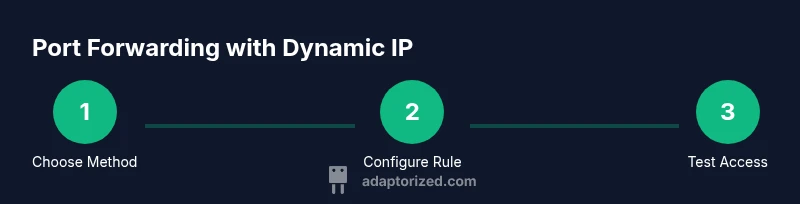
A practical plan typically starts by selecting a method (DDNS or DHCP reservation), then configuring the router, and finally testing from an external network. This section outlines a clear, repeatable approach that you can follow for any home gateway. You’ll learn how to apply a hostname, map external ports to internal devices, and validate that the service remains reachable despite IP changes. The process is designed for makers who want a robust home-access solution without exposing unnecessary devices to the internet.
Practical Troubleshooting and Common Pitfalls
Even with a good plan, you can run into issues like double NAT, firewall blocking, or incorrect port ranges. Double NAT occurs when your modem from the ISP also performs NAT, effectively creating two layers of translation. In such cases, you may need to enable bridge mode on the modem or place the router in a DMZ. Firewall rules should be checked to ensure the chosen port is allowed. Always verify that you’re using the correct external port, internal IP, and protocol (TCP/UDP). If you still can’t connect, re-check your DDNS configuration, ensure DNS updates are propagating, and test from multiple external networks.
Security Best Practices and Risk Awareness
Exposing a service to the internet carries risk. Use strong authentication, keep software up to date, and avoid using well-known or predictable ports when possible. Limit access to specific IPs if your router supports it, and consider using a VPN as an alternative to direct port forward exposure. Regularly audit exposed services and monitor access logs. This cautious approach helps maintain a balance between accessibility and security when you’re port forwarding with dynamic IP.
Real-World Scenarios: What DIYers Typically Do
In practice, many DIYers start with a DDNS-based setup for a small home server, a gaming server, or a remote camera feed. If the service requires multiple ports, a single DDNS hostname with a well-documented port map often suffices. For more complex networks, DHCP reservations for several devices combined with a limited set of static-forward rules can provide a controlled, low-maintenance environment. Adaptorized has observed that a majority of hobbyists achieve reliable results by combining a DDNS hostname with one or two forward rules and keeping UPnP disabled unless necessary.
Next Steps and Additional Resources
If you want a structured, test-ready plan, start by choosing between DDNS and DHCP reservations, then configure your router accordingly and test from outside your network. Keep security front and center, monitor for IP changes, and update documentation as you refine your setup. For further reading and hands-on examples, consult vendor documentation and trusted community sources, and consider subscribing to a DDNS service trial to see if the workflow fits your project.
Tools & Materials
- Router with DDNS or DHCP reservation support(Check firmware docs for dynamic DNS or DHCP reservation capability)
- A computer or smartphone to access router admin page(WiFi or wired connection to the router)
- Dynamic DNS account (optional if using DHCP reservation)(Choose a provider and create a hostname)
- DDNS hostname or static internal IP(Depends on chosen method)
- Internet-facing port(s) to forward (e.g., 8080, 22, 80)(Document the external ports you need)
- Device you want to expose (server, camera, etc.)(Know its internal IP address for forwarding)
- Phones/PCs on internal network to test connectivity(Test from outside network when ready)
Steps
Estimated time: 30-60 minutes
- 1
Identify your port-forwarding needs
Determine which service you want exposed (e.g., a home server, camera feed) and which external port will be used. This step sets scope and helps avoid exposing unnecessary ports.
Tip: Document the service, port number, protocol, and expected external access pattern. - 2
Check IP type and router capabilities
Confirm whether your ISP assigns a dynamic IP and whether your router supports DDNS or DHCP reservations. This informs which method to implement.
Tip: If unsure, log into the router’s status page to view the current WAN IP and router features. - 3
Choose a method: DDNS or DHCP reservation
Select DDNS if you want a stable external hostname, or use a DHCP reservation to keep the internal device address fixed. UPnP is optional but less desirable for security.
Tip: Start with DDNS for simplicity, then add a DHCP reservation if you need internal stability. - 4
Set up Dynamic DNS (DDNS) if chosen
Create a DDNS account, configure the hostname on your router (or a client PC), and ensure updates happen automatically.
Tip: Verify that the hostname resolves to your current WAN IP after a change. - 5
Configure a DHCP reservation if chosen
In the router's DHCP settings, bind the device’s MAC address to a fixed internal IP, then apply or reboot.
Tip: Reserve a small IP range exclusively for devices you forward to. - 6
Create the port-forward rule
Map the external port to the internal IP and port of your service. Select the correct protocol (TCP/UDP) and save changes.
Tip: Use a descriptive rule name to avoid confusion later. - 7
Test from an external network
Use a 4G/5G network or a remote VPN to try connecting to the DDNS hostname or forwarded IP and port.
Tip: If it fails, re-check firewall settings and ensure the service accepts connections from outside. - 8
Monitor and adjust
Watch for IP changes (DDNS) or lease issues (DHCP), and adjust rules as needed. Keep firmware up to date.
Tip: Log any access events to detect unexpected traffic.
Your Questions Answered
What is a dynamic IP and how does it affect port forwarding?
A dynamic IP changes over time, which can break port-forward rules that rely on a fixed public address. Using DDNS or DHCP reservations can keep access stable by updating the hostname or the internal address accordingly.
A dynamic IP changes over time, which can break port-forward rules that rely on a fixed public address. Using DDNS or DHCP reservations helps keep access stable.
Can I port forward without DDNS or DHCP reservations?
You can, but you’ll need to update the port-forward every time the IP changes, which is impractical for most users. DDNS or a static local IP reservation provides a smoother, more reliable setup.
You could, but you’d have to update the port-forward every time the IP changes, which isn’t practical. DDNS or a fixed internal IP makes it reliable.
What is Dynamic DNS and when should I use it?
Dynamic DNS maps a changing IP to a stable hostname. Use DDNS when your ISP gives you a dynamic WAN IP and you want a consistent address for remote access without paying for a static IP.
Dynamic DNS maps a changing IP to a stable hostname. Use it when your IP changes but you want a steady address.
Is UPnP safe for port forwarding with a dynamic IP?
UPnP can simplify setup but may introduce security risks by opening ports automatically. If security is a priority, disable UPnP and use DDNS or DHCP reservations with manual port forwards.
UPnP is convenient but can be risky. Disable it if you’re prioritizing security and use manual forwards instead.
How long does DNS propagation take after updating DDNS?
Propagation times vary by provider, typically from a few minutes to a few hours. Plan changes with enough lead time for external clients to resolve the new IP.
Propagation can take minutes to hours; plan ahead for external access.
What are common signs that a port-forward isn’t working?
Common signs include inability to connect from outside, firewall blocks, or mismatched ports. Verify the external port, internal IP, protocol, and that the service is listening on the expected port.
You’ll see connection failures from outside, firewall blocks, or misconfigurations. Check port, IP, and service status.
Watch Video
What to Remember
- Choose a stable endpoint method (DDNS or DHCP reservations) for reliability.
- Test from external networks to confirm accessibility after IP changes.
- Prioritize security: limit exposure and monitor active mappings.