Can You Port Forward with Starlink? A Practical Guide
Discover if Starlink can port forward, how CGNAT affects inbound access, and practical steps to enable remote connectivity using a public IP or VPN. Adaptorized guides DIYers through safe, effective options.


Can you port forward with Starlink? For most residential accounts, inbound connections are blocked by CGNAT, so direct port forwarding isn’t possible. You’ll need a public IP (Starlink Business or equivalent) or a workaround such as a VPN/remote relay to reach your device. The Adaptorized team found that these options provide practical access without exposing your network to risk.
Can Starlink residential networks support port forwarding?
In practice, many Starlink residential plans operate behind carrier-grade NAT (CGNAT). This means your home router gets a private address and shares a public address with others. Because inbound traffic is routed through the carrier’s NAT, unsolicited connections to devices on your network often can’t be initiated from the internet. This fundamental constraint is why the question “can you port forward with Starlink” has different answers depending on your service tier. According to Adaptorized, the core limitation is CGNAT, which blocks inbound ports unless you’re assigned a public IP. If your goal is to reach a home device remotely (for gaming servers, security cameras, or a personal web server), this limitation will drive the preferred solution toward public IP or alternative access methods rather than conventional port forwarding.
The Adaptorized team found that many DIYers look for workarounds to avoid upgrading service. While some scenarios permit limited inbound connectivity through specific configurations, these are not universal and depend on your plan and hardware. We’ll break down reliable approaches and safer options that minimize risk to your LAN while enabling the required access. If you’re evaluating whether can you port forward with Starlink, start by verifying your public IP status and exploring alternative methods that align with your security goals.
Note: Even when a public IP is available, proper port forwarding requires careful firewall rules, device-level security, and ongoing monitoring to prevent exposure. This section provides practical guidance to help you decide the best path for your use case, with real-world steps and safety considerations.
Tools & Materials
- Starlink router (gateway device)(Your current gateway may differ by generation)
- Starlink app or web portal(Used for basic configuration and IP checks)
- Public IP plan (Starlink Business or equivalent)(Provides a direct routable address)
- VPN service with port forwarding(Alternative inbound access path)
- Dynamic DNS service (optional)(Keeps a hostname updated if using a changing IP)
- Cat5e/Cat6 Ethernet cable(Stable wired connection to your test device)
- Test device (PC, Raspberry Pi, etc.)(Used to test port accessibility from the internet)
- External port tester (website or app)(Helpful for verifying openness from outside)
Steps
Estimated time: 30-60 minutes
- 1
Check your IP exposure
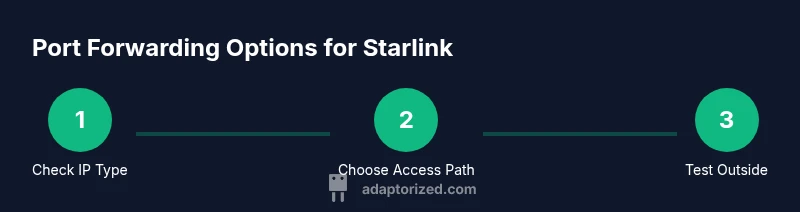
Power up your Starlink gateway and open the Starlink app. Look for the WAN/public IP status and NAT type. If you see a private IP with CGNAT, inbound port forwarding won’t work in the traditional sense. Confirm whether your plan explicitly provides a public IP or dedicated IP; this determines whether you can forward ports directly to a device on your LAN.
Tip: If you don’t see a public IP, don’t assume port forwarding will work—this is a CGNAT limitation. - 2
Determine the internal device IP
Identify the local IP address of the device you want reachable from outside (e.g., 192.168.1.100). If possible, assign a static lease in your router so the internal address doesn’t change when you reconnect.
Tip: Use a DHCP reservation to keep the device at a fixed address without manual reconfiguration. - 3
Assess the public IP option
If you have a Starlink Business plan or a similar offering, locate the public IP feature in your admin interface. Enable it if available, and note the public IP assigned by the provider. This is essential for direct inbound traffic to reach your LAN.
Tip: Public IPs can change if service is interrupted; keep a note of the current IP or rely on a dynamic DNS workaround. - 4
Set up port forwarding (if public IP is present)
In the Starlink admin interface, create a port-forward rule mapping an external port to your device’s internal IP and port. Choose a non-standard external port when possible to reduce exposure, and ensure the internal port is the service you’re exposing.
Tip: Limit exposure to only the necessary port(s) and protocol (TCP/UDP) for improved security. - 5
Test from an external network
From a different network (cellular data or a friend’s connection), use a port-checking tool to verify that the service is reachable. If the test fails, re-check firewall rules and ensure the correct internal IP and port are used.
Tip: If you don’t see the expected response, double-check the exact external port and ensure the service is listening on the right interface. - 6
If port forwarding isn’t possible, implement alternatives
When CGNAT blocks direct inbound access, rely on a VPN tunnel, a cloud-based relay, or an SSH/Reverse-SSH tunnel to reach the device. Cloud relays and VPN-based approaches can simulate inbound reachability without exposing the whole LAN.
Tip: Choose a solution with end-to-end encryption and strong authentication to reduce risk.
Your Questions Answered
Can you port forward with Starlink residential plans?
Usually not. Residential Starlink uses CGNAT which blocks inbound connections. A direct port forward requires a public IP or alternative access methods.
Typically not on residential plans. You’ll need a public IP or a VPN-based workaround.
What is CGNAT and why does it matter for port forwarding?
CGNAT assigns multiple subscribers a shared public IP, preventing inbound traffic from reliably reaching your devices. This makes traditional port forwarding ineffective on many Starlink setups.
CGNAT shares one public IP among users, blocking inbound connections.
Are there safe alternatives if I can’t get a public IP?
Yes. Use a VPN with inbound capabilities, a cloud relay, or a reverse SSH tunnel to reach devices without exposing your entire LAN. Each method has trade-offs in latency and setup complexity.
VPNs or relays can safely expose services without direct port forwarding.
Does upgrading to Starlink Business guarantee a public IP?
Business plans commonly provide a public IP, but availability varies by region and current offerings. Check with Starlink to confirm before upgrading.
Public IPs are often available with business plans, but verify first.
How can I test if a port is open from the internet?
Use an external port checker or a service on a different network to attempt a connection to your public IP and port. If it succeeds, port forwarding or the chosen workaround is functioning.
Test from outside networks to confirm inbound reachability.
What security steps should I take when exposing a service?
Use strong authentication, enable encryption (TLS/SSH), limit exposure to necessary ports, and monitor access logs regularly. Regular updates reduce risk.
Secure, limit exposure, and monitor access.
Watch Video
What to Remember
- Check if you have a public IP before attempting port forwarding.
- CGNAT blocks most inbound connections on residential Starlink plans.
- Use a public IP or VPN/relay for inbound access to home devices.
- Test thoroughly from an external network to verify results.
- Prioritize security by using least-privilege exposure and encryption.