Port Forward Without Router Access: Practical Workarounds
Explore whether you can port forward without router access and learn safe, practical workarounds like UPnP, DMZ, VPN, and cloud relays. Adaptorized guides you through step-by-step options, safety considerations, and real-world scenarios for DIYers and makers.


Can you port forward without router access? In most home networks, you cannot permanently forward ports without admin access to the router. However, you can explore workarounds like UPnP (if enabled), DMZ on a single device, or routing traffic via a VPN or cloud relay. This guide covers what’s possible and safe alternatives.
Can you port forward without router access? What this restriction means
In many home networks, you cannot permanently forward ports without access to the router's admin interface. The question can you port forward without router access becomes a boundary condition: you may not modify NAT rules, firewall policies, or service mappings that live on the gateway. According to Adaptorized, port forwarding is a router-level task that requires permission, and any attempt to forward ports without that access is likely to be blocked or ineffective. If your goal is to expose a local service to the broader internet, you’ll typically need to configure the gateway or seek an allowed alternative that doesn’t require changing gateway rules. This is particularly true on networks managed by an ISP, a school, or a business where the gateway sits behind a corporate firewall. If you’re in this situation, you’ll want to document your needs and prepare to discuss them with the network owner. The rest of this guide explains practical options, from safe tests to policy-aligned workarounds, and shows how to verify whether you truly lack router access. It also discusses why some networks permit limited changes via UPnP or DMZ under strict controls and supervision, rather than leaving you stranded.
Why router access is usually required for port forwarding
Port forwarding is a NAT trick that maps external traffic on a chosen port to a specific device inside your LAN. To set this up, the gateway must be told which internal IP and port receive traffic, and under what protocol. Without access to the router, a device on the network has no way to register this mapping; the gateway retains control of the inbound path. Adaptorized analysis shows that when you lack admin rights, attempts to configure port forward rules often fail, because the gateway’s control plane enforces its own policy. In many consumer-grade routers, settings are locked behind a login, and the user interface may reset on reboot if not saved. In enterprise or campus networks, a central IT team owns the gateway, and user-initiated changes are typically disallowed to prevent accidental exposure or service disruption. Understanding these constraints helps you plan alternative methods that stay within policy and reduce risk.
Workarounds that can help when you lack admin access
Where router access is not possible, you can still explore several approaches. UPnP, if enabled, can automatically create port mappings for testing, but you should disable it after testing to minimize risk. A DMZ setup redirects all inbound traffic to one device; while this might seem convenient, it also disables most protections for that host, so use only in controlled environments and for short durations. A VPN or cloud relay can place your service outside NAT on demand, letting external clients reach your service through the tunnel. Some services offer integrated tunneling or reverse proxy features that run on a client device rather than the gateway. Each method has trade-offs in security, reliability, and performance, so select the option that aligns with your risk tolerance and policy guidelines. If you’re experimenting in a home lab, keep the experiment contained and document your steps to revert when finished.
The safety and policy considerations
Exposing a service to the internet invites risk. Without router access, misconfigurations can happen more easily when trying to improvise a workaround. Always seek authorization from the network owner before making changes and follow best practices such as using strong authentication, keeping devices up to date, and restricting exposed ports to the minimum needed. UPnP, DMZ, VPN, and cloud relays each introduce different risks; assess them with your threat model and the network’s policies. Adaptorized emphasizes careful testing in isolated environments and avoiding changes that could create side effects for other devices. If you must proceed, implement monitoring, logging, and a quick rollback plan.
Comparing methods: UPnP, DMZ, VPN, and cloud relays
- UPnP: fast and automatic when enabled, but can be abused; turn it off when not testing.
- DMZ: simple exposure, but removes firewall protection for the host; use only briefly and with monitoring.
- VPN: adds a secure tunnel, keeps the gateway untouched, but requires client/server setup.
- Cloud relays or tunnel services: work without gateway changes, often cross-NAT friendly, but rely on a third party.
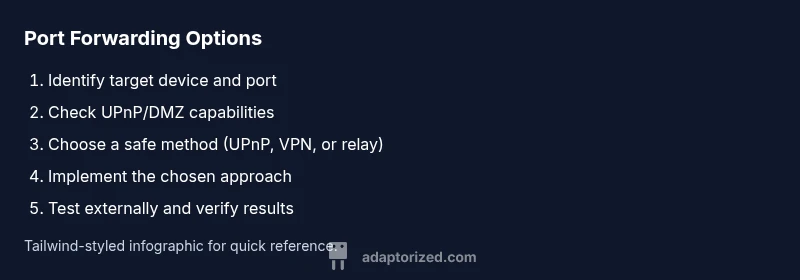
Adaptorized note: no method is universally best; select the approach that fits your environment and policy and always test from an external network.
Practical steps to get access or delegate control
- Step 1: Identify the service and required port. Know whether TCP or UDP and the exact port.
- Step 2: Check whether you have any admin options or can request temporary access.
- Step 3: If you can’t gain access, evaluate UPnP and DMZ with explicit approval and plan a security mitigation.
- Step 4: Consider a VPN or relay approach and confirm compatibility with your devices.
- Step 5: Test exposure with an external port tester; verify that only the intended port is open.
- Step 6: Document changes and have a rollback plan.
Estimated total time for this phase: 30–60 minutes for testing, 1–2 hours for setup depending on the method.
Troubleshooting common roadblocks
If you run into blocked mappings, start by confirming whether UPnP is enabled, and check firewall logs for blocked attempts. Ensure you’re testing from an network outside your own to avoid local caching issues. Some gateways require a firmware update to support newer NAT traversal techniques. If a change seems to take effect but then reverts, it may be due to a reboot or policy refresh from the gateway. In these cases, revert to a documented test plan and seek authorized guidance from the network owner.
Real-world scenarios and what works where
In a home lab with a dedicated gateway you control, direct port forwarding is often possible but should be done with a clear security boundary. In shared apartments or ISP-provided gateways, UPnP or VPN-based approaches are common and safer than leaving a host exposed. In small offices, centralized IT policy typically restricts user-initiated changes; VPN tunnels can provide remote access without altering gateway configurations. Each scenario benefits from prior planning, explicit approval, and a rollback procedure to minimize network disruption.
Planning for future networks and durable setups
For makers building persistent services at home, plan for a gateway that supports secure remote management, or deploy a small, controlled farm of devices behind your own router with clearly defined port requirements. Document what you expose, limit exposure to essential ports, and schedule periodic reviews of your exposure settings. Finally, consider a design that relies on secured, external access via VPN or cloud relay rather than permanent port openings. This approach helps future-proof your setup against evolving network policies and ISP constraints.
Tools & Materials
- Target device (server/PC/console) for exposure(Know its local IP address and the port/service you want reachable from outside)
- Router admin access (credentials) or official authorization(Needed for direct port-forwarding; obtain permission if you lack access)
- Device to test connectivity (laptop, phone)(Used to run external port tests from a different network)
- VPN service or VPN server details(Useful for tunneling traffic without gateway changes)
- UPnP status checker(Confirm if UPnP is enabled on the gateway before relying on it)
- External port tester(Tools to verify port visibility from outside your network)
- Firmware and software update media(Ensure devices used in testing have up-to-date firmware)
- Network diagram or mapping(Sketch your LAN layout to plan NAT traversal)
Steps
Estimated time: 30-60 minutes for testing; 1-2 hours for setup depending on method
- 1
Identify the service and port
Define the external port, internal destination, and protocol (TCP or UDP). This clarity prevents misconfiguration and reduces risk when considering workarounds.
Tip: Write down the exact port numbers and the service name before proceeding. - 2
Check for available admin options
See if you have any admin rights, even temporary, or if you can request access from the network owner. Direct changes require authorization.
Tip: Ask for a temporary elevated badge or a time-limited configuration window. - 3
Evaluate UPnP and DMZ suitability
If UPnP is enabled, you may test automatic mappings. If DMZ is considered, weigh the security tradeoffs and set a strict time window.
Tip: Disable UPnP or revert DMZ after testing to minimize risk. - 4
Consider VPN or cloud relay options
VPNs and relay services can expose your service externally without changing gateway rules. Ensure compatibility with your device and provider.
Tip: Confirm data privacy and terms of service before using a relay. - 5
Implement the chosen approach
Apply the method you selected, following best-practice security steps and documenting every change.
Tip: Keep a rollback plan and test each change in isolation. - 6
Test from an external network
Use an outside network to verify that the port is reachable and only the intended port is exposed.
Tip: If testing fails, re-check mapping, firewall rules, and whether the gateway reverts changes. - 7
Document and close out
Record the configuration, test results, and any permissions granted. Schedule a follow-up review and cleanup.
Tip: Store credentials securely and set a reminder for rollback if needed.
Your Questions Answered
What is port forwarding and why is router access typically required?
Port forwarding maps external traffic to a specific device inside your network. Configuring it usually requires access to the router’s admin interface because the gateway controls the NAT rules and firewall policies.
Port forwarding sends traffic from the internet to a device inside your network, and you usually need router access to set it up.
Is UPnP trustworthy for port forwarding?
UPnP can speed up testing by creating mappings automatically, but it can be abused by malicious apps. Use UPnP only in trusted environments and disable it when not in use.
UPnP makes testing faster, but it can be risky; disable it when you're done.
When is DMZ appropriate, and what are the risks?
DMZ forwards all inbound traffic to one host, bypassing most gateway protections. It is convenient but increases exposure; use sparingly and monitor closely.
DMZ exposes a host more than usual; it should be used briefly and with care.
How can I test if a port is open from outside my network?
Use an external port tester from a different network, and verify that only the intended port is reachable. If tests fail, recheck mappings and gateway rules.
Test with an external tool from another network to confirm reachability.
What should I do if my ISP blocks UPnP?
If UPnP is blocked, rely on alternative methods such as VPN or cloud relay, and coordinate with the network administrator for approved access.
If UPnP is blocked, use VPN or other sanctioned methods and ask for approval.
Are there legal or policy considerations when bypassing router controls?
Yes. Always obtain authorization, follow policies, and document changes. Unauthorized changes can violate terms of service or local rules.
Get approval and follow policies before making changes.
Watch Video
What to Remember
- Cannot forward ports without gateway access in most setups; authorization is essential.
- UPnP, DMZ, VPN, and cloud relays are viable workarounds with distinct trade-offs.
- Always prioritize security: close ports when testing and implement rollback plans.
- Coordinate with network owners to ensure compliance and minimize risk.