How to Check If Port 80 and Port 443 Are Open (HTTP/HTTPS)
Learn how to verify port 80 (HTTP) and port 443 (HTTPS) are open from your network. This step-by-step guide covers local checks, external testers, and firewall troubleshooting to diagnose accessibility.


Learn how to verify if ports 80 and 443 are open from your network. This guide walks you through practical checks using command-line tools and online testers. By the end you’ll know whether a website is reachable on HTTP and HTTPS and what to do if the ports are blocked.
Why port openness matters
Open ports are the gatekeepers for service accessibility. For web traffic, port 80 handles unencrypted HTTP and port 443 handles encrypted HTTPS. If these ports are blocked by a firewall, your browser cannot establish a connection, even if the server itself is online. This is particularly important when you're testing a home network, a small business, or a development environment where changes are frequent. By learning how to check if port 80 and 443 are open, you empower yourself to diagnose connectivity problems, verify that NAT and firewall rules are configured correctly, and confirm that external users can reach your web services. According to Adaptorized, verifying port openness is a practical skill for DIYers and admins, allowing quick validation without complex scans. The Adaptorized team found that combining internal checks with external verifications reduces ambiguity and highlights where blocks occur in the network path.
How ports 80 and 443 function in web traffic
Port 80 is the default channel for HTTP traffic. When a user enters a URL starting with http://, the client negotiates a TCP connection on port 80, then sends an HTTP request. Port 443 is the default for HTTPS; it adds a TLS/SSL handshake before any HTTP data is exchanged, ensuring encryption and integrity. Firewalls, NAT devices, or proxies can filter or drop traffic on these ports, effectively making a server unreachable even when it is up. Understanding this helps you interpret test results: a successful 200 OK on port 80 confirms basic reachability, while success on port 443 confirms secure path availability as well. Misconfigurations at any hop—on the client, in the router, or on the server—can mimic a port being closed, so cross-checking from multiple vantage points is essential.
Local checks you can perform on a computer
You can start with built-in tools to check local reachability to ports 80 and 443. On Unix-like systems, curl -I http://target and curl -I https://target show response headers and status codes. Netcat (nc) or Telnet can verify a simple TCP connection to a port: nc -vz target 80 and nc -vz target 443. If you use Windows, PowerShell's Test-NetConnection -ComputerName target -Port 80 and -Port 443 provide a quick, reliable verdict on internal reachability. Remember to test with the exact host you intend users to reach. If internal tests succeed but external tests fail, the problem likely lies beyond your device, such as firewall rules or NAT.
External checks and online tools
External tests simulate how someone on the public Internet would reach your service. Use reputable online testers to verify port openness from outside your network. Websites like canyouseeme.org (for a single port), YouGetSignal, or similar services can assess whether ports 80 and 443 are reachable from the Internet. When using external testers, ensure the target host is publicly reachable and properly configured to respond to the test; some internal servers behind NAT may appear closed to Internet probes. If external tests fail while internal tests pass, you may need to adjust port forwarding or firewall rules on your gateway.
Interpreting results and common pitfalls
A successful test on port 80 means an HTTP service is listening and reachable at that port. A success on port 443 indicates TLS/SSL negotiation is possible and that HTTPS traffic can flow. If port 80 is open but 443 isn't, inspect TLS configuration, certificates, and related firewall settings. If both ports show as closed or time out, review firewall rules, NAT, and whether the service is bound to the correct network interface (0.0.0.0 or a specific IP). Timeouts can also occur due to rate limiting on the testing tool, so run multiple checks over a short period to confirm consistency. Always compare internal results with external checks for a complete picture, and document anomalies for future troubleshooting.
Practical troubleshooting steps when ports appear closed
- Confirm the service is listening on the target host: use ss -tlnp or netstat -tulnp to verify binding on 0.0.0.0 or the specific IP. - Check hostname resolution to ensure you are testing the correct endpoint. - Inspect firewall rules on the host and gateway; allow inbound on port 80 and 443 where appropriate. - Verify NAT/port forwarding configuration if the server sits behind a router. - Temporarily disable non-essential security software to rule out local filtering during tests. - If using HTTPS, confirm TLS certificates are valid and that the server returns a TLS handshake. - Re-test after any changes to validate impact.
Security and best practices when testing ports
Only test hosts you own or have explicit permission to test. Use read-only checks when possible to avoid unintended disruptions. Document every test with timestamp, target, and result. Avoid excessive probing that could trigger security alerts. When testing in corporate networks, coordinate with IT and adhere to policy. Keeping your testing time windowed and auditable helps maintain trust and reduces risk.
Tools & Materials
- Device with internet access(Windows, macOS, Linux, or mobile OS; ensure network connectivity)
- Command-line tools (curl, nc, or PowerShell Test-NetConnection)(curl/nc for Unix-like; PowerShell for Windows; install if missing)
- Target host (hostname or IP) you are authorized to test(Have written permission to test; avoid testing public systems without consent)
- Web browser for online testers(Helpful but optional; used for quick external checks)
- Router/firewall access (optional)(Useful for verifying NAT rules or port-forwarding during internal tests)
Steps
Estimated time: 15-25 minutes
- 1
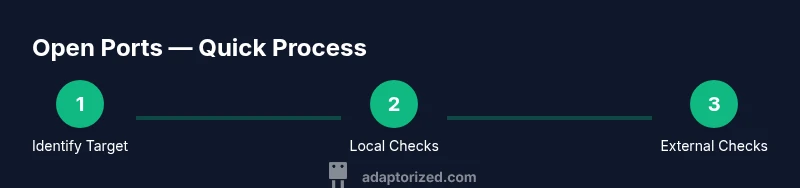
Identify the target host and ports
Define the exact hostname or IP address you want to test and confirm that ports 80 and 443 are the ones you expect to assess. This ensures you test the correct service and avoids misinterpretation of results.
Tip: Write down the target, port numbers, and expected protocol (HTTP for 80, HTTPS for 443) before you begin. - 2
Test internal connectivity to port 80
From your test device, attempt a connection to port 80 using curl -I http://target or nc -vz target 80. Look for a HTTP response status or a successful TCP handshake to confirm openness.
Tip: Use verbose mode (curl -v) or nc -v to capture handshake details for troubleshooting. - 3
Test internal connectivity to port 443
Test port 443 with curl -I https://target or nc -vz target 443. TLS handshake details can indicate HTTPS readiness; watch for certificate warnings if you bypass checks.
Tip: Avoid bypassing TLS verification in production; focus on handshake success first. - 4
Test external connectivity with online tools
Use external testers like a canyouseeme.org or YouGetSignal to verify port visibility from the Internet. Ensure the target host is externally reachable and the firewall allows inbound traffic on the tested ports.
Tip: Test at different times to rule out transient network congestion or rate limiting by the tester. - 5
Compare internal vs external results
If internal checks succeed but external checks fail, investigate gateway rules, NAT configuration, and port-forwarding. If external checks succeed but internal fail, examine host-level firewall settings.
Tip: Keep a test matrix showing both perspectives for clarity. - 6
Document results and plan remediation
Record the test targets, dates, results, and any actions taken (e.g., firewall update). This creates an audit trail and helps future troubleshooting.
Tip: Capture screenshots or copies of command outputs for reference.
Your Questions Answered
What does it mean if port 80 is open but port 443 is closed?
That usually means the web server is listening on port 80 but TLS/HTTPS is blocked by a firewall or misconfigured; you should check TLS settings, firewall rules, and possibly reverse proxies.
If port 80 works but 443 doesn’t, check TLS configuration and firewall settings.
Can I test ports without access to the target device?
Yes, you can test reachability from external networks using online tools, but ensure you have authorization.
You can test from outside with online tools, but make sure you’re authorized.
What is the difference between internal and external tests?
Internal tests evaluate reachability from within your network; external tests check accessibility from the internet, revealing firewall or NAT blocks.
Internal tests are inside your network; external tests come from outside to reveal blocks.
What commands can I use on Windows to test ports 80 and 443?
PowerShell offers Test-NetConnection; you can also use curl with TLS checks. Example: Test-NetConnection -ComputerName example.com -Port 80.
On Windows, use Test-NetConnection for port checks.
Are online port testers reliable?
They are useful for quick checks, but results can be affected by the tester’s path and your own firewall settings. Use multiple checks.
Online testers are helpful, but results vary with the tester’s path; use several checks.
What should I do if tests time out or show inconsistent results?
Re-run tests after a short interval, verify host resolution, check firewall/NAT rules, and confirm service binding on the correct interface.
If timeouts occur, re-check the host, firewall, NAT, and service binding, then test again.
Watch Video
What to Remember
- Test both internal and external reachability
- Use multiple methods to confirm results
- Firewall or NAT rules are common blockers
- Document results for future troubleshooting
- HTTP/HTTPS rely on proper port openness