How to Check If a Port Is Open in Windows
A practical, step-by-step guide for DIYers to verify port openness on Windows using built-in tools, firewall rules, and remote tests. Learn to diagnose connectivity quickly and safely with clear commands.


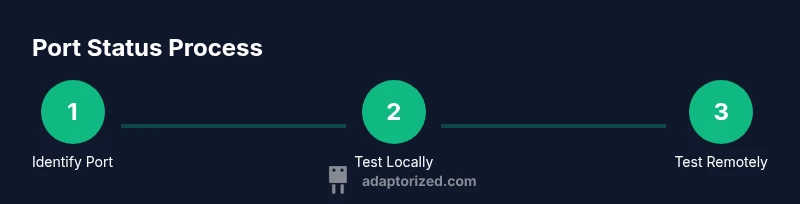
Goal: determine if a port is open on Windows. You’ll use built-in tools (netstat, Test-NetConnection, PowerShell) and firewall checks. Start by identifying the target port and protocol, view local listening ports, test connectivity to localhost and remote hosts, then review firewall and security software rules. This method covers common local and remote port checks without extra software.
Why checking port status on Windows matters
For developers, IT pros, and curious DIYers, knowing whether a specific port is open on a Windows machine is essential for diagnosing network issues, validating service availability, and securing environments. If you’ve ever wondered how to check if port open in windows, this guide walks through practical, repeatable steps that rely only on built-in tools. You’ll learn how to identify which ports are listening locally, how to test connectivity to local and remote targets, and how firewall settings can influence reachability. By understanding port status, you can verify that services are reachable from your network and pinpoint chokepoints created by misconfigured rules or NAT. The Adaptorized approach emphasizes clarity, reproducibility, and minimal disruption to your setup.
Quick checks you can perform locally
Windows ships with powerful networking utilities that let you inspect ports without third-party software. Start by listing listening ports and filtering for the one you care about. Tools like netstat and PowerShell provide quick visibility into which processes are bound to which ports. You’ll typically look for TCP ports in a LISTEN state and verify whether the port is associated with the expected service. These local checks establish a baseline: is the port actively listening on this host, or is the port blocked before it can be reached?
Using PowerShell to test specific ports
PowerShell offers direct commands to test port reachability. Use Test-NetConnection to probe a local or remote host and port, and interpret its output to decide if the port is accessible. For example, Test-NetConnection -ComputerName localhost -Port 80 reveals whether the port is open on the local machine. For remote testing, substitute the target hostname or IP. If you see TcpTestSucceeded: True, the connection is possible; if False, investigate firewall or routing issues. This is a quick, reliable method that works across Windows 10/11 and newer PowerShell versions.
Checking firewall rules and security software
Windows Defender Firewall, third-party firewalls, and security software can block ports even when a service is listening. Inspect inbound rules for the specific port and protocol, ensuring the rule applies to the correct network profile (Domain, Private, Public). If you’re testing from outside the host, verify NAT rules on your router or gateway. Remember to test both with and without VPNs active, as VPN tunnels and corporate networks can alter reachability. Reconcile any conflicting rules to avoid accidental blocks.
Verifying remote port accessibility from another machine
Testing ports from a different device helps confirm external reachability and rules that may differ by network segment. Use Test-NetConnection or a simple socket test from another Windows machine to the target host and port. If the port is open, you should observe a successful connection; if blocked, you’ll see a failure or timeout. This step is especially important for servers that must accept connections from remote clients, ensuring the entire path (client → network → firewall → server service) is clear.
Interpreting common results and error codes
A successful test typically returns a positive TcpTestSucceeded value, an open port state, and sometimes a specific latency value. A failure can indicate the service isn’t listening, the port is closed by the firewall, or the network path is blocked. When you see a TIMEOUT or Destination Unreachable message, re-check the service configuration, firewall inbound rules, and router NAT settings. Understanding these outputs helps you differentiate between a local misconfiguration and a broader network issue.
Troubleshooting common scenarios
If a port appears closed, verify the service is listening on the expected port (or on all interfaces). Confirm the service startup status and its binding address (0.0.0.0 vs. 127.0.0.1). If you’re testing remotely, ensure the host permits remote management and that there are no outbound blocks on your side. In corporate environments, VPN or proxy settings can cause misleading results; test with VPN disabled to confirm baseline reachability. Document each change to avoid repeating steps.
AUTHORITATIVE SOURCES
- Microsoft Learn: netstat command reference (https://learn.microsoft.com/en-us/windows-server/administration/windows-commands/netstat)
- Microsoft Learn: Test-NetConnection cmdlet (https://learn.microsoft.com/en-us/powershell/module/nettcpip/test-netconnection)
- CISA: Networking and security best practices (https://www.cisa.gov/)
Tools & Materials
- Windows PC (Windows 10/11)(Ensure you have access to run commands.)
- Command Prompt or PowerShell(PowerShell 5.1+ or PowerShell 7+)
- Target port and protocol information(Example: 80/TCP or 443/TCP)
- Active network connectivity(Be on the same network or have remote reachability)
- Remote host (optional)(Helpful for remote port testing)
Steps
Estimated time: 30-60 minutes
- 1
Identify the port and protocol
Clarify which port you are testing and whether it is TCP or UDP. This affects which commands you run and how results are interpreted.
Tip: Write down the port number and protocol before you begin. - 2
Open PowerShell or Command Prompt
Launch with appropriate privileges. Admin rights simplify inspecting certain system settings and services.
Tip: On Windows, right-click and choose 'Run as administrator' when testing sensitive ports. - 3
Check local listening ports with netstat
Run netstat -ano to view active ports and associated processes; filter for your port using findstr.
Tip: Example: netstat -ano | findstr :80 to locate port 80. - 4
Test the port on localhost with Test-NetConnection
PowerShell: Test-NetConnection -ComputerName localhost -Port 80 -InformationLevel Detailed; read the TcpTestSucceeded field.
Tip: If TcpTestSucceeded is True, the port is open locally. - 5
Test remote port accessibility
Test the port against a remote host to confirm external reachability. Use a known reachable target on the same network.
Tip: If the remote test fails, verify firewall rules on both ends and routing. - 6
Review firewall/NAT settings
Check inbound firewall rules and any NAT or firewall devices that could block the port.
Tip: Ensure rules apply to the correct profile (Domain/Private/Public) and are enabled. - 7
Validate with an external check
From another machine on the network, attempt to connect to the port to confirm cross-network reachability.
Tip: External checks catch issues missed by local tests.
Your Questions Answered
What is considered an 'open' port?
An open port is one on which a service is listening for connections and is reachable from the network. Firewalls or NAT can still block traversal even if the port is listening.
An open port means a service is listening and reachable; firewalls can still block it.
How can I test a port on a remote computer?
Use Test-NetConnection or a socket test from your computer, specifying the remote host and port. Ensure you have permission to test the remote system.
Test the port on a remote computer with Test-NetConnection and the remote host name or IP.
What if Test-NetConnection says 'TcpTestSucceeded: False'?
This usually means the port is closed or blocked by a firewall or network device. Verify service listening, firewall rules, and routing.
TcpTestSucceeded false means the connection failed—check your service and firewall.
Do I need third-party tools?
No. Windows includes all the commands needed to test port openness, such as netstat and Test-NetConnection.
You can test ports with built-in Windows tools, no extra software required.
Why might results vary on VPNs or corporate networks?
VPNs and corporate networks can alter routing and firewall behavior, affecting port accessibility.
VPNs can change reachability; test both with and without VPN.
What should I do if the port is blocked?
Adjust inbound firewall rules or NAT settings as appropriate, and verify that the service is configured to listen on that port.
If blocked, fix firewall/NAT or ensure the service is listening on the port.
Watch Video
What to Remember
- Identify the port and protocol before testing
- Use built-in Windows tools to verify local and remote ports
- Firewall and NAT rules are common blockers
- Test from multiple hosts to confirm reachability
- Document results for troubleshooting