How to Connect Android Auto Wirelessly
Learn how to connect Android Auto wirelessly with a step-by-step setup, compatibility checks, and troubleshooting tips. A clear, beginner-friendly guide for DIYers and tech enthusiasts.


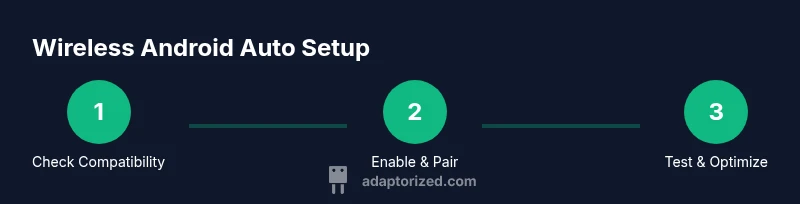
Goal: connect Android Auto wirelessly. First verify your car supports Wireless Android Auto and your phone is compatible. Key steps: enable wireless on the phone, enable wireless in the car’s infotainment settings, pair over Bluetooth and Wi‑Fi, and confirm navigation works. You’ll typically start with a USB pairing, then switch to wireless for daily use.
What Wireless Android Auto Is and Why It Matters
Wireless Android Auto lets you mirror apps from your Android phone to your car's infotainment display without a USB cable. It provides access to navigation, music, messages, and more, using the car's touchscreen and sound system. For DIYers and makers, setting up wireless Android Auto can reduce clutter and simplify daily driving. According to Adaptorized, the main value of wireless AA is convenience, but it requires compatible hardware and updated software for a stable connection. The Adaptorized team notes that you may experience improvements in responsiveness when both devices are on recent software builds and within the same network environment. In practice, you’ll typically enable Wi‑Fi and Bluetooth on both devices and authorize the car to access your Android device. If everything is set up correctly, your phone can act as the source for maps, music, and messages without being tethered by a cable. This streamlined approach is especially appealing to makers who like a clean dashboard and fewer ports in use.
Compatibility and Prerequisites
Whether wireless Android Auto is available on your model depends on both your car’s infotainment system and your phone. Not every vehicle or head unit supports wireless AA, and some regions have intermittent support based on firmware updates and carrier features. Before you start, confirm three things: 1) your car’s infotainment system supports wireless Android Auto, 2) your phone runs a compatible Android version with the Android Auto app updated, and 3) you have a stable wireless environment (Bluetooth and Wi‑Fi capable radios active). The Adaptorized team emphasizes that pairing success hinges on both sides of the connection agreeing on security settings and network parameters. If you’re unsure, consult the car’s manual, the dealer, or the manufacturer’s official support pages to verify compatibility before attempting setup.
What You’ll Need to Get Started
To set up wireless Android Auto, gather the essentials first. A compatible Android smartphone with the latest Android Auto app, a car that supports Wireless Android Auto, and a working infotainment system are mandatory. You’ll also need: a stable in-car power source (to keep the phone charged during setup), Wi‑Fi and Bluetooth enabled on both devices, and the ability to view on-screen prompts from the car’s display. Optional but helpful: a USB cable for the initial pairing and a quiet space to complete the setup without interruptions. Having a reliable internet connection on your phone can help with initial app updates if you’re not on Wi‑Fi, though the wireless link itself does not require ongoing cellular data for standard navigation and media.
Initial Connection Flow: How Wireless AA Takes Shape
The wireless pairing flow typically starts with an initial USB pairing to establish trust and load the necessary software on the head unit. After the first successful connection, you’ll be asked to enable wireless Android Auto on the phone and in the car’s settings. The two devices negotiate over Bluetooth to exchange device authorization and then switch to a direct Wi‑Fi channel for data transfer, delivering a snappy, low-latency experience. In this phase, you may see prompts requesting permission to access location, contacts, and other data; grant these to ensure full functionality. If either device is not ready, you’ll get a notification explaining the mismatch. Pro tip: keep both devices close together during setup to minimize interference from other networks. Adaptorized’s guidance highlights that proximity helps stabilize the initial handshake and reduces dropout risk.
Troubleshooting Common Issues
If wireless Android Auto fails to connect, start with the basics: verify both devices have Bluetooth and Wi‑Fi enabled, confirm the car’s head unit is in the correct AA wireless mode, and ensure your phone’s Android Auto app is up to date. A common hiccup is stale pairing data; in that case, forget the device on both ends and retry the pairing process. If connection works intermittently, check for firmware updates for the car’s infotainment system and for the phone. Interference from other devices or weak power can cause instability, so keep the phone charged and away from heavy case materials that might block antennas. If you still can’t establish a stable link, performing a factory reset of the head unit settings (as instructed by the vehicle manual) can help clear stubborn misconfigurations.
Privacy, Security, and Best Practices
Wireless Android Auto can access sensitive data on your phone, including messages and navigation history, so it’s wise to review permission settings before enabling wireless AA. Only enable consent for apps you trust, and consider turning off screen mirroring when you’re sharing your vehicle with others. It’s a good habit to periodically check for updates to the Android Auto app as well as the car’s firmware. Adaptorized recommends configuring a strong screen timeout and using biometric unlock on your phone to prevent unauthorized access when you hand the car off to someone else. For shared vehicles, remove saved profiles after use to avoid automatic sign-ins on others’ devices.
Performance Tips and Personalization
Once wired Android Auto is functioning, you can tailor the experience to your preferences. Organize your most-used apps on the car’s display and enable hands-free voice control to keep your eyes on the road. If your car supports it, enable wireless projection in a low-latency mode, and consider reducing background data usage on the phone to free up bandwidth for the AA session. Regularly update both the phone’s Android Auto app and the car’s firmware to maintain compatibility with new apps and features. Note that some features may vary by region and vehicle; always refer to the manufacturer’s guidance for feature availability. Adaptorized’s practical conclusion is to treat wireless Android Auto as a living setup—check for updates and adjust as new firmware and apps roll out.
Authority Sources
For deeper guidance, consult official support and reputable publications. See the Android Auto official page for setup and troubleshooting, plus a trusted tech publication for practical tips and user experiences. These sources can help corroborate the steps outlined here and provide region-specific considerations.
Quick Reference Checklist
- Validate car compatibility for Wireless Android Auto
- Update phone OS and Android Auto app
- Enable Bluetooth and Wi‑Fi on both devices
- Complete USB pairing if required by your head unit
- Confirm permissions and test navigation apps
Tools & Materials
- Compatible Android smartphone(Android version and Wireless AA support should be current)
- Car infotainment system that supports Wireless Android Auto(Check owner’s manual or dealer confirmation)
- USB cable (for initial pairing, if required)(Used only if your head unit requires USB to enable wireless mode)
- Phone charger or power source for the vehicle(Maintain battery during setup and tests)
- Stable Wi‑Fi and Bluetooth enabled on both devices(Keep radios on during setup)
Steps
Estimated time: 15-25 minutes
- 1
Verify compatibility
Check that your car’s infotainment system supports Wireless Android Auto and that your phone is running a compatible Android version with the latest Android Auto app. If in doubt, consult the manufacturer’s site or manual before proceeding.
Tip: If compatibility is uncertain, contact the dealer or manufacturer support to confirm wireless AA availability. - 2
Prepare devices
Turn on both the car and the phone. Enable Bluetooth and Wi‑Fi on both devices. Keep the phone unlocked and within a few feet of the head unit to ensure a clean handshake.
Tip: Disable battery saver modes that might limit background activity during setup. - 3
Initiate USB pairing (if required)
If your head unit requires a USB pair to activate wireless mode, connect the phone via USB and allow any prompts to load the necessary software on the head unit. You may see a dialog asking for permission to enable Android Auto.
Tip: Use the original USB cable if possible to ensure a stable connection. - 4
Enable Wireless Android Auto on phone
Open the Android Auto app and navigate to the wireless setup option. Ensure that ‘Always use Wireless Android Auto’ (or equivalent) is enabled for automatic pairing in future drives.
Tip: If the option isn’t visible, update the Android Auto app and reboot the phone. - 5
Pair from the car display
On the car’s infotainment screen, navigate to Android Auto or Wireless AA pairing and select your phone from the available devices. Confirm any prompts on both the phone and the head unit.
Tip: Be patient; the pairing handshake can take up to a minute on slower networks. - 6
Grant permissions and finalize
Approve location, messages, and other permissions on the phone. The car should show Android Auto home or a similar interface once connected. If not, retry pairing or restart both devices.
Tip: Avoid pressing multiple prompts at once to prevent conflicts. - 7
Test with apps
Launch a navigation app and a media app to verify that audio, voice commands, and touch input work smoothly through the head unit. Confirm voice control works via steering wheel controls if available.
Tip: Try a short drive in a safe area to validate practical usability. - 8
Fine-tune and maintain
Update software regularly, re-check permissions after major OS updates, and adjust display preferences for readability. If issues appear after updates, re-pair or reset the AA settings as needed.
Tip: Document any steps that resolve your issue for future reference.
Your Questions Answered
Can any Android phone use Android Auto wirelessly?
Not all devices support wireless Android Auto. Check your phone model, Android version, and ensure the Android Auto app is up to date. If your device isn’t listed as compatible, wireless AA may not work with that phone.
Not every Android phone supports wireless Android Auto. Check your model and Android version, and update the Android Auto app to confirm compatibility.
Do I need a USB connection to pair my phone the first time?
Many head units require an initial USB pairing to enable wireless mode. If prompted, connect via USB and follow on-screen prompts to complete the setup before attempting a wireless connection.
Usually you start with USB pairing to enable wireless mode, then you can switch to wireless for daily use.
What if my car doesn’t show Wireless Android Auto in the settings?
Check the car’s firmware version and ensure the head unit supports wireless AA. If needed, update the firmware or consult the dealer. Some models require a sanctioned update from the manufacturer.
If you don’t see wireless AA, verify firmware and head unit support, and contact the dealer if necessary.
Is wireless Android Auto safe to use while driving?
Yes, when used with hands-free controls and voice commands. Keep attention on the road and use voice input for navigation and calls where possible. If anything feels unstable, pause and reassess.
Yes, when used with hands-free features. Always prioritize hands-free controls and stability.
Can I use Android Auto wireless without internet access?
Many core AA features work offline once the apps are loaded on the phone, but some services (like live traffic) may require data. Plan accordingly if you’re in a low-connectivity area.
Some features work offline, but live services may need data.
How do I reset pairing if it keeps failing?
Forget the car from the phone and forget the phone from the head unit, then reattempt the USB pairing to reinitialize the wireless setup. Reboot both devices if issues persist.
Forget the devices, re-pair via USB if required, and reboot both devices if needed.
Watch Video
What to Remember
- Verify both car and phone compatibility before starting
- Perform USB pairing if required, then switch to wireless
- Keep software up to date to maintain compatibility
- Review permissions to protect privacy and functionality
- Test with navigation and media apps for real-world use