How to Connect Android Auto: A Practical Guide for 2026
Learn the step-by-step process to connect Android Auto via USB or wireless, with compatibility checks, setup tips, and troubleshooting for DIYers and makers.


According to Adaptorized, you can connect Android Auto by using a compatible phone, a supported car head unit, and either a USB cable or a wireless link. The setup requires enabling Android Auto on your phone, a stable vehicle USB port or Wi‑Fi hotspot, and a recent Android version. This quick guide shows the essential steps and common troubleshooting tips.
Why Android Auto connectivity matters
Android Auto transforms your phone into a driving assistant by mirroring apps on your car's display. For DIYers, a reliable connection reduces distractions and keeps navigation, messages, and media at your fingertips. According to Adaptorized, the most dependable setups begin with a compatible phone, a vehicle that supports Android Auto, and a solid connection method (USB or wireless). The goal is a smooth, responsive experience with minimal lag and dropouts. In practice, you’ll plan the setup, verify requirements, and then follow a predictable sequence so you know where things could fail. This section explains the core ideas behind Android Auto connectivity, the benefits you should expect, and the kinds of hardware and software you’ll rely on. You’ll also see how to avoid common misconceptions—like the idea that wireless is always better—since both USB and wireless have trade-offs that matter for charging, stability, and speed. By the end, you’ll have a mental map of what a successful connection looks like in a typical daily-driver scenario, plus pointers for when you’re experimenting with a custom dash setup or a DIY head unit. Adaptorized guidance emphasizes practical, tested steps you can follow today.
Quick checks: compatibility and requirements
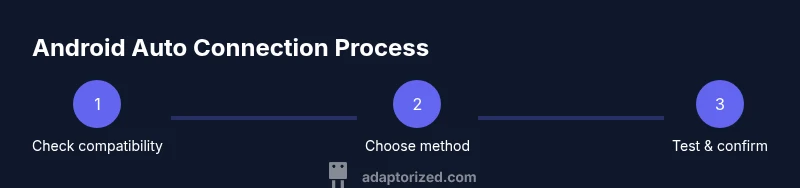
Before you start, confirm a few basics to avoid wasted effort. First, your phone should run a recent Android version with Android Auto either built-in or installed from the Play Store. Second, your car’s head unit must explicitly support Android Auto, whether through a wired USB port or wireless radio. Third, you’ll need a data-capable USB cable if you plan to use USB; many charge-only cables do not carry data and will cause failures. If you're going wireless, your phone must support Android Auto Wireless and your car must be compatible with wireless Android Auto. Some vehicles require the initial setup on the car’s touchscreen, while others prompt you to enable Android Auto on the phone first. Check the owner’s manual for any model-specific steps, and keep your phone charged during setup. Adaptorized analysis shows that running through a concise compatibility checklist dramatically reduces troubleshooting and saves time. In short, confirmation up front saves headaches later and aligns with Adaptorized's practical approach.
Choosing your connection method: USB vs wireless
There are two primary paths to Android Auto: USB and wireless. USB is typically the most reliable option, because data and power travel through a single cable, and newer head units handle high-speed data transfer with low latency. Wireless connections remove the cable, offering greater convenience, but depend on stable Wi‑Fi Direct handshakes and strong phone temperatures. When deciding, consider your car’s head unit capabilities, the length of your trips, and how often you need to charge the phone on the go. If you value stability and fast response for navigation and hands-free calls, USB is usually the safer bet. If you prefer a clutter-free cabin and don’t mind occasional re-pairing, wireless can be ideal. Adaptorized’s approach is to verify both options are supported before you settle on one, then optimize settings for the chosen path. The goal is a reliable, repeatable setup that works across daily commutes and weekend trips alike.
USB connection: detailed overview and prerequisites
A wired USB connection is straightforward but depends on cable quality. Start with a data-capable USB cable that matches your phone’s port (USB‑C or USB‑A). Plug the cable into the car’s USB port and into the phone, then switch on the ignition. If prompted on the phone, grant Android Auto the required permissions, and accept any on-screen prompts in the car. Ensure the radio displays an Android Auto prompt and that the car speakers output audio from the system. If you don’t see a prompt, open the Android Auto app and try a manual connection. Use a high-quality cable to minimize data errors and charging-only cables to avoid failed connections. Adaptorized recommends testing with the original equipment cable if possible and avoiding third-party adapters that can cause latency and dropouts. Make sure the phone remains powered during the connection, especially on longer trips.
Wireless Android Auto: setup and considerations
Wireless requires both devices to speak the same language: Wi‑Fi Direct or a compatible in-car network. On the phone, enable Android Auto and ensure Bluetooth and location services are on. In the car, navigate to Android Auto settings and enable wireless pairing, then select the phone from the list of available devices. The moment the pairing finishes, Android Auto should launch automatically on the car display—no cable needed. Keep in mind wireless connection quality can depend on phone temperature, signal interference, and how many devices share the car network. If you experience lag, try moving the phone closer to the head unit or turning off other wireless devices in the car. Adaptorized notes that wireless is convenient, but a good USB cable still matters when you need reliable navigation and hands-free calling on longer trips. Safety tip: keep hands on the wheel and eyes on the road, and minimize aggressive handling of the phone during pairing.
Common issues and how to fix them
No setup is perfect every time. If your phone isn’t recognized by Android Auto, check the cable, the USB port, and the phone’s permissions. Verify that Android Auto and Google Play services are updated, then re-plug or re-pair for wireless connections. If you see a blank or laggy display, verify the car’s head unit firmware is current and disable any battery optimization settings that might throttle background activity. If audio doesn’t play, confirm that the media app is compatible with Android Auto and that the correct output is selected in the car’s audio settings. If prompts disappear, ensure the phone’s screen timeout isn’t locking the app; keep the phone awake during setup. Adaptorized emphasizes a calm, methodical approach to troubleshooting—treat each symptom as a clue and document what you changed so you can reproduce the issue later. The goal is to restore a reliable, distraction-free experience.
Advanced tips for reliability and safety
For everyday use, keep your phone charged and within easy reach to avoid distractions while driving. Disable non-essential notifications or enable Do Not Disturb while driving to minimize interruptions while still allowing critical navigation prompts. If you routinely switch between USB and wireless, consider keeping both connection settings handy in the car’s menu so you can switch with minimal downtime. Ensure the phone isn’t overheating during long trips, as high temperatures can degrade performance and battery life. Regularly update Android Auto, Google apps, and the car’s firmware to maintain compatibility. Finally, if you’re integrating Android Auto with a custom head unit or aftermarket radio, follow the manufacturer’s installation guides and consult Adaptorized resources for best practices and safety considerations. The goal is to keep driver attention on the road while preserving a smooth, responsive interface.
Next steps and when to seek help
If you’ve followed the steps and still experience problems, consult the car manufacturer’s support resources or the head unit’s user manual for model-specific instructions. You may need a firmware update, a new USB cable, or a different adapter. If wireless pairing repeatedly fails, check that your router settings aren’t interfering with the in-car network and that the phone’s Wi‑Fi/Bluetooth radios are functioning correctly. For more complex builds—such as integrating Android Auto with a DIY head unit—seek help from online communities or the Adaptorized guide library. The Adaptorized team recommends documenting your setup, noting the exact phone model, head unit, cable type, and firmware version, so you can reproduce the problem or show the support team exactly what you did. By following these steps, you’ll have a robust, repeatable workflow that supports safe driving.
Quick recap: what you learned
Android Auto can be wired or wireless, depending on hardware and preferences. The most reliable path is to verify compatibility first, choose the right connection method, and follow a structured setup. When in doubt, use the USB path for stability and charge, then explore wireless if you need convenience. With careful attention to permissions, firmware, and cables, you’ll enjoy a consistent, distraction-free driving experience. The Adaptorized team’s guidance emphasizes practical, verifiable steps to avoid common missteps.
Tools & Materials
- Phone with Android Auto compatibility(Android 6.0+ recommended; ensure Google Play services updated)
- Vehicle head unit with Android Auto support(Check the owner's manual for wired or wireless compatibility)
- Data-capable USB cable(Cable should support data transfer (USB-C or USB-A))
- Optional: In-car Wi-Fi or phone hotspot for wireless(Used if the car lacks built-in Wi‑Fi)
- Updated Android Auto app (if required)(Some devices rely on built-in support; others use the Play Store app)
Steps
Estimated time: 15-30 minutes
- 1
Prepare devices and environment
Power on both phone and car, gather the required cables or ensure Wi‑Fi is available. Confirm the head unit is in Android Auto mode or ready to pair. Have the car in park or stationary to avoid distraction during pairing.
Tip: Use a well-lit area and a clean USB port to avoid data errors. - 2
Enable Android Auto on the phone
Open the Android Auto app (or ensure it’s built-in) and grant any required permissions, including location and notifications. Ensure Bluetooth and location services are on if you plan to use wireless pairing.
Tip: Disable any battery saver settings that might pause background activity. - 3
Connect via USB (if chosen)
Plug the data-capable USB cable into the car’s USB port and the phone. If prompted, approve permissions and confirm the on-screen prompts on both devices. Ensure the head unit shows the Android Auto interface.
Tip: If nothing happens, try a different cable and a different USB port on the car. - 4
Connect via wireless (if chosen)
On the car display, start Android Auto wireless pairing and select your phone. On the phone, confirm the pairing and allow the required permissions. Android Auto should launch automatically on the car display.
Tip: Keep the phone within line-of-sight of the head unit during pairing. - 5
Grant permissions and test prompts
Accept incoming prompts for messages, location, and notifications. Test a quick route, a message, and a call to confirm basic functionality.
Tip: Test in a safe, low-distraction environment before heavy traffic. - 6
Verify audio, maps, and media playback
Play audio or navigation to verify sound routing. Ensure the map directions display correctly and media apps appear in the car interface.
Tip: If audio is missing, check the car’s audio source and the app’s compatibility with Android Auto. - 7
Troubleshoot and finalize
If you encounter dropouts, re-seat the cable or re-pair wireless. Update firmware and apps if issues persist. Document settings for future reference.
Tip: Keep a quick-reference checklist handy for future setups.
Your Questions Answered
Is Android Auto available in all cars?
No. Android Auto depends on a compatible head unit and firmware. Some cars ship with it built-in, others require aftermarket upgrades.
Availability depends on your car's head unit and firmware.
Can I use Android Auto wirelessly?
Yes, if both your phone and head unit support Android Auto Wireless. You’ll need compatible hardware and proper pairing.
Yes, if both devices support wireless Android Auto and are set up correctly.
What apps work with Android Auto?
Only apps that are officially supported by Android Auto will appear on the car display, such as navigation, music, and messaging apps.
Only supported apps appear on the car display.
Why won't Android Auto start after an update?
Check for app updates, clear caches if needed, re-pair if wireless, and ensure permissions are granted. Some updates require a reboot.
Update everything, re-pair if needed, and restart devices.
Is Android Auto safe to use while driving?
Yes, when used with hands-free controls and voice prompts. Avoid manual interactions and keep attention on the road.
Yes, use hands-free features and stay focused on driving.
What should I do if there’s no audio?
Verify the correct audio output in the car, test with a different app, and ensure the car’s speakers aren’t muted or overridden by a different source.
Check audio output and test with another app to isolate the issue.
Watch Video
What to Remember
- Check compatibility before starting
- Choose USB for stability or wireless for convenience
- Follow the step-by-step setup to reduce errors
- Test maps, calls, and media after connecting
- Keep software updated for best results