How to Connect with a Hotspot: A DIY Guide
Learn how to connect any device to a mobile hotspot with clear, step-by-step instructions, troubleshooting tips, and best practices for speed and security. Adaptorized 2026 guide.


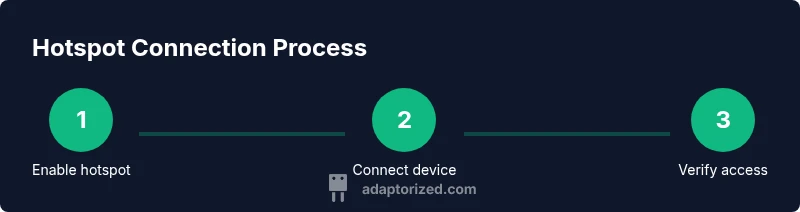
Goal: connect a device to a hotspot quickly and securely. Requirements: a hotspot-enabled device (phone, tablet, or dedicated hotspot) and another device with Wi‑Fi. Steps: enable the hotspot, note SSID and password, connect using Wi‑Fi, and confirm internet access. Troubleshooting is covered later in the guide. Keep the hotspot password secure, and limit connected devices to maintain performance.
Understanding the hotspot concept and its role in modern connectivity
A hotspot is a wireless access point created by a device that shares its cellular data connection over Wi‑Fi. This feature is common on smartphones, tablets, and dedicated portable hotspots. When you connect another device to this network, it can access the internet just like any home router would provide. For DIYers and tech enthusiasts, hotspots are a flexible solution for on‑the‑go internet, emergencies, or places with limited wired connections. Adaptorized’s 2026 analysis shows that many users rely on hotspots for mobility, remote work, and quick file transfers, especially when traditional networks are unavailable. Understanding SSID, password security, and device compatibility will help you set up reliable access fast.
Key terms you should know
- SSID: the network name broadcast by the hotspot. - Password: the security key required to join. - Band: most hotspots offer 2.4 GHz and 5 GHz options; 5 GHz is faster but shorter‑range. - Data plan: your hotspot’s data allowance, which matters for usage. - Tethering: another term for sharing a phone’s data connection via Wi‑Fi or USB.
Knowing these basics helps you troubleshoot quickly and avoid common mistakes, such as trying to connect to a hidden network or using an insecure password. The Adaptorized team recommends keeping your hotspots updated and testing connections in different environments (home, outdoors, and travel) to understand signal behavior.
What you’ll need before you start
- A hotspot‑enabled device with an active data plan. - A device you want to connect (laptop, tablet, another phone). - The hotspot’s SSID (name) and password. - A charged battery or power source, especially for travel. - Optional: a USB‑C or USB‑A adapter for devices that lack built‑in Wi‑Fi. Preparing these items reduces friction when you actually connect.
Step‑by‑step overview for typical devices
Most hotspots work similarly across devices: enable the hotspot, find the network name (SSID), enter the password, and confirm internet access. Some steps may differ slightly on iOS, Android, Windows, or macOS, but the underlying flow remains the same. If you’re using a laptop in a café or coworking space, ensure you’re connecting to a trusted hotspot and avoid exposing sensitive data over public networks. Adaptorized suggests testing your connection with a quick web page load or a ping to a known site to confirm reachability.
Tools & Materials
- Smartphone or dedicated hotspot device(Device with an active data plan and hotspot feature enabled)
- Wi‑Fi‑enabled connecting device(Laptop, tablet, or another phone to connect to the hotspot)
- Power bank or charger(Keeps hotspot powered during travel or long sessions)
Steps
Estimated time: 10-15 minutes
- 1
Enable the hotspot
Open your device settings, turn on the hotspot feature, and set a network name (SSID) and a strong password. This creates the access point others will see. Tip: choose WPA2 or WPA3 security if available.
Tip: Use a long, unique password (letters, numbers, and symbols) to deter unauthorized access. - 2
Check data plan and visibility
Verify you have sufficient data and that the hotspot is discoverable (not hidden). If the name isn’t visible, toggle the hotspot off and on again. Tip: enable the 5 GHz band if your devices support it for faster speeds.
Tip: If you’re near a data cap, monitor usage in the hotspot settings to avoid overage. - 3
Connect from the other device
On the connecting device, go to Wi‑Fi settings, select the hotspot’s SSID, and enter the password. If prompted, choose the appropriate security type (WPA2/WPA3). Tip: disable auto‑connect if you’re on a shared device.
Tip: If the network doesn’t appear, try refreshing the list or restarting the connecting device. - 4
Verify the connection
Open a browser or run a quick ping to a website to confirm internet access. If there’s no response, double‑check the password or consider reconnecting. Tip: use a quick DNS like 8.8.8.8 if you have DNS resolution issues.
Tip: Check that airplane mode is off on the connecting device. - 5
Troubleshoot common issues
If you can’t connect, try turning the hotspot off and on, forget the network on the connecting device, and reboot both devices if needed. Tip: avoid heavy background apps on the hotspot device while testing.
Tip: Always verify that the hotspot device has the latest firmware or OS updates. - 6
Optimize for speed and security
Limit the number of connected devices and, if possible, switch to 5 GHz for high‑bandwidth tasks. Keep software updated and review sharing settings to minimize exposure. Tip: place the hotspot in an open area with minimal interference for best performance.
Tip: When not in use, turn off the hotspot to save battery and data.
Your Questions Answered
How do I connect a laptop to a mobile hotspot?
On the laptop, open Wi‑Fi settings, select the hotspot’s SSID, and enter the password. If prompted, choose the correct security type (WPA2/WPA3). Once connected, test internet access by loading a webpage.
Open Wi‑Fi settings on your laptop, pick the hotspot name, enter the password, and test the connection by loading a page.
What should I do if the hotspot SSID doesn’t appear?
Ensure the hotspot is enabled and broadcasting. If needed, toggle the hotspot off and on again, or restart the hotspot and connecting device. Check if the device is too far away and reduce interference.
Make sure the hotspot is on and broadcasting. If you don’t see it, turn it off and on or move closer.
Can I use a hotspot while traveling internationally?
Yes, but check data roaming costs and local plans. Some devices let you download offline maps or content to reduce data use; monitor usage to avoid overages.
You can, but watch roaming charges and data limits. Consider offline options when possible.
What is a good password for a hotspot?
Use a long alphanumeric password with symbols and avoid common phrases. Combine random words or a passphrase to maximize security without sacrificing memorability.
Choose a long, complex password with letters, numbers, and symbols.
How many devices can connect to a hotspot at once?
Most hotspots support multiple connections, but performance declines as more devices join. Limit to essential devices and monitor bandwidth.
Depends on your device; more connections can slow speeds, so limit active devices.
Is it safe to use a hotspot over public networks?
Hotspots you control are generally safer than public Wi‑Fi, but stay vigilant: avoid accessing sensitive accounts and use VPNs for extra privacy.
Hotspots you control are safer than public Wi‑Fi, but still practice caution and consider a VPN.
Watch Video
What to Remember
- Identify the hotspot name (SSID) and password first.
- Connect via your device’s Wi‑Fi settings and verify access.
- Use strong security and limit connected devices.
- Monitor data usage to avoid overage charges.
- Place the hotspot for optimal signal and speed.