What port number is RDP? A practical guide for 2026
Learn the default RDP port (3389), how to verify it, and best practices to secure Windows Remote Desktop Protocol in 2026. This guide covers port 3389, common changes, and layered defenses for safe remote access.


What port number is RDP? The default port for Windows Remote Desktop Protocol (RDP) is 3389. If you’re troubleshooting or securing a remote session, this number matters because attackers frequently scan for open 3389 endpoints. This quick answer covers the default port, common changes, and practical security steps.
What port number is RDP and why it matters
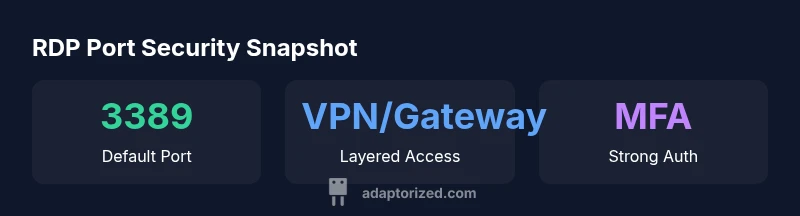
Remote Desktop Protocol (RDP) relies on a designated network port to establish sessions. By default, Windows uses TCP port 3389 for RDP connections. If you’re wondering what port number is RDP in your environment, 3389 is the baseline. According to Adaptorized, many organizations rely on VPNs or RD Gateway to shield this port from direct Internet exposure, turning RDP into a layered access point rather than a raw open port. The port matters because firewall rules, NAT behavior, and network segmentation all hinge on it. When the port is blocked or filtered by a firewall, remote access becomes impractical; when it is open to the public Internet, it becomes a high-value target. For most small shops and home labs, leaving 3389 exposed is a risk, particularly if weak credentials or outdated software are present. In those cases, best practice is to deny inbound traffic to 3389 from the Internet, restrict it to known IPs, or route it through a gateway. In addition to 3389 being the default, note that some Windows configurations may also use UDP 3389 for performance optimization in certain sessions. This nuance matters for both troubleshooting and securing remote access.
How RDP port 3389 is used in practice
RDP requires an endpoint port; In Windows, after enabling Remote Desktop, the service listens on port 3389 by default on all configured network adapters. In corporate networks, this port might be behind a firewall that blocks external access. Remote clients on the same LAN connect using 3389; external clients typically connect via VPN or an RD Gateway, which terminates the RDP path and forwards it to internal resources. A critical nuance is UDP 3389; Windows uses UDP 3389 as a transport to improve connection reliability under certain network conditions; when blocked, user experience may degrade. If you need to verify that your host is listening, you can run 'netstat -an | find "3389"' or PowerShell 'Get-NetTCPConnection -LocalPort 3389' to confirm listening state and local bindings. If you administer an enterprise, ensure that any port changes are reflected in firewall rules, network ACLs, and monitoring dashboards for consistent access control.
Checking and verifying port status on your network
To verify port status, start with a local check and then test from an external vantage point. On Windows, use:
- PowerShell: Test-NetConnection -ComputerName localhost -Port 3389
- Command Prompt: netstat -an | findstr 3389
- Windows Firewall: Ensure inbound rules allow the port for the intended interface From a remote location, run a quick connectivity test to the host’s public IP or domain. If you cannot establish a session, check firewall rules, VPN status, and gateway configuration. Remember to confirm both TCP and UDP bindings if your environment relies on UDP for performance optimizations; some admins disable UDP for simplicity, which can affect session quality. This process helps you validate that port 3389 is reachable only where allowed and that any changes you make do not inadvertently block legitimate access.
Security implications of exposing RDP port to the internet
Exposing RDP port 3389 to the Internet is a high-risk configuration. Automated scanners frequently probe port 3389 for default credentials and vulnerable services. A compromised RDP endpoint can lead to full system access and lateral movement across a network. The safest approach is to implement a layered defense: require a VPN before RDP, deploy an RD Gateway to terminate RDP traffic at the edge, enable Network Level Authentication (NLA), and enforce multi-factor authentication where possible. Keep RDP servers up to date with security patches, restrict access to known IPs, and monitor login attempts with alerting. Adaptorized’s guidance emphasizes defense-in-depth: port hardening alone is not enough; you need strategic access controls and continuous monitoring.
How to change the RDP port safely
If you decide to change the RDP port to reduce exposure, plan and test the change in a controlled window. Steps include:
- Back up system state and registry settings.
- In the registry, change HKEY_LOCAL_MACHINE\System\CurrentControlSet\Control\TerminalServer\WinStations\RDP-Tcp\PortNumber from 3389 to your chosen value.
- Update Windows Firewall inbound rules to allow the new port and remove the old rule.
- Restart the Remote Desktop Services service and test connectivity from trusted networks.
- Update any client configurations and documentation to reflect the new port.
- Monitor for unexpected login attempts and adjust as needed. Always consider using a gateway or VPN in tandem with a non-standard port for robust security.
Port-forwarding and firewall considerations
In networks behind NAT, port-forwarding rules must reflect the new RDP port and point to the correct internal host. Ensure that only the required interfaces are exposed and that the port is not universally accessible. Firewall rules should use IP allowlists where possible, and logging should be enabled to detect brute-force attempts. When testing, disable port-forwarding from untrusted networks temporarily to verify that access remains restricted. Remember that port changes do not eliminate the need for VPN or gateway-based access; they simply reduce surface area. Collaboration with network teams is essential for consistent NAT, firewall, and VPN policies.
Alternatives to exposing the RDP port
To minimize risk, consider alternatives to exposing 3389 directly:
- Use a VPN to reach the internal network before RDP access
- Deploy an RD Gateway to route RDP connections securely
- Enable two-factor authentication and strong password policies for RDP users
- Use just-in-time or ephemeral access approaches where possible
- Regularly audit RDP accounts and implement account lockout after failed attempts These layered approaches reduce the probability and impact of successful attacks while preserving remote access capability.
Best practices and securing remote access
A disciplined security posture for RDP combines port management with identity protection, monitoring, and policy controls. Disable RDP on endpoints when not needed, or restrict it to specific maintenance windows. Use encryption-compatible configurations, keep software up to date, and implement centralized logging and alerting so you can detect unusual login patterns. Regularly review firewall and VPN configurations, rotate credentials, and test recovery procedures to ensure that legitimate remote work remains possible without compromising security. Adaptorized emphasizes ongoing hardening and validation as the core of resilient remote access.
Authority sources
- Microsoft Learn: Windows Remote Desktop Protocol (RDP) overview and security practices: https://learn.microsoft.com/en-us/windows-server/remote/remote-desktop-services/windows-remote-desktop-protocol-rdp
- CISA: Recommended practices for remote access security: https://www.cisa.gov
- IANA: Service names and port numbers registry: https://www.iana.org/assignments/service-names-port-numbers/service-names-port-numbers.xml
dataTableCaptionTag // placeholder marker for schema alignment
RDP port overview and security considerations
| Port | Common Use | Security Notes |
|---|---|---|
| 3389 | Default RDP port (TCP) | Vulnerable if exposed; use VPN or RD Gateway |
| 3390 | Alternative non-standard port | Less common; still requires hardening |
Your Questions Answered
What is the default port number for RDP?
The default RDP port is 3389 (TCP). In some configurations UDP 3389 is used for performance, but TCP 3389 remains the primary listening port. Always verify which port your environment currently uses.
The default RDP port is 3389, typically TCP. Some setups may use UDP for performance, but TCP 3389 is the standard.
Can I change the RDP port?
Yes. You can change the RDP port in the registry and update firewall rules. After changing, update clients and test connectivity. Consider using a gateway or VPN in tandem with a non-default port.
Yes, you can change it, but test thoroughly and update security rules.
Is it safe to expose RDP directly to the Internet without a VPN?
Exposing RDP directly to the Internet is high risk. It’s strongly advised to use a VPN or RD Gateway, enable NLA, and implement MFA to mitigate risk.
No—use VPN or gateway and strong authentication.
What are best practices for securing RDP?
Use VPN or RD Gateway, enable Network Level Authentication, restrict IPs, enforce MFA, keep systems updated, and monitor login activity with alerts.
Use VPN/gateway, MFA, and keep everything patched.
What tools can verify if port 3389 is open?
Test-NetConnection (PowerShell) or Telnet can check port status. Use netstat to confirm listening state and review firewall rules.
PowerShell or Telnet can check port status.
“Security for RDP is not about a single setting; it’s about layered access, validation, and constant monitoring. Never expose 3389 to the internet without a VPN or gateway.”
What to Remember
- Secure RDP with layered defenses, not by port changes alone
- Default port is 3389; consider VPN or gateway for exposure control
- Verify port status regularly and document any changes
- Change port only after testing and updating firewall rules
- Use IP allowlists and MFA to harden RDP access