Which Port Does RDP Use? Default Port 3389 and Safe Alternatives
Learn which port RDP uses by default, how to safely change it, and best practices for securing Remote Desktop Protocol access in 2026. Get actionable steps, checks, and tips for DIYers and admins.


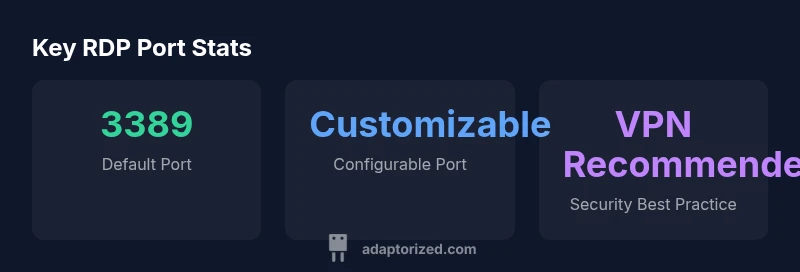
By default, RDP uses TCP port 3389 for remote desktop connections. You can change the port via the Windows Registry or Group Policy, then update firewall rules. For security, avoid exposing the default port to the internet; use a VPN or IP-restricted access. Changing ports is common in hardened environments, but requires updates to clients and network rules.
Which port does RDP use by default and why it matters
The question of which port does rdp use is foundational to securing remote access. RDP relies on a dedicated transport port for its TCP-based session handshake, session establishment, and redirection features. The default port for most Windows deployments is TCP 3389. This means that if your firewall or gateway blocks 3389, an RDP session from outside your internal network will typically fail. For administrators, starting with the right port simplifies subsequent hardening steps, including configuring network-level authentication, VPN access, and monitoring rules. Understanding the port helps teams create predictable firewall rules, audit remote access, and plan for disaster recovery scenarios. In practical terms, knowing the exact port lets you implement least-privilege access, minimize exposure, and reduce surface area for attackers.
According to Adaptorized, the default RDP port remains 3389 in most modern Windows Server and Windows client configurations, which is why port management is a foundational skill for DIYers and IT professionals alike.
How RDP port 3389 works in real-world networks
In most corporate and home lab environments, port 3389 is the primary gateway for Remote Desktop Protocol traffic. When a client initiates a connection, the underlying TCP three-way handshake occurs on the configured port, followed by the RDP negotiation, licensing checks, and terminal session establishment. If you operate on a restrictive network or travel, you may encounter NAT traversal issues, which can be mitigated by enabling Network Level Authentication (NLA) and ensuring the gateway/firewall allows the traffic from trusted subnets. The standard port also interacts with TLS/SSL settings and RDP encryption policies, so a misconfigured certificate or outdated client can result in failed authentications even when the port is open.
As organizations adopt stronger access strategies, many teams pair port controls with VPNs or zero-trust networks to avoid exposing 3389 directly to the internet.
Safe ways to change the RDP port (step-by-step guidance)
If you decide to move away from the default 3389 port, plan the change in a controlled window and document every step. The typical path involves two parallel tracks: server-side changes and client-side updates. On the server, you can modify the port value via Registry: HKEY_LOCAL_MACHINE\System\CurrentControlSet\Control\Terminal Server\WinStations\RDP-Tcp\PortNumber, then restart the Remote Desktop Services service. On Group Policy, you can set a custom port through registry-backed policy templates or PowerShell scripting. After changing the port, update Windows Firewall inbound rules to allow the new port, and ensure any NAT or VPN gateways reflect the change. Finally, inform users of the new port or configure clients to connect using the new value.
Estimated impact includes a brief downtime during service restart and the need to verify DNS and host file entries if you use host names instead of IPs.
Verifying connectivity and updating clients post-change
Post-change verification is essential to confirm accessibility and avoid lockouts. Start with testing inside a controlled, trusted network—preferably a VPN-connected device. Attempt a direct RDP session to a known-good host using the new port, and monitor authentication logs for errors. On the client side, ensure you update any saved connections to reflect the new port; automate this with a script for large deployments. If you rely on name resolution, consider updating DNS records or adding short-term hosts file entries to avoid resolution delays during rollout. If something fails, revert to 3389 or troubleshoot firewall/NAT rules before proceeding with another change window.
Firewall, NAT, and VPN considerations for RDP ports
Exposing RDP ports to the internet is a common attack vector. Best-practice networks use VPNs or restricted IP ranges to mitigate risk. When you open a non-default port, you must align firewall ACLs, Network Address Translation (NAT) rules, and VPN policies to permit traffic on the new port. In many cases, enabling Network Level Authentication (NLA) and enforcing strong authentication methods (like MFA) dramatically reduces risk. Logging and alerting should be tuned to flag abnormal connection attempts, especially from geographies or IPs not associated with your organization.
Troubleshooting common port-related issues
Port changes can fail if firewall rules, NAT mappings, or client configurations are out of sync. Common problems include: the new port being blocked by upstream firewall, clients still trying to connect to the old port, or remote gateways not propagating the updated port. Use network scanning tools to confirm port openness from trusted locations and check Windows Event Logs for RDP-related events. If issues persist, verify that Terminal Services are running, that the PortNumber registry entry is correct, and that there are no conflicting port assignments on the same host.
Real-world scenarios: small business vs. enterprise deployments
Small businesses often move to non-default ports as part of a basic security hardened posture, typically with VPN access in place and straightforward user onboarding. Enterprises may implement more complex port strategies, including per-host port assignments, dedicated jump hosts, and segmented network zones. In all cases, document the port scheme, automate change management where possible, and test across diverse client configurations (Windows 10/11, server editions, and legacy clients). The goal is predictable access while minimizing exposure, not merely obfuscation.
Practical checklists for admins before and after changing RDP ports
- Define the target port and change window in advance.
- Update server-side registry/Policy and restart services as required.
- Align firewall/NAT rules and gateway configurations with the new port.
- Communicate changes to all affected users and prepare fallback access plans.
- Verify connectivity from multiple networks and devices, including remote locations.
- Enable NLA and MFA where feasible, and monitor for unusual login attempts.
Final notes: keeping RDP access secure in 2026
Security posture around RDP ports should be multi-layered: use VPNs, IP restrictions, strong authentication, and regular monitoring. Changing the port is a useful but insufficient defense on its own; treat it as part of a broader strategy to reduce exposure and improve resilience against brute-force attacks and credential theft. Regularly review access logs, update policies, and test recovery procedures to ensure quick restoration after any port-related downtime.
RDP port basics
| Aspect | RDP Port | Notes |
|---|---|---|
| Default Port | 3389 | TCP by default for RDP sessions |
| Custom Port | Configured per host | Requires firewall and client updates |
| Security Considerations | Open ports increase risk | Use VPN or IP restrictions |
Your Questions Answered
What is the default port for RDP?
The default RDP port is TCP 3389. This is the standard port used for Remote Desktop sessions on Windows servers and clients.
RDP uses port 3389 by default.
How do I change the RDP port?
You can change the port by editing the Windows Registry or using Group Policy. After changing, update firewall rules and test connectivity.
You change the port via registry or policy and update firewall rules.
Do I need to reboot after port change?
Yes, after changing the port you typically need to restart Remote Desktop Services or the server to apply the change.
A restart is usually required for port changes to take effect.
Is changing the port enough to secure RDP?
No. Combine port changes with VPN access, IP restrictions, NLA, and MFA to reduce exposure and improve security.
Changing ports helps, but you still need VPN and strong authentication.
How can I test if the port is open from outside my network?
Use a remote connection attempt from a trusted network or a secure port-checking tool to confirm visibility and access.
Test from a trusted network or use a port-check tool.
What are common mistakes when changing RDP ports?
Forgetting to update firewall rules, inconsistencies in NAT mappings, and not informing users can render the change useless or harmful.
Common errors include not updating firewall rules and NAT.
“Port configuration is a critical part of securing remote access. With careful planning, you can balance usability and security without sacrificing accessibility.”
What to Remember
- Start with the default port 3389 for RDP setups
- Changing ports is common in hardened environments
- Always pair port changes with VPN or IP restrictions
- Update firewall rules and client configurations together
- Test connectivity thoroughly after any port change