Where to Connect Internet Router: A Practical Placement Guide
A practical, step-by-step guide on where to connect internet router, how to place it for best coverage, and how to configure your home network for reliability and security.


You’ll typically connect the router to your modem using an Ethernet cable, then place the router in a central, elevated spot for best coverage. Start by confirming modem-to-router wiring, power on both devices, and access the router’s admin page to configure Wi‑Fi. This foundational setup improves reliability and reduces dead zones.
Understanding the Setup: Modem vs Router and Why Placement Matters
If you’re wondering where to connect internet router, the best starting point is near your service modem, in a central, elevated spot. According to Adaptorized, placement is the single most impactful factor for reliable coverage across rooms. A well-placed router minimizes walls and furniture barriers that absorb or scatter signals, helping your devices maintain steady connectivity. In practice, think of your router as a distribution hub that needs a clear line of sight to the majority of living spaces. The modem sits at the edge of your home network, while the router creates the wireless network that your devices join. Understanding this distinction helps you optimize both coverage and performance from day one.
Mapping Your Space: Typical Wiring Scenarios
Every home layout is different, but there are common scenarios that affect where you connect internet router. In open-plan spaces, a central high spot often provides even coverage to multiple rooms. In multi-story homes, placing the router on the middle floor reduces stair-step dead zones. Apartments with compact layouts benefit from higher placements away from thick walls. For each scenario, consider existing outlets, the location of the modem, and potential sources of interference like microwaves and cordless phones. By inspecting a floor plan and identifying high-traffic areas, you can map where your router should live for optimal signal distribution.
Choosing the Optimal Location: Central, Elevated, and Away from Interference
The goal is a central, elevated location that minimizes obstacles. Avoid cramped cabinets, basements, or behind large metal appliances, which can dramatically reduce range. Elevation matters: higher positions help signals reach ceilings and adjacent rooms. Keep the router away from heavy electronics that emit electromagnetic noise. If possible, place it roughly halfway between rooms that require the strongest signal, and near the center of your primary living area. Adaptorized’s guidance emphasizes open space and ventilation as practical defaults for most homes, reducing the need for extensive reconfiguration later.
How to Physically Connect: Modem to Router
Begin by powering down both devices to avoid surges. Connect an Ethernet cable from the modem’s LAN port to the router’s WAN/internet port. If your modem and router are close, you can route the cable along baseboards or behind furniture; use clips or ties to keep it tidy. Once connected, power on the modem first, then the router. Wait for the router’s status lights to indicate a stable internet connection, which signals the internal firmware can initialize correctly. This physical wiring step is the backbone of your home network.
Power, Cables, and Ventilation: Setting Up the Hardware
Ensure the router sits in a well-ventilated spot with ample airflow. Avoid stacking devices or covering vents, which can overheat hardware and degrade performance. Use a surge-protected power strip if you must share outlets, but do not overload it. Label cables so you can identify the WAN, LAN, and power lines during setup or future troubleshooting. Good cable management reduces accidental unplugging and keeps your setup accessible for firmware updates and reconfiguration.
Accessing the Router Admin Panel: First Login and Basic Settings
After powering up, connect a computer or phone to the router’s wireless network or via an Ethernet cable. Open a web browser and use the router’s default gateway address found in the manual to access the admin page. Log in with the default credentials and immediately change them to a strong, unique password. Navigate to the wireless settings section and set a clear SSID for your network, while avoiding personal identifiers. If your router supports a dedicated app, consider using it for guided setup and security recommendations.
Configuring Wi‑Fi: SSID, Password, and Security
Create a strong, unique Wi‑Fi password and select WPA3 or WPA2 as the encryption standard. If your devices support it, enable a guest network to isolate visitors from your primary devices. Choose a non-identifiable SSID to protect privacy, and disable WPS if it’s available to reduce attack vectors. Position the primary SSID in a way that avoids overcrowding the same channel across multiple nearby networks. Regularly review connected devices to remove unfamiliar items and strengthen access control.
Extending Coverage: Mesh, Extenders, and Access Points
If you notice slowdowns in distant rooms, wired backhaul or mesh systems can significantly improve performance. A mesh network uses multiple, coordinated nodes to blanket large homes with consistent coverage, reducing dead zones. Extenders can help, but they often halve network speed in practice; consider placement near the edge of the main network rather than in the far room. If you have a large house with thick walls, planning a multi‑node layout that places nodes on separate floors can minimize interference and maintain stable speeds.
Cable Management: A Neat, Safe Setup
Keep cables organized and out of walking paths with clips, cable sleeves, or adhesive ties. Route Ethernet and power cables separately when possible to avoid interference. If you must bend cables, avoid sharp angles that can degrade signal integrity, especially for Ethernet is not strictly necessary but recommended for long runs. A clean setup reduces the risk of accidental damage and helps future upgrades or reconfigurations.
Common Pitfalls and How to Avoid Them
Common mistakes include placing the router behind furniture, in corners, or inside closets. Such placements create dead zones and complicate troubleshooting. Relying on the default password and unchanged firmware leaves the network vulnerable. Regularly checking for firmware updates and enabling automatic updates keeps security current. By addressing these issues early, you ensure a robust home network with minimal frustration.
Real-World Scenarios: Apartments, Multi‑Story Homes, and Home Offices
In apartments, vertical placement often yields good results due to limited horizontal space. In homes with multiple floors, mid‑level placements can reduce cross‑floor dead zones, while additional nodes may be necessary for farthest rooms. For home offices with heavy device usage, a dedicated access point or wired backhaul can maintain stable speeds for video calls and large file transfers. Regardless of your space, start with a central location and adjust based on signal tests across rooms.
The Adaptorized Perspective: Practical Recommendations
Based on Adaptorized analysis, starting with a central, elevated placement and a clean wired path from modem to router lays a strong foundation. From there, tailor the setup to your floor plan with a mesh or one or two additional access points if needed. Document settings, keep firmware current, and reassess after major renovations or new device purchases. This practical approach helps DIYers and makers achieve reliable connectivity with minimal trial and error.
Tools & Materials
- Modem(ISP-provided device with a coax/phone line or gateway)
- Router(Wi-Fi router with at least one Ethernet WAN port)
- Ethernet cable (Cat5e/Cat6)(1–2 meters recommended for clean routing)
- Cable clips or zip ties(For tidy routing along walls or furniture)
- Power strip with surge protection(Use if outlets are spread apart; ensure ventilation)
Steps
Estimated time: 45-60 minutes
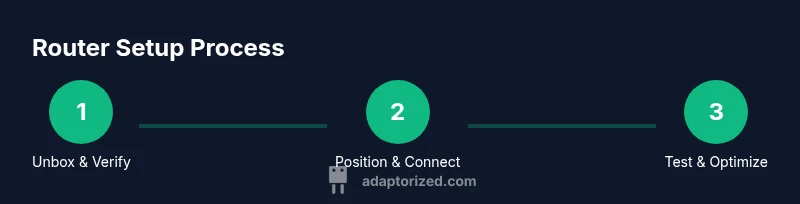
- 1
Unbox and verify hardware
Unbox the modem and router, confirm you have power adapters and the required cables, and compare model numbers with your purchase. This prevents missing parts that could stall setup. Keep the manuals handy for default login details.
Tip: Lay out components on a non-static surface and check for any visible damage before connecting. - 2
Choose a central location
Identify a central, elevated spot in your home that minimizes walls and large appliances between the router and main living areas. This position helps maximize coverage across rooms and floors. Avoid closets and enclosed cabinets.
Tip: Use a level surface and avoid hiding the router behind TVs or metal fixtures. - 3
Place both devices and verify proximity
Position the modem near the main service line and close to a power outlet. Place the router within line of sight of the majority of spaces you want to cover. Ensure there are no dense obstacles right in front of the devices.
Tip: Leave a little space around devices for airflow. - 4
Connect WAN from modem to router
Plug one end of the Ethernet cable into the modem’s LAN port and the other end into the router’s WAN/internet port. This establishes the path for your internet connection to be shared wirelessly.
Tip: Use the shortest practical cable to reduce clutter. - 5
Power up and check indicators
Power on the modem first, wait for it to boot, then power on the router. Check the LED indicators; a stable connection typically shows the WAN and Wi‑Fi lights active. If not, reseat cables and restart devices.
Tip: If lights indicate an issue, consult the manual’s LED status chart. - 6
Access the admin panel
On a computer or mobile device, connect to the router's network and open the admin page using the gateway address from the manual. Log in with the default credentials and begin personalizing settings.
Tip: Change login credentials immediately after first access. - 7
Configure Wi‑Fi: SSID and password
Set a clear SSID for easy identification and create a strong password. Prefer WPA3 if available; otherwise WPA2 with AES. Avoid personal details in the SSID.
Tip: Record credentials in a secure password manager. - 8
Enable security features
Turn on firewall features if offered and disable WPS to reduce vulnerability. Keep the firmware up to date automatically if the option exists.
Tip: Regularly review connected devices for unfamiliar entries. - 9
Update firmware
Check for firmware updates and apply them if available. Updated firmware helps fix bugs and improves security and performance.
Tip: Back up current configuration before applying updates. - 10
Set up a guest network
Create a separate guest network to keep visitors from accessing your main devices. Apply a different password and disable guest access to sensitive devices when not needed.
Tip: Limit guest network bandwidth if supported to preserve main network performance. - 11
Test coverage and adjust
Test signal strength in the rooms where you use devices most. Move the router slightly or reposition antennas if needed to improve weak spots.
Tip: Use a smartphone to walk around and identify dead zones before finalizing placement. - 12
Document and maintain
Save all login details, network names, and password policies in a secure location. Schedule periodic checks for firmware updates and review connected devices annually.
Tip: Mark the setup date on a note to track when changes were made.
Your Questions Answered
What is the difference between a modem and a router?
A modem connects your home to the internet service, while a router distributes that connection to devices and creates your home Wi‑Fi network. The router can also include features like guest networks and firewall settings.
A modem brings the internet to your home; the router shares it with devices.
Where should I place my router for best coverage?
Place the router in a central, elevated, open area away from large metal appliances and walls that can block signals. Avoid placing it in a closet or behind furniture.
Put the router in a central, elevated spot with few obstructions.
Is it necessary to run Ethernet cables to every room?
Not usually. Many homes rely on Wi‑Fi or mesh systems. Ethernet backhaul can improve performance for high‑demand devices or back rooms.
You don’t need cables in every room; Wi‑Fi or mesh usually works fine.
How can I tell if my router is connected to the internet?
Check the router’s status lights and access the admin page to confirm an active WAN connection. Running a quick speed test can also verify connectivity.
Check the lights and admin page to confirm internet access.
What security steps should I take after setup?
Change the default admin password, enable WPA3 or WPA2 with AES, and keep firmware updated. Disable WPS if available.
Change the login, enable strong Wi‑Fi security, and update firmware.
What should I do if Wi‑Fi is slow or drops?
Reposition the router, reduce interference from devices, check for firmware updates, and consider a mesh system if problems persist.
Relocate the router, minimize interference, and update firmware; add a mesh if needed.
Watch Video
What to Remember
- Place the router centrally and elevated for best coverage
- Always connect modem to router with a reliable Ethernet cable
- Secure the network with strong passwords and current firmware
- Consider mesh or additional access points for larger spaces
- Document settings for easy troubleshooting later