Why Is My PS5 Connection Bad? A Troubleshooting Guide
Is your PS5 losing connection? This practical troubleshooting guide covers quick fixes, network testing, and safe tweaks to stabilize Wi-Fi, Ethernet, and reduce lag for better online gaming.


Here’s the quick fix: PS5 connectivity problems are most often caused by a weak wireless signal, router congestion, or a faulty Ethernet setup. Start by testing a wired connection if possible, rebooting your router, and verifying your internet speed. If the problem persists, tweak DNS or MTU and consider QoS to prioritize gaming traffic.
Quick peek at the most common PS5 connection problems
If you're wondering why is my connection so bad on ps5, the answer frequently comes down to signal quality and network congestion. In many homes, the PS5 shares airwaves with smartphones, laptops, and smart devices, creating interference that translates to latency spikes and stuttering during online play. The Adaptorized team has found that these issues often hide in plain sight: a tired router, a crowded home network, or a marginal Ethernet setup can all simulate a 'bad connection' on the PS5. In this section we’ll outline the most frequent culprits and how to test for them. We’ll also explain how to distinguish a pure signal issue from a configuration mistake, so you can apply the right fix quickly. This is where a methodical approach starts paying off—and where urgent, practical steps can restore your gaming experience.
How PS5 connects to different networks
The PS5 can connect via Wi‑Fi (2.4 GHz and 5 GHz) or through a wired Ethernet cable. Wireless connections are convenient but can suffer from interference, distance, and router overload; Ethernet provides reliability and lower latency when you have a good cable and clean line to the router. Understanding NAT types (Open, Moderate, Strict), MTU values, and DNS settings helps you optimize the PS5’s network profile. For most players, a stable wired Ethernet or a well-optimized home Wi‑Fi network solves the majority of latency and disconnect issues. The key is isolating variables: is the problem inside your LAN or external to it? The guidance here aims to help you answer that quickly.
Step 1: Quick checks you can do in minutes
Start with the simplest checks to validate the baseline. Power cycle your PS5, router, and modem; unplug for 60 seconds, then plug back in. Run a test internet connection on the PS5: Settings > Network > Test Internet Connection and note reported speeds and latency. If the PS5 shows poor results, try moving the console closer to the router or replacing the Wi‑Fi channel. Ensure there are no significant devices streaming or downloading in the background. A single, consistent baseline speeds up the rest of the troubleshooting.
Step 2: Deep dive into router and network settings
Next, dive into the router’s settings. Check that the PS5 is on the correct network band (2.4 GHz vs 5 GHz) and consider temporarily disabling QoS to test raw throughput. Verify wireless security (WPA2/WPA3) and ensure MAC filtering is not blocking the PS5. If you’re on Wi‑Fi, switch to a fixed channel with minimal interference (e.g., channel 6 or 11 on 2.4 GHz) and enable band steering if supported. For wired setups, inspect the Ethernet port, swap the cable with a known-good one, and test another port on the router if available.
Step 3: Testing latency and throughput
Run a couple of controlled tests to measure latency and packet loss. Use the PS5’s built-in network test, then measure latency to your ISP’s gateway using a PC or smartphone on the same network with a speed test tool. Compare results over several minutes to check for jitter or sudden spikes. If latency consistently climbs during specific activities (like large downloads or streaming), you may have a congestion issue on the router or ISP side. This step helps you decide whether you should pursue QoS tweaks or contact your provider.
Step 4: Compare wired vs wireless and optimize
If you can, connect the PS5 with an Ethernet cable directly to the modem or router. A wired connection eliminates most Wi‑Fi interference and reduces latency. If you must stay on Wi‑Fi, position the router higher, in the open, away from walls and metal surfaces, and use a direct line of sight when possible. Consider upgrading to a newer router with better MU‑MIMO and beamforming if you consistently hit latency under load. When the connection improves on wired but not on wireless, the issue is almost always related to signal quality or interference.
Step 5: DNS, MTU, and advanced tweaks
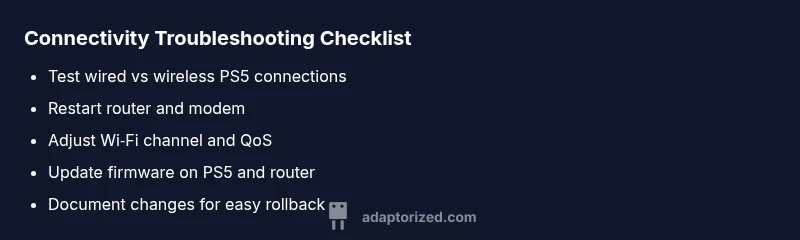
Some players notice improvements by changing DNS servers (e.g., to a reputable fast public DNS) and adjusting MTU settings to reduce packet fragmentation. On most home networks, leaving MTU at the default (1500) works well, but you can experiment with small reductions (1492 or 1472) if you’re seeing fragmentation. If your router supports it, enabling a simple form of QoS that prioritizes gaming traffic can lower latency during busy periods. Remember to document each change so you can revert if needed.
Step 6: When to seek professional help and how to prevent future issues
If you’ve exhausted the common fixes without a stable result, consider professional help from your ISP or a network technician who can test the line for packet loss, jitter, and upstream problems. For ongoing improvements, establish a routine of firmware updates for both PS5 and the router, keep cables tidy and labeled, and set a predictable home.network environment that minimizes interference during peak gaming times. Proactive maintenance is your best defense against repeat issues.
Steps
Estimated time: 40-60 minutes
- 1
Verify PS5 network status
Power cycle the PS5, router, and modem. Run Settings > Network > Test Internet Connection and record speeds and latency. Compare wired vs wireless results to establish baseline.
Tip: Document results for future reference. - 2
Check physical connections
Inspect cables for wear; reseat Ethernet, if using Wi‑Fi, ensure the console has a stable signal. Move devices away from microwaves and dense metal obstacles.
Tip: Replace frayed cables immediately. - 3
Test speeds on other devices
Use a computer or phone on the same network to run a speed test and ping check. Note if the PS5 lags while other devices are active.
Tip: If others are consuming bandwidth, pause them during testing. - 4
Tune router settings for gaming
Disable or adjust QoS, choose a cleaner channel, and confirm PS5 is on the desired band. Re-run the PS5 Internet test after changes.
Tip: Turn off WPS for security and stability. - 5
Try wired connection
Connect the PS5 directly to the router with a known-good Ethernet cable. If performance improves, the issue is likely Wi‑Fi related.
Tip: Keep the route to the console short and direct. - 6
Experiment with DNS/MTU
Temporarily set DNS to a fast public option and adjust MTU in small increments; test after each change.
Tip: Recheck baseline after each tweak. - 7
Escalation
If instability persists, contact your ISP or router manufacturer for advanced diagnostics; consider a new router or mesh system.
Tip: Ask for line quality tests and potential outages in your area.
Diagnosis: PS5 shows buffering, disconnects, or high ping during online play
Possible Causes
- highWeak Wi-Fi signal or interference from other devices
- highRouter congestion or ISP throttling
- mediumPS5 network settings misconfigured or DNS issues
- lowFaulty Ethernet cable or port problems
- lowOutdated firmware on PS5 or router
Fixes
- easyRestart router and modem; power cycle the network hardware
- easyTest wired connection with a known-good Ethernet cable
- mediumUpdate PS5 system software and router firmware
- mediumAdjust router channel, separate 2.4GHz/5GHz bands, and enable QoS for gaming
- mediumChange DNS to a fast public DNS and test MTU settings
- hardIf problems persist, contact ISP or router manufacturer for advanced diagnostics
Your Questions Answered
Why is my PS5 connection so unstable?
Unstable PS5 connections are usually caused by weak Wi‑Fi signals, congestion on your router, or faulty cables. Start with the simplest fixes: reboot devices and test a wired connection if possible. If instability persists, adjust router settings or consult your ISP.
Unstable PS5 connections are usually weak Wi‑Fi, congestion, or bad cables. Reboot devices, try wired, then adjust router settings or contact your provider.
Should I use Wi‑Fi or Ethernet for PS5 gaming?
Ethernet provides the most stable and lowest latency for PS5 gaming. If you must go wireless, optimize your Wi‑Fi by placing the router high and clear, using a 5 GHz band when possible, and reducing interference.
Ethernet gives the best stability; if you must go wireless, optimize your Wi‑Fi by placement and band choice to reduce interference.
What is QoS and should I enable it on my router?
Quality of Service (QoS) prioritizes gaming data over other traffic on your network. Enable it only if you understand how to configure it to avoid starving other devices of bandwidth.
QoS prioritizes gaming data; enable it carefully to avoid unintended effects on other devices.
My PS5 shows ‘NAT Type 3’. What does that mean?
NAT Type 3 is a strict configuration that can limit multiplayer options. Try opening ports or enabling DMZ for your PS5, or set a properly configured Open NAT on the router.
NAT Type 3 is a strict setup that can hinder multiplayer. Open ports or use DMZ for better access.
How often should I check for firmware updates?
Check for firmware updates monthly or whenever you notice unusual behavior. Updates can fix bugs, improve stability, and enhance security for both PS5 and router.
Check for updates monthly or when you notice issues; updates improve stability and security.
When should I call my ISP for help?
Call your ISP if speed tests show consistent bottlenecks or packet loss. A technician can test the line for latency, jitter, and outages that a consumer can't resolve at home.
Call your ISP if you see persistent bottlenecks or packet loss; a technician can test the line.
Watch Video
What to Remember
- Prioritize a wired connection when possible
- Test baseline speeds and latency before changes
- Document each adjustment for easy reversion
- Keep firmware updated on PS5 and router
- Isolate interference and consider a better router or mesh system